Best PC for Blender in 2026: Workstation Specs for Modeling, Rendering, and Animation

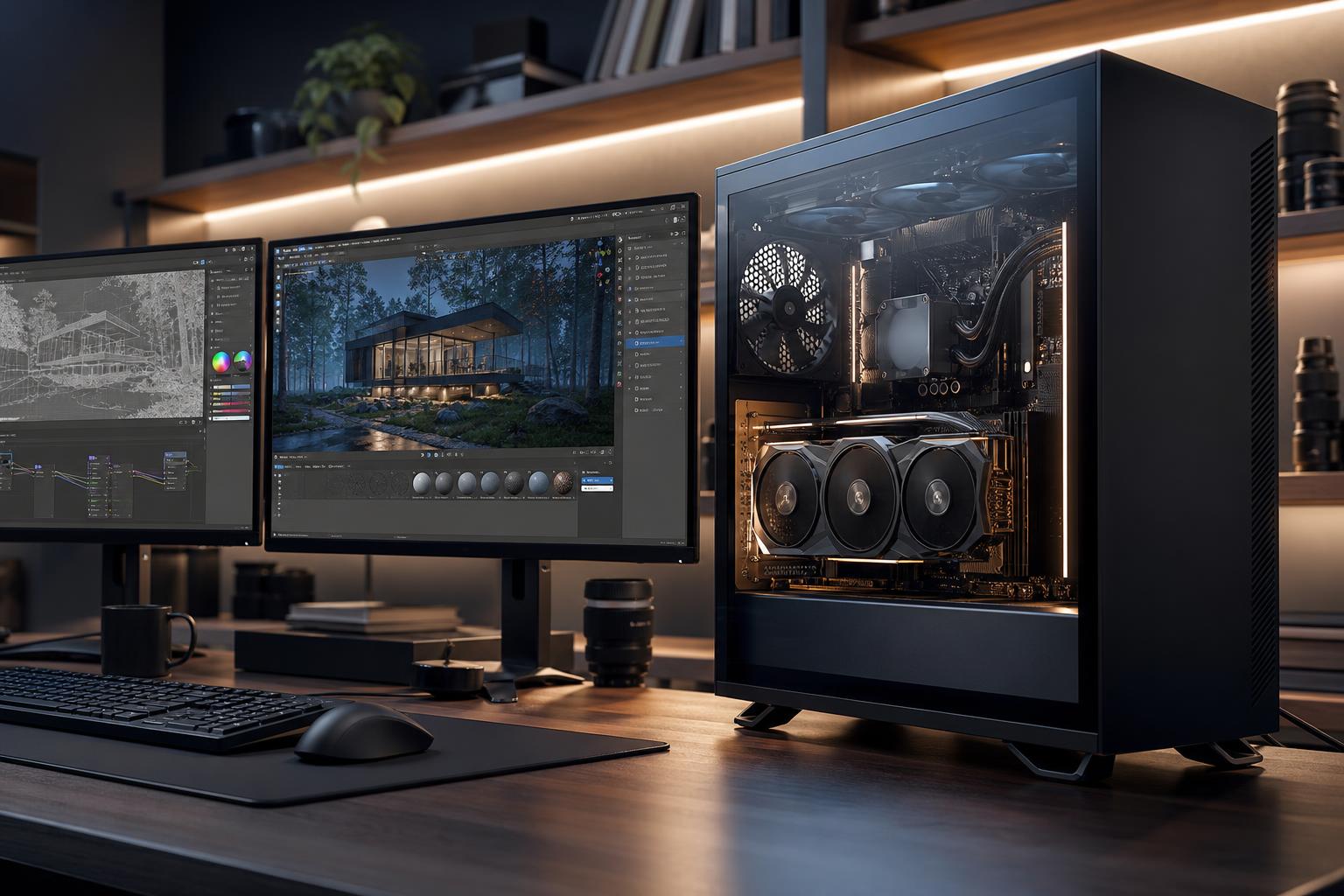
The best PC for Blender is usually a GPU-focused workstation with a capable multicore CPU, plenty of RAM, fast NVMe storage, and—most importantly—a graphics card with enough VRAM for the scenes you actually render.
For most serious Blender users, we recommend starting with a modern high-performance GPU, 64GB of system memory, a current mid-to-high-tier CPU, and at least 2TB of NVMe storage. Move to 128GB of RAM, a GPU with substantially more VRAM, and a higher-core-count CPU when you work with large environments, detailed assets, fluid or particle simulations, long animations, or several demanding creative applications at once.
Don’t build around processor core count alone. Blender can use the CPU heavily, but GPU rendering and viewport performance often have a larger effect on a typical artist’s day-to-day experience. A well-balanced system is faster, quieter, and less frustrating than a workstation that spends heavily on one impressive part while skimping on memory, storage, cooling, or graphics memory.
This is the sensible choice for most freelance artists, students moving into paid work, product visualizers, and small studios. Choose a strong modern GPU with at least 16GB of VRAM if possible, a modern 8- to 12-core-class CPU, 64GB of RAM, and a 2TB NVMe SSD.
It is a strong fit for modeling, sculpting, texture work, moderate Cycles scenes, Eevee work, editing, and animation projects that are substantial but not enormous.
For regular production rendering, complex scenes, simulations, high-resolution textures, and demanding multitasking, prioritize a GPU with 24GB or more of VRAM, a fast 12- to 16-core-class CPU, 128GB of RAM, and separate fast NVMe drives for the operating system, applications, active projects, and cache files.
This tier costs more for good reason: it gives you more headroom. That matters when an asset library grows, a scene becomes more detailed late in production, or a client requests a higher-resolution output the day before delivery. Nobody enjoys rebuilding a scene because it no longer fits in graphics memory.
If your work centers on fluid, smoke, particle, geometry-node, baking, or physics workflows, put more budget into the CPU and RAM than a rendering-first buyer would. A higher-core-count processor and 128GB to 256GB of RAM can be worthwhile. You still need a capable GPU for viewport work and GPU rendering, but simulation data can make CPU resources and system memory the limiting factors.
Blender is not one workload. The right component mix changes based on what keeps your machine busy.
If you are unsure how to weight the build, look at the task that currently makes you wait the longest. That is where the next dollar should go.
For Blender artists who render with Cycles on the GPU, the graphics card deserves the largest share of the budget. It affects render speed, viewport responsiveness, and the size of scene you can work with comfortably.
VRAM is just as important as raw GPU speed. It stores the working data needed by the graphics card: geometry, textures, materials, acceleration structures, render buffers, and more. When a scene needs more VRAM than the card has available, performance can suffer badly or the render may not be practical on that GPU at all.
For smaller scenes, product renders, learning, and many game-ready asset workflows, a GPU with 12GB of VRAM may be workable. For a new Blender workstation intended to last, 16GB is a more comfortable starting point. Artists using large environments, high-resolution texture sets, dense vegetation, photogrammetry assets, or complex character scenes should seriously consider 24GB or more.
More VRAM does not automatically make every render faster. It gives your workroom more space. Once a scene fits comfortably, GPU architecture and render performance take over. But if your scene does not fit, extra graphics memory is the upgrade that saves the project.
Not automatically. Many Blender users get excellent results from high-end consumer graphics cards, particularly when GPU rendering performance and value are the priorities. A professional GPU can make sense when you need unusually large VRAM capacity, specific professional software requirements beyond Blender, specialized display or expansion needs, or business-standardized hardware.
Choose based on the VRAM your scenes require and the applications you use alongside Blender—not because a workstation label sounds more serious.
A CPU with strong per-core performance keeps Blender responsive during many modeling, scene-management, and interface tasks. Additional cores help with CPU rendering, simulation baking, multitasking, encoding, and workloads that scale well across the processor.
For a GPU-rendering artist, a current 8- to 12-core-class CPU is often the sweet spot. It is fast enough for active work without taking so much of the budget that it forces a weaker GPU. A 16-core-class or higher CPU becomes easier to justify when you regularly bake simulations, render on the CPU, compile code, run several applications simultaneously, or work on scenes where CPU-side processing is a recurring bottleneck.
Avoid pairing the fastest available CPU with a midrange GPU and limited RAM for a Cycles-focused system. It looks impressive on a specification sheet, but it is usually the wrong allocation of money.
For a new Blender workstation, 32GB is the practical minimum for lighter modeling and rendering work. It is not our preferred target for a premium system because large scenes, high-resolution textures, reference images, web browsers, and companion applications consume memory quickly.
RAM capacity matters more than chasing tiny differences in memory speed. Buy a stable, sensible memory configuration with enough capacity first.
Blender project files are only part of the storage picture. Textures, geometry caches, simulation data, render sequences, backups, source footage, and asset libraries can fill a drive surprisingly fast.
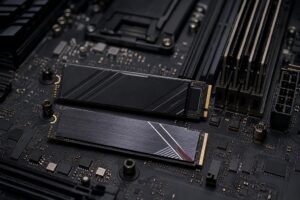
Start with a quality 2TB NVMe SSD for the operating system, Blender, and active projects. For professional work, we prefer adding a second NVMe SSD for active media, cache files, or scratch data. This prevents a cache-heavy project from competing with the operating system and applications for the same drive.
Keep completed projects and backups on separate large-capacity storage, ideally with a real backup plan rather than one additional drive sitting in the same PC. Fast storage improves loading, saving, caching, and general responsiveness; it does not replace a GPU for rendering performance.
Rendering can hold a CPU and GPU under heavy load for hours. Proper cooling and airflow are not cosmetic extras. They help parts sustain their intended performance, reduce noise, and avoid turning a long render into a warm, unhappy box of fans.
A quality power supply with appropriate capacity, the necessary connectors, and room for reasonable future upgrades is equally important. We also recommend a case with practical airflow and physical room for the selected GPU, cooling hardware, and additional drives. A cheap case or power supply is a poor place to save money in a workstation meant to earn its keep.
If you use external fast storage, cameras, capture devices, card readers, or multiple displays, check motherboard and case connectivity before buying. Port selection is easy to ignore until the first day you need it.
You can usually save money on an extravagant motherboard, decorative lighting, and CPU power you will not use. A sensible board with the required memory support, storage slots, networking, ports, and expansion is enough.
Do not cut corners on VRAM for GPU rendering, RAM capacity for complex projects, storage space for active work, cooling for sustained loads, or power supply quality. Those choices affect real productivity far more than a premium-looking component buried behind the side panel.
The best PC for Blender is not simply the most expensive one. It is the one configured around your renderer, scene complexity, simulation needs, display setup, storage workflow, and likely growth over the next few years.
Overclock Computers can help design and build a Blender workstation around the projects you create, the applications you run alongside Blender, your budget, and your future upgrade plans. Bring us your typical scene sizes, render engine, texture resolution, and current pain points, and we can recommend a balanced system without loading it up with upgrades you will not notice.