1% Low FPS Explained: The Gaming Performance Number That Matters Most

Most gamers know to look at average frames per second (FPS). It is useful, but it can also hide the problem you actually feel while playing: brief stutters, uneven motion, and sudden input lag when the action gets busy.
That is where 1% low FPS comes in. It is one of the best simple measurements of how consistently a PC delivers frames. A system averaging 140 FPS with 1% lows around 110 FPS will generally feel far smoother than one that averages 160 FPS but regularly drops into the 60s.
If average FPS tells you how fast a game runs overall, 1% lows tell you how well it holds itself together when the work gets difficult.
During a benchmark or gameplay test, software records the time required to produce every frame. The slowest frames are the ones most likely to feel like a hitch or stutter.
1% low FPS is the average frame rate of the slowest one percent of recorded frames. It is not simply the single lowest number that appeared for a moment. One isolated dip might be caused by loading a new area, an operating system task, or the benchmark starting. The 1% low measurement is more useful because it represents a meaningful group of the slowest frames.
You may also see 0.1% low FPS. This looks at an even smaller group of exceptionally slow frames. It can reveal severe occasional hitches, but it is more sensitive to test conditions. For comparing systems, 1% lows are usually the more stable and practical number.
Consider two PCs running the same game at the same settings:
PC B posts the better headline number, but it has much larger slowdowns. Those drops can happen during an explosion, a rapid turn, a crowded multiplayer fight, or while driving quickly through a detailed game world. PC A will normally feel more controlled and consistent despite its lower average.
High averages are great. Nobody is arguing against more performance. But once the average is already above your monitor’s refresh rate or near your desired target, improving consistency often makes a bigger difference than chasing another 10 or 15 average FPS.
FPS is easy to understand because higher is better, but computers render frames in time, usually measured in milliseconds (ms). This is called frame time.
At 60 FPS, a new frame arrives every 16.7 ms. At 120 FPS, it arrives every 8.3 ms. At 144 FPS, it arrives every 6.9 ms.
Smooth gaming depends on those frame times arriving at a consistent rhythm. A game can average 120 FPS, yet still feel rough if most frames arrive every 8 ms and occasional frames take 30 or 40 ms. That long frame is a visible hitch. A graph with relatively flat frame times is usually more informative than a single FPS average.
There is no universal target, because your monitor, game type, and personal expectations matter. Still, these practical guidelines work well:
The relationship between average FPS and 1% lows also matters. There is no required percentage, but a small gap generally suggests stable performance. A wide gap is a clue to investigate, particularly if you can feel stutter during normal play.
Many games lean heavily on a few CPU cores, even when they can use many others. This is especially common in simulation-heavy games, large open worlds, strategy games, and competitive multiplayer matches. When the CPU cannot prepare the next frame quickly enough, the graphics card waits and frame times spike.
A faster gaming CPU can improve 1% lows substantially even when it does little for average FPS at a high resolution. This is why pairing a very powerful GPU with an entry-level CPU often produces disappointing results on a high-refresh-rate monitor.
When a game and background applications exhaust available system memory, Windows may move data to the storage drive. Even fast NVMe storage is much slower than RAM for this job, and the result can be stuttering.
For a new gaming PC, 32 GB of RAM is a sensible baseline for people who play current demanding titles, run Discord and browsers in the background, or want comfortable headroom for several years. Memory speed and latency can also affect CPU-limited games, though capacity comes first. Fast RAM does not rescue a system that simply does not have enough RAM.
Some stutter comes from the game rather than your PC. Modern games may compile shaders as new effects, locations, or assets appear. A patch can improve or worsen this behavior, and no component upgrade fully fixes poor shader management.
That said, a balanced system with adequate CPU performance, RAM, and fast storage helps minimize avoidable delays. Keep graphics drivers current, but do not assume every stutter means your driver is broken.
When a graphics card runs short of video memory, it may have to constantly move textures and other assets between VRAM and system memory. Average FPS may look acceptable until you enter a new area or turn quickly, then the game pauses or lurches.
This is most common at 4K, with ray tracing enabled, high-resolution texture packs, or in newer games with demanding texture settings. Lowering texture quality is often the most effective fix. Reducing shadows or anti-aliasing may help average FPS, but it may not solve a VRAM bottleneck.
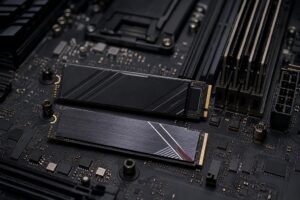
Games increasingly stream assets while you play. An SSD cannot cure every stutter, but installing modern games on a healthy SSD is preferable to relying on an older hard drive. Leave reasonable free space on the drive as well; completely filling any SSD is asking it to work with one hand tied behind its back.
Background downloads, antivirus scans, browser tabs playing video, RGB utilities, and overlays can all interfere with frame consistency. Thermal throttling can do the same when a CPU or GPU gets too hot and reduces clock speed. Good cooling is not just about lower temperatures on a monitoring screen; it helps the system sustain performance through a long gaming session.
A well-chosen gaming PC is not just a graphics card attached to the cheapest parts that will boot. The processor must be appropriate for the target frame rate, the RAM needs enough capacity for the games and software you use, the GPU needs enough VRAM for the resolution and settings you expect, and cooling and power delivery need to support sustained load reliably.
For a 4K single-player system, the GPU usually deserves the largest share of the budget. For competitive 1080p or 1440p gaming at very high refresh rates, investing in CPU performance and a properly configured memory kit becomes more important. The best answer changes with the monitor and games, not with a one-size-fits-all parts list.
When comparing PCs or reviewing benchmark charts, look beyond the biggest average FPS figure. Check the 1% lows, consider the test settings, and think about the frame rate your own monitor can display. Smooth, repeatable performance is what you notice every time you sit down to play.
If you are planning a gaming PC and want it matched to your monitor, preferred games, and performance target, contact Overclock Computers. We can help specify a balanced system that prioritizes the performance you will actually feel.