Gen 4 vs. Gen 5 SSD: Which NVMe Drive Should You Buy?

Shopping for an NVMe SSD can get confusing fast. PCIe Gen 5 drives advertise enormous sequential read speeds, often roughly twice those of strong Gen 4 models. On a specification sheet, that looks like an obvious upgrade. In an actual PC, the answer is more practical: a Gen 5 SSD is worthwhile for a fairly specific group of buyers, while a quality Gen 4 NVMe SSD remains the best choice for most gaming PCs and many workstations.
The right drive is not simply the one with the biggest benchmark number. Capacity, sustained write performance, cooling, platform compatibility, and the type of files you work with all matter. A 2TB Gen 4 drive with reliable performance is usually more useful than a smaller Gen 5 drive purchased only for its headline speed.
For a new gaming PC, we would usually choose a good PCIe Gen 4 NVMe SSD and put the saved budget toward GPU performance, more storage capacity, or a better monitor. Game loading times are already very good on Gen 4, and Gen 5 rarely changes the gaming experience enough to justify a major premium.
For professional workstations, Gen 5 can make sense when the system regularly reads or writes very large files: high-bitrate video footage, uncompressed media, large project caches, photogrammetry data, scientific data, or disk-heavy production workflows. Even then, it should be selected as part of a balanced storage plan rather than assumed to be necessary for every drive in the system.
PCIe is the connection between the SSD and the rest of the computer. Most consumer NVMe drives use four PCIe lanes. Moving from PCIe 4.0 to PCIe 5.0 doubles the available bandwidth per lane, so a four-lane Gen 5 drive has much more room to move data.
In broad terms, a fast Gen 4 NVMe SSD may reach sequential reads around 7 GB/s, while fast Gen 5 drives can exceed 12 GB/s and, in some cases, approach 14 GB/s or more. Those results matter most when transferring long, continuous data streams. Think copying a large video project, importing footage, writing a disk image, or moving a multi-gigabyte data set.
But sequential speed is only one measurement. Opening an application, booting Windows, loading a game level, and working with many small files also involve latency, random input/output performance, CPU processing, decompression, and the application itself. Those parts of the process do not suddenly become twice as fast because the SSD interface is twice as fast.
Modern games benefit enormously from moving off older hard drives and, in many cases, from replacing a SATA SSD with an NVMe drive. The jump from a hard drive to any quality NVMe SSD is obvious. The move from Gen 4 to Gen 5 is usually much less dramatic.
Game loading depends on more than raw SSD throughput. The game engine has to load assets, decompress them, prepare shaders, and hand work to the CPU and GPU. A faster drive can help in certain titles and future game designs may make better use of fast storage, but it will not raise frame rates in the way a faster graphics card will.
If a gaming build has a fixed budget, spend enough for a reputable 2TB Gen 4 NVMe drive, then direct the rest toward the GPU. That decision will produce a much bigger improvement at 1440p or 4K. For a system with an already top-tier GPU and generous storage budget, a Gen 5 boot drive is perfectly reasonable—but it is a luxury, not the foundation of gaming performance.
Gen 5 storage has a real role in professional systems, particularly when storage is the bottleneck rather than the CPU or GPU. The key word is frequent. A drive that saves a few seconds once a day is hard to justify. A drive that saves time repeatedly throughout an editing or production day may pay for itself in convenience and throughput.
Editors working with high-resolution, high-bitrate, RAW, or uncompressed footage can benefit from a fast Gen 5 scratch drive. It may improve ingest, proxy generation, cache operations, and transfers between local working drives. Results still depend on the codec, editing software, CPU, GPU, available RAM, and source media. A Gen 5 drive cannot compensate for inadequate system memory or an underpowered processor.
For many 4K editing workflows, a strong Gen 4 drive is already excellent. Gen 5 becomes more appealing for heavier 6K, 8K, RAW, multicamera, or uncompressed work, especially when large cache files and active media are kept locally.
Some engineering, imaging, research, and data-processing workflows handle files large enough that storage throughput becomes visible. Importing point clouds, processing image sets, handling large simulation outputs, and moving project archives can all benefit from faster sequential performance. The software must actually read and write data quickly enough to use the drive, of course. In some applications, CPU computation or RAM capacity remains the limiting factor.
A Gen 5 SSD is also useful when copying large files between two equally capable local drives. This is an often-overlooked detail: copying from a Gen 5 SSD to a slower external drive, NAS, or Gen 4 destination will be limited by the slowest part of that chain. Fast storage delivers its best results when the source, destination, connection, and workload can keep up.
A Gen 5 SSD works in a Gen 4 M.2 slot, but it will run at Gen 4 speeds. To receive Gen 5 bandwidth, you need a motherboard with an M.2 slot wired for PCIe 5.0 and a CPU/platform that supports it. Not every M.2 slot on a compatible motherboard is necessarily Gen 5, so check the board manual rather than relying on the number of M.2 slots.
There can also be lane-sharing tradeoffs. On some consumer platforms, enabling a particular Gen 5 M.2 slot may change how PCIe lanes are allocated to other devices. The exact behavior is platform-specific. This is not automatically a reason to avoid Gen 5, but it is a reason to have the full build reviewed before buying parts—particularly in a workstation with multiple NVMe drives, add-in cards, or high-speed networking.
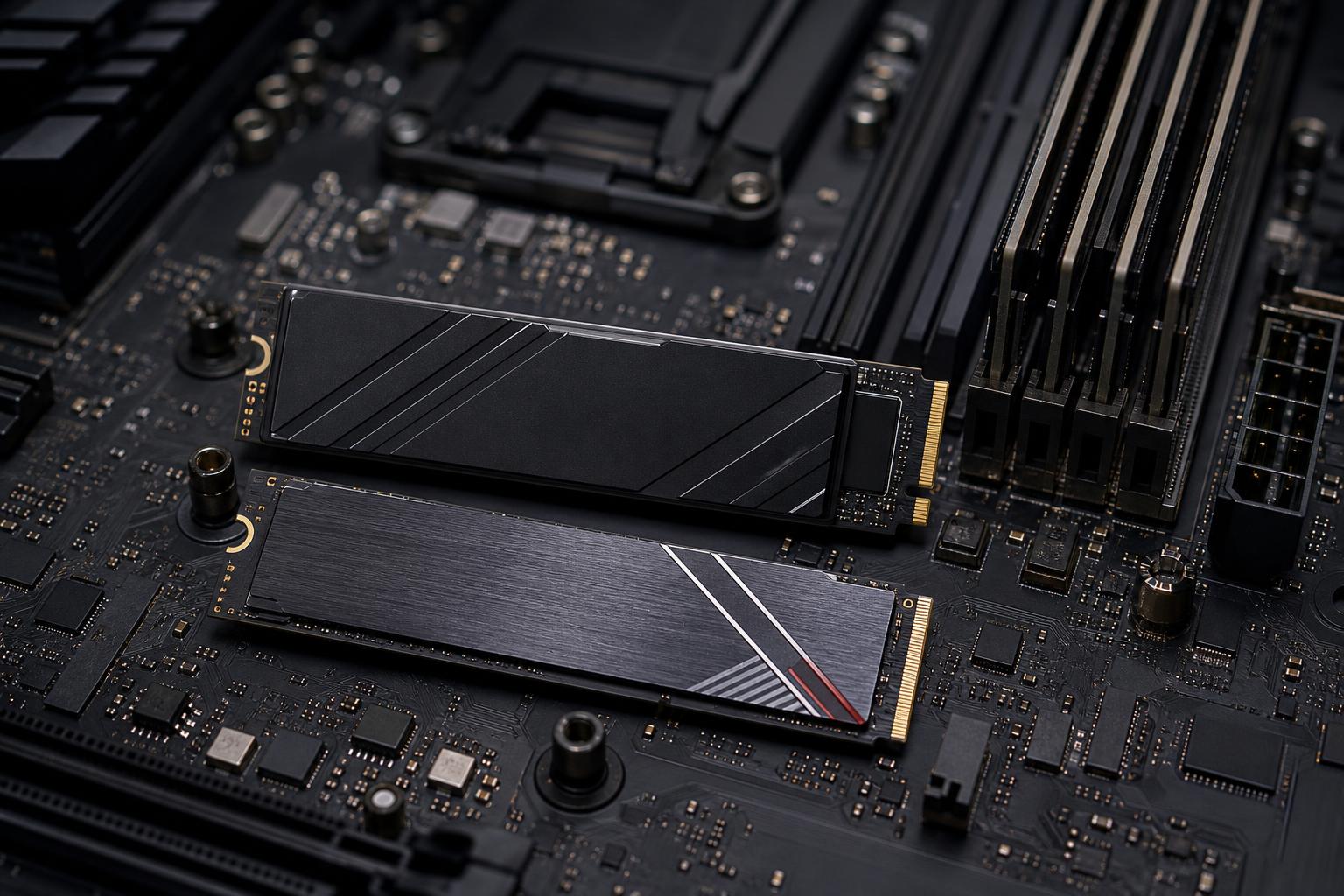
Gen 5 drives can draw more power and create more heat than Gen 4 models. Many need a substantial motherboard heatsink, and some include their own large heatsink. A few use active cooling. That does not make them unreliable; it simply means cooling is part of the purchase decision.
Without adequate cooling, an SSD protects itself by reducing speed when it gets too hot. This is called thermal throttling. A drive may look spectacular in a short benchmark but slow down during a long file transfer if airflow and heatsink contact are poor.
For a Gen 5 drive, use one properly fitted heatsink, not two stacked together. If the motherboard provides an M.2 heatsink, it is usually best to use that unless the SSD manufacturer specifically recommends its included cooler. Make sure the thermal pad contacts the drive correctly and that the case has sensible front-to-back airflow.
SSD marketing naturally emphasizes maximum sequential reads. For a better buying decision, look at the entire drive and the job it will perform.
For most buyers, start with a 2TB high-quality Gen 4 NVMe SSD as the operating-system and main application drive. It is fast enough to make a modern PC feel immediate, has broad compatibility, runs relatively cool, and leaves room in the budget for components that may have a greater effect on performance.
For a performance-focused workstation, consider a tiered approach: a reliable primary NVMe drive for Windows and applications, a dedicated high-speed Gen 5 drive for active projects or scratch files when the workload supports it, and separate high-capacity storage for completed projects and backups. This arrangement is often faster and easier to manage than treating one drive as the answer to every storage need.
Gen 5 is a capable technology, not a mandatory checkbox. Buy it when its extra throughput aligns with the work you do. Otherwise, a well-chosen Gen 4 SSD is still one of the best-value components in a high-performance PC.
The right SSD choice depends on the applications you use, the size of your working files, your motherboard platform, and how much storage you need on day one. Overclock Computers can help configure a gaming PC or workstation with storage that is fast, properly cooled, and sized for the work you actually do. Contact our team to discuss a custom system built around your workload.