Best Workstation for Revit in 2026: PC Specs That Make Sense

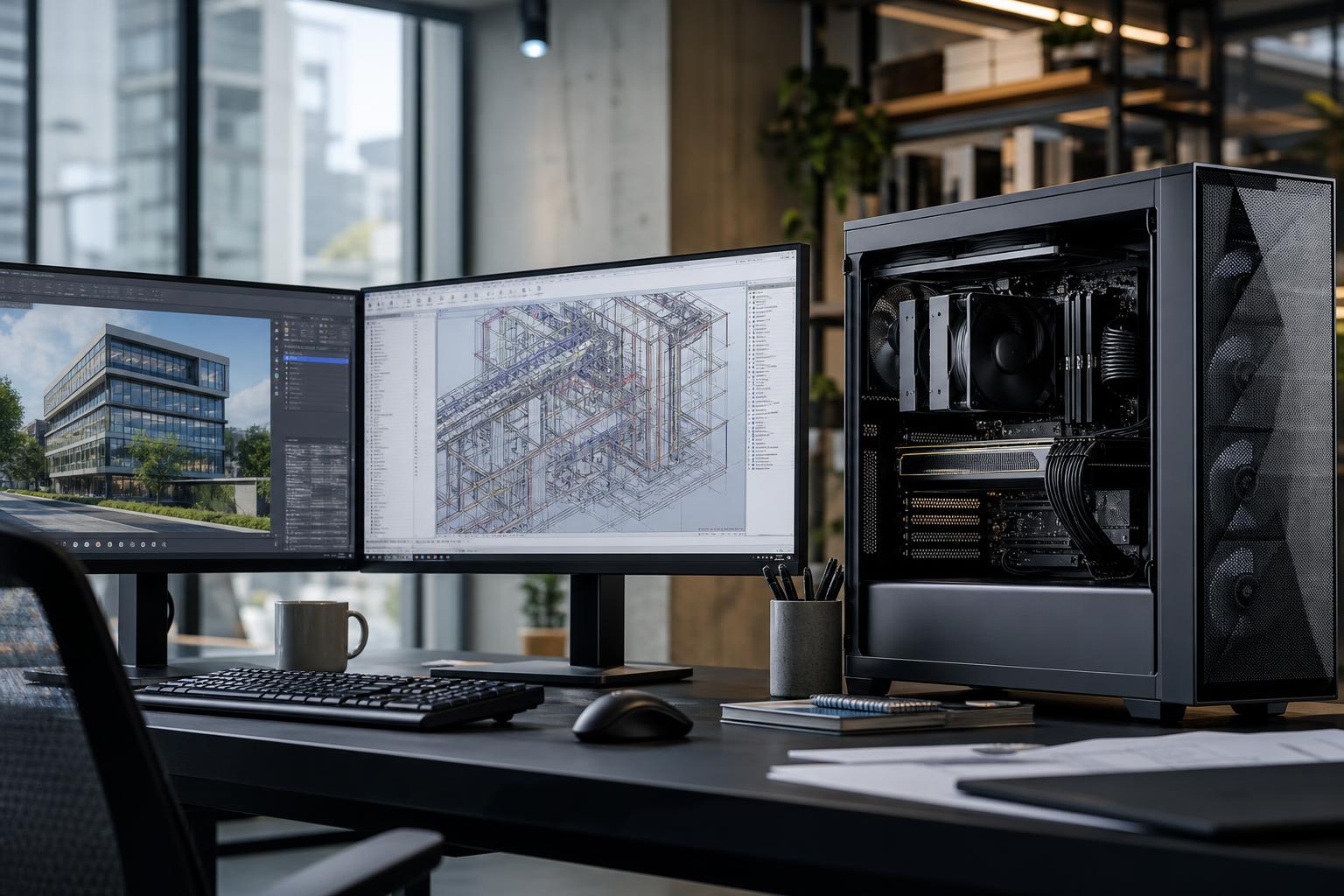
The best Revit workstation for most architecture, engineering, and construction professionals has a fast modern CPU, 64GB of RAM, a capable graphics card with enough VRAM, and fast NVMe storage. For many offices, that means putting more of the budget into CPU speed, memory capacity, storage, cooling, and reliable components—not simply buying the largest GPU available.
Revit feels slow for different reasons depending on the project. A small residential model with a few sheets is very different from a large hospital project with linked architectural, structural, and MEP models. Rendering, reality capture, point-cloud work, and running several applications alongside Revit change the equation again.
Below is a practical guide to buying a workstation that suits the way you actually work.
For a new professional Revit PC intended to remain useful for several years, we generally recommend this starting point:
This is the performance tier that makes sense for many architects, BIM coordinators, engineers, and designers working in medium-to-large Revit projects. It provides a noticeably more comfortable daily experience than an entry-level office PC without wasting money on parts Revit cannot fully use.
Revit is not a workload that scales evenly across every CPU core or uses the GPU like a modern game engine. Many routine modeling actions rely heavily on fast single-core CPU performance. Opening views, editing elements, navigating models, regenerating changes, and working through interface tasks can all benefit from a processor that completes individual tasks quickly.
Other work can use more cores. Rendering, exports, calculations, file operations, linked models, and background tasks may benefit from additional CPU resources. That is why an extremely low-core-count processor is a poor professional choice—but buying a server-class CPU with huge core counts can also be a disappointing use of budget if your day is mostly interactive Revit modeling.
A good Revit workstation needs to feel responsive at 10 a.m. while you are editing a model, not just look impressive on a parts list.
This tier is appropriate for individual designers, smaller practices, students moving into professional work, and users handling modest Revit files without extensive point clouds or many large linked models.
Spend carefully here. A current CPU with strong single-thread performance and a decent dedicated GPU will usually serve Revit better than an older high-core-count processor paired with an entry-level graphics card. However, 32GB can become restrictive surprisingly quickly when Revit shares a desktop with a browser, PDF markups, spreadsheets, Teams, visualization software, and multiple linked models.
If the budget allows only one major upgrade, move from 32GB to 64GB before buying an extravagant graphics card.
This is the most broadly useful tier for a professional workstation. It suits larger active models, substantial linked projects, complex 3D views, regular multitasking, and teams where lost time from sluggish hardware adds up.
This configuration has enough CPU capacity for more than basic modeling while preserving the fast per-core performance that Revit appreciates. The additional RAM gives Windows room to breathe when several business and design applications are open. It also reduces the need to close everything else just to work comfortably in a large model—never a great productivity strategy.
Choose this tier when project sizes are consistently large, several demanding applications run together, or the workstation is also used for Enscape, Twinmotion, Lumion, 3D rendering, point-cloud processing, photogrammetry, video work, or computational tasks.
This is where spending more can be meaningful, but only if your work supports it. A powerful GPU may transform real-time visualization, while offering much less improvement to basic Revit modeling. Likewise, 128GB of RAM is sensible for large data and demanding multitasking, but it is unnecessary for someone working mainly on smaller building models.
For Revit-first systems, choose a modern CPU known for strong single-core performance. Do not select a processor based only on its core count. More cores help with parallel tasks, rendering, exports, and running other software, but they do not guarantee a faster-feeling Revit model.
A fast 8- to 16-core desktop processor is usually the sweet spot for a workstation that handles Revit and broader professional work. Move higher when CPU rendering, simulation, compiling, or heavy multitasking is a regular part of the job.
Revit projects, linked models, cloud-sync tools, browsers, PDF applications, communication software, and visualization tools all compete for memory. When physical RAM runs short, Windows starts leaning on storage as temporary memory. Even fast SSDs are far slower than RAM, and the result is the familiar feeling of a workstation that has suddenly developed a bad attitude.
Choose 32GB only for lighter work and firm budget limits. Choose 64GB for most full-time professional Revit users. Consider 96GB or 128GB for very large projects, heavy point-cloud use, multiple open applications, or workflows that include rendering and visualization.
Revit needs a competent dedicated GPU for smooth 3D navigation and visual display, especially at higher monitor resolutions. But a top-tier gaming GPU is not automatically the best investment for every Revit user.
If Revit is your primary application and your work is mostly modeling, documentation, and ordinary 3D views, a midrange GPU with adequate VRAM is often enough. Put the saved money toward 64GB of RAM, more SSD capacity, or a faster CPU.
Spend more on the GPU if you use real-time visualization software, GPU rendering, high-resolution multi-monitor setups, large point clouds, or other GPU-accelerated applications. In those workflows, VRAM capacity matters because once a scene or dataset exceeds available video memory, performance can drop sharply or the application may limit what can be loaded.
A good NVMe SSD makes Windows, applications, project loading, caches, and file transfers feel more responsive. For most workstations, 2TB is a more realistic starting capacity than 1TB. Revit files alone may not consume it immediately, but exports, linked data, point clouds, render assets, local cloud-sync folders, and backups will.
For larger offices and data-heavy work, separate active projects from operating-system and application storage when possible. This is not mandatory for every machine, but it can make organization, backup planning, and sustained file activity easier to manage.
Local storage is not a backup. Important project data should also follow your organization’s backup and file-management process.
A professional graphics card can make sense when your firm needs features, memory capacities, support arrangements, or application validation associated with that hardware class. It can also be the appropriate choice for specialized workflows beyond Revit.
For many Revit users, however, a well-chosen consumer GPU provides excellent viewport performance and better value. The decision should be based on the software used across the workstation’s life, the size of the models, required VRAM, and any specific hardware guidance from your software vendors or IT department. “Professional” on a product label is not, by itself, a reason to overspend.
Worth paying for:
Usually safe to skip:
A mass-market desktop may advertise a fast CPU and a large SSD, yet still cut corners on cooling, power delivery, motherboard expansion, memory configuration, or the graphics card. Those details affect noise, reliability under sustained workloads, future upgrades, and how well the system remains balanced.
A properly configured custom workstation lets you choose the parts that match your projects: more RAM instead of unnecessary RGB lighting, more GPU VRAM for visualization, added NVMe storage for data-heavy work, or expansion for faster networking and additional drives. The right configuration is not necessarily the most expensive one. It is the one that removes the bottlenecks you will actually encounter.
When choosing a Revit workstation, do not size it around the easiest file you open. Think about the largest project you handle in a normal year, the number of linked models you work with, whether point clouds are involved, your visualization tools, and how long you expect to keep the PC.
For most professionals, a fast modern CPU, 64GB of RAM, a 12GB-to-16GB GPU, and 2TB of NVMe storage is the right starting point. Move to 96GB or 128GB of memory and a larger-VRAM GPU when big datasets, visualization, and demanding parallel applications make those upgrades tangible.
Overclock Computers can design and build a Revit workstation around your project sizes, software stack, budget, monitor setup, storage needs, and upgrade plans. Bring us the applications you use and the kind of files that slow you down, and we can help configure a system that spends your budget where it will actually improve your workday.