How to Choose a Monitor for Gaming, Creative Work, and Everyday Use

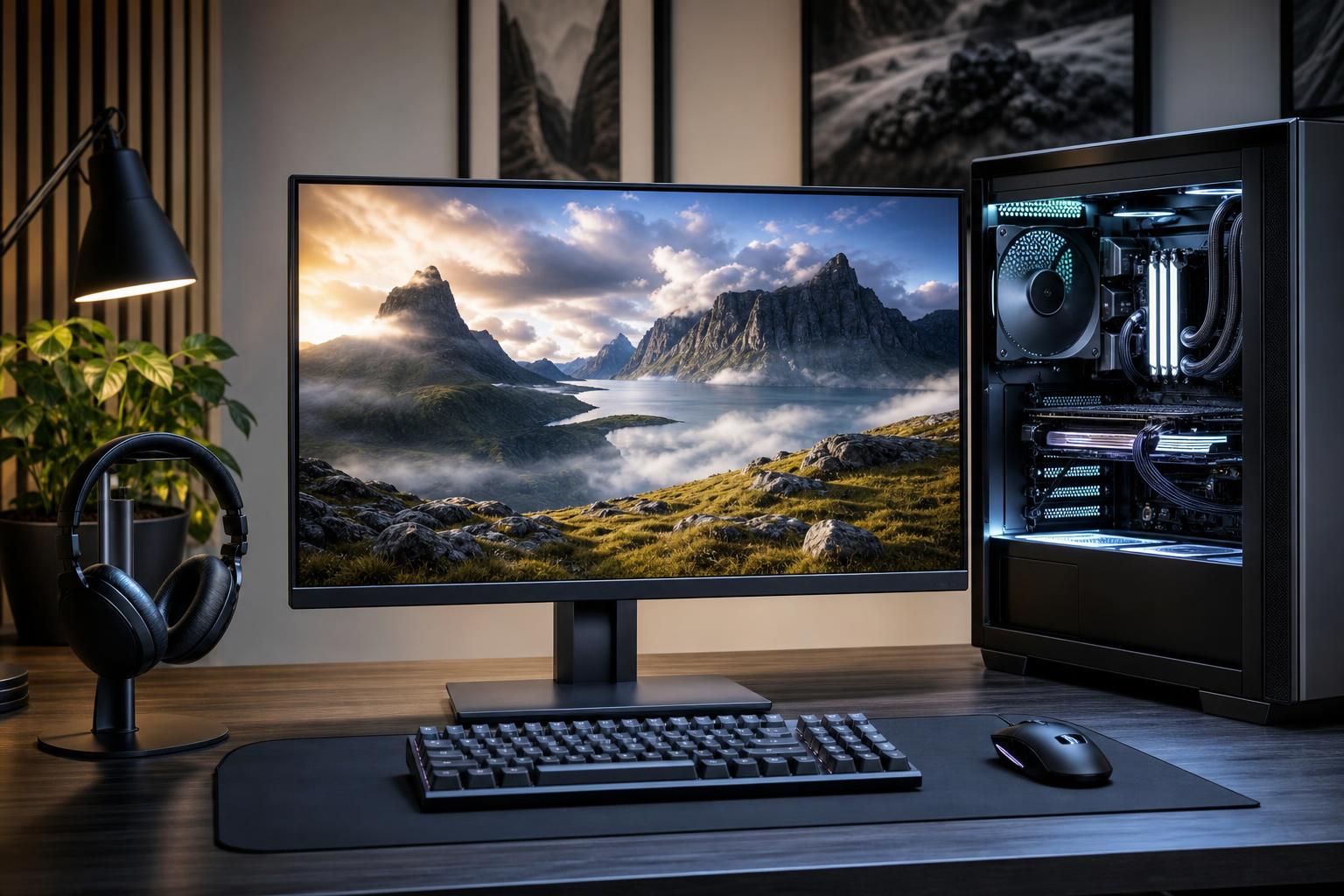
A powerful PC can only show its value through the monitor connected to it. That sounds obvious, but it is easy to spend heavily on a graphics card and then pair it with a display that limits the experience: too few pixels for creative work, too low a refresh rate for fast games, or poor color accuracy for photo and video projects.
The right monitor is not automatically the largest, fastest, or most expensive one. It is the one that suits the work you do, the games you play, the space on your desk, and the performance your PC can realistically deliver.
Before comparing display specifications, decide what you want the monitor to do most of the time. A competitive shooter player has different priorities from an architect reviewing detailed drawings, and both need something different from a video editor grading footage.
There is no prize for buying specifications your work will never use. A 360Hz monitor is wonderful for the right competitive player. It does very little for someone spending eight hours a day in spreadsheets and CAD drawings.
Resolution tells you how many pixels a display has. Screen size tells you how widely those pixels are spread. Together, they determine pixel density, which affects how sharp text, interface elements, and detailed images appear.
A 1920-by-1080 display remains a practical choice for budget systems, esports-focused gaming, and smaller screens. It is much easier for a graphics card to drive at very high frame rates than 1440p or 4K.
For desktop use, 1080p looks best at roughly 24 inches. At 27 inches, text and fine lines can look noticeably less crisp because the pixels are larger. We would generally avoid 27-inch 1080p monitors for productivity unless cost is the overriding concern.
At 2560 by 1440, a 27-inch monitor provides a sharp, comfortable desktop workspace without requiring operating-system scaling for most people. Games look substantially cleaner than at 1080p, while modern midrange and high-end GPUs can still produce excellent frame rates.
For a gaming PC that will also handle general work, streaming, browsing, and occasional creative projects, 27-inch 1440p is usually the easy recommendation. It is not glamorous advice, but it is good advice.
A 3840-by-2160 display makes sense for large-screen productivity, detailed creative work, and high-end single-player gaming. Text and images can look exceptionally sharp, and 4K gives you a great deal of usable workspace.
The tradeoff is GPU demand. Running a game at native 4K requires four times as many pixels as 1080p and about 2.25 times as many as 1440p. Upscaling technologies can help, but a 4K monitor still pairs best with a strong graphics card if gaming is a major priority. For desktop work, expect to use display scaling on a 27- or 32-inch 4K screen so text remains comfortably sized.
Ultrawide displays are excellent for timelines, large spreadsheets, programming, multi-window work, simulation games, and racing games. A 34-inch 3440-by-1440 monitor is a popular format because it adds horizontal workspace while maintaining a familiar vertical resolution.
They are not ideal for every job. Some games and older software handle ultrawide resolutions poorly. Video editors should also remember that a wider screen does not replace vertical room for tool panels. If you regularly work with documents, code, or source material beside your main application, though, an ultrawide can be genuinely useful.
Refresh rate, measured in hertz (Hz), is how often the monitor can update its image each second. A 60Hz monitor refreshes 60 times per second; a 144Hz display refreshes 144 times. Higher refresh rates make motion look smoother and reduce the delay between a new frame being rendered and appearing on screen.
Do not buy a 240Hz or 360Hz display on the assumption that the monitor alone creates those frames. Your PC needs to deliver high frame rates in the games you play, at the settings and resolution you intend to use. Lowering a few competitive settings to maintain a steadier frame rate is often smarter than buying an enormous GPU solely to chase a number in a benchmark.
Games do not always render frames at a perfectly fixed pace. When the GPU and monitor are out of step, you can see screen tearing: parts of two different frames appear at once. Adaptive sync allows the monitor to vary its refresh timing to match the GPU’s output within a supported range.
Look for a monitor that supports adaptive sync and is clearly compatible with the graphics card platform you plan to use. This is a standard feature on many worthwhile gaming monitors, and it is far more useful than a long list of obscure menu options.
Panel technology is one of the few specifications that cannot be summarized as “higher is better.” Each type has real strengths and weaknesses.
Do not choose based on panel type alone. Implementation matters. A well-designed IPS monitor can be far more enjoyable than a poorly tuned OLED or VA model.
For general use, most good monitors look reasonably accurate out of the box. For color-critical photography, print preparation, video production, and design work, “looks good” is not enough.
First, identify the color space used by your workflow. sRGB is the common standard for web content and many general applications. Wider-gamut displays can show more saturated colors, which is useful for certain photo and video workflows, but they should also have a reliable sRGB mode for ordinary content. Video professionals may need dependable coverage of specific spaces such as DCI-P3 or Adobe RGB, depending on delivery requirements.
Factory calibration reports can be helpful, but they are not a substitute for calibration in a managed professional workflow. If color decisions affect client deliverables or print output, use a quality calibration device and appropriate software. Also consider screen uniformity: a monitor cannot be truly dependable for visual work if one side is visibly warmer or dimmer than the other.
Check the ports before buying. DisplayPort is commonly the simplest choice for high-refresh desktop gaming. HDMI capability varies by monitor and matters especially for consoles, laptops, and certain high-bandwidth modes. Confirm that both your GPU and monitor support the resolution and refresh rate you expect to use through the cable connection you plan to use.
A height-adjustable stand is worth having. So are tilt and swivel adjustments. A good monitor at the wrong height becomes an expensive neck ache. VESA mounting support is useful if you may use a monitor arm later.
For workstations, USB ports or USB-C video and charging can reduce cable clutter, particularly with a laptop. These are conveniences, not reasons to accept a weaker panel or unsuitable resolution.
A monitor is a long-lived part of a PC setup. It affects every game, project, meeting, and browser tab you open, often for longer than a graphics card stays in the system. If you are planning a new gaming PC or workstation, Overclock Computers can help match the display resolution and refresh rate to hardware that makes practical sense for the way you actually use your computer.