Best PC for Point Cloud Processing: Workstation Specs That Make Sense

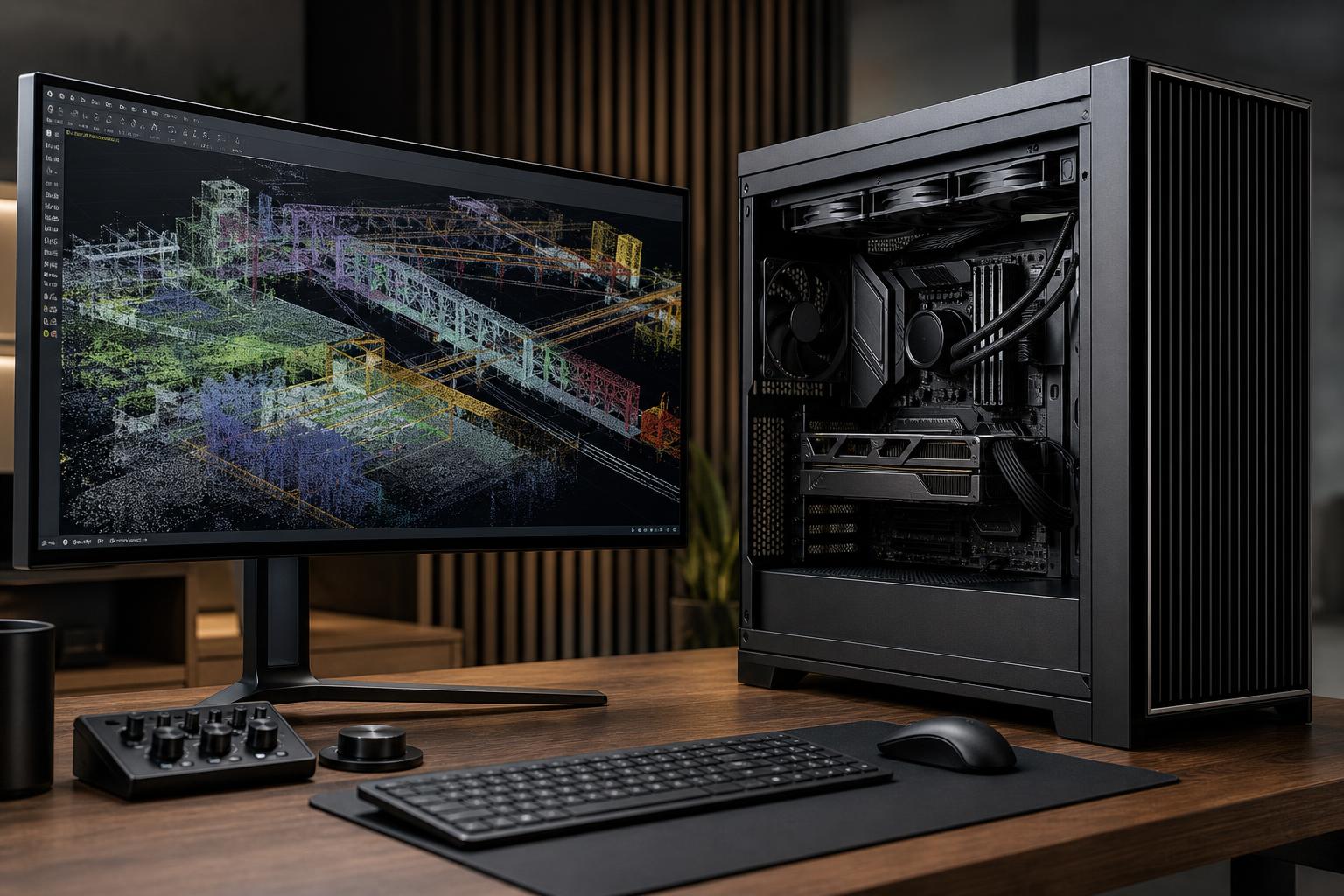
A good PC for point cloud processing needs more than a fast graphics card and a long list of impressive parts. The right workstation is built around the files you handle, the software you use, and the slowest stage of your workflow.
For many survey, construction, engineering, architecture, and reality-capture users, the biggest gains come from enough system memory, fast local NVMe storage, and a strong CPU—not simply buying the most expensive GPU available. A graphics card still matters, especially when navigating dense 3D scenes or working across multiple high-resolution displays, but it can’t compensate for running out of RAM or loading project data from a slow drive.
This guide explains what to prioritize when buying a point cloud workstation for laser scans, LiDAR, photogrammetry outputs, and large spatial datasets.
“Point cloud processing” covers several very different jobs. A workstation that feels excellent for viewing and measuring registered scans may be poorly balanced for photogrammetry reconstruction or heavy classification work.
Before choosing parts, identify the stages that occupy the most time:
Software matters just as much as the workflow. Leica Cyclone, Autodesk ReCap Pro, Trimble RealWorks, FARO SCENE, Topcon tools, CloudCompare, and photogrammetry packages do not all use CPU cores and GPU acceleration in the same way. Check the recommended hardware guidance for the exact version of the application you rely on, particularly if it uses a certified-driver program or has a stated graphics-card requirement.
For a broadly capable professional system handling regular scan-registration, inspection, modeling, and visualization work, this is a sensible target:
This is not a universal prescription. Someone opening modest terrestrial scans and exporting basic deliverables may be well served by 32GB of memory and a midrange GPU. A team processing many large scans, drone imagery, or combined LiDAR and photogrammetry projects can benefit substantially from 128GB of RAM, higher core counts, more VRAM, and larger high-speed local storage.
Point cloud applications commonly include a mix of lightly threaded and heavily threaded tasks. The interface, viewport response, parts of registration, and some modeling operations often benefit from fast individual CPU cores. Importing, indexing, processing, and exports may use additional cores more effectively.
That means the cheapest many-core CPU is rarely the best choice. A balanced modern desktop processor with excellent single-threaded performance and enough cores for background processing is usually the sweet spot for individual professionals.
Step up to a workstation-class platform when one or more of these apply:
More cores are valuable when the software can use them. They are less valuable if your main frustration is a sluggish viewport, a memory-starved project, or files living on a slow network share.
System RAM holds active project data and allows the operating system, point cloud software, CAD tools, browsers, and background services to coexist. When physical memory is exhausted, Windows has to move data to storage. Even fast NVMe storage is dramatically slower than RAM, and the result is long pauses, stuttering navigation, and an unstable-feeling workflow.
Dataset size alone does not tell the whole story. A compressed source file can expand significantly during import, indexing, registration, or conversion. Ask how much memory your largest real project uses during its heaviest stage, then leave meaningful room above that figure. Buying exactly enough RAM for last year’s typical file is false economy.
The graphics card drives the display and accelerates supported viewport, rendering, compute, and visualization tasks. For point cloud work, GPU performance and VRAM affect how comfortably you can navigate dense scenes, use high-resolution monitors, and work in applications that use GPU acceleration.
VRAM is the graphics card’s own fast memory. It is separate from system RAM. When a complex scene, large textures, high-resolution display setup, or GPU compute task exceeds available VRAM, performance can fall sharply or an application may limit what it can load.
A high-performance consumer GPU can be an excellent value for many point cloud, visualization, and mixed CAD workflows. It is often a sensible choice when your application supports it well and you also use GPU rendering, visualization, or other compute tasks.
A professional GPU is worth considering when your software vendor specifies or certifies it, when driver validation is a business requirement, or when you rely on specialized professional features. The right choice should follow your software’s support policy—not a blanket assumption that one badge is always better.
For either category, avoid treating GPU model names as the whole story. Compare VRAM capacity, display outputs, physical size, cooling, power requirements, and the applications that will use the card. A powerful GPU installed in a cramped case with poor airflow is not a professional workstation; it is an expensive space heater with a login screen.
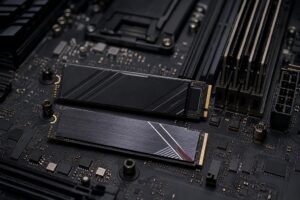
Point cloud files are large, and many applications create temporary files, caches, indexes, and project databases while processing them. Storage affects startup, import time, project loading, cache behavior, exports, and general responsiveness.
We generally prefer separate drives for the operating system and active projects:
Keep active projects on fast local storage whenever practical. A network-attached archive is useful, but processing directly across a busy network connection can create delays and complicate troubleshooting. Also, do not confuse storage capacity with backup. One large drive inside a workstation is not a backup plan.
Registration, reconstruction, export, and batch processing can keep a workstation busy for hours. Sustained performance depends on the less glamorous parts: a case with clear airflow, a CPU cooler that can manage prolonged loads, enough case fans, and a reliable power supply with appropriate capacity and connectors.
Expansion also deserves planning. Consider future NVMe drives, memory upgrades, 10Gb networking, additional displays, capture devices, and larger graphics cards. A well-chosen motherboard and case make future upgrades straightforward instead of turning them into a replacement-PC conversation.
The best PC for point cloud processing is not necessarily the most expensive workstation. It is the one that stays responsive with your normal projects, finishes your long jobs reliably, and has enough headroom for larger datasets without wasting budget on hardware your applications cannot use.
Overclock Computers can help design a custom workstation around your point cloud software, dataset sizes, downstream CAD or GIS tools, performance priorities, and budget. Bring us the applications you use and a description of a typical project, and we can help translate that workload into a balanced system.