Best PC for AutoCAD and Civil 3D in 2026: Workstation Specs That Make Sense

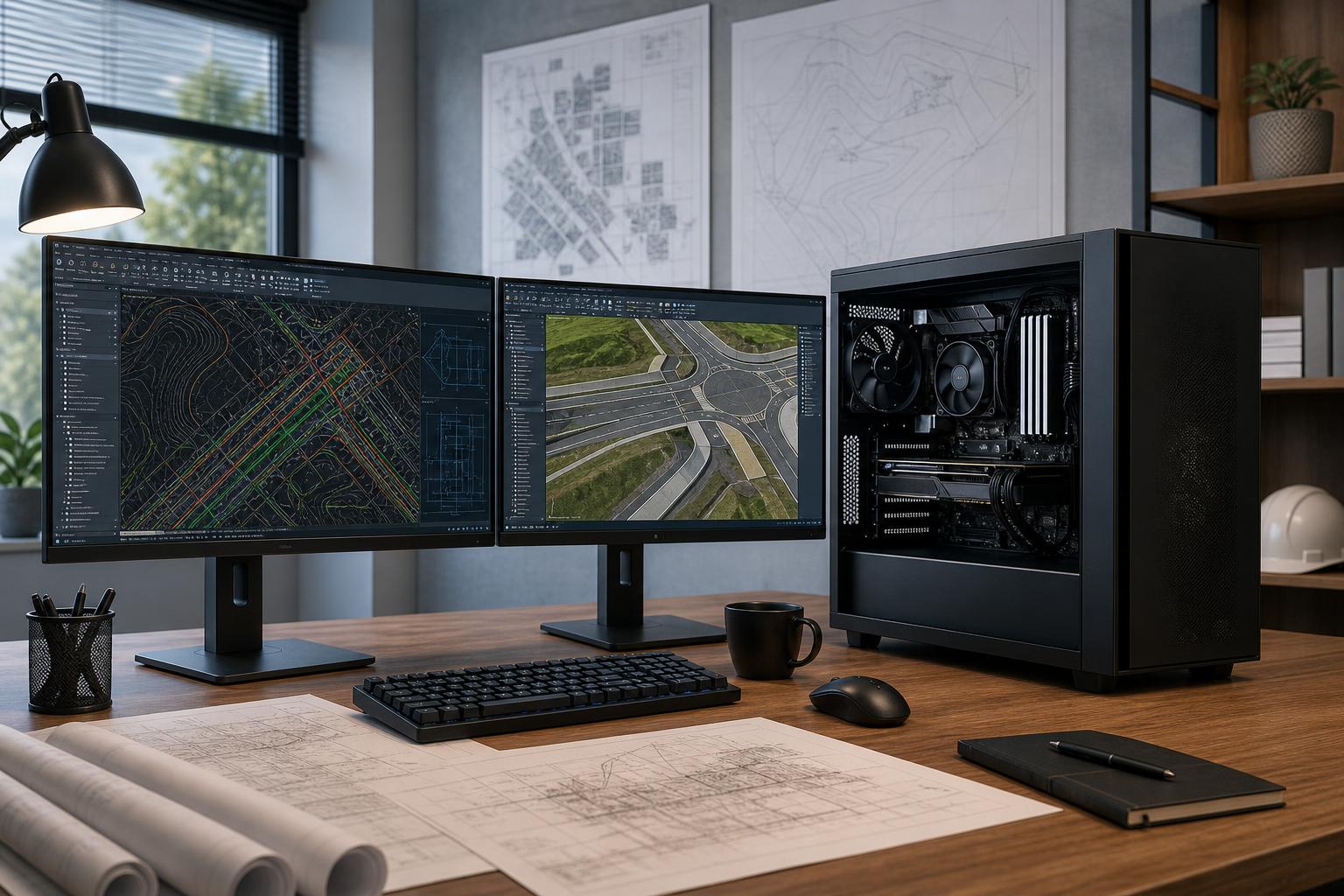
The best PC for AutoCAD and Civil 3D is usually a balanced workstation built around a fast desktop CPU, 32GB to 64GB of RAM, a capable dedicated GPU, and fast NVMe storage. For most civil designers, spending heavily on a flagship graphics card makes less sense than buying enough memory, a strong processor, and storage that keeps project files and point-cloud data moving.
Our straightforward recommendation: choose a high-clock-speed modern desktop processor, 64GB of RAM if Civil 3D is a daily tool or projects are substantial, a midrange-to-high-end professional or gaming GPU with adequate VRAM, and at least 2TB of NVMe storage. Move to 128GB of RAM and a more powerful GPU when large surfaces, dense point clouds, rendering, visualization, or several demanding applications run at once are normal parts of the job.
AutoCAD and Civil 3D do not treat every component equally. The ideal configuration depends on the size and type of files you work with, but the priorities are fairly clear.
Much of the interactive work in AutoCAD and Civil 3D—drawing, editing, regenerating views, and many model operations—benefits most from strong single-core CPU performance. That means high clock speeds and a current, efficient CPU architecture generally matter more than simply buying the processor with the most cores.
For a workstation focused mainly on AutoCAD and Civil 3D, a modern 8- to 12-core mainstream desktop CPU is often the sensible sweet spot. It provides excellent responsiveness while leaving enough cores for background tasks, PDF work, browser tabs, collaboration software, and occasional rendering or exports.
More cores can be worthwhile if your day also includes CPU rendering, large analysis tasks, virtual machines, heavy video work, or parallel processing in other engineering software. Otherwise, a very expensive high-core-count platform can be a poor use of budget. A responsive 10-core-class CPU often feels better in CAD than a slower-clocked workstation processor with far more cores.
Memory is one of the easiest places to underbuy for Civil 3D. Large drawings, external references, multiple open files, point clouds, aerial imagery, and other office applications can consume RAM quickly. Once the system starts using the SSD as overflow memory, responsiveness drops sharply.
For most buyers, 64GB is a better investment than jumping from a good GPU to an extravagant one. It will not make every command faster, but it helps the workstation remain composed when project complexity rises.
A dedicated GPU is important for smooth 2D and 3D viewport work, especially with multiple high-resolution displays, complex visual styles, and large models. But AutoCAD and Civil 3D are not typically reasons to buy the most expensive graphics card available.
For mainstream drafting and design, a quality midrange GPU with 8GB to 12GB of VRAM is commonly a strong fit. Step up to 16GB or more when large 3D models, point clouds, GPU-accelerated visualization, rendering, or demanding secondary applications are involved. More VRAM is also useful when driving several 4K displays.
A professional GPU can make sense when your company needs application-specific driver validation, specialized support expectations, or features required by a broader professional software stack. For many independent designers and small firms, however, a well-chosen consumer GPU offers excellent viewport performance and better value. The right choice should follow the actual applications used alongside Civil 3D—not a vague idea that every CAD workstation needs a professional graphics card.
Use an NVMe SSD for Windows, applications, and active projects. It improves boot times, program launches, file loading, caching, and the general feel of the system. Capacity matters, too. Civil engineering projects rarely stay tidy inside a single drawing file; references, survey data, PDFs, imagery, exports, and backup copies accumulate fast.
For busy professional workflows, a two-drive layout is often worthwhile: one SSD for Windows and applications, another for active projects, caches, and working data. It is not mandatory for every user, but it makes organization easier and can reduce contention during heavy file activity.
This tier suits users handling 2D drafting, moderate site plans, and typical Civil 3D work without frequent massive point clouds or visualization workloads.
Do not cut corners on the power supply, motherboard, or cooling to afford a slightly faster GPU. CAD workstations are used for long days; quiet, stable operation is worth more than a flashy specification list.
This is the configuration we would steer many daily Civil 3D users toward. It prioritizes the parts that make a difference in real project work while retaining room to grow.
This tier is particularly sensible for designers working with larger references, several displays, demanding 3D views, and the normal pile of applications open during a project day.
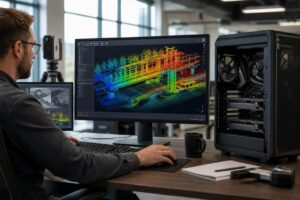
Choose this level when Civil 3D is part of a heavier workflow involving large point clouds, LiDAR data, photogrammetry, rendering, simulation, visualization, or multiple demanding programs running together.
At this point, configuration matters more than chasing a generic “best workstation” label. A point-cloud-heavy survey workflow needs a different balance than an architecture office focused on BIM coordination or a civil designer who also renders presentations.
Not every premium part translates into a better Civil 3D experience. Avoid paying for an ultra-high-end GPU if your work is mostly 2D and moderate 3D design. Skip extreme CPU core counts unless another application genuinely uses them. A costly motherboard also does not make drawings regenerate faster; buy one for the ports, drive slots, networking, power delivery, and expansion you actually need.
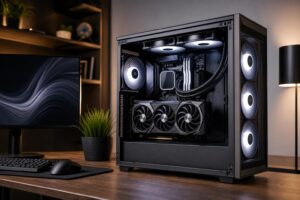
RGB lighting, glass panels, and elaborate liquid-cooling displays are personal preference, not workstation performance. There is nothing wrong with a system that looks good, but it should not displace RAM, storage, cooling quality, or a better CPU from the budget.
A workstation is more than its processor and GPU. Two 27-inch displays at 1440p or 4K can improve drawing, plan review, and document work more than a small component upgrade. Make sure the selected GPU has the display outputs you need.
For offices moving large project files, wired Ethernet remains preferable to Wi-Fi whenever practical. A fast local network and sensible backup plan can save more time than a marginal CPU upgrade. Also consider front-panel USB ports, enough rear USB connections for field equipment and peripherals, and room for future storage.
Finally, sustained CAD work creates sustained heat. A quality case with unobstructed airflow, a correctly sized CPU cooler, and a dependable power supply are not glamorous choices, but they help a workstation stay quiet, stable, and productive through long project sessions.
The best PC for AutoCAD and Civil 3D is not automatically the most expensive one. For most professionals, a fast mainstream CPU, 64GB of RAM, a capable 12GB-to-16GB GPU, and 2TB of fast storage is the sensible target. Spend more when project size, point clouds, visualization, or companion software creates a clear need—not simply because a specification looks impressive.
Overclock Computers can help configure a custom workstation around your Civil 3D project sizes, other applications, display setup, storage needs, budget, and future upgrade plans. Bring us the way you actually work, and we can help turn that into a balanced PC that makes sense for the long haul.