Best PC for Adobe Premiere Pro in 2026: Workstation Specs That Make Sense

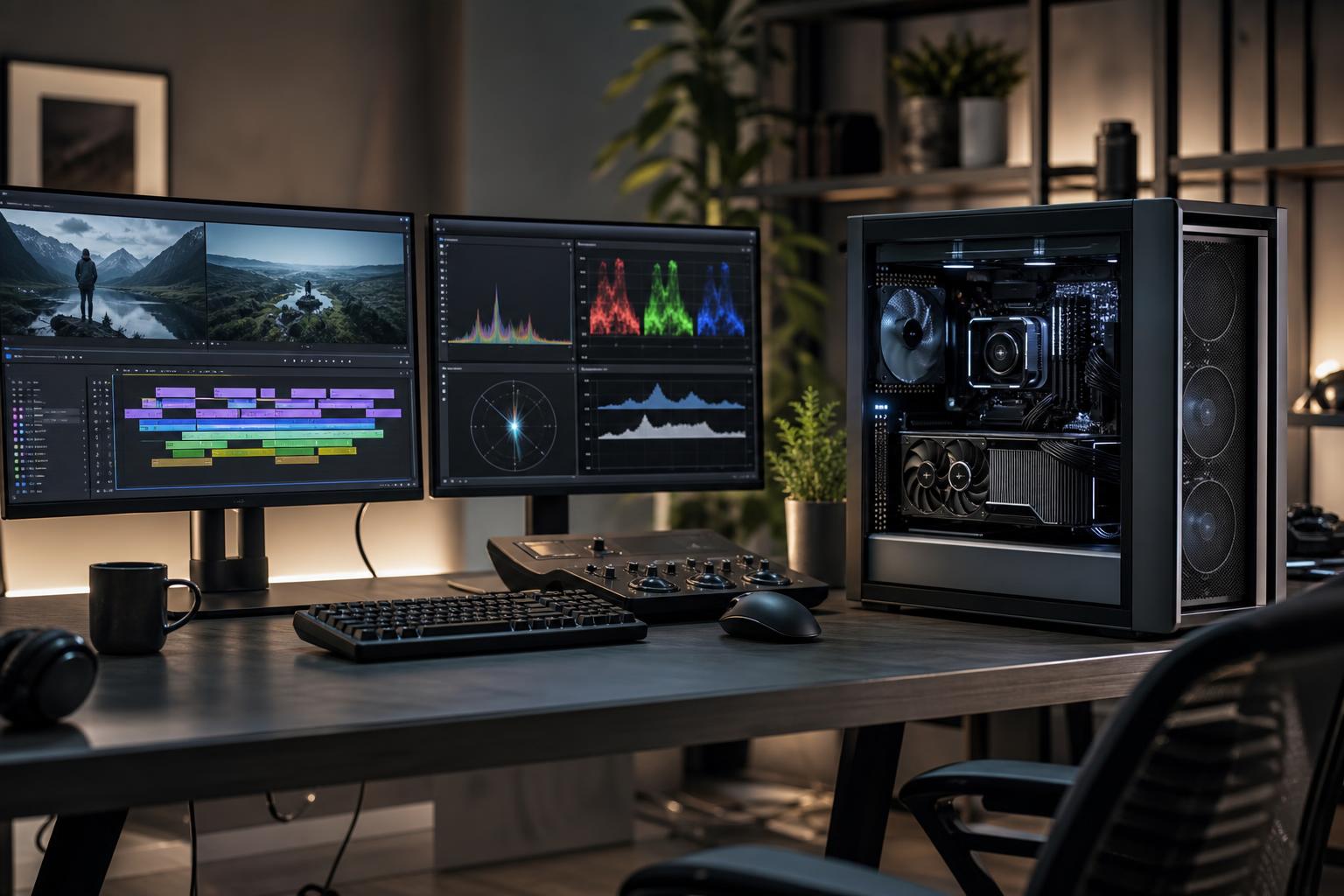
The best PC for Adobe Premiere Pro is not simply the one with the most expensive CPU or graphics card. Premiere Pro uses several parts of a computer at once, but how heavily it uses each one changes with your footage, effects, export format, and the other Adobe applications open alongside it.
For most serious editors, the sensible target is a modern high-performance desktop CPU, an NVIDIA GPU with enough VRAM for the project, 64GB of RAM, and at least two fast NVMe SSDs. That is the practical sweet spot for 4K editing, color work, common effects, and regular exports. Step up from there when you work with long-form multicam timelines, RAW footage, heavy After Effects compositions, or very large projects.
This is a sensible starting point for editors producing typical 4K social, corporate, YouTube, and marketing content. It will be much more pleasant to use than a machine built around a large hard drive and a low-end GPU, even if that cheaper system advertises plenty of CPU cores.
This is the configuration we would recommend most often for a working Premiere Pro editor. It has enough memory for real multitasking, enough GPU headroom for accelerated effects and high-resolution timelines, and storage arranged so the application is not fighting your camera files for the same drive.
Spend at this level when downtime costs money or your timelines genuinely exceed what a 64GB, single-GPU system handles comfortably. It is not automatically the best purchase for every editor. Many straightforward 4K projects will see more benefit from faster storage, organized media, and proxies than from an extreme CPU platform.
“4K editing” is too broad to define a workstation. A short 4K H.264 project with a few cuts is very different from an hour of multicam 10-bit footage, noise reduction, graphics, linked After Effects compositions, and frequent revisions.
Before choosing parts, identify these four things:
For especially compressed camera footage, proxy workflows remain useful even on powerful computers. A better workstation reduces the need for proxies in many cases; it does not repeal the laws of video compression.
Premiere Pro benefits from a fast processor, but it does not scale evenly with unlimited CPU cores. Strong per-core speed helps keep the interface, timeline, and common editing tasks responsive. More cores help with exports, encoding, and workloads that can spread across them.
A modern 8-core CPU is a reasonable floor for paid editing work. A 12- or 16-core mainstream processor is usually the stronger choice for editors who export regularly, work in 4K, or keep several creative applications open. Beyond that point, higher-end workstation CPUs can make sense for heavy rendering, very large projects, or a mixed workflow that includes CPU rendering, simulation, and virtual machines.
Do not assume a workstation CPU is automatically faster in Premiere Pro. Some workstation platforms trade top-end single-threaded speed for more cores, memory capacity, and expansion. Those are worthwhile tradeoffs for the right workflow, not a free upgrade.
One practical consideration is hardware media acceleration. Certain Intel processors with integrated graphics can assist with supported H.264 and H.265 decode and encode workflows. If that feature matters to your footage, avoid choosing an Intel processor variant that disables its integrated graphics merely because it costs a little less. GPU acceleration is still important, but this is one reason CPU selection deserves more thought than comparing core counts.
Premiere Pro uses the GPU for many accelerated effects, color tasks, scaling, and playback functions. An NVIDIA GPU is often the straightforward choice for a Premiere Pro workstation because it is broadly supported across creative applications and can also be useful for GPU rendering, AI-assisted tools, and other production software.
For a basic editing machine, 8GB of VRAM can work. We would avoid building a new professional system around that minimum unless the workload is genuinely light. A 12GB-class GPU provides more useful breathing room, while 16GB or more is a better target for serious 4K editing, high-resolution media, complex effects, and a workstation intended to remain capable for several years.
VRAM capacity matters more than many buyers expect. When a project exceeds available GPU memory, performance can become inconsistent rather than simply a little slower. More VRAM is especially worthwhile for editors who also use After Effects, DaVinci Resolve, Blender, AI tools, or GPU-accelerated noise reduction.
That said, do not put most of the budget into the GPU while leaving only 32GB of RAM and one crowded SSD. Premiere Pro needs a balanced system. A modestly lower GPU paired with 64GB of memory and proper storage is often the better editing workstation.
Memory gives Premiere Pro, its cache, your footage, and other applications room to work without constantly moving data to storage. That is why insufficient RAM feels like random sluggishness: choppy playback, slow application switching, and a timeline that becomes less cooperative as the day goes on.
Use matched memory kits and choose capacity before chasing small differences in memory speed. Enough stable RAM is more valuable than an impressive-looking specification that leaves the workstation short on capacity.
Video editing is storage-intensive. Your computer may read source media, write cache files, save project changes, and create previews or exports at the same time. One SSD can do all of that, but separating those jobs reduces contention and makes capacity management less miserable.
A well-designed Premiere Pro workstation should have at least two NVMe SSDs:
A third fast SSD for cache, previews, or current media can be valuable in busy professional workflows. Large hard drives still have a place for economical archive storage and backups, but they are not a substitute for fast active-project storage. Also, no single drive is a backup, regardless of how expensive it was.
Mass-market desktops often pair a headline CPU and GPU with the areas that are easier to hide on a product page: limited memory, a small primary SSD, restricted cooling, a basic power supply, or few meaningful upgrade options. Those compromises may be acceptable in a basic office PC. They are frustrating in a production workstation.
A properly configured custom system lets you direct the budget to the parts that affect your work: 64GB instead of 32GB of RAM, storage sized for active projects, a GPU with usable VRAM headroom, quiet cooling for long exports, and a non-proprietary platform that can be expanded later.
Overclock Computers can help configure a Premiere Pro workstation around your camera formats, project size, Adobe workflow, storage needs, budget, and future plans. Bring us the kind of footage you edit and the problems your current machine creates; that is enough to start building the right answer.