Best PC for DaVinci Resolve in 2026: Workstation Specs That Make Sense

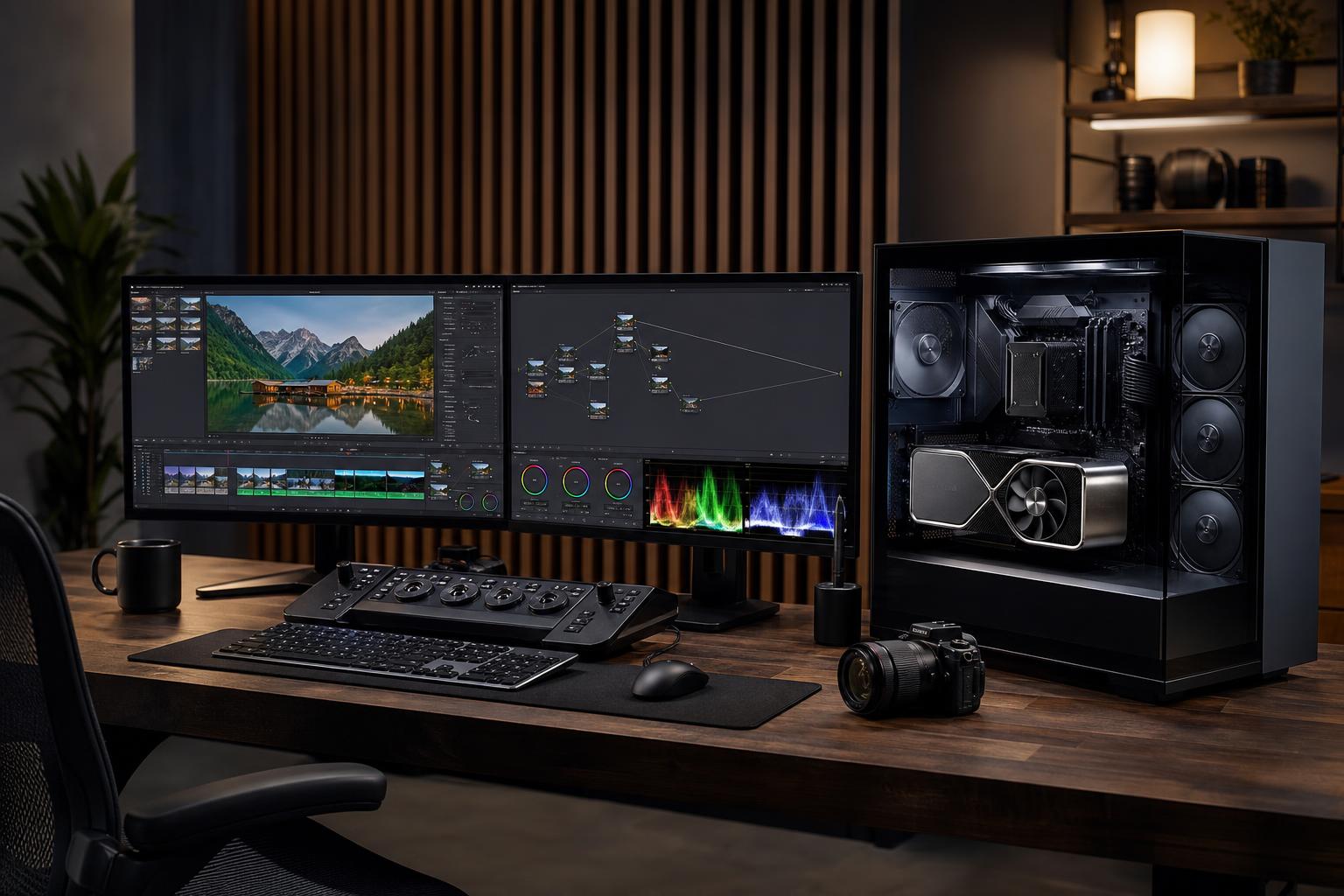
The best PC for DaVinci Resolve is usually a GPU-focused workstation with enough system memory and fast storage to keep your media moving. For most serious 4K editors, that means a modern high-performance 8-core-or-better CPU, a capable discrete graphics card with at least 16GB of VRAM, 64GB of RAM, and separate NVMe SSDs for the operating system, active projects, and cache files.
That is a far more useful starting point than simply buying the most expensive processor available. Resolve can use many parts of a PC at once, but the graphics card has an outsized effect on color grading, GPU-accelerated effects, noise reduction, Fusion work, and export performance. A balanced system feels fast. An unbalanced one can be surprisingly frustrating, even when one component looks impressive on a spec sheet.
This is the sensible floor for a paid editing workstation, not a casual home PC. It suits editors working with standard HD timelines, lighter 4K footage, basic grades, and modest effects. If the choice is between a slightly faster CPU and a GPU with substantially more VRAM, put the money toward the GPU.
This is where we would steer most professional Resolve buyers. It has the headroom for demanding 4K codecs, multicam editing, more ambitious color work, frequent exports, and moderate Fusion compositions. It also leaves room for a system to remain useful as projects get heavier rather than becoming cramped the moment you add noise reduction or another camera angle.
This tier is justified for editors and post-production teams handling high-resolution camera originals, complex node trees, temporal effects, heavy Fusion compositions, large timelines, or tight turnaround times. It is not automatically the best choice for someone cutting simple 4K projects. More hardware is only valuable when it removes a real delay from your work.
For many Resolve workflows, the graphics card is the component that determines whether playback stays smooth once a timeline becomes interesting. Color correction, OpenFX effects, scaling, compositing, noise reduction, and Fusion can all place substantial work on the GPU. VRAM is especially important because it holds the image data and working assets the graphics card needs.
A GPU can be powerful on paper but still run out of usable room if it has too little VRAM for your footage and effects. When that happens, you may see reduced playback performance, errors, or a need to lower timeline resolution and rely more heavily on optimized media or render cache.
For a new professional 4K Resolve system, 16GB of VRAM is a practical target. A 24GB-or-more GPU makes sense for high-resolution RAW media, demanding noise reduction, larger Fusion work, 6K and 8K projects, or a workstation intended to stay in service for several years. A 12GB card can still be effective for lighter editing, but it is the compromise we would make first only when the budget is firmly limited.
Resolve does not make the CPU unimportant. The processor handles general system work, timeline tasks, some decode and encode operations, certain effects, and background applications. A responsive modern 8-core processor is a strong choice for most 4K editors. Moving to 12 or 16 cores can be worthwhile when you render often, work with CPU-heavy formats, run several creative applications together, or need a workstation that performs other demanding tasks as well.
Do not assume that the highest core count is always the editing winner. Some editing tasks respond better to strong per-core speed, and GPU acceleration may matter more than extra CPU cores. A sensible build puts a capable CPU behind the best appropriate GPU rather than spending the entire budget on the processor.
32GB is workable for HD and lighter 4K work, but 64GB is the practical recommendation for a serious 4K DaVinci Resolve workstation. It gives Resolve room for larger projects, cached media, multiple applications, and the browser tabs that somehow become part of every editing session.
Choose 128GB when you regularly use Fusion, edit high-resolution footage, work with lengthy timelines, use large stills or graphics, or keep After Effects, Photoshop, audio software, and other tools open at the same time. More than 128GB is a specialist requirement, not a default upgrade. Buy it when your existing projects prove you need it.
Video editing punishes storage shortcuts. A large hard drive is useful for archives, but it should not be the only place where active projects, cache, and source media live. Mechanical drives can become the bottleneck long before the CPU or GPU is fully occupied.
At minimum, separate the operating system and applications from active project media and cache. A sensible arrangement looks like this:
Editors working with several cameras, high-bitrate footage, or shared media may need more capacity and faster external or network storage. The right solution depends on how much footage must be online at once and how many people need access. Fast storage helps, but it does not replace backup. An active project should exist in more than one place.
Camera codec is one of the most overlooked parts of a Resolve PC purchase. Two 4K files can be very different to edit. Highly compressed long-GOP footage is often harder to decode than editing-friendly intermediate formats, even when both have the same resolution.
Modern CPUs and GPUs may include dedicated media engines that accelerate supported decode and encode formats. Resolve edition, software version, operating system, driver, and codec type all affect what acceleration is available. Before ordering a workstation, identify the cameras and recording settings you actually use. If smooth playback is mission-critical, plan to use proxies or optimized media when appropriate rather than expecting any PC to brute-force every compressed format without compromise.
Spend more on the GPU and VRAM when color work, effects, Fusion, and high-resolution footage are central to your work. Spend more on RAM when you multitask heavily or use complex compositions. Spend more on storage when projects are large enough that you are constantly moving media on and off the workstation.
You can usually save money on an extravagant motherboard, cosmetic lighting, and a power supply with far more capacity than the build requires. That does not mean choosing bargain-bin parts. A quality power supply, a well-ventilated case, and appropriate CPU cooling protect performance during long renders and make the workstation more pleasant to live with. The goal is quiet, stable sustained performance—not a flashy parts list.
The best workstation for DaVinci Resolve is not defined by resolution alone. An editor cutting a single-camera 4K interview has very different needs from a colorist working with high-resolution RAW footage, or a creator building complex Fusion compositions. Share your camera formats, typical timeline resolution, effects, delivery formats, storage needs, and any applications you run beside Resolve. Those details determine where the budget will actually make a difference.
Overclock Computers can design a custom DaVinci Resolve workstation around your projects, budget, media workflow, noise preferences, and future upgrade plans. If you are planning a new editing system, bring us the details of the work you do—not just a shopping list—and we will help you configure hardware that makes sense.