Best Workstation for Revit in 2026: Specs That Make Sense

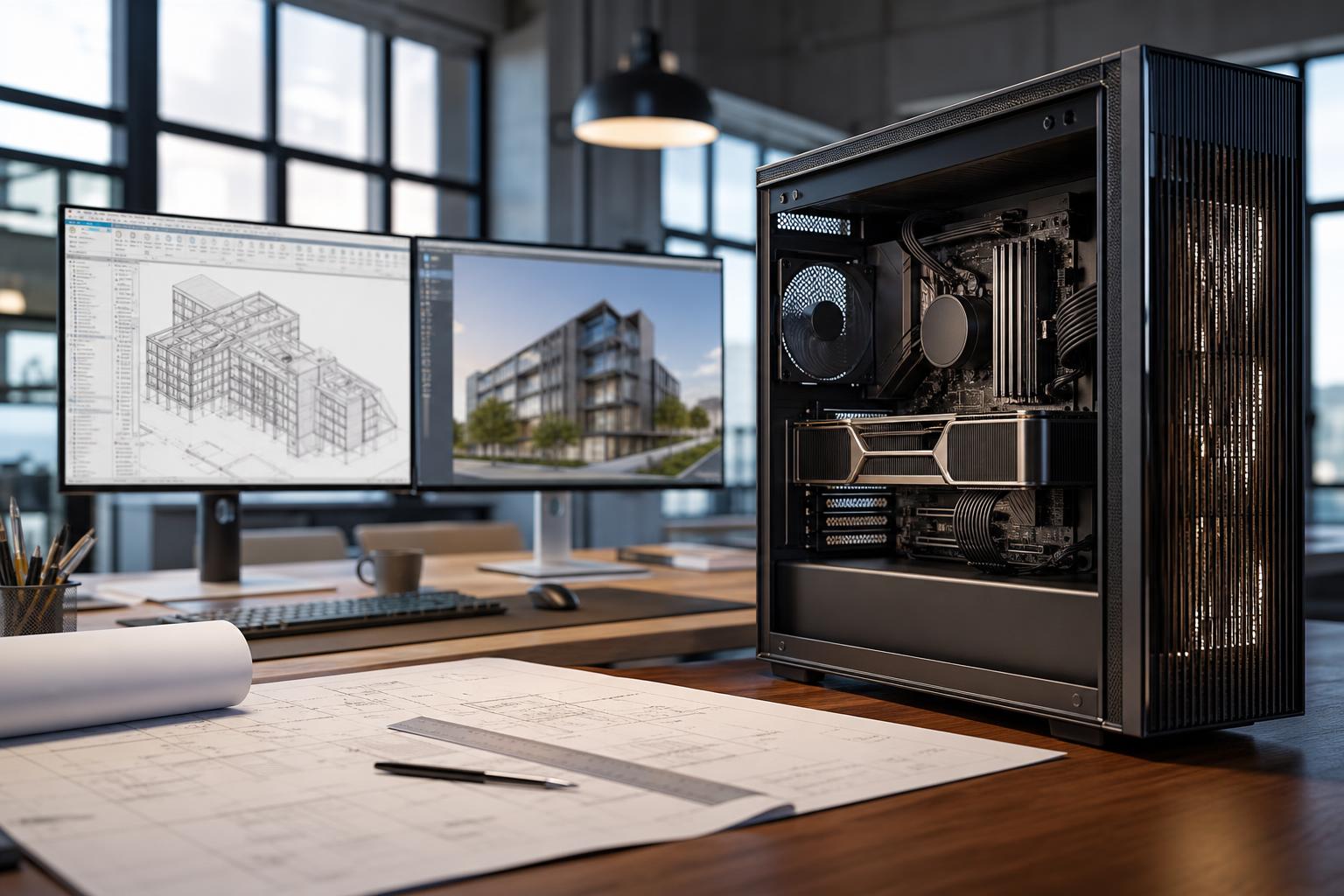
The short answer: most Revit users should buy a workstation with a fast modern desktop CPU, 64GB of RAM, a capable midrange-to-high-end graphics card, and at least 2TB of NVMe SSD storage. For smaller architectural projects, 32GB can still work. For large central models, linked files, point clouds, heavy multitasking, or rendering, move to 96GB or 128GB of RAM and give more attention to storage capacity, cooling, and reliable networking.
Revit is not a workload where buying the biggest CPU or the most expensive graphics card automatically produces the best experience. A well-balanced workstation will feel faster when opening models, navigating views, syncing to a central file, and working through a long day. The right build depends mostly on model size, linked-model complexity, whether you use rendering or real-time visualization, and how many other applications stay open alongside Revit.
For day-to-day modeling, Revit benefits heavily from strong per-core CPU performance. Many common tasks do not spread perfectly across a huge number of CPU cores. That means a fast desktop processor is usually a better purchase than a many-core workstation processor with lower clock speeds.
Memory is the next major decision. Revit models, linked architectural and MEP files, sheet sets, PDFs, browsers, Microsoft Office, Bluebeam, and visualization tools can collectively use much more RAM than expected. When available memory runs short, Windows starts leaning on the SSD as temporary memory. Even a fast SSD is far slower than RAM, and the workstation starts feeling sticky rather than merely slow.
The graphics card matters for smooth viewport navigation, high-resolution displays, visual styles, and GPU-accelerated companion applications. It matters even more if the same machine runs Enscape, Twinmotion, Lumion, Unreal Engine, or GPU rendering tools. But a top-tier gaming GPU will not fix a CPU-bound Revit model or compensate for inadequate RAM.
This tier suits individual architects, interior designers, students, and smaller offices working with modest projects and a reasonable number of linked files.
This is a sensible starting point for Revit itself, particularly when projects are locally stored or only moderately linked. If the budget is tight, spend the extra money on moving from 32GB to 64GB of memory before overspending on the GPU. You will notice the memory upgrade more often.
For most full-time BIM professionals, this is the sweet spot. It is appropriate for larger buildings, multidisciplinary linked models, multiple high-resolution monitors, frequent coordination work, and regular use of tools such as Navisworks, Bluebeam, AutoCAD, and visualization software.
The CPU is still chosen for fast individual cores, but having additional cores helps when other applications are open or when exporting, rendering, compressing files, and running background tasks. This configuration is generally a much better real-world investment than putting an extreme CPU in a system with only 32GB of RAM.
This tier is for users handling large and complex central models, substantial point-cloud data, several linked disciplines, frequent visualization, or a workload that combines Revit with heavy rendering and processing applications.
Buy this level when the project data genuinely calls for it. Large point clouds and real-time visualization can justify a powerful GPU and more memory. A small Revit model with a few sheets cannot. Premium hardware is useful when it removes a real bottleneck, not because its product page has the most dramatic chart.
Revit uses multiple cores for certain operations, but interactive modeling performance often comes down to how quickly one or a few CPU cores can complete work. Look for a current-generation desktop processor known for high boost performance rather than selecting a server-style processor solely because it has a huge core count.
More cores become more valuable if your workstation also handles CPU rendering, large exports, simulations, video production, or other parallel workloads. If Revit modeling is the primary job, do not sacrifice fast cores to chase an impressive core count.
For a new workstation used commercially, 64GB is a practical target. It gives Revit breathing room while allowing other essential software to remain open. It also provides a better margin as models grow over the life of the system.
Choose 96GB or 128GB when you regularly work with large linked models, point clouds, extensive families, several Autodesk applications, or memory-hungry visualization tools. Watch actual memory use during a difficult project if you are unsure. Consistently reaching the limit is a clear reason to add more.
Revit does not need an extreme GPU for basic 2D documentation and standard 3D views. A good dedicated card is still worthwhile for smooth navigation, especially at 4K or across several displays. The bigger GPU decision arrives when you use Enscape, Twinmotion, Lumion, D5 Render, or GPU-based rendering. Those applications can benefit substantially from more GPU performance and VRAM.
Professional GPUs may make sense when a specific application, driver requirement, support policy, or workflow calls for them. They are not automatically faster for Revit. For many architecture and BIM users, a well-supported consumer graphics card provides stronger value. The right answer should be based on the complete software stack, not the word “workstation” printed on the box.
Use NVMe SSDs for the operating system, applications, active projects, local Revit files, exports, and caches. A 2TB primary drive prevents the system from becoming cramped too quickly. A separate project drive is useful for firms handling large files, because it keeps active work away from the operating system and makes data management simpler.
Do not confuse local SSD storage with backup. Revit files and business data need a proper backup plan, ideally with versioned off-machine copies. One large internal drive is convenient, but it is not a backup plan wearing a convincing disguise.
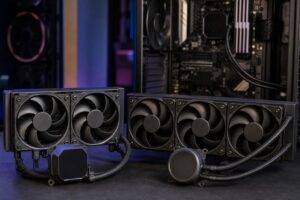
A Revit workstation often runs demanding software for many hours, so quality cooling and power delivery are not cosmetic upgrades. A properly sized CPU cooler, an airflow-focused case, and a reputable power supply help the system maintain performance without excessive noise or heat.
For teams working from shared storage or central models, wired Ethernet is preferable to Wi-Fi. Reliable network performance will not make Revit calculations faster, but it can make access to shared project files less frustrating. Confirm the network hardware at the office before paying for faster Ethernet ports that the rest of the network cannot use.
A carefully selected prebuilt PC can be perfectly suitable for lighter Revit work. The trouble is that many mass-market configurations pair one headline component with compromises elsewhere: limited memory, a small SSD, modest cooling, proprietary parts, or an upgrade path that ends sooner than expected.
A custom workstation is most valuable when the specification needs to reflect your actual work: the size of your models, linked disciplines, visualization tools, storage needs, monitor setup, office network, and plans for expansion. It lets you spend more where it improves your workday and less where it does not.
Overclock Computers can help design a Revit workstation around your budget, project complexity, companion software, visualization needs, preferred monitor setup, and future upgrade plans. Bring us the applications you use and the type of projects you handle, and we can recommend a balanced system rather than a generic parts list.