Best Civil 3D Workstation: PC Specs for Faster Design and Larger Projects

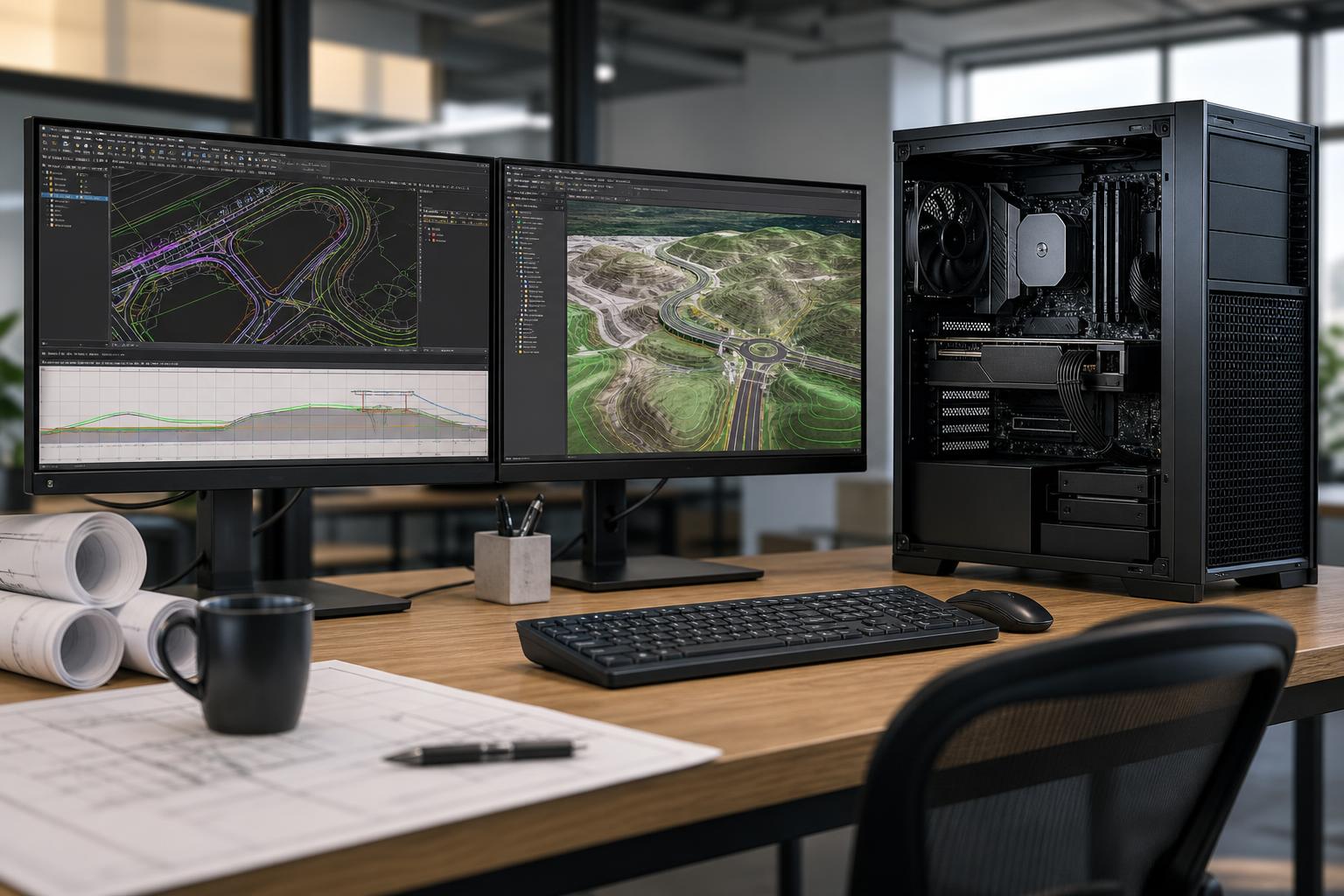
Autodesk Civil 3D can run on a fairly ordinary office PC. That does not mean an ordinary office PC is a good Civil 3D workstation.
As drawings gain external references, survey data, alignments, profiles, corridors, pipe networks, and large surfaces, the difference becomes obvious. Commands take longer to complete, the interface becomes less responsive, and opening or saving a project interrupts the workday more often than anyone would like.
A good Civil 3D workstation is not simply a computer with the biggest CPU or the most expensive graphics card. It is a balanced system built around the way your team actually works: mostly 2D plans, active 3D corridor design, large terrain models, data from survey crews, visualization, or several applications open at once.
This guide explains where workstation budget makes a real difference for Civil 3D and where spending more produces little practical benefit.
For most Civil 3D users, the priority order is straightforward:
That order surprises buyers coming from rendering or simulation backgrounds. Civil 3D does use multiple CPU cores for some operations, but much of the hands-on work still benefits more from fast individual cores than an extreme core count. A 64-core processor is impressive hardware. It is not automatically the fastest choice for a designer editing corridors and grading plans all day.
Opening drawings, moving through models, editing objects, and many common AutoCAD-based tasks are lightly threaded. In plain English, they cannot efficiently split the job across dozens of CPU cores. High clock speeds and strong single-thread performance usually have the clearest effect on day-to-day responsiveness.
For an individual Civil 3D professional, a modern high-performance desktop CPU with roughly 8 to 16 strong cores is often the sensible starting point. It provides excellent interactive performance while leaving room for background tasks, PDF work, spreadsheets, browser tabs, reference material, and occasional exports.
Move to a higher-core-count workstation platform when the rest of the workflow justifies it. Good reasons include frequent processing in other well-threaded engineering software, regular reality-capture or point-cloud work, heavy rendering, simulation, several virtual machines, or a need for very large RAM capacities and more PCIe expansion. Do not choose a workstation-class CPU platform solely because Civil 3D is installed.
For a Civil 3D-focused system, we would generally put the first upgrade dollars into a fast CPU tier, adequate memory, and quality storage before paying for an extreme core count.
Memory capacity determines how comfortably a workstation handles large, real-world projects. When RAM fills up, Windows uses storage as overflow memory. Even a fast NVMe drive is dramatically slower than RAM, so the system may pause or feel inconsistent as it swaps data back and forth.
32GB can be adequate for smaller site plans, straightforward design files, and a user who normally keeps one main application open. It is a workable floor for a professional system, but it leaves limited headroom once drawings become reference-heavy or GIS, PDFs, spreadsheets, browser tabs, and communication tools enter the picture.
For many civil designers, engineers, and technicians, 64GB is the right starting point. It gives Civil 3D room for larger drawings, several Xrefs, and multiple supporting applications without making memory pressure a routine concern. If you are buying a new workstation intended to serve for several years, 64GB is usually a better decision than trying to save a modest amount with 32GB.
Choose 128GB when projects regularly include large surfaces, substantial survey data, point clouds, extensive references, or concurrent work in demanding GIS, rendering, visualization, or reality-capture software. Consider 256GB only when project data and supporting applications demonstrably need it. Extra unused RAM does not accelerate Civil 3D; avoiding insufficient RAM does.
Usually, no. A well-chosen consumer GPU often provides strong viewport performance and better value for Civil 3D, especially when the system also supports visualization, rendering, video work, or GPU-accelerated processing.
The important specification is not the word printed on the GPU box. It is whether the card has enough performance and VRAM for the size and type of 3D work you do, along with drivers appropriate for the applications your organization relies on.
A midrange GPU with 12GB to 16GB of VRAM is a sensible target for many Civil 3D workstations. It gives useful headroom for 3D navigation, large displays, and visual tasks without taking an outsized share of the budget. A higher-end card makes more sense for frequent rendering, real-time visualization, very high-resolution multi-monitor setups, large point clouds, or GPU-heavy software outside Civil 3D.
Professional GPUs can be the right choice where a specific application, driver policy, support requirement, or very large VRAM capacity calls for one. They may offer advantages in professional driver ecosystems, memory capacity, and specialized workflows. They are not a universal upgrade for CAD, and their price premium should be tied to a clear requirement rather than assumed superiority.
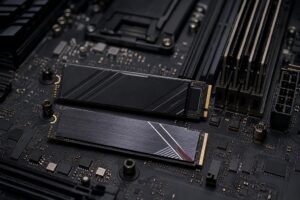
Civil projects accumulate quickly: source survey files, Xrefs, aerial imagery, PDFs, exports, backups, and deliverables all need a home. Storage affects not just capacity, but how quickly the workstation opens files, saves revisions, manages caches, and moves data around.
For most new Civil 3D workstations, start with a high-quality NVMe SSD for Windows, applications, and active work. A 2TB primary drive is a practical baseline for professionals who keep active project material local. A 4TB drive is often more comfortable when large datasets or several active projects live on the workstation.
A second NVMe SSD can be useful for active project data, temporary processing files, caches, or scratch workloads. This will not transform every Civil 3D command, but it can keep heavy file activity from competing with the operating system and applications. Large archive storage and backups should be planned separately. A workstation drive is not a backup strategy.
This is the sweet spot for most individual designers and technical staff working on typical site development, road, utility, and grading projects.
This tier suits professionals handling larger surfaces, heavy reference files, survey data, point clouds, GIS tasks, and adjacent visualization workloads.
This is for firms with unusually large datasets or a mixed workload that goes well beyond Civil 3D. It is not the default recommendation for ordinary CAD production.
Professional systems are expected to perform consistently during long days, not just for a short benchmark run. Adequate cooling helps the CPU sustain its intended performance during exports, processing, and heavy multitasking. A quality power supply protects component stability and gives appropriate room for future GPU upgrades.
For businesses, standardizing sensible configurations can also make support and replacement easier. That does not mean every employee needs the same workstation. A CAD technician working in 2D plans, a project engineer managing large corridors, and a reality-capture specialist have different bottlenecks. Standardize where it helps, then tailor the CPU, memory, storage, GPU, and networking to each role.
The best Civil 3D workstation is fast where Civil 3D is fast-sensitive, spacious where project data demands memory and storage, and expandable where the business needs it. For most users, that means a high-clock-speed CPU, 64GB of RAM, a capable midrange GPU, and fast 2TB or larger NVMe storage. Large models, point clouds, visualization, and data-intensive work are the reasons to scale beyond that baseline.
Before purchasing, list the Civil 3D tools your team uses, typical drawing and surface sizes, Xref and point-cloud habits, other applications that run alongside CAD, local-versus-network storage, and expected growth. Overclock Computers can use that information to configure a custom Civil 3D workstation around your actual projects, performance priorities, upgrade plans, and budget. Contact our team to discuss a workstation that fits the work instead of paying for hardware you will not use.