Best Workstation Specs for 4K and 8K Video Editing

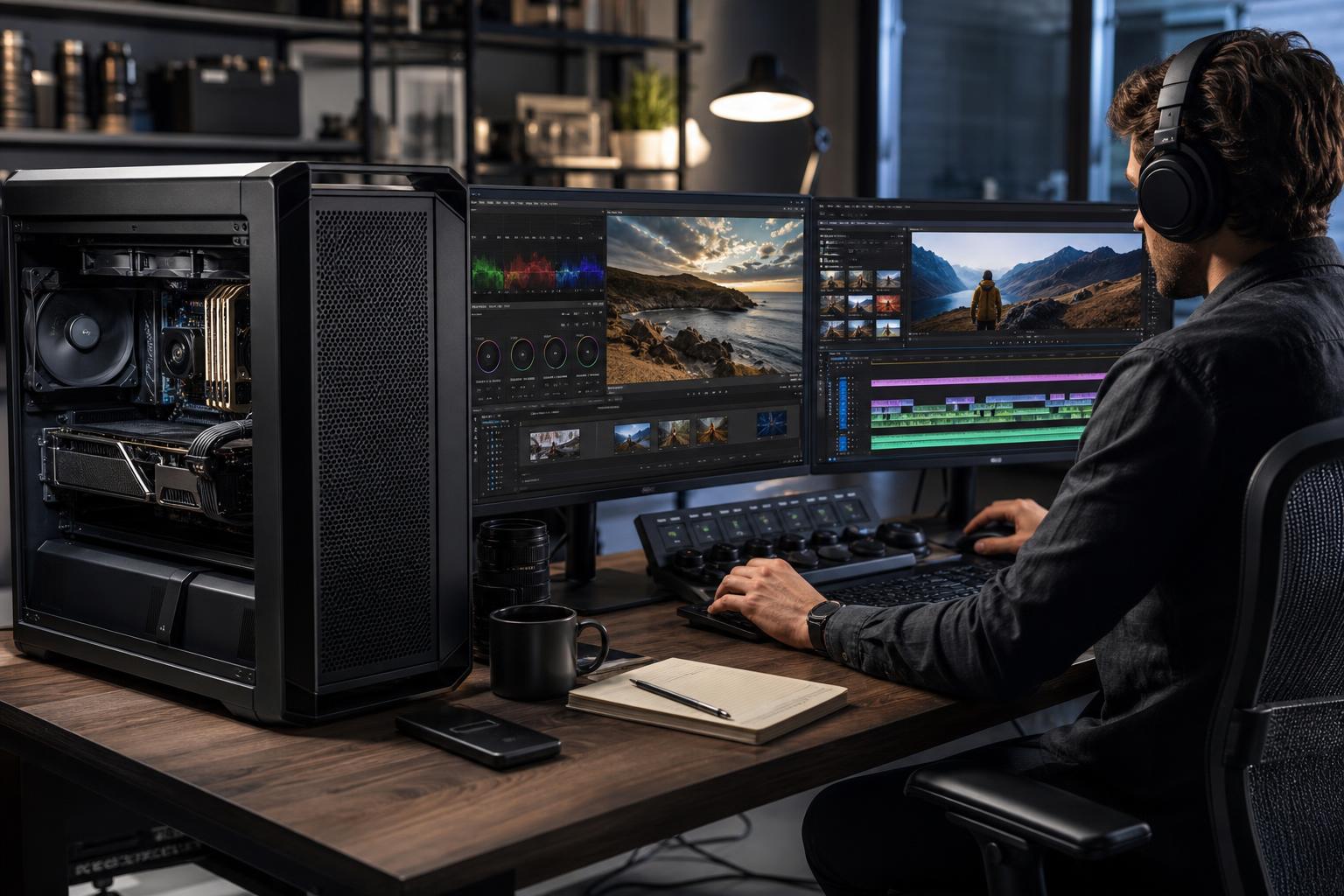
A good video editing workstation should make the edit feel immediate: responsive playback, quick scrubbing, reliable exports, and enough room to keep the project, cache, and source media organized. That sounds simple, but “4K editing PC” is not a complete requirement.
Two editors can both work with 4K footage and need very different computers. A straightforward interview edit in a compressed delivery codec is far lighter than multicamera 4K footage with noise reduction, motion graphics, color work, and effects. An 8K timeline can be manageable with proxies, while a difficult 4K codec can bring an otherwise capable system to its knees.
The right answer is to configure the workstation around the camera formats, editing software, effects, project sizes, storage workflow, and deadlines. Here is what actually matters when choosing a 4K and 8K video editing workstation.
Resolution affects the amount of image data a system must handle, but it is only one part of the workload. Before buying, identify the details that put real pressure on the workstation:
For many professional teams, smooth editing is more valuable than forcing every timeline to play at full resolution. A sensible proxy workflow can make difficult media easier to handle while preserving full-quality source footage for finishing and export. Proxies are not an admission of defeat; they are a normal production tool.
Video editing benefits from both strong per-core speed and multi-core performance. The balance matters.
A fast modern desktop CPU with roughly 8 to 16 capable cores is a strong starting point for most 4K editors. It keeps the operating system and editing application responsive while offering enough parallel performance for exports, transcodes, and background tasks. For many single-editor 4K workflows, this is the practical sweet spot.
Higher-core-count workstation CPUs become worthwhile when the work includes frequent long exports, demanding codecs, batch transcodes, CPU rendering, After Effects compositions, or several heavy applications open at once. They can also make sense when a system needs very large RAM capacity, additional PCIe expansion, or multiple high-speed storage devices.
Don’t buy a very high-core-count processor solely because its name sounds more professional. Some editing tasks and interface operations respond better to faster individual cores than to a huge core count. A workstation with a balanced 12- or 16-core CPU, enough RAM, fast storage, and the right GPU is often more pleasant to use than a poorly balanced system built around an extreme CPU.
Modern processors and graphics cards may include dedicated hardware for decoding and encoding common video formats. Support varies by codec, software version, operating system, export settings, and the exact hardware involved. When it applies, hardware acceleration can improve playback and export performance while leaving more general CPU resources available for the rest of the workflow.
It should be treated as a useful feature, not a substitute for a properly specified workstation. Heavily layered timelines, effects, and color processing still need adequate CPU and GPU horsepower.
The graphics card is central to many modern editing workflows. It can accelerate effects, color processing, scaling, playback, and exports in supported applications. DaVinci Resolve in particular can make strong use of GPU performance, while other applications may divide work more heavily between the CPU and GPU.
For professional 4K editing, 12GB to 16GB of VRAM is a sensible baseline for a new high-performance workstation. It gives the system more breathing room for GPU-accelerated effects, higher-resolution media, multiple displays, and larger projects. For demanding 4K finishing, 6K work, or regular 8K editing, 16GB to 24GB or more is often the more comfortable choice.
VRAM capacity is not the same thing as raw GPU speed, but running out of VRAM can cause errors, slowdowns, or a need to reduce timeline demands. It is especially relevant for noise reduction, complex grades, Fusion or compositing work, high-resolution textures, and GPU rendering alongside video production.
Not automatically. A high-end consumer GPU can offer excellent value for many Premiere Pro and Resolve workstations, particularly when raw GPU acceleration and ample VRAM are the priorities. Professional GPUs may be justified where a specific application requires validated driver support, where large VRAM capacities are necessary, or where the organization has established hardware standards.
The decision should come from the software vendor’s current guidance and the actual project workload, not from the assumption that a professional card is always faster. For a lot of editors, money is better spent on more storage, more RAM, or a stronger overall GPU rather than on a professional GPU badge alone.
Memory capacity determines how much active project data, cached material, applications, and background work can remain available without relying on much slower storage. When RAM is tight, a workstation can feel sluggish even with an excellent CPU and graphics card.
More RAM than the project can use will not speed up every export. However, inadequate RAM is a common and very avoidable cause of poor workstation behavior. For a machine intended to earn its keep for several years, 64GB is often a better long-term purchase than starting at 32GB.
Fast storage improves more than boot time. It affects media imports, cache generation, waveform creation, project loading, proxy generation, playback consistency, and file transfers. Capacity also matters because video projects grow with alarming enthusiasm.
A practical editing workstation should usually use separate storage roles rather than one large drive for everything:
For an individual 4K editor, two or three well-chosen SSDs are often enough. For teams handling large 8K projects, shared storage and fast networking become part of the workstation decision. A 10GbE network connection can be worthwhile when the system regularly works against capable network-attached storage. It will not make slow storage fast, but it can remove a serious bottleneck in a properly designed shared workflow.
Best for single-camera and multicamera 4K projects, corporate production, social content, interviews, and standard color and effects work.
Best for frequent multicamera work, heavier color grades, GPU-accelerated effects, larger raw files, and editors who also use After Effects or motion graphics tools.
Best for frequent 8K work, complex Resolve projects, high-resolution raw media, serious compositing, long renders, or production teams with substantial local and shared-storage needs.
Rendering and exporting can hold a CPU and GPU under load for hours. A workstation needs cooling that can sustain that work without excessive heat, noise, or performance reduction. It also needs a quality power supply with enough capacity and the correct connectors for the selected graphics card and expansion hardware.
These are not glamorous parts, but they matter. So does choosing a case with sensible airflow and room for future drives, capture cards, high-speed networking, or another expansion card. A workstation should not be an expensive dead end the moment your workflow grows.
If your current machine becomes slow only during exports, CPU performance may be the priority. If playback collapses when noise reduction or advanced grading enters the timeline, the GPU and VRAM deserve attention. If projects take ages to open, caches fill constantly, or source media is stored on a crowded external drive, storage may be the real problem.
Overclock Computers designs custom workstations around the applications you use, the footage you receive, your typical project size, storage workflow, expansion plans, and budget. If you are planning a 4K or 8K editing workstation, contact our team with your software, camera formats, and a sample description of a demanding project. That is enough to start specifying a system that fits the work rather than just looking impressive on a parts list.