Best AutoCAD Workstation: PC Specs for 2D Drawings and 3D Models

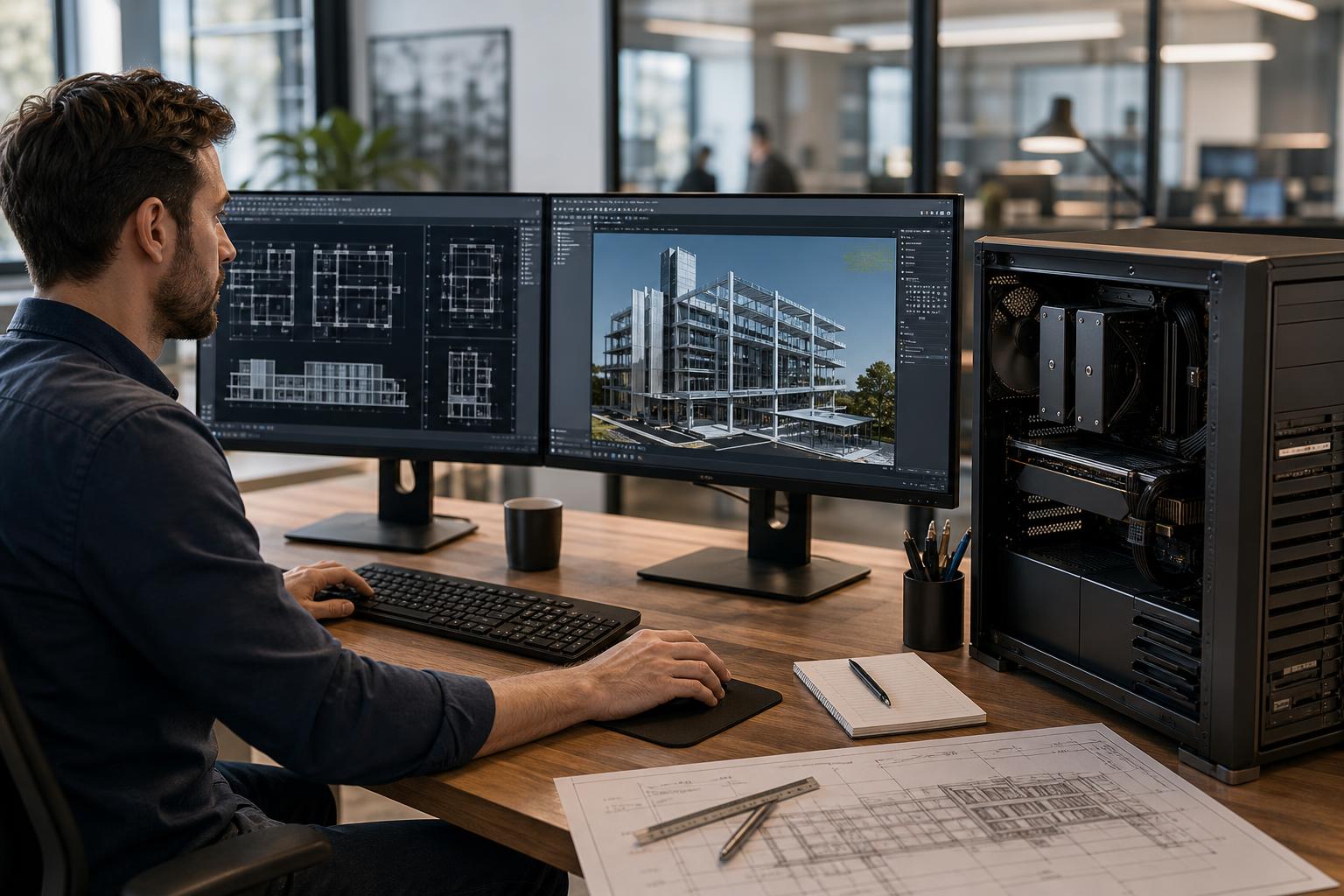
An AutoCAD workstation should feel quick when you are opening drawings, moving around a detailed model, attaching references, plotting sheets, and keeping several project tools open at once. That does not automatically mean it needs the most expensive CPU or a top-tier professional graphics card.
The best AutoCAD workstation is balanced around the way your team actually works. A drafter working mainly in 2D has different needs from an architect handling 3D models, or an engineer who moves between AutoCAD, analysis tools, rendering software, and large PDF sets all day. Buying too little hardware creates daily frustration. Buying the wrong expensive hardware is not much better.
For most AutoCAD users, prioritize strong single-core CPU performance, enough RAM for the size and number of files in use, a capable GPU for the complexity of the viewport, and fast NVMe storage. Then add workstation-class platform features only when the workload gives you a concrete reason to need them.
AutoCAD is often responsive because much of its everyday drafting and modeling work favors fast CPU cores rather than enormous core counts. Pan, zoom, selection, drawing edits, many calculations, and general interface responsiveness can be limited by the speed of one or a few cores.
That makes a modern, high-clock-speed desktop processor a smarter starting point than a high-core-count processor chosen purely for its specification sheet. More cores still have value when users run several demanding applications at once, process renders, compile code, run simulations, or perform batch operations. They simply are not the first upgrade most AutoCAD-only systems need.
For 2D AutoCAD and moderate 3D work, a current mainstream CPU with excellent single-threaded performance is usually the sweet spot. A processor with roughly 8 to 16 capable cores gives most professionals ample room for AutoCAD, Windows background tasks, browser tabs, PDF review, Teams or Zoom, and related project software.
A higher-core-count workstation CPU makes sense when AutoCAD is only one part of a larger workflow. Examples include:
Do not buy a 32-, 64-, or higher-core processor solely to make basic 2D drafting feel faster. In that situation, a faster mainstream CPU, more memory, and well-organized storage will usually provide a better experience.
System memory is where an undersized CAD workstation tends to reveal itself. When RAM fills up, Windows starts moving active data to storage. Even a fast SSD is dramatically slower than memory, and the result is sluggish switching between drawings, delayed file operations, and a system that feels unresponsive at the worst possible time.
For straightforward 2D drafting, 32GB of RAM is a sensible professional baseline. It leaves useful headroom for several drawings, external references, PDFs, email, browser-based project platforms, and normal multitasking.
64GB is the better default for many CAD professionals working on larger drawing sets, detailed 3D content, linked files, and multiple applications. It is also a practical choice for a workstation expected to remain in service for several years.
128GB or more is justified for unusually large models, heavy reference use, concurrent reality-capture or point-cloud data, virtualization, analysis work, or workflows that involve multiple memory-hungry applications. For ordinary 2D AutoCAD work, it is usually money better spent elsewhere.
AutoCAD’s graphics demands vary sharply between simple 2D drawings and complex 3D models. A basic 2D drafting workstation does not need a massive GPU. A reliable midrange graphics card with sufficient display outputs and modern drivers is normally enough.
For 3D modeling, visual styles, large assemblies, high-resolution displays, and GPU-accelerated work in other applications, the GPU becomes more important. In those cases, prioritize enough VRAM and a card that can comfortably support the displays and viewport complexity in use.
Professional GPUs can be the right choice for organizations that need application-specific driver support, larger VRAM capacities, specialized visualization workflows, or standardization around a particular hardware platform. They are not automatically faster than consumer GPUs in every CAD task. A well-chosen consumer GPU often offers excellent value for AutoCAD users whose primary need is 3D viewport performance rather than certified-driver requirements or unusually large datasets.
Before specifying a professional GPU for a business fleet, confirm the software vendor’s current recommendations and any support or certification requirements that matter to your organization. That decision should be based on the applications your staff uses, not on a badge on the box.
This tier suits drafters, estimators, facilities teams, and professionals working primarily with 2D DWG files.
This is the sensible floor for a new professional AutoCAD workstation. It should be responsive without wasting budget on components that will sit idle.
This tier is a better fit for architects, engineers, designers, and CAD technicians handling larger files, 3D models, multiple references, and connected applications.
For many design professionals, this is the most balanced AutoCAD workstation configuration. It provides useful headroom without paying for an extreme platform that is unnecessary for the primary application.
This tier is for users combining AutoCAD with heavy rendering, reality capture, large point clouds, simulation, visualization, or several demanding tools at the same time.
This is where a workstation-class platform can earn its keep. The extra memory capacity, PCIe lanes, storage options, and expansion room can be more valuable than raw AutoCAD performance alone.
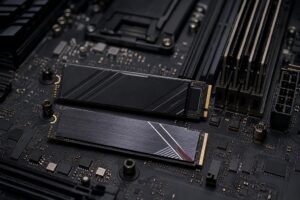
Storage affects more than boot time. It influences how quickly a workstation opens drawings, loads linked content, handles temporary files, saves revisions, and moves project data. A modern NVMe SSD should be standard in any new AutoCAD workstation.
Capacity matters just as much as speed. A 1TB drive can disappear quickly once it holds Windows, applications, local project folders, exported PDFs, linked references, and backups. For most professional systems, 2TB is a more comfortable primary-drive starting point.
Users working with large 3D assets, scans, render caches, or frequent exports may benefit from a second NVMe drive. Keeping scratch data and active projects separate from the operating system can make storage easier to manage and reduces the chance that a nearly full system drive slows down the whole workstation.
Local SSD storage is not a substitute for a backup strategy. Important project files should be protected through the organization’s appropriate server, NAS, cloud, or version-controlled workflow.
A workstation is more than its CPU and GPU. Dual displays can meaningfully improve drawing review and documentation work. A high-resolution main display gives dense drawings more room, while a second screen keeps tool palettes, specifications, email, or reference documents out of the way.
Cooling also deserves attention. CAD workstations often run for full business days, and related tasks such as exporting, rendering, processing, or compiling can keep a CPU under load for long periods. A properly sized cooler, sensible airflow, and a quality power supply help the system sustain performance without becoming an office space heater with RGB lighting.
Finally, consider how projects are stored and shared. If staff regularly work from a fast file server or network-attached storage, 2.5GbE or 10GbE networking may be a worthwhile upgrade. It will not speed up every AutoCAD command, but it can reduce waiting when opening and saving large project files across the network.
Replacement is worth investigating when users regularly wait on drawing loads and saves, run out of memory, struggle with 3D navigation, cannot connect the displays or storage they need, or lose productive time because the system becomes unstable under normal workloads.
Start by identifying the actual bottleneck. A system with sufficient CPU performance but only 16GB of RAM may benefit from a memory upgrade. A computer with an old hard drive may feel far better with an NVMe SSD. But if the platform cannot support enough memory, lacks expansion, has a weak CPU, and is approaching the end of its reliable service life, a carefully specified replacement is often the cleaner business decision.
A strong AutoCAD workstation is not defined by a single premium part. It is a balanced system built around your drawing complexity, 2D versus 3D workload, related applications, typical file sizes, storage environment, display setup, and expected service life.
Overclock Computers can help configure a custom workstation around those real requirements, from efficient 2D CAD systems to expandable engineering and visualization machines. Bring us the applications you use, the size of the projects you handle, and the bottlenecks your team faces, and we can recommend hardware that makes practical sense for the work in front of you.