Single vs. Dual-Channel RAM: Why Memory Configuration Matters

When people shop for RAM, they usually focus on capacity and speed: 32GB versus 64GB, or DDR5-5600 versus DDR5-6000. Those are worthwhile details, but the way memory modules are installed matters too.
A PC with two properly matched RAM sticks normally performs better than one stick with the same total capacity. This is called dual-channel memory, and it allows the processor to communicate with system memory over two channels rather than one. It is not magic, and it will not turn a modest PC into a flagship workstation. Still, it is one of the simplest ways to avoid leaving performance on the table.
Here is what dual-channel RAM does, when it matters most, and how to choose a sensible configuration for a new PC or upgrade.
Think of a memory channel as a route between the CPU and RAM. A single-channel configuration gives the processor one route. A dual-channel configuration gives it two routes, increasing available memory bandwidth.
For example, a computer with one 32GB memory module has 32GB of capacity, but it generally runs in single-channel mode. A computer with two matching 16GB modules also has 32GB of capacity, but it can run in dual-channel mode.
The practical benefit is that the CPU can move more data to and from RAM in a given amount of time. The actual improvement depends on the software. Some tasks are lightly affected; others respond very well to the extra bandwidth.
Most mainstream desktop platforms support two memory channels. Higher-end workstation platforms may support four or even more channels, but those systems are built for specific heavy workloads and use different hardware. For the vast majority of gaming PCs, creator desktops, and professional workstations, dual-channel is the goal.
Dual-channel memory does not make every application twice as fast, even though the theoretical memory bandwidth can be much higher. A program has to be limited by memory bandwidth before it can take full advantage of it.
In real use, dual-channel RAM can help with:
A gaming PC with a dedicated graphics card will not always show a dramatic difference in every title. If the GPU is already the limiting factor at high resolution and demanding visual settings, the gap may be modest. But there is little reason to intentionally choose single-channel memory in a new desktop when a dual-channel kit is available.
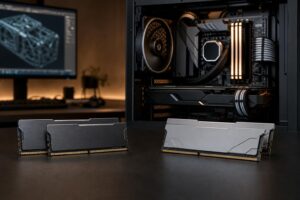
For a typical desktop build, buy RAM as a matched kit with two modules. Examples include 2 x 16GB for 32GB total, 2 x 24GB for 48GB total, or 2 x 32GB for 64GB total.
Matched kits are sold together because the manufacturer has tested the modules to operate at their rated speed and timings as a pair. That does not mean two separately purchased sticks will never work together. They often will. But matching the capacity alone is not a guarantee of identical memory chips, timings, or overclocking behavior.
For most buyers, these configurations make sense:
Capacity comes first. A 32GB single stick may be preferable to 16GB total if your current work genuinely runs out of memory and you plan to add a matching stick soon. However, when buying a complete new PC, two-module dual-channel memory is normally the cleaner choice.
Most full-size desktop motherboards have four RAM slots, usually labeled A1, A2, B1, and B2. With two modules, the correct slots are commonly A2 and B2, which are often the second and fourth slots away from the CPU.
Do not rely solely on slot color or spacing. Motherboard layouts vary. Check the board manual or its printed slot labels before installation. Using the wrong pair may cause the system to run in single-channel mode or fail to start correctly.
Motherboards with two RAM slots are simpler: install one module in each slot. Small-form-factor systems and many compact workstation boards use this layout to save space.
Not automatically. Four modules can still operate in dual-channel mode on a mainstream desktop platform, but they place more electrical load on the CPU memory controller than two modules. This matters most with modern DDR5 systems, where high advertised memory speeds may be easier to achieve with two sticks than with four.
Four sticks can make sense when:
For a new build, we generally prefer two larger modules when possible. A 2 x 32GB kit is often easier to tune and validate than filling all four slots with 16GB modules. It also leaves expansion room later.
There is one wrinkle: some DDR5 memory configurations use internal subchannels within each module. That is part of how DDR5 is designed, but it does not change the basic buying advice. Two matched DIMMs in the motherboard’s recommended slots remain the sensible baseline for a dual-channel desktop.
You can sometimes mix modules, but it is a compromise, not a best practice. The system will usually run all installed RAM at settings compatible with the slowest module. Different kits may also be less stable when you enable their advertised memory profile.
Mixed capacities can operate in what is often called flex mode. For example, combining an 8GB and a 16GB module may allow 16GB of the total memory to run in dual-channel mode, while the remaining 8GB runs in single-channel mode. This can be useful for an inexpensive upgrade, but it is not as clean or predictable as a matched pair.
If you must add memory to an existing PC, match these details as closely as possible:
Even then, separate kits are not guaranteed to behave like one factory-tested kit. For a system used for paid work, frequent long renders, or important project deadlines, replacing the existing RAM with one validated kit is often worth the extra cost.
Once you have enough capacity and a dual-channel configuration, memory speed and timings become the next consideration. Faster RAM can help performance, especially in CPU-limited games and certain productivity workloads. But the gains are usually smaller than the difference between having enough RAM and running out.
Do not buy an extreme-speed kit simply because the number on the box is impressive. The best choice is a stable kit at a sensible speed for the CPU, motherboard, and intended workload. Stable memory is boring in the best possible way: your PC starts, loads, renders, compiles, and plays without mysterious crashes.
After building or upgrading, make sure the memory profile is enabled in the motherboard firmware. Depending on the platform, this may be labeled XMP, EXPO, or another vendor-specific name. Without it, RAM may run at a lower default speed than its rated specification.
Dual-channel RAM is not an exotic enthusiast trick. It is the normal, sensible way to configure memory in a modern desktop. For most new systems, a matched 2 x 16GB kit for 32GB total is the sweet spot; move to 2 x 32GB when your work or multitasking habits justify 64GB.
The right RAM setup is about more than chasing benchmark scores. It helps the rest of the PC perform as intended, keeps upgrade planning simpler, and avoids a surprisingly common configuration mistake. If you are planning a gaming PC or workstation and want the memory, CPU, graphics card, cooling, and storage selected as one balanced system, contact Overclock Computers to discuss the work you need the machine to do.