How Much RAM Do You Need for a Gaming PC or Workstation in 2026?

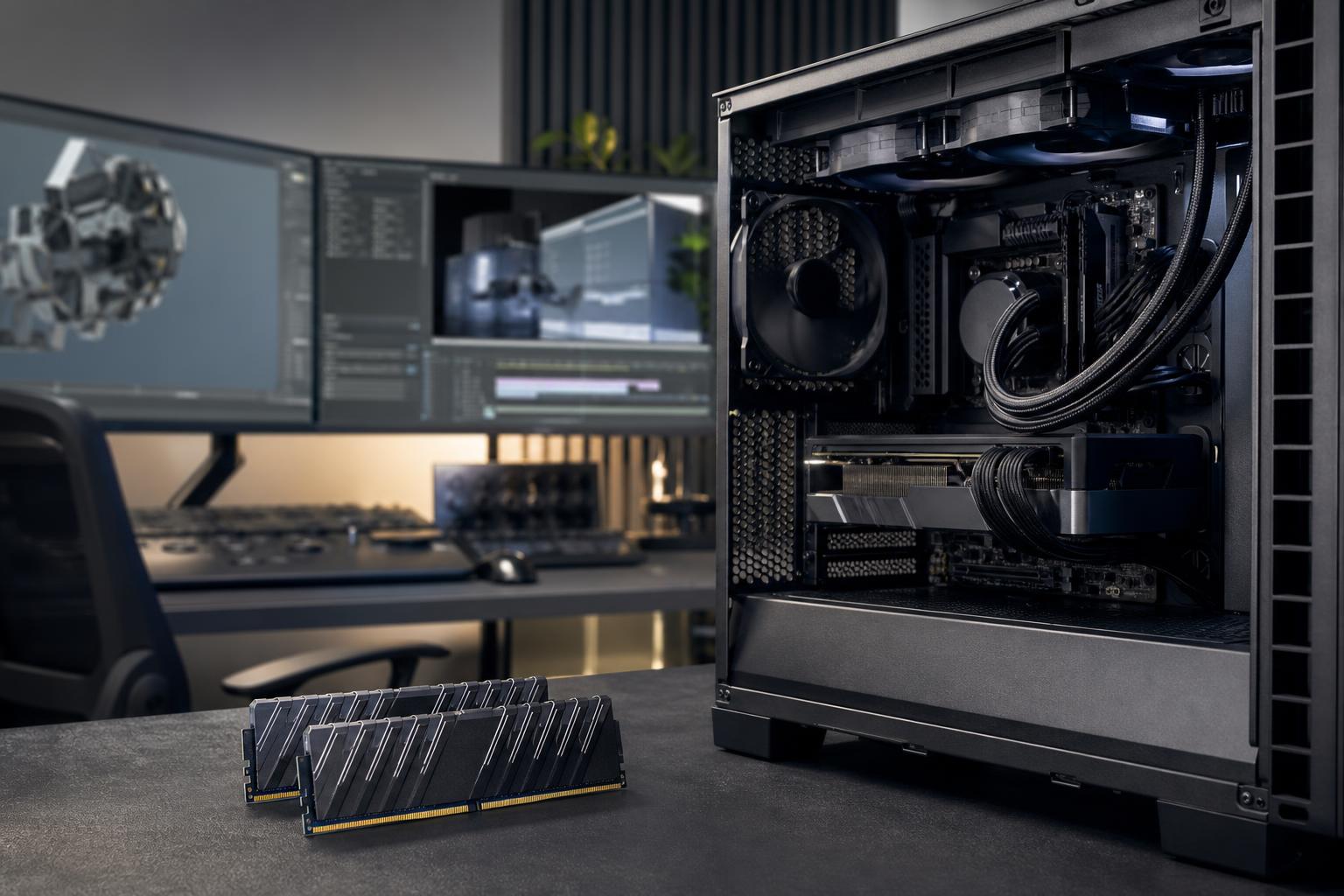
For a new performance PC in 2026, 32GB of RAM is the sensible starting point for most buyers. It gives a gaming system room for modern games, Windows, background programs, browser tabs, voice chat, and occasional multitasking without turning memory capacity into the next bottleneck.
That does not mean everyone needs 64GB or 128GB. More RAM only helps when your work or play can actually use it. The right amount depends on what stays open at the same time, the size of the files or scenes you work with, and whether your software processes data in system memory rather than on the graphics card.
This guide explains how much RAM you need for a gaming PC or workstation, where spending more makes a real difference, and where it is mostly money better spent on the CPU, GPU, or storage.
RAM is your computer’s short-term workspace. Programs, open files, game assets, browser tabs, and parts of the operating system are held in RAM while they are actively needed. Fast storage helps programs load quickly, but an SSD is still far slower than RAM when the system needs data immediately.
When available RAM runs low, Windows starts moving less-active data to the SSD through a paging file. Modern NVMe drives make this less painful than it was with old hard drives, but it is still a major slowdown. You may see stuttering in games, pauses while switching applications, slow preview generation, or a system that feels oddly sluggish despite having a capable CPU and GPU.
More RAM does not automatically raise frame rates, speed up every export, or make Windows feel twice as fast. If a game uses 14GB and your system has 32GB available, moving to 64GB usually will not improve its average frame rate. Capacity prevents a bottleneck; it is not a universal performance multiplier.
A 16GB gaming PC can still run many games well, especially if you close background applications. The issue is everything surrounding the game. A few browser tabs, Discord, a launcher, music, recording software, RGB utilities, and Windows itself can consume several gigabytes before the game has fully loaded.
With 16GB, you may need to be more deliberate about closing programs. That is reasonable for an entry-level build, but it is not where we would start for a system meant to stay comfortable for several years.
For most custom gaming PCs, 32GB is the right answer. It supports current games comfortably while leaving room for the normal real-world clutter of a gaming session: a browser guide, Discord, game launchers, screen capture, and other background tasks.
It is especially worthwhile for open-world games, heavily modded games, simulation titles, and players who keep a second monitor busy. A 32GB kit also makes a better foundation if the PC will later be used for editing, streaming, or creative work.
Gaming alone rarely requires 64GB, but certain usage patterns justify it. Consider 64GB if you run large mod lists, host game servers, record and edit footage on the same machine, work with Unreal Engine projects, or routinely leave professional applications open while gaming.
It is also a sensible choice for a high-end gaming PC that doubles as a workstation. In that situation, 64GB is not “overkill”; it is a way to avoid building two separate computers.
Workstation memory needs are driven less by the name of the application and more by project size. A small CAD model and a large CAD assembly may use dramatically different amounts of memory. The same is true of short 1080p edits versus long, high-resolution projects with effects, or simple 3D scenes versus detailed production assets.
32GB works well for photo editing, lighter video work, 2D design, general CAD, coding, and modest 3D projects. It is also a good baseline for a developer who runs an IDE, browser, local tools, and containers without several large virtual machines running at once.
If the machine earns its keep through creative or technical work, though, 32GB should be viewed as the entry point rather than an unlimited ceiling.
We commonly recommend 64GB for users who work with larger video timelines, high-resolution source media, complex After Effects compositions, substantial Photoshop files, 3D rendering scenes, larger CAD assemblies, or development environments that include virtual machines and containers.
It is also a comfortable capacity for professionals who need to keep several heavyweight applications open. Closing a project every time you need to check a reference file is not an efficient workflow.
128GB becomes valuable when the data itself is large: dense point clouds, photogrammetry projects, extensive simulations, large-scale rendering scenes, multiple virtual machines, data analysis, or complex engineering models. These workloads can exhaust 64GB without any component being defective or poorly configured.
Before choosing 128GB or more, check the recommended specifications for the exact applications you use and consider the largest files you expect to handle. For professional software, the maximum project size often matters more than the average project size.
System RAM sits on the motherboard and is used by the CPU and operating system. VRAM is the dedicated memory on the graphics card, used for textures, frame buffers, GPU rendering data, AI models, and other graphics workloads.
Both matter, but one cannot fully substitute for the other. Adding 64GB of system RAM will not solve a GPU that lacks enough VRAM for a large 3D scene or local AI model. Likewise, a graphics card with ample VRAM cannot make up for insufficient system memory when a CAD application, video editor, or point-cloud workflow is filling RAM.
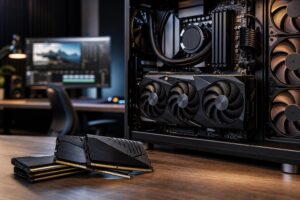
Once you have chosen enough capacity, buy a matched memory kit at a sensible speed supported by your CPU and motherboard. For most buyers, the difference between 32GB and 64GB matters far more than chasing a small speed advantage from a more expensive kit.
Use two matched modules when practical, such as 2 x 16GB for 32GB or 2 x 32GB for 64GB. This enables dual-channel operation on mainstream desktop platforms and leaves fewer compatibility questions than mixing separate kits later. Two kits with the same label are not always validated to run together at their advertised memory profile.
If future expansion is likely, plan for it from the beginning. A motherboard with four slots can be helpful, but filling all four slots at high memory speeds can sometimes require more conservative settings than using two modules. For a workstation that will clearly need 128GB, starting with a validated 2 x 64GB kit is often the cleaner approach.
Do not upgrade based only on a vague feeling that more is better. Look for patterns while running your normal workload:
Task Manager can provide a useful first look at memory usage, but test it during a real session—not immediately after booting the PC. A system that uses a lot of RAM is not automatically struggling; unused RAM is often used for caching. The concern is sustained pressure that coincides with slowdowns, paging, or application errors.
For a new gaming PC, choose 32GB unless the budget is extremely tight. For a system that combines gaming with editing, CAD, 3D work, development, or heavy multitasking, 64GB is often the better long-term decision. Move to 128GB only when your applications and project sizes give you a clear reason.
RAM is one part of a balanced system. A well-chosen PC also needs the right CPU core count, enough GPU performance and VRAM, fast storage, effective cooling, and a quality power supply. Overspending on memory while underbuying the graphics card is not a balanced gaming build, and a workstation with huge RAM but inadequate storage or GPU resources can be equally frustrating.
The best configuration starts with your actual games, applications, file sizes, monitor resolution, and budget—not a generic parts list. Overclock Computers can help design and build a custom PC around the workload you have now, with sensible room to grow when it is worthwhile. Contact our team to discuss the performance goals that matter most to you.