PCIe Gen 4 vs. Gen 5 SSDs: Which NVMe Drive Should You Buy?

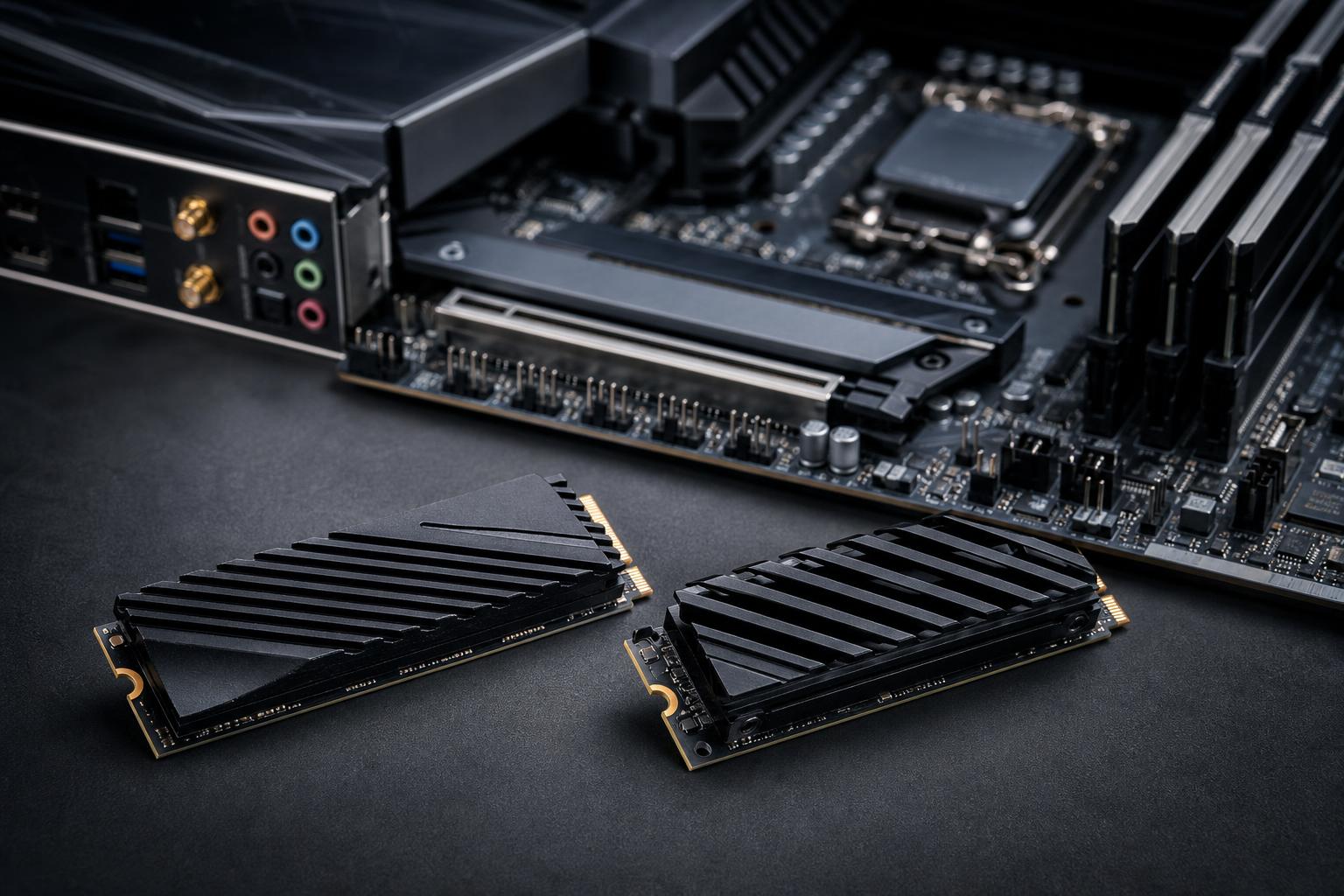
PCIe Gen 5 NVMe SSDs post enormous benchmark numbers. The fastest models can deliver sequential read speeds well beyond what a Gen 4 drive can manage. That makes them tempting in any premium gaming PC or workstation build.
But a faster number on an SSD box does not automatically mean a faster-feeling computer. For many gaming systems, a well-priced, high-quality PCIe Gen 4 SSD remains the better buy. For certain professional workflows, however, Gen 5 storage can save meaningful time every day.
The right choice comes down to what you move, how often you move it, and whether the rest of the system can support the drive properly.
Choose a PCIe Gen 4 NVMe SSD if you are building a gaming PC, a general-purpose enthusiast desktop, or a workstation where storage capacity matters more than maximum transfer speed. It offers excellent real-world responsiveness, broad motherboard compatibility, lower cost per terabyte, and easier cooling.
Choose a PCIe Gen 5 NVMe SSD if your work routinely involves moving or processing very large files: high-bitrate video, large project archives, raw camera footage, detailed point-cloud data, scientific datasets, virtual machines, or scratch-disk workloads. It also makes sense when the storage budget is generous and you already need a current platform with a Gen 5 M.2 slot.
Put bluntly: Gen 5 is a specialist performance upgrade, not a required part of a fast modern PC.
PCIe is the connection between the SSD and the rest of the PC. Each new generation doubles the available bandwidth per lane. A typical M.2 NVMe drive uses four PCIe lanes, so a Gen 5 x4 slot has roughly twice the potential bandwidth of a Gen 4 x4 slot.
In ideal sequential transfers, many Gen 4 drives reach roughly 7,000 MB/s, while high-end Gen 5 models can exceed 10,000 MB/s and, in some cases, approach twice Gen 4 performance. Sequential speed describes reading or writing large, continuous blocks of data. Copying a huge video file is a good example.
Daily PC use is less tidy. Launching applications, loading a level, booting Windows, and opening project files often involve many small, scattered reads. These random operations, software behavior, CPU performance, available system memory, and the drive’s controller all affect the result. That is why a premium Gen 4 SSD can feel nearly identical to a Gen 5 model in ordinary desktop work.
Usually, not by enough to justify paying a large premium. Modern NVMe storage already makes game loading dramatically better than a hard drive and usually better than an older SATA SSD. The jump from Gen 4 to Gen 5 is much harder to notice.
Games must be designed to take advantage of very fast storage. Even then, loading time is not limited by the SSD alone. The game may need to decompress assets, compile shaders, process data on the CPU, and prepare it for the GPU. A faster drive cannot eliminate those other steps.
For a gaming PC, prioritize the graphics card, CPU appropriate for the target frame rate, enough RAM, and adequate SSD capacity before spending extra on Gen 5. A 2TB high-quality Gen 4 drive is often a more useful gaming purchase than a 1TB Gen 5 drive. Modern game installs are not shy about consuming space.
A Gen 5 SSD is reasonable in a no-compromise system when the price difference is modest, the motherboard provides a properly cooled Gen 5 slot, and the buyer understands it is a premium feature rather than a major gaming-performance upgrade. It may also be worthwhile for a gamer who edits video, develops games, works with large files, or simply wants the fastest available primary drive.
Just do not choose a weaker GPU or less storage to make room for it. That is the sort of parts-list decision that looks impressive and feels backwards six months later.
Gen 5 storage has more practical value in professional systems because some workloads really do read and write massive files continuously. In the right situation, higher sequential throughput can shorten transfers and improve the flow of work.
Workloads that may benefit include:
Even here, buying the fastest drive is not always the full answer. A video workstation often benefits more from a sensible storage layout: a reliable OS and application drive, a dedicated project or scratch drive, and separate high-capacity storage for active media and archives. One extremely fast 1TB drive fills up quickly and does not replace a thoughtful storage plan.
A PCIe Gen 5 SSD will work in a Gen 4 M.2 slot, but it will operate at Gen 4 speeds. Likewise, a Gen 4 drive works perfectly in a Gen 5 slot. PCIe is designed to be backward compatible.
Before buying, check the motherboard manual or manufacturer specifications for these details:
Lane sharing deserves attention on some platforms. Depending on the motherboard design, populating a particular Gen 5 M.2 slot can change the lane configuration available to the graphics card or other expansion slots. This is not universally a problem, but it should be confirmed before a build is finalized rather than discovered after the motherboard is in the case.
High-speed storage creates more heat. Many Gen 5 drives run hot during sustained transfers and need a proper heatsink to maintain performance. Some include large aftermarket-style coolers; others are intended to use the motherboard’s M.2 heatsink.
That cooler needs airflow. A handsome glass-front case with weak intake airflow is not doing a hard-working Gen 5 SSD any favors. In compact systems, clearance can also be an issue, particularly with tall heatsinks near a graphics card or CPU cooler.
Gen 4 drives benefit from heatsinks too, but they are generally easier to cool and less likely to require a bulky solution. For most builders, that is another quiet advantage of Gen 4.
Do not shop by interface generation alone. Two drives that both say “Gen 4” can perform very differently, especially during long writes or when nearly full.
Look at the complete drive design:
For most new premium PCs, 2TB is a comfortable starting point for a primary NVMe SSD. Professional systems often need 4TB or multiple drives, depending on project size. Capacity is not glamorous, but running out of it is a remarkably efficient way to ruin an otherwise excellent build.
For a gaming PC, buy a quality 2TB PCIe Gen 4 NVMe SSD from a reputable manufacturer and direct the saved budget toward the GPU, more storage, or a better monitor. You will get a quick, responsive system without paying for bandwidth most games cannot use.
For a creator or technical workstation, consider Gen 5 when you can identify a storage-heavy part of the workflow that consumes real time. Pair it with adequate cooling and enough secondary storage to keep the fast drive from becoming a crowded catch-all. If your files are moderate in size or your workload is CPU- or GPU-bound, a higher-capacity Gen 4 drive is usually the more balanced choice.
Not sure which storage layout suits the applications you use? Contact Overclock Computers with your software, typical file sizes, and project workflow. We can help configure a gaming PC or workstation that spends the budget where you will actually feel the difference.