How to Choose a Motherboard for a Gaming PC or Workstation

A motherboard rarely makes a gaming PC faster in the same direct way as a better graphics card or CPU. That does not make it an unimportant part. It determines which processor fits, how much memory and storage you can install, what expansion is possible later, and how well the system can support sustained heavy workloads.
The right motherboard is not automatically the most expensive one. A good choice has the ports, slots, power delivery, networking, and physical space your build needs, without charging you for features that will sit unused. For most buyers, that means starting with the CPU and working outward from the way the PC will be used.
Your motherboard must have the correct socket for the processor. This is the first filter, and it is non-negotiable. An AMD Ryzen processor and an Intel Core processor do not use the same motherboard socket or chipset family.
Compatibility also goes beyond the socket label. A board may need a particular BIOS version to support a newer CPU generation. Reputable builders handle this before delivery, but it matters if you are selecting parts or planning a later processor upgrade. Check the manufacturer’s official CPU support list for the exact board model, rather than assuming every CPU with the same socket will work out of the box.
Platform choice affects more than the CPU. It can determine memory support, available PCIe lanes, USB connectivity, and the range of processors you may be able to install later. If you expect to keep a PC for many years and upgrade the CPU midway through its life, the platform deserves extra attention.
The chipset is the motherboard’s supporting controller. It helps determine the number of USB ports, M.2 SSD slots, SATA ports, PCIe expansion options, and, on some platforms, CPU overclocking support. It is easy to treat a higher-tier chipset as an automatic upgrade. Usually, it is not.
For a typical gaming system with one graphics card, two memory sticks, one or two NVMe drives, and standard USB accessories, a well-built midrange board is often the sensible choice. Spending the difference on the graphics card, CPU, SSD capacity, or monitor usually produces a more noticeable improvement.
A higher-end board makes sense when you can name the features you need. Common examples include:
Do not buy a premium chipset solely because it has a larger number in its name. It may offer little practical benefit in a straightforward gaming PC.
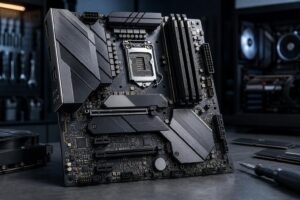
The voltage regulator module, usually shortened to VRM, converts power from the power supply into the stable, low-voltage power a CPU needs. Its quality and cooling affect how confidently a motherboard can run a powerful processor during long, heavy loads.
This is particularly relevant for high-core-count processors used for video rendering, code compilation, CAD, simulation, 3D work, or all-core productivity tasks. A weak board can run hot around the CPU socket and may limit sustained processor boost behavior under load. That is not something you want in a workstation that renders overnight or compiles large projects every day.
For a modest or midrange CPU used mainly for gaming, nearly any reputable motherboard with adequate heatsinks around the CPU socket will be fine. For a flagship processor or a CPU expected to run flat out for hours, choose a board with a proven, well-cooled power design. Ignore marketing claims about enormous “phase counts” unless they are backed by meaningful heatsinks and credible testing. Big numbers on a box are not a substitute for proper engineering.
Most consumer motherboards have either two or four DIMM slots. A four-slot board gives more flexibility, but two slots are enough for many gaming PCs. What matters most is choosing memory capacity appropriate for the workload and using a stable configuration.
For a new DDR5 gaming PC, two matched sticks are generally the best starting point. A 2 x 16GB kit is a practical 32GB configuration for most gamers. A 2 x 32GB kit is a strong option for creators, developers, heavy multitaskers, and users who know they need 64GB.
Four DDR5 sticks can work, but running four modules at aggressive memory speeds is often harder on the memory controller than using two. If you know you will need 64GB or 96GB now, it is usually better to buy that capacity as a matched two-stick kit rather than fill every slot with smaller modules. For professional platforms, memory channel count and capacity rules can be different, so workstation planning should start with the application’s actual memory use.
NVMe M.2 SSDs are now the normal choice for a high-performance PC. One slot is enough to build a working system, but two or three slots offer useful flexibility for a separate game library, project drive, scratch disk, or future storage expansion.
There is a catch: on many boards, certain M.2 slots share bandwidth with SATA ports or PCIe expansion slots. Installing an SSD in one location may disable a SATA connector or reduce the available lanes for another slot. This is not necessarily a flaw; it is a normal consequence of finite PCIe connectivity. It does mean you should read the storage-sharing notes in the board manual before buying.
For most gaming computers, two M.2 slots are plenty. For video editing, 3D work, photogrammetry, large software projects, or data-heavy business use, three or more can be worthwhile. Fast internal storage is often more convenient and reliable than permanently juggling external drives.
Rear-panel connectivity is one of the easiest details to regret after a build is finished. Think about the devices that will actually be connected: keyboard, mouse, headset DAC, external SSDs, webcam, printer, VR headset, camera, capture card, or wired network.
At a minimum, a modern board should have enough USB ports for daily peripherals and a useful mix of USB types. USB-C is especially valuable for modern external SSDs and many newer devices, but check both the rear I/O and the internal front-panel USB-C header. A case can have a front USB-C port that cannot function unless the motherboard provides the matching header.
For networking, 2.5 Gigabit Ethernet is a sensible baseline on many new midrange and premium systems. It will not improve internet speed beyond your service plan, but it can be useful for fast local file transfers when the rest of the network supports it. Wi-Fi is worth paying for if the PC cannot be connected by Ethernet, or if you want a convenient backup connection. For a fixed desktop beside a network jack, wired Ethernet remains the more dependable choice.
ATX, Micro ATX, and Mini-ITX describe board size and layout. They are not direct measures of quality. An ATX board usually has more expansion slots, more room for connectors, and often more M.2 options. Micro ATX can provide nearly all the features a normal gaming PC needs in a smaller, often better-value package. Mini-ITX is ideal for compact systems, but it involves more compromises in expansion, cooling space, and component selection.
For a one-GPU gaming PC, Micro ATX is often the practical sweet spot if the case supports it. Choose ATX if you need more drives, add-in cards, plentiful headers, or simply prefer the building room of a full-size chassis. Choose Mini-ITX because a compact PC is a genuine priority, not merely because the small board looks tidy in a product listing.
Some motherboard conveniences provide real value. BIOS flashback can allow a BIOS update without an older compatible CPU installed. Debug LEDs or a postcode display make troubleshooting much easier. Integrated Wi-Fi, enough fan headers, solid audio, and an easy-to-access CMOS reset can also make ownership more pleasant.
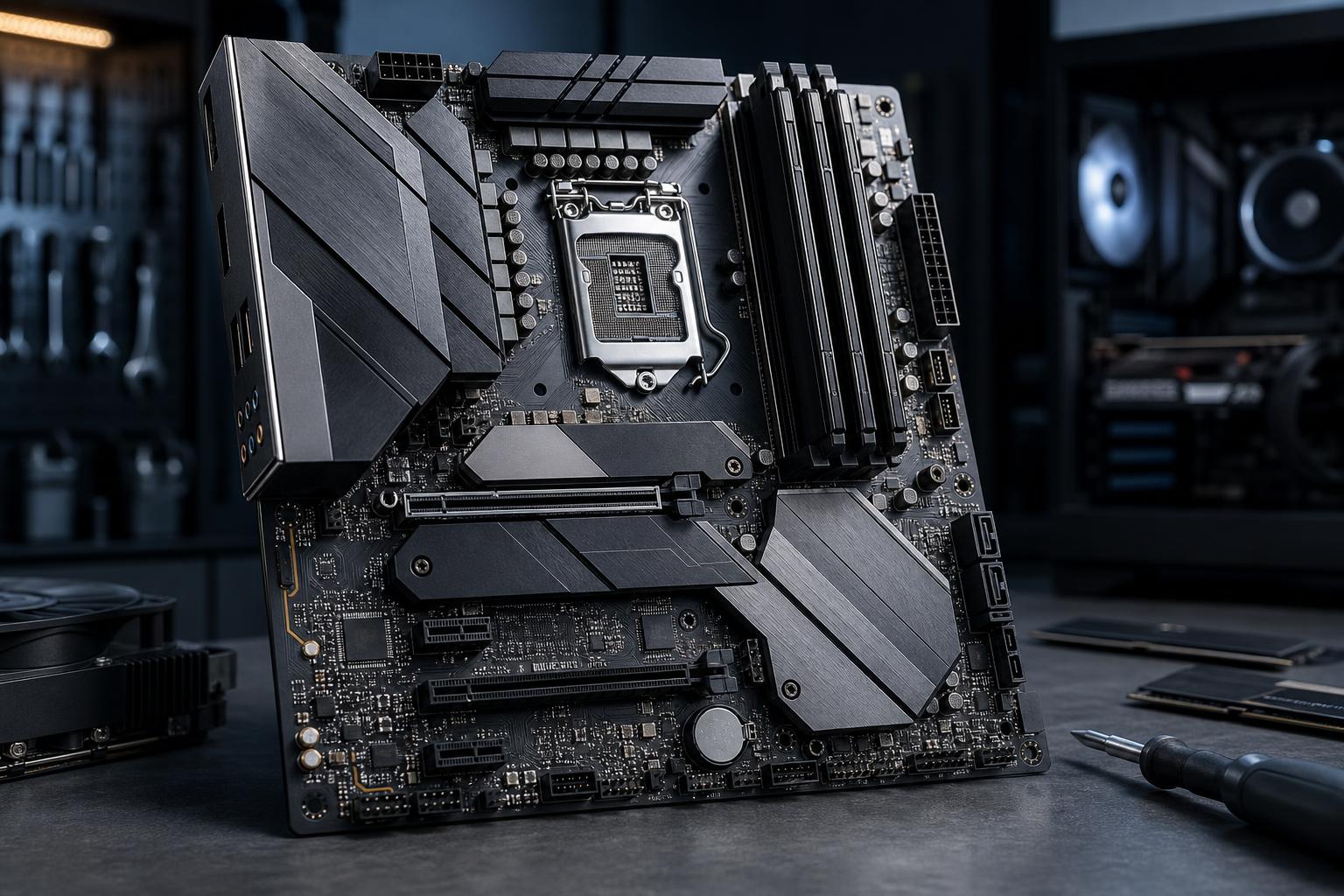
On the other hand, elaborate RGB lighting, decorative armor, extreme overclocking controls, and a second full-length PCIe slot are often low priorities for a conventional build. Modern gaming PCs almost always use one graphics card. Multi-GPU gaming is no longer a sensible reason to select a board.
A motherboard should quietly support the rest of the PC rather than dominate the budget. Put the money where it changes your experience: graphics performance for gaming, CPU cores and memory for professional work, and enough storage for the files you actually keep. Then choose a motherboard that connects it all reliably and leaves sensible room to grow.
If you are planning a new gaming PC or workstation and want a second set of eyes on component compatibility, contact Overclock Computers. We can help configure a balanced system around your software, peripherals, storage needs, and upgrade plans.