How Much SSD Storage Do You Need for a Gaming PC or Workstation?

Storage is one of the easiest PC components to underestimate. A new system can feel roomy on day one, then run short of space after a few large games, video projects, development tools, or raw files arrive. Unlike RAM, extra SSD capacity does not usually make a PC faster by itself. It does, however, make the computer much easier to live with—and an overly full SSD can become a real performance and maintenance problem.
For most new gaming PCs, we recommend starting with at least a 2TB NVMe SSD. For a professional workstation, 2TB is a reasonable baseline, but many buyers should plan for 4TB or a separate project drive from the beginning. The correct answer depends less on the label on the computer and more on what you will store, how quickly it grows, and how you work.
These recommendations assume solid-state storage. A hard drive still has a place for inexpensive bulk archives and backups, but it should not be the primary drive in a high-performance desktop.
A 1TB SSD does not provide a full 1,000GB of usable room once it is formatted. Windows also needs space for updates, temporary files, restore points, applications, and the page file. Then there are the files most people forget about: game captures, downloaded installers, cloud-sync folders, project caches, and old versions of work.
More importantly, an SSD should not be run right to the edge. Try to keep roughly 15 to 20 percent of the drive free. This gives Windows and applications breathing room and helps the SSD maintain consistent write performance. It also makes routine updates and large file transfers much less stressful.
In practical terms, a 1TB drive may feel crowded once your own files and installed software reach around 750GB to 800GB. That is not a strict rule, but it is a sensible planning target.
Modern games are large. Many major releases use 80GB to 150GB, and some are larger once high-resolution texture packs, expansions, updates, and shader caches are included. A modest collection of ten to fifteen current games can consume most of a 1TB SSD after Windows and everyday applications are installed.
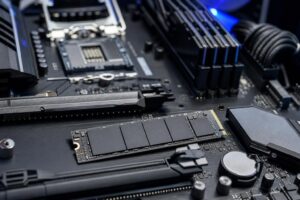
A 1TB SSD is enough if you play a small rotating set of games and do not mind uninstalling titles you have finished. It is also a reasonable place to start for a tightly budgeted build if the motherboard has a free M.2 slot for a later upgrade.
The downside is convenience. You will spend more time deciding what stays installed, and a game library plus recordings can fill the drive surprisingly quickly.
A 2TB NVMe SSD gives a gaming PC room for Windows, common applications, a healthy game library, screenshots, mods, and a few recordings without constant cleanup. It is usually the capacity that prevents storage from becoming an annoyance during the first several years of ownership.
If the difference between a 1TB and 2TB drive forces a significant compromise to the graphics card, CPU, or power supply, prioritize those core parts. But when the overall system budget allows it, 2TB is money well spent.
Choose 4TB if you regularly keep dozens of games installed, record gameplay at high quality, use extensive mods, or simply prefer not to manage space. It is also a good choice for a shared household PC where several people maintain their own game libraries.
Workstation storage planning is about more than total capacity. You need to consider active projects, source footage or data, application caches, exports, backups, and archive material. A workstation can have a fast CPU and powerful GPU yet still feel poorly organized if everything is piled onto one nearly full drive.
For photo editing, graphic design, music production, and lighter 4K video work, a 2TB primary SSD can be sufficient if completed projects move to external or network storage. For frequent video editing, 3D work, or large Adobe, DaVinci Resolve, or Unreal Engine projects, 4TB is usually the more comfortable starting point.
Video editors should pay special attention to proxies, render files, preview files, and media caches. These temporary files can grow dramatically and are often left behind after a project is delivered. The same is true for 3D render caches and simulation data.
CAD models alone may not require huge amounts of storage, but referenced files, scan data, point clouds, photogrammetry source images, simulations, and project revisions can. Users working with these files should generally begin with at least 4TB of fast SSD storage, then add separate local or network storage for project archives.
For local AI work, storage needs vary with the number of models, datasets, checkpoints, and output files you retain. A 4TB SSD is a sensible foundation for many users, but it is not unusual for serious local AI workflows to need much more.
For many gaming PCs, one quality 2TB or 4TB NVMe SSD is the cleanest and most sensible setup. Modern NVMe drives are fast enough that splitting Windows and games across two drives rarely produces a meaningful gaming performance advantage.
Two drives become useful when they improve organization, protect available capacity, or support a particular workflow. A common workstation layout looks like this:
Separating active project files from the operating system can make cleanup easier and reduces the odds that a giant export or cache folder leaves the system drive nearly full. It does not replace backup. Two drives inside the same PC are still vulnerable to theft, power events, accidental deletion, malware, and hardware failure.
Not automatically. A good PCIe Gen 4 NVMe SSD is an excellent fit for the majority of gaming PCs and professional desktops. It provides quick boot times, responsive applications, and fast game loading without paying a premium for benchmark numbers that may not change daily use.
Very fast Gen 5 drives can make sense for specific storage-heavy workflows, such as moving very large files regularly or working with demanding high-bitrate media. They also tend to run hotter, and the motherboard needs proper support and a suitable heatsink. For a gaming-focused build, extra capacity is often more valuable than stepping from a quality Gen 4 drive to a premium Gen 5 model.
A larger SSD gives you more room, not more protection. If a project, family photo collection, client file, or business record matters, keep another copy somewhere separate. A practical backup plan may include an external drive for local backups plus a cloud or off-site copy for important data.
For professionals, plan backup storage as part of the workstation purchase rather than treating it as an accessory to buy later. Recovering a failed drive is expensive, uncertain, and never as convenient as restoring a verified backup.
The right storage setup should disappear into the background. You should be able to install the game, keep the project files available, and finish an export without playing a round of digital closet cleaning first. If you are planning a new gaming PC or workstation and are unsure how much storage your files will actually require, contact Overclock Computers. We can help design a balanced drive layout around the way you work and play.