CPU vs. GPU Upgrade: Which Should You Upgrade First?

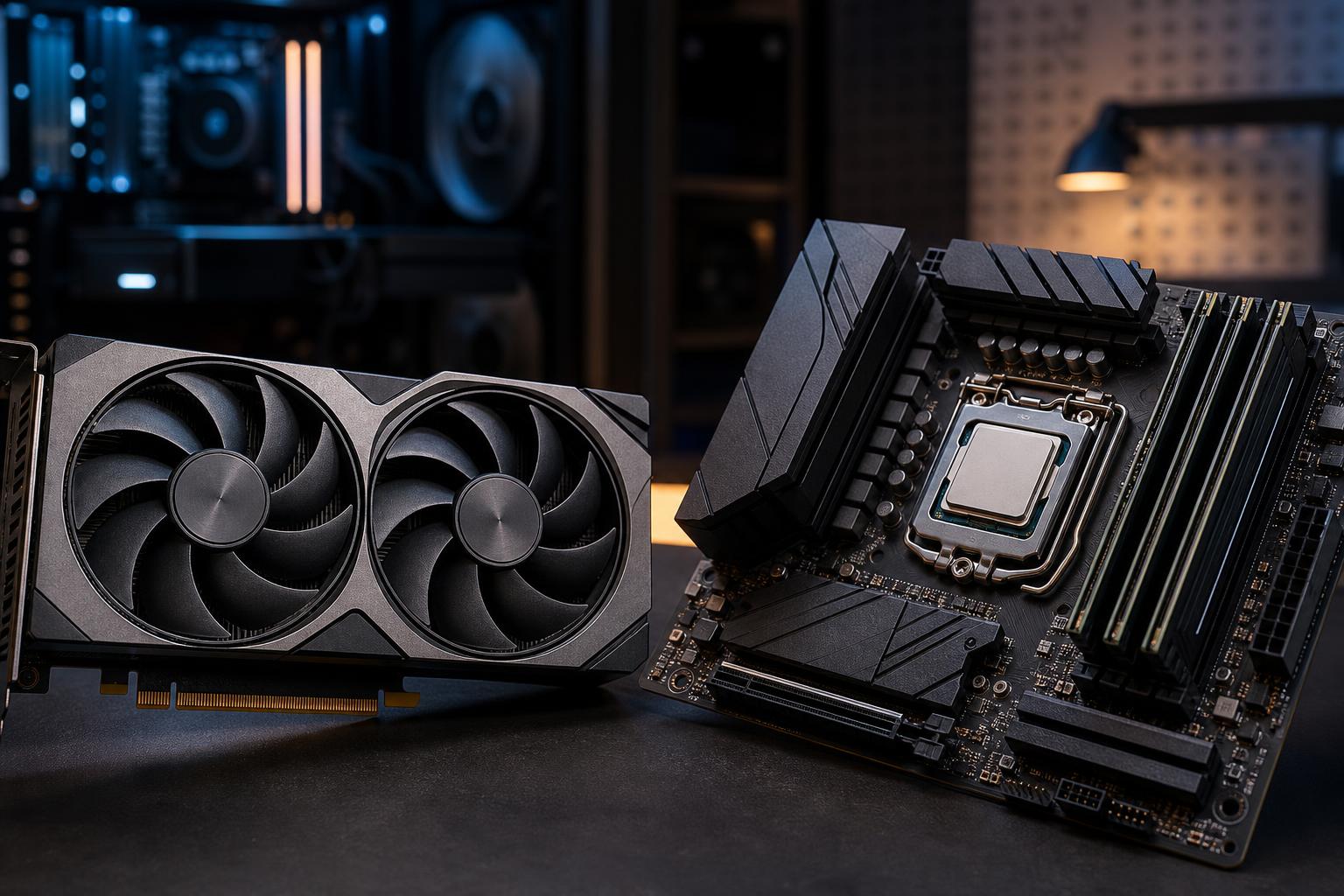
If your PC is no longer delivering the performance you want, the obvious question is also one of the easiest to get wrong: should you upgrade the CPU or the graphics card first?
For most gaming PCs, the graphics card is the first upgrade that produces a major visual and frame-rate improvement. But that isn’t a universal rule. A CPU can be the limiting part in competitive games, simulations, strategy titles, heavily modded games, and any system paired with a very high-refresh-rate monitor. For professional workloads, the answer depends even more directly on the software you use.
The right upgrade is the component holding back the experience you actually want—not simply the oldest part in the case.
Before comparing component specifications, define what “faster” means for your PC. These goals point to different upgrades:
Do not base an upgrade solely on average frames per second. Frame-time consistency matters. A game that averages 110 FPS but repeatedly drops into the 50s during demanding scenes will feel worse than its headline number suggests.
The GPU does the bulk of the work required to render modern game graphics. Raising resolution, texture quality, ray tracing settings, and image quality settings generally increases GPU demand much more than CPU demand.
That is why a graphics card upgrade is usually the best answer when your current PC struggles at 1440p, ultrawide, or 4K. At these resolutions, each frame contains many more pixels for the GPU to process. A faster CPU may help minimum frame rates in some games, but it will rarely transform 4K performance if the graphics card is already operating flat out.
VRAM deserves special attention. Running out of VRAM can cause severe stutter, texture pop-in, crashes, or a forced reduction in texture settings. It is not only a concern for 4K gaming. Modern games with high-resolution texture packs, 3D scenes, video projects, and local AI workloads can all consume a surprising amount of graphics memory.
For many buyers, a GPU upgrade also has the clearest visual payoff. It can make a monitor upgrade worthwhile, improve image quality without sacrificing performance, and extend the useful life of an otherwise balanced system.
The CPU handles game logic, physics, AI behavior, draw-call preparation, background tasks, and many other jobs that happen before the GPU can render a frame. When the CPU cannot prepare frames quickly enough, a more powerful graphics card may spend part of its time waiting.
This is most visible at lower resolutions and high refresh rates. At 1080p, a strong GPU can render frames so quickly that the processor becomes the limiting factor. The same applies to a 1440p system chasing 200-plus FPS rather than a more modest 80 to 120 FPS target.
One caution: a CPU usage reading below 100% does not prove the processor is not the limit. Many games depend heavily on a few fast CPU cores. Overall CPU utilization might read 40% while one or two cores are fully loaded. That is still a CPU bottleneck.
A CPU upgrade can be especially worthwhile for players of flight simulators, racing simulations, large open-world games, strategy games, MMOs, and esports titles. These workloads often reward strong single-core performance and sufficient cache more than simply adding a larger graphics card.
Think of resolution as a lever that shifts work toward the graphics card, while refresh rate shifts more pressure toward the CPU.
There is no benefit in paying for a top-tier CPU solely to play cinematic single-player games at 4K if the budget forces you into a weaker GPU. Put more of the budget toward the graphics card instead. On the other hand, pairing an extremely fast GPU with an older processor for competitive 1080p gaming can leave a lot of potential performance unused.
A CPU upgrade is often more involved than a graphics card upgrade. A new processor may require a new motherboard, DDR5 memory, a BIOS update, and possibly a stronger CPU cooler. That can turn what looked like a modest CPU purchase into a full platform upgrade.
A GPU upgrade is usually simpler, but it still needs planning. Confirm these points before buying:
Storage can also be mistaken for a processor problem. A nearly full or failing drive can cause slow loading and poor general responsiveness. It will not normally raise gaming frame rates, but a healthy SSD and enough free space make a system feel far less frustrating to use.
Use a monitoring utility while playing the specific games or running the applications that disappoint you. Record GPU utilization, per-core CPU utilization, temperatures, clock speeds, RAM use, VRAM use, and frame times. Test the same scene or benchmark at your normal settings, then reduce resolution and graphics settings.
If performance improves dramatically after reducing graphics demand, prioritize the GPU. If performance barely changes and the GPU is not consistently busy, investigate the CPU, memory, background software, and game-specific settings.
For professional software, check whether your main application is CPU-rendered, GPU-accelerated, VRAM-limited, or restricted by system memory. A workstation should be designed around the actual applications and file sizes, not a generic “fast PC” parts list.
Upgrade the GPU first when you want better image quality or higher frame rates at 1440p, ultrawide, or 4K. Upgrade the CPU first when you are chasing very high refresh rates, playing CPU-heavy games, or losing time to processor-bound professional tasks.
If both components are several generations old, do not force a one-part solution that only moves the bottleneck. A balanced CPU, GPU, memory, power supply, cooling setup, and monitor will deliver a better experience than one expensive part surrounded by compromises.
If you are planning a meaningful upgrade or a new custom system, contact Overclock Computers with your current specifications, monitor resolution, favorite games, and the applications you use. We can help identify the component that will make the most noticeable difference—and flag compatibility issues before they become expensive surprises.