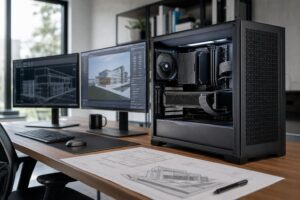
Best PC for Video Editing: Workstation Specs That Make Sense

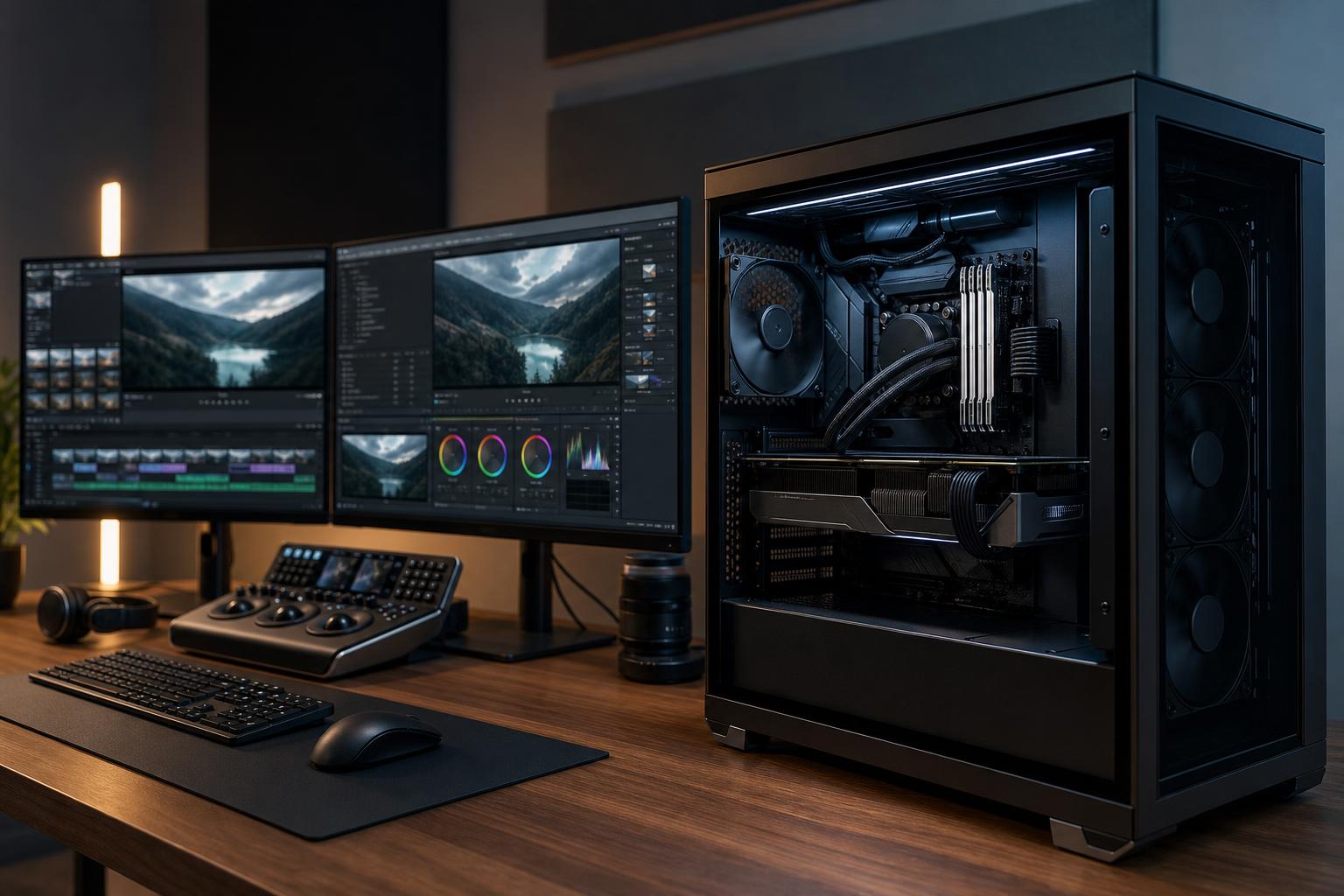
The best PC for video editing is not automatically the one with the most expensive CPU or graphics card. It is the one that keeps your specific footage, editing software, project size, and delivery schedule moving without wasting money on hardware your workflow will never use.
For most serious editors, the sensible starting point is a modern high-performance CPU, a capable GPU with enough VRAM for the footage and effects you use, 32GB to 64GB of RAM, and separate fast SSD storage for the operating system, active projects, and media. If you edit 4K regularly, work with multicam timelines, use heavy effects, or earn your living from turnaround time, the performance tier above that is usually money well spent.
Here is how we would allocate a video editing PC budget: prioritize storage layout and RAM sooner than many buyers expect, choose the CPU around your software and export workload, then select a GPU that matches your effects, color, AI tools, and resolution requirements.
This tier suits editors producing YouTube videos, social content, interviews, training material, and shorter 4K projects. It is also a good fit when you are willing to use proxy media for difficult camera formats.
This is the point where editing becomes pleasant rather than merely possible. Do not expect every highly compressed 4K format, multicam project, or effects-heavy timeline to play perfectly at full resolution. Proxy workflows are normal production practice, not an admission of defeat.
For frequent 4K work in Adobe Premiere Pro, DaVinci Resolve, or similar applications, this is the tier we recommend most often. It offers enough headroom for larger timelines, more responsive scrubbing, background tasks, and reasonable longevity.
The separate cache drive matters. Editing applications constantly create preview renders, conform files, waveform data, and cache files. Letting those writes compete with operating-system tasks and source-media reads on one drive is an easy way to make a good PC feel less responsive than it should.
This tier is for editors working with long-form projects, high-bitrate or RAW footage, large multicam edits, advanced noise reduction, compositing, demanding color grades, and tight client deadlines. It is also appropriate when one machine must edit, encode, create proxies, and run other production tools throughout the day.
At this level, a well-cooled case, reliable power supply, and motherboard with the right expansion are not background details. Long renders can keep a system busy for hours. The goal is sustained, predictable performance without excessive fan noise or unstable hardware.
The CPU still does a great deal of work in video production. It handles timeline tasks, decoding for many formats, audio processing, exports, and general application responsiveness. A fast CPU with strong single-core performance helps the interface feel snappy. Additional cores can shorten exports and improve performance when several tasks run at once.
But there is a limit. Buying the highest-core-count processor available makes sense only if your applications and workload can keep it busy. For a straightforward 4K editing system, it is often smarter to buy a slightly less extreme CPU and put the remaining budget into 64GB of RAM, faster project storage, or a better GPU.
Hardware media engines also matter. Some modern CPUs and GPUs can accelerate common video encode and decode tasks. The benefit depends on the camera codec and the editing application, so this should be evaluated around your actual footage rather than a specification sheet.
The GPU is a major part of a modern editing workstation, but its importance varies by software. DaVinci Resolve makes extensive use of GPU acceleration for color work and many effects. Premiere Pro also uses the GPU for numerous accelerated effects, playback tasks, and exports, although its balance of CPU and GPU use can differ by project.
VRAM is often more important than buyers realize. It is the graphics card’s dedicated memory, and it can become a real constraint with high-resolution media, complex timelines, noise reduction, compositing, and GPU-based effects. For regular 4K production, 12GB to 16GB is a comfortable target. More can be justified for 6K, 8K, RAW, advanced color grading, or effects-heavy work.
Do not buy a premium GPU solely because it has a high gaming performance rating. For video editing, confirm that it provides the VRAM, media features, display outputs, and application support your workflow needs.
Memory keeps active footage, application data, previews, and background processes from constantly falling back to storage. For light editing, 32GB is workable. For a serious 4K editing machine, we generally recommend 64GB. It gives you more room for larger projects, web browsers full of client notes, Photoshop, audio tools, and other normal parts of a production day.
Move to 96GB or 128GB when projects are genuinely large, when you work heavily in After Effects, or when your workstation handles several demanding applications at once. Extra RAM does not replace a good CPU or GPU, but too little RAM makes every other strong component wait.
Video editing needs both speed and capacity. A single large SSD may be convenient, but separate drives reduce contention and simplify project organization. A practical setup has an SSD for the operating system, a dedicated SSD for active footage and project files, and another SSD for cache and previews. Keep completed work on a separate archive solution.
Fast storage will not magically fix a weak CPU or GPU, but it can prevent stutters caused by drives being overloaded with cache writes and media reads. Capacity also matters. High-quality video files fill drives with remarkable enthusiasm, usually right before a deadline.
A video editing PC does not need an extravagant motherboard, decorative memory, or the highest-wattage power supply on the shelf. Choose a quality motherboard with the USB, networking, M.2 storage slots, and expansion you need. Choose a quality power supply sized appropriately for the selected CPU and GPU, with room for a future upgrade. Spend the rest where it affects your actual work.
Likewise, ultra-fast SSD benchmarks are less meaningful than having enough fast capacity and a sensible multi-drive layout. A full SSD slows down and is unpleasant to manage. Leave working space instead of treating storage capacity as a theoretical number.
A good workstation deserves a monitor that fits the work. Editors should prioritize accurate, consistent color, sufficient screen space, and suitable connectivity over a gaming-style refresh rate. The correct display depends on your delivery requirements and color-management process, so do not assume a wide-gamut panel is automatically accurate without calibration.
Also, storage is not a backup. Keep at least one additional copy of important projects on a separate device or location. A fast workstation is valuable; losing the only copy of a client project is far more expensive.
Mass-market systems can be good values, but they are often built around headline parts: a recognizable CPU, a large SSD number, or a powerful GPU. The less visible pieces may be less suitable for sustained creative work: limited cooling, a basic power supply, restricted storage expansion, or a single drive expected to do everything.
A properly planned custom workstation can put the budget into the parts that make your work smoother: appropriate RAM capacity, multiple storage drives, strong airflow, quiet cooling, useful front and rear connectivity, and non-proprietary components that can be upgraded later.
If you are choosing a video editing PC, Overclock Computers can build around the editing software you use, your camera formats, project sizes, storage needs, budget, and future plans. Bring us the details of your workflow, including the footage that gives your current computer trouble, and we can help configure a workstation that makes practical sense.