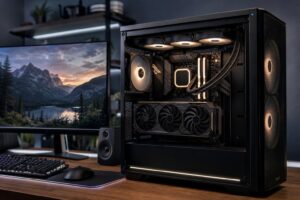
Best PC for Microsoft Flight Simulator: Specs for Smooth, Detailed Flying

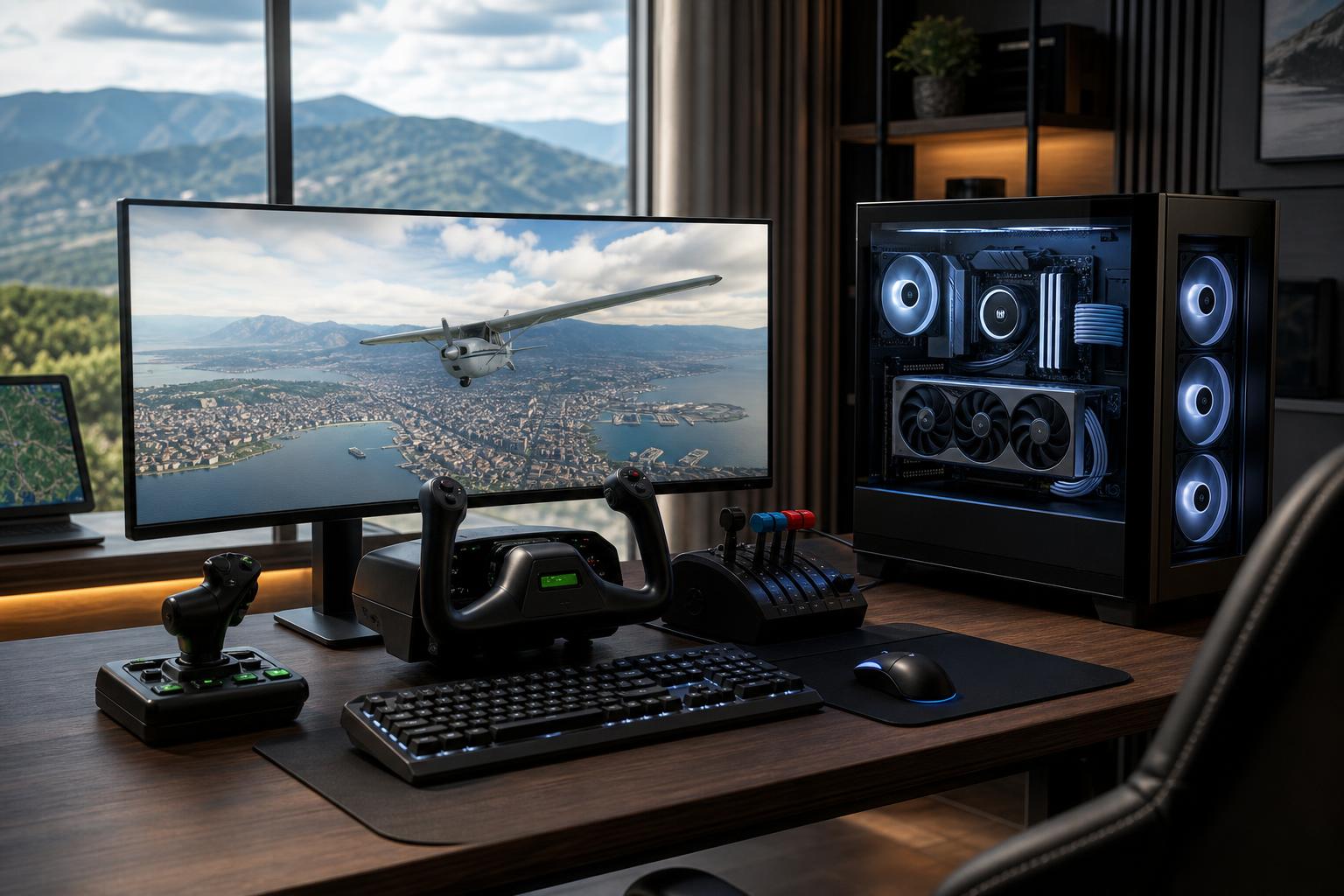
A good PC for Microsoft Flight Simulator needs more balance than a typical gaming build. The simulator can place heavy demands on the CPU, graphics card, memory, and storage at the same time—especially around detailed airports, dense cities, live traffic, weather effects, and community add-ons.
For most buyers, the sensible target is a modern gaming-focused CPU with strong single-core performance, a capable graphics card with at least 12GB of VRAM, 32GB of RAM, and a 2TB NVMe SSD. That configuration is a strong starting point for enjoyable 1440p flying with high visual settings. Move to a faster GPU, 64GB of RAM, and more storage if you fly at 4K, use VR, or run a heavily modified installation.
The biggest mistake is treating Flight Simulator like a simple GPU-only game. A top-tier graphics card can still be held back by an underpowered CPU when you are approaching a busy handcrafted airport in a complex airliner. On the other hand, buying an extreme CPU while pairing it with a modest GPU will not deliver the 4K experience many sim pilots expect.
Flight Simulator has demanding simulation and world-streaming work to do. Aircraft systems, terrain, traffic, weather, and airport activity can all make the CPU the limiting component. This is most noticeable on the ground and near busy airports, where frame rates may be limited by the processor even when the graphics card has headroom.
Choose a current-generation desktop CPU known for strong gaming performance and fast individual cores. Six good modern cores can run the simulator, but an eight-core CPU is the more comfortable recommendation for a new high-performance build. It gives Windows, background tools, browser-based charts, voice software, and add-on utilities more room without asking the game to fight for resources.
More than eight high-performance cores can make sense if the PC also handles video production, software development, 3D work, or other heavily threaded tasks. Do not buy a many-core workstation processor solely for Flight Simulator, though. It is usually a poor place to spend extra money compared with a better graphics card or a higher-quality monitor.
The graphics card determines how comfortably you can run high detail settings at your chosen screen resolution. At 1080p or 1440p, a solid upper-midrange GPU is usually the right foundation. For 4K, an ultrawide display, demanding scenery, or virtual reality, the graphics card deserves the largest share of the budget.
VRAM matters because Flight Simulator can load detailed textures, terrain data, aircraft models, and airport assets. A card with 12GB of VRAM is a practical floor for a new serious sim PC. For 4K, VR, long-term ownership, or extensive scenery libraries, 16GB or more is the safer target. Extra VRAM does not guarantee higher frame rates by itself, but it reduces the chance that texture quality or complex scenes become constrained by memory capacity.
Upscaling and frame-generation features can be useful tools, particularly at high resolutions. They are not a substitute for a balanced system. If your CPU is already overloaded at a busy airport, graphics settings and GPU features cannot completely solve the underlying CPU limit.
For a clean installation and normal flying, 32GB of system memory is the sensible minimum for a new Flight Simulator PC. It allows the simulator and Windows to coexist comfortably while leaving room for basic supporting applications.
Choose 64GB if you use large scenery collections, detailed payware aircraft, photogrammetry, external utilities, multiple monitors, or frequent multitasking. It is also the better choice for pilots who want their PC to remain comfortable for several years. There is little reason to jump beyond 64GB for Flight Simulator alone, but 96GB or 128GB may be justified when the same computer is also a professional workstation.
A 1TB SSD fills surprisingly quickly once you add the simulator, world updates, aircraft, airports, liveries, and other scenery. We generally recommend a 2TB NVMe SSD as the starting point for a dedicated flight sim system.
Buy a reliable PCIe NVMe drive rather than chasing the most expensive benchmark numbers. Capacity and consistency matter more here than a tiny difference in peak sequential speed. A second 2TB or 4TB SSD is worthwhile for enthusiasts with extensive add-on libraries, recorded footage, or other large games. Keeping add-ons on a separate drive can also make future reinstalls and library management less painful.
This is the sweet spot for a pilot using a 1440p monitor who wants high settings and a responsive experience without paying for hardware that their display cannot use. If the budget is tight, protect the CPU, GPU, RAM capacity, and SSD space first. Fancy RGB lighting, an oversized motherboard, and premium liquid cooling can wait.
This is the right direction for a 4K display, a 3440-by-1440 or larger ultrawide monitor, detailed third-party airports, live traffic, and complex aircraft. The GPU upgrade is meaningful because it supports higher resolution and image quality. The move from 32GB to 64GB is also worthwhile if your Community folder is more of a collection than a folder.
VR and multi-monitor setups raise the graphics burden quickly, while complicated airports can still challenge the CPU. This tier is for buyers who value image quality and smoothness more than price efficiency. It is also where component selection and cooling quality become especially important. A powerful system that runs hot, loud, or with a poorly matched power supply is not a premium experience.
Your monitor has a direct effect on what PC makes sense. A high-refresh 1440p display is an excellent match for Flight Simulator because it provides a sharp image without the extreme GPU load of 4K. A 4K display looks excellent in the cockpit and during scenic flying, but it calls for a much stronger graphics card.
For a simulator, consistent frame pacing is often more valuable than chasing the highest possible frame-rate number. A stable, smooth approach into a complex airport feels better than a system that posts an impressive peak frame rate but becomes uneven when the workload rises. Variable-refresh-rate support on the monitor can help make normal frame-rate variation less distracting.
Spend more on the graphics card when you are targeting 4K, ultrawide, VR, or high visual settings. Spend more on the CPU if you regularly fly complex airliners at dense airports with traffic and extensive add-ons. Spend more on RAM and storage if you have a large library of scenery and tools.
Do not overspend on an ultra-premium motherboard unless you need its specific connectivity, expansion slots, storage support, or networking. A dependable motherboard with the right USB ports, multiple M.2 slots, and a solid power design is enough for most flight sim builds. Likewise, a sensibly sized, high-quality power supply is better than simply choosing the largest wattage number on the shelf.
Cooling is worth doing properly, but it does not need to be extravagant. Flight Simulator can keep a CPU busy for long sessions, so choose a cooler and case that can maintain reasonable temperatures without sounding like a small airport itself. Good airflow also helps GPU performance and component longevity.
A good prebuilt can be a reasonable purchase when its parts list is transparent, its cooling is adequate, and its configuration matches your goal. The trouble is that many generic gaming PCs are built around headline components while quietly cutting corners on storage capacity, memory, power supplies, airflow, or motherboard features.
A thoughtfully configured custom PC lets you put the budget where Flight Simulator actually needs it. That may mean more GPU for a 4K cockpit, more RAM and storage for add-ons, extra USB connectivity for a yoke and throttle setup, or a quieter cooling plan for long sessions. It also means using standard, upgrade-friendly components rather than a proprietary layout that limits future changes.
If you are planning a Flight Simulator PC, Overclock Computers can help configure a system around the aircraft you fly, your display or VR headset, add-on library, peripheral setup, budget, and plans for future upgrades. The goal is not simply to sell the biggest parts list—it is to build a balanced computer that makes every takeoff, approach, and cross-country flight more enjoyable.