Best PC for SolidWorks in 2026: Workstation Specs That Make Sense

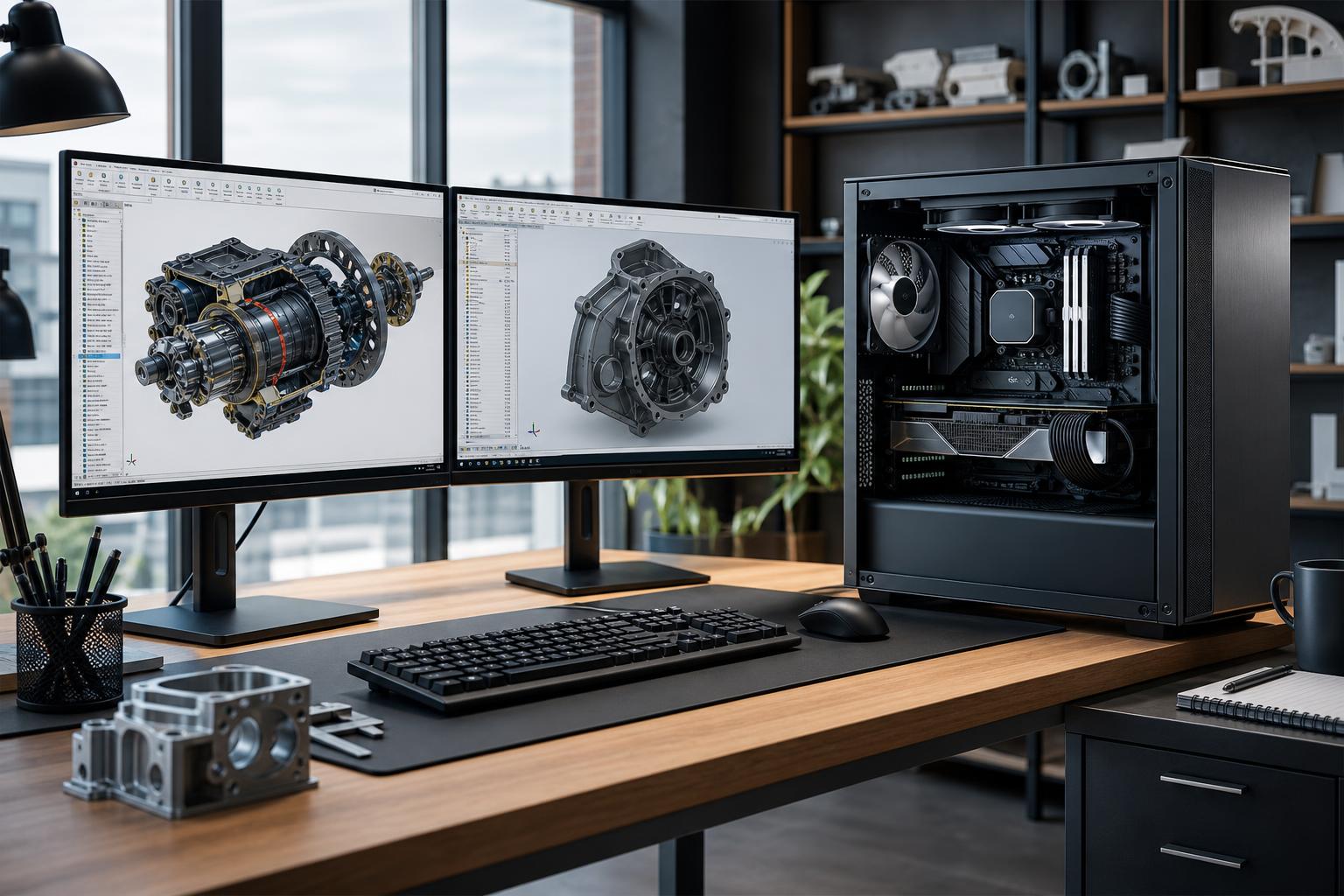
A good SolidWorks PC should feel quick while you sketch, edit parts, rebuild features, and rotate assemblies. For most designers, that means prioritizing a fast modern CPU, adequate RAM, reliable fast storage, and a graphics card chosen for the size and nature of the assemblies you work with.
Here is the short version: for mainstream professional CAD work, buy a workstation with a high-clock-speed CPU, 32GB to 64GB of RAM, a quality NVIDIA RTX professional GPU or a sensible gaming-class GPU where appropriate, and at least a 1TB NVMe SSD. Move to more CPU cores, 64GB to 128GB of RAM, and a higher-VRAM professional GPU when simulation, rendering, very large assemblies, or multiple demanding applications are part of the daily job.
The best PC for SolidWorks is not necessarily the most expensive workstation. It is the one that puts the budget into the components that accelerate your work instead of paying for specifications that sit idle.
SolidWorks contains several workloads, and they do not all use hardware in the same way. Part and assembly modeling commonly rewards strong single-core CPU performance. In plain English, many everyday CAD operations are limited more by how quickly one CPU core can finish a task than by how many total cores the processor has.
That is why a moderately priced processor with excellent clock speed can feel more responsive in day-to-day modeling than a many-core CPU intended primarily for rendering or simulation.
Hardware priorities usually look like this:
This is the sensible starting point for designers working on individual components, drawings, sheet-metal parts, and modest assemblies. It is also a strong choice for students, small shops, and users whose work rarely includes heavy simulation or rendering.
Do not cut this configuration to 16GB of RAM just to reach a lower price. SolidWorks, a web browser full of supplier documentation, email, PDFs, and background applications can make 16GB restrictive sooner than many buyers expect. Thirty-two gigabytes is the practical baseline for a new professional SolidWorks machine.
This is the right tier for professionals who spend full workdays in SolidWorks, work with larger assemblies, run simulation studies, or keep several technical applications open at once. It is usually the best balance of responsiveness, capacity, and long-term usefulness.
At this level, 64GB of memory is often the upgrade you notice most. It provides room for bigger models, simulation data, drawings, linked documents, and the inevitable collection of open applications that comes with real project work. It also reduces the chance that Windows has to lean heavily on the SSD as temporary memory.
Choose this category when SolidWorks is only part of a demanding workflow: large simulation studies, frequent rendering, complex assemblies, CAM work, large imports, or simultaneous use of analysis and visualization software. It also makes sense when lost time from slow rebuilds or unstable behavior has a direct business cost.
More cores are justified here, but only if the software and project type can use them. Buying a 32-core processor primarily for simple part modeling is a classic workstation budgeting mistake. You may get excellent rendering or simulation throughput, but ordinary modeling tasks may not feel meaningfully faster than on a less expensive, faster-clocked CPU.
For many businesses, yes. A professional GPU is worth considering when you need the driver support and application-focused validation associated with professional CAD workflows, work with important assemblies, or need predictable behavior across a managed fleet of machines. These cards are designed around professional applications, display connectivity, and reliability-oriented use cases rather than gaming performance per dollar.
That said, a gaming GPU is not automatically a bad choice. A smaller firm, independent designer, or hybrid CAD-and-gaming user may get strong viewport performance from a well-chosen gaming-class GPU. The tradeoff is that it may not be the right answer if your company requires a particular professional graphics workflow, relies on validated drivers, or expects formal support from software and hardware vendors.
Do not select a graphics card based only on its chip name or total price. Consider VRAM capacity, driver requirements, monitor resolution, assembly complexity, and whether you use GPU rendering. A high-resolution multi-monitor setup and large assemblies can justify more VRAM even if the model itself opens successfully on a lower-end card.
32GB RAM is appropriate for normal SolidWorks work with moderate assemblies. 64GB is the safer recommendation for serious daily professional use, larger assemblies, simulation, and heavy multitasking. 128GB is for genuinely memory-heavy projects, large analysis workloads, or users who can identify that memory pressure is slowing their current machine.
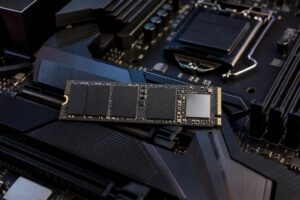
For storage, use an NVMe SSD as the operating system and active-project drive. A 1TB drive is workable, but 2TB is more comfortable once you account for project files, revisions, local archives, render outputs, simulation data, and other professional software. Keep meaningful free space available; an SSD stuffed to the limit is harder to manage and can perform less consistently during sustained work.
Fast storage helps loading, saving, opening referenced files, and moving project data. It does not replace adequate RAM or a responsive CPU. If your budget is tight, choose 64GB of RAM before paying a premium for an extreme high-speed SSD.
CAD systems often run for long stretches, particularly during simulation, rendering, exports, and batch work. Proper CPU cooling and a case with unobstructed airflow help the processor sustain performance without excessive heat or fan noise. A quality power supply and non-proprietary components also make a workstation easier to service and upgrade later.
For a new SolidWorks workstation, we generally favor a platform with spare memory slots, additional M.2 storage options, and physical room for a future GPU or expansion card. That flexibility is more useful than paying for an exotic component today that your work will not use.
If your work is mainly parts, drawings, and ordinary assemblies, start with a fast 6- to 8-core CPU, 32GB of RAM, 1TB of NVMe storage, and an appropriate entry-to-midrange GPU. For full-time professional CAD work, 64GB of RAM and a better professional GPU are usually smart investments. Step up to a high-core-count CPU, 128GB of memory, and more GPU VRAM when simulation, rendering, and large projects demonstrably demand them.
Overclock Computers can help you configure a SolidWorks workstation around your actual assembly size, simulation needs, rendering workflow, monitors, budget, and upgrade plans. Bring us the applications you use and the projects that challenge your current PC, and we can build a balanced system without padding the specification sheet with hardware you do not need.