Best PC for DaVinci Resolve in 2026: Workstation Specs That Make Sense

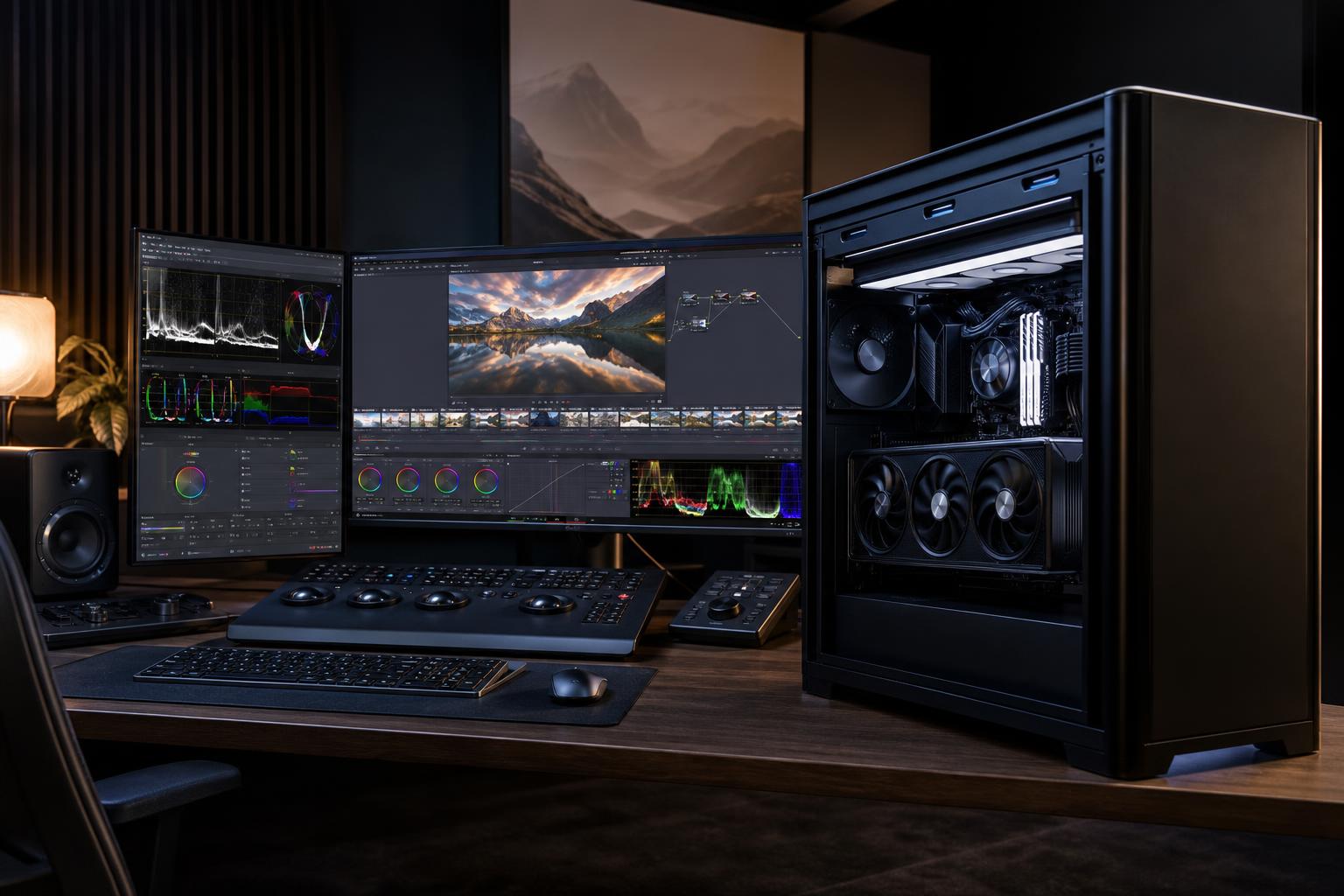
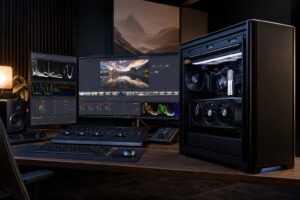
The best PC for DaVinci Resolve is usually a GPU-focused workstation with a fast modern CPU, plenty of memory, and storage organized around your footage—not just one large SSD. For most serious 4K editors, we recommend starting with a capable dedicated GPU with at least 12GB of VRAM, 64GB of system RAM, a modern 8-core-or-better CPU, and separate fast storage for the operating system, active projects, and media.
If you mainly edit short 1080p or light 4K projects, you can spend less. If you work with noise reduction, heavy color grades, Fusion compositions, multicam timelines, high-resolution RAW footage, or 3D effects, the GPU and VRAM budget needs to move up quickly. Resolve is not the application to pair with a bargain graphics card and call it a workstation.
This is the sensible starting point for editors working with standard 4K timelines, cuts, basic grading, titles, and straightforward exports. Choose 64GB of RAM if you keep browser tabs, audio tools, Photoshop, After Effects, or other applications open while editing. It is one of the upgrades people notice sooner than expected.
This is the best PC for DaVinci Resolve for many professional editors, production teams, and creators who use 4K multicam timelines, advanced grading tools, noise reduction, effects, and frequent rendering. The added VRAM is particularly valuable because GPU memory can become the hard limit before the graphics processor itself is fully out of horsepower.
This tier makes sense for 6K and 8K projects, complex Fusion work, large multicam edits, demanding temporal noise reduction, commercial post-production, and teams whose time spent waiting for renders costs real money. It is not automatically the right answer for every editor. A high-end GPU is expensive, so it should solve a real workload problem rather than simply make a specification sheet look impressive.
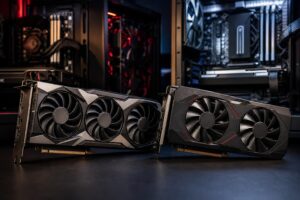
DaVinci Resolve uses the GPU heavily for color processing, effects, image scaling, noise reduction, rendering, and many Fusion tasks. A stronger GPU can improve both timeline responsiveness and render performance. More importantly, sufficient VRAM helps Resolve hold demanding footage, effects, and processing tasks in memory.
For light editing, 8GB of VRAM can be workable. For a new workstation intended for serious 4K use, we would generally avoid treating 8GB as a long-term target. A 12GB GPU is a more comfortable floor, while 16GB to 24GB is worth serious consideration for demanding 4K, 6K, Fusion, and GPU-heavy grading work.
Do not choose solely by the GPU’s gaming reputation. A card can be excellent for games but still run into VRAM limits with high-resolution media or complex color work. Conversely, buying the most expensive GPU available is wasteful if your projects are simple 1080p timelines. Match the card to the resolution, codec, effects, and turnaround expectations of your actual jobs.
The CPU still matters. It handles application responsiveness, many codec tasks, audio processing, background work, file preparation, and portions of rendering and effects processing. More cores help with sustained production workloads, but a fast CPU with strong per-core performance is also important for a responsive editing experience.
For most 4K Resolve systems, an 8-core modern desktop CPU is a strong baseline. Moving to 12 or 16 cores is worthwhile when you render often, work in several creative applications at once, or process CPU-heavy codecs and effects. Beyond that, returns become more workload-specific. If you primarily use GPU-accelerated grading and deliver modest projects, shifting that money toward a better GPU, more RAM, or better storage often produces a more useful system.
Codec support deserves attention as well. Some camera formats are substantially harder to decode than others, and hardware decoding support can vary by processor, graphics card, operating system, Resolve edition, and media format. Before buying, identify the cameras and codecs you use most. If smooth playback matters more than keeping native files untouched, optimized media or proxies can also be the smarter solution than throwing hardware at a difficult codec.
32GB is the practical entry point for light 4K editing. 64GB is the recommendation for most professional 4K users. It gives Resolve breathing room alongside a web browser, audio software, graphics tools, and the operating system.
Move to 128GB when you regularly work with large 6K or 8K media, long multicam timelines, extensive Fusion compositions, large image sequences, or several demanding applications open at once. More memory does not replace GPU VRAM, but running short on either can interrupt an otherwise well-balanced workstation.
A single fast SSD is fine for a basic editing PC. A professional workstation benefits from separating competing tasks. Resolve constantly reads media, writes cache files, creates optimized media, and handles exports. Putting all of that on the same nearly full drive as Windows is a good way to make a fast PC feel less fast.
Do not fill working SSDs to the brim. Keeping free space available helps with cache growth, exports, and general drive performance. Also, remember that RAID is not a backup. Important footage should exist in more than one location.
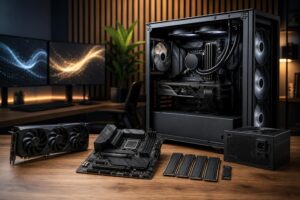
A premium motherboard can be worthwhile when you need more NVMe slots, high-speed networking, substantial USB connectivity, or expansion cards. Otherwise, it rarely makes an edit faster. Buy a reliable board with the ports and expansion you need, not the one with the most decorative armor.
Likewise, extremely fast storage standards are not automatically transformative for every Resolve project. A quality modern NVMe drive is already very fast. Additional capacity, a sensible multi-drive layout, and reliable backup storage are usually more valuable than paying heavily for a small headline-speed gain.
Do not cut corners on the power supply, cooling, or case airflow, though. Video work can keep a system under load for hours. Quality cooling helps the CPU and GPU sustain performance with less noise, while a properly sized, reputable power supply supports long-term reliability.
A mass-market desktop can be perfectly adequate for light editing, especially when its hardware happens to suit your footage. The trouble begins when a generic configuration puts money in the wrong places: a powerful CPU paired with too little VRAM, 32GB of memory on a heavy 6K workflow, or one small SSD expected to hold the operating system, media, cache, and exports.
A thoughtfully configured custom workstation lets you prioritize the parts that affect your work. It also makes room for the storage, connectivity, cooling, power delivery, and future expansion that production systems often need. The goal is not the most expensive computer. It is a machine that stays responsive during real projects and has a sensible upgrade path when those projects grow.
Before choosing a system, write down your usual resolution, camera formats, timeline length, number of camera angles, effects, delivery formats, and whether Fusion or noise reduction is part of the normal workload. Those details reveal where the budget belongs.
Overclock Computers can design a DaVinci Resolve workstation around your footage, budget, storage needs, workflow, noise preferences, and future upgrade plans. Bring us the applications and projects you actually run, and we will help you avoid paying for hardware that will not improve your work.