Best PC for Blender in 2026: Workstation Specs That Make Sense

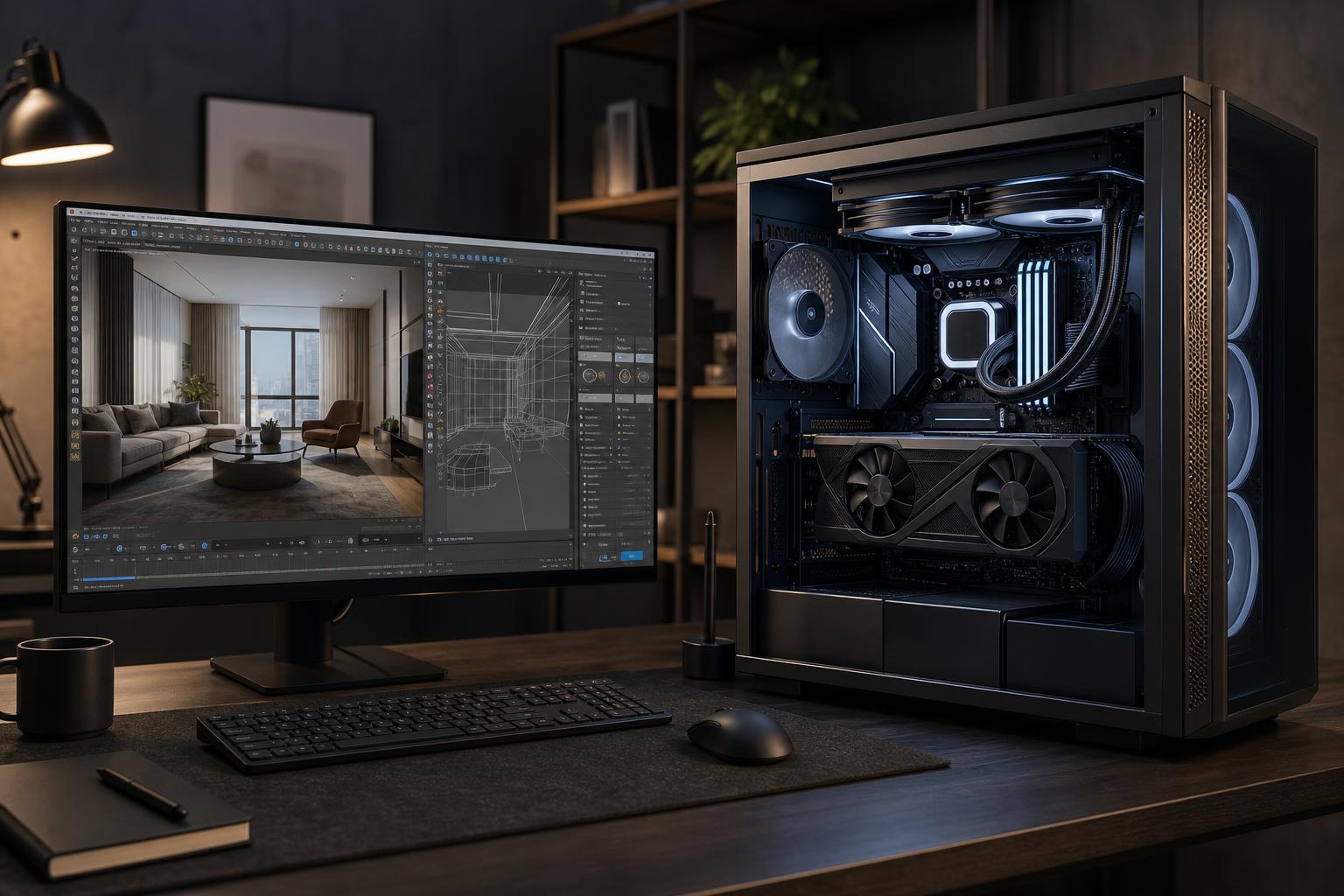
The best PC for Blender is usually a GPU-focused workstation with a capable modern CPU, 64GB of RAM, and fast NVMe storage. For most artists who use Blender for modeling, animation, viewport work, and GPU rendering, the graphics card deserves the largest share of the budget.
A sensible starting point is a modern 8-core-or-better CPU, a capable NVIDIA GPU with at least 16GB of VRAM, 64GB of DDR5 memory, and a 2TB NVMe SSD. Move to 128GB of RAM, more VRAM, and additional storage when you work with high-resolution textures, large scenes, particle-heavy simulations, or long video projects.
The important distinction is simple: Blender is not one workload. A PC that feels excellent for hard-surface modeling can still run out of GPU memory during a detailed Cycles render. A machine built around GPU rendering may not be the right answer for someone spending most of the day baking simulations. Build around the part of the process that consumes the most time.
This is the right level for students, hobbyists, freelance modelers, and creators working with ordinary scenes and 1080p or 1440p projects.
This configuration is a strong fit for Eevee work, learning Cycles, moderate GPU rendering, modeling, texturing, and basic animation. If you have a fixed budget, avoid overspending on a premium motherboard or decorative case hardware. Put that money toward GPU VRAM, RAM capacity, or a larger SSD.
For serious freelance work, regular Cycles rendering, larger scenes, higher-resolution texture sets, and heavier multitasking, this is the sweet spot.
For many working Blender users, 64GB of memory and a GPU with generous VRAM are more meaningful upgrades than stepping up to an extreme CPU. This tier keeps the system responsive when Blender, a browser full of reference material, image-editing software, and communication tools are all open at once.
This tier is for artists and studios handling complex production scenes, large simulations, demanding rendering schedules, high-resolution assets, or several professional applications at the same time.
This is where careful configuration matters most. A top-tier GPU is valuable only if its VRAM capacity fits your scenes and the rest of the system can feed it data without becoming cramped, hot, or difficult to expand.
For Cycles GPU rendering, the graphics card is the main performance decision. It also matters for smooth viewport work in complex scenes, especially when using high-resolution textures and GPU-accelerated features.
For most Blender buyers, an NVIDIA GPU is the practical recommendation because Blender’s OptiX rendering support is widely used and CUDA/OptiX acceleration is part of many established 3D workflows. That does not mean every Blender user must buy the most expensive card available. It means GPU model selection should start with two questions: how much rendering do you do, and how much VRAM do your actual scenes need?
VRAM is the graphics card’s working memory. When a scene, textures, geometry, and render data do not fit, GPU rendering can become restricted or require workflow compromises. More VRAM does not automatically make every small render faster, but it gives you more room for detailed scenes, larger textures, and future projects.
For light work, 12GB can be workable. For a serious Blender workstation intended for Cycles, 16GB is a more comfortable floor. Artists building large environments, product scenes with many high-resolution materials, or complex character projects should strongly consider more. Buying a faster GPU with too little memory for your work is a frustrating false economy.
Blender still relies heavily on the CPU for many tasks. Modeling responsiveness often benefits from strong single-core performance. Simulations, geometry processing, baking, file operations, and CPU rendering can use many cores. The best CPU depends on where your time goes.
If you mainly model, texture, rig, animate, and render on the GPU, a modern mainstream CPU with excellent per-core speed is usually ideal. An 8-core to 16-core processor gives plenty of headroom without diverting too much budget from the GPU.
Fluid, smoke, particle, cloth, and physics workflows can benefit from additional CPU cores and substantial RAM. CPU rendering also makes a higher-core-count processor easier to justify. Just be honest about your workflow: if you render almost entirely with Cycles on the GPU, moving from a good 12-core CPU to a much more expensive workstation-class processor may be far less noticeable than upgrading the GPU.
32GB is enough to learn Blender and complete many modest projects, but 64GB is the recommended target for a new performance-focused Blender workstation. It provides breathing room for larger scenes, texture work, simulation caches, reference images, compositing, and other open applications.
Choose 128GB when you regularly work with large environments, heavy geometry, high-resolution scans, substantial simulations, or multiple demanding creative applications together. RAM shortages are not subtle: the system may start swapping data to storage, causing slowdowns that make an otherwise powerful PC feel broken.
Use matched memory kits and avoid filling every motherboard slot unless the required capacity calls for it. A builder can select a stable kit and leave a sensible upgrade path rather than treating RGB heat spreaders as a performance feature.
Blender project files, texture libraries, simulation caches, render outputs, and source footage can consume storage surprisingly quickly. A single 1TB drive is manageable for a small personal workflow, but it becomes crowded fast when projects include video or high-resolution assets.
For most professionals, a 2TB NVMe SSD is the practical starting point. A second NVMe SSD is worthwhile if you routinely use cache-heavy simulations, edit video alongside 3D work, or want to keep active projects separate from the operating system and applications. Large, lower-cost storage can be useful for archives, but active projects and cache files belong on fast solid-state storage.
Do not chase the highest advertised sequential speed alone. Capacity, sustained behavior, reliability, and having enough separate space for active work usually matter more than paying extra for a specification you will rarely notice.
Blender rendering can hold a CPU and GPU under load for hours. That makes cooling and power delivery part of performance, not cosmetic extras. A restrictive case, undersized cooler, or low-quality power supply can create excessive noise, high temperatures, and reduced sustained performance.
Choose a case with unobstructed intake, enough quality fans, and clearance for the selected GPU and cooler. Use a power supply from a reputable line with enough capacity and the correct native connectors for the graphics card. There is no benefit to buying the highest wattage number blindly, but there is real value in clean, stable power with room for realistic component load and future upgrades.
A well-selected prebuilt can be perfectly suitable, but Blender users often benefit from a custom configuration because their workloads vary so widely. One artist may need a high-VRAM GPU and 64GB of RAM. Another may need 128GB of RAM, multiple fast drives, and extra CPU cores for simulations. A generic “creator PC” can easily spend money in the wrong places.
Overclock Computers can help configure a Blender workstation around your actual scenes, render engine, simulation work, storage needs, budget, preferred software, and future upgrade plans. Bring a few details about your largest projects and the parts of Blender that slow you down; that is enough to build a system that makes sense instead of simply buying the most expensive parts on the shelf.