Best Workstation for Revit in 2026: Practical Specs for BIM Projects

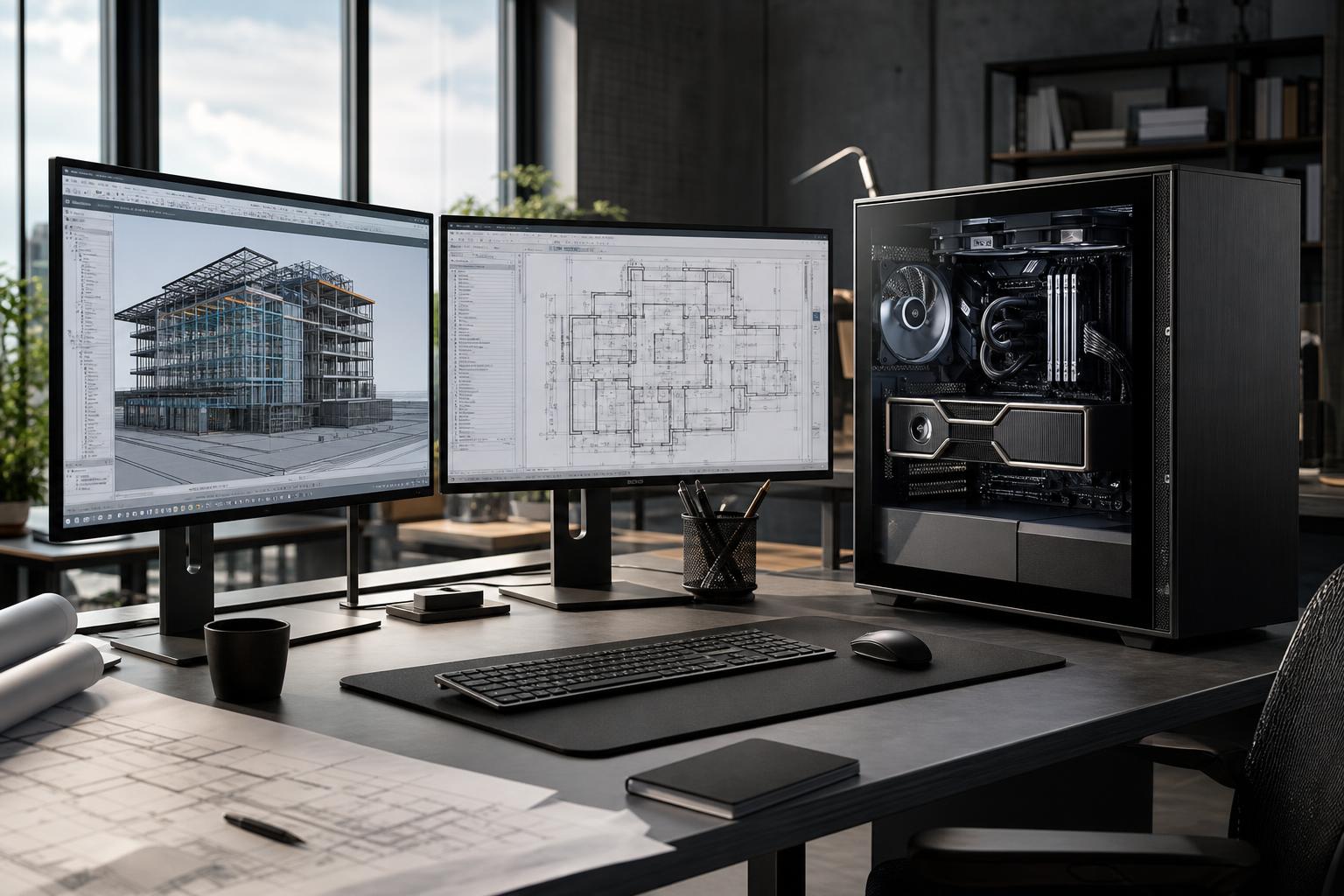
A good Revit workstation is not simply the PC with the most cores, the largest graphics card, or the highest price. For most architectural and BIM workflows, the best starting point is a fast modern CPU, 32GB to 64GB of RAM, a capable dedicated GPU, and fast NVMe storage. Larger models, heavy links, point clouds, rendering, and running several design applications at once can justify substantially more memory, GPU power, and storage capacity.
For a typical professional Revit user in 2026, we recommend a current high-clocked desktop CPU, 64GB of RAM, a mid-to-high-tier dedicated GPU with sensible VRAM capacity, and at least 2TB of NVMe SSD storage. That is the balanced performance tier: strong enough for serious day-to-day production without paying for hardware that Revit may not fully use.
Revit feels slow for different reasons depending on the task. Opening files, navigating models, editing views, generating documentation, syncing project data, rendering, and coordinating linked models do not all stress the same component. A balanced workstation matters because a weakness in one area can make an otherwise expensive PC feel frustrating.
Most interactive Revit work benefits heavily from fast CPU performance per core. In plain English: a processor that completes one demanding task quickly often improves the responsiveness of modeling, view changes, and many common commands more than a processor with an extreme core count.
That does not mean cores are useless. Extra CPU cores can help with certain exports, rendering tasks, multitasking, and supporting applications. They simply should not be the first priority for a Revit-focused machine unless your workload is known to use them well.
This tier suits individual architects, interior designers, students, and small offices working on modest building models. It is also a sensible choice when Revit is important but shares a machine with lighter office work, PDF review, and basic image editing.
Do not cut corners on the SSD, cooling, or power supply to fund a fancier case or motherboard. Those choices do little for design productivity, while fast storage and stable sustained performance affect every workday.
This is where we would place most dedicated Revit workstations. It fits medium to large building models, several linked files, high-resolution monitors, regular coordination work, and a typical mix of Revit, AutoCAD, Bluebeam, Office applications, browser tabs, and communication tools.
For most buyers, moving from 32GB to 64GB of RAM is more useful than overspending on an ultra-premium motherboard. The same goes for selecting a larger, reliable SSD rather than assuming a small boot drive will stay comfortable once local project files, linked content, caches, and exports accumulate.
Choose this tier when you routinely open large federated models, work with point clouds, maintain several large applications at once, render locally, or need one system to cover both design production and demanding visualization work.
More hardware is not automatically better. A very high-core CPU can be the right tool for CPU rendering or other parallel workloads, but it may not make normal Revit modeling feel proportionally faster than a faster-clocked mainstream processor. Build around the work that consumes the most billable hours.
For a Revit-first workstation, prioritize a modern CPU with strong single-core performance. This is usually the best route to a machine that feels quick while modeling, creating sheets, working with views, and moving through normal design tasks.
Add cores when the rest of your workflow gives them a job. Examples include CPU-based rendering, running multiple demanding applications, batch processing, or simulation tools. Buying the highest-core-count processor available solely for Revit is often poor value.
Memory capacity determines how comfortably your workstation can keep models, linked files, open applications, and background processes available at once. When RAM runs short, Windows must move data to storage. Even a fast SSD is far slower than system memory, and the result can be stuttering and long pauses.
Choose 32GB only for lighter work or a tight budget. Choose 64GB for most professional Revit users. Move to 96GB or 128GB when project complexity, point clouds, large links, rendering, or regular multitasking proves that 64GB is not enough. More RAM than you use is not a speed upgrade, so avoid treating 128GB as mandatory for every office workstation.
A dedicated GPU is the sensible choice for a professional Revit workstation, particularly with multiple high-resolution displays and complex 3D views. However, Revit does not automatically reward buying the most expensive graphics card on the market.
Spend more on the GPU if you also use real-time visualization, GPU rendering, large point-cloud workflows, or other graphics-intensive design software. If your work is mainly documentation, conventional building models, and 2D coordination, redirecting some of that budget into RAM, storage, or a better CPU is usually wiser.
Professional graphics cards can be appropriate in workflows with specific application requirements or large-memory needs. They are not a universal Revit performance upgrade. The right choice depends on the full software stack, not the word “workstation” on the box.
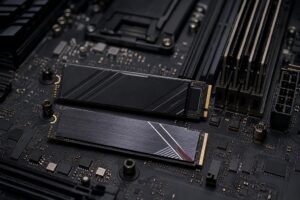
Use an NVMe SSD as the primary drive. A 2TB drive is a practical minimum for many professional systems because it leaves room for active projects, local copies, libraries, exports, applications, and temporary files. A second drive can be useful for scratch data, local archives, or separating active work from general storage.
Do not confuse local storage with backup. Project files should be protected through a proper backup and collaboration process, whether that involves managed network storage, cloud services, or both. One large drive inside a workstation is not a backup plan.
Spend more on RAM when you regularly work with large linked models, point clouds, or several demanding programs at once. Spend more on GPU power when visualization and rendering are regular parts of the job. Spend more on storage capacity when active project data is filling drives and forcing constant file management.
You can usually save money by avoiding decorative motherboard features, excessive RGB hardware, and extreme CPU core counts that your workflow will not use. A stable power supply, good airflow, and a motherboard with the ports and expansion you need are worth paying for. Beyond that, expensive platform features should solve a real requirement.
Those answers are more valuable than a generic “best workstation” parts list. A documentation-focused Revit machine and a visualization-heavy BIM workstation can have very different priorities, even when both run the same core software.
A thoughtfully built custom workstation gives you the ability to put money into the components that affect your work instead of accepting a generic configuration. That can mean 64GB of RAM instead of unnecessary cosmetic extras, a larger working SSD, quieter cooling for long design sessions, or a non-proprietary platform that can accept future upgrades.
Overclock Computers can help design a Revit workstation around your model sizes, linked files, rendering needs, storage workflow, monitors, budget, and plans for future expansion. Bring us the applications you use and the projects that challenge your current computer, and we can recommend a balanced system that earns its place on your desk.