Best PC for AutoCAD and Civil 3D in 2026: Workstation Specs That Make Sense

The best PC for AutoCAD and Civil 3D is usually not the most expensive workstation available. For most designers, drafters, and civil engineering teams, the smart choice is a system built around a fast modern CPU, 32GB to 64GB of RAM, a capable graphics card with enough display outputs and VRAM, and fast NVMe storage.
AutoCAD and Civil 3D reward a balanced machine, but they do not use every component in the same way. Day-to-day drawing, panning, editing, and many commands benefit most from strong single-core CPU performance. Large surfaces, corridors, point clouds, references, multiple open applications, and rendering can raise the importance of RAM, storage, GPU capability, and additional CPU cores.
If you are buying one new machine for typical AutoCAD and Civil 3D production work, we would generally start with a high-clock-speed mainstream CPU, 64GB of RAM, a midrange GPU with at least 12GB of VRAM where practical, and 2TB of NVMe storage. That is the sensible performance tier for many professionals who work with substantial files and want a workstation that will not feel cramped in two years.
This tier suits users primarily producing 2D drawings, markups, plan sets, and modest Civil 3D models. It is also a reasonable choice for satellite staff who access larger project files occasionally rather than living in them every day.
Do not build a serious Civil 3D workstation with only 16GB of RAM in 2026. It may launch the software, but running Civil 3D alongside Outlook, Teams, web browsers, PDF review tools, and several referenced drawings can make that capacity feel tight very quickly.
This is the best fit for most full-time Civil 3D users, project engineers, designers handling substantial references, and users who regularly work in 3D views. It is also the tier we would choose for someone who wants a machine with useful headroom rather than a workstation tuned only for today’s smallest projects.
For many offices, this is the value sweet spot. The system should remain responsive while you have Civil 3D, AutoCAD, Bluebeam or another PDF tool, spreadsheets, browser tabs, communication software, and several project resources open at once. That may not sound glamorous, but it is what makes a workstation pleasant to use from Monday morning through Friday afternoon.
Move to this tier when Civil 3D is only one part of the job. Examples include processing LiDAR or large point clouds, working with extensive survey data, producing visualizations, using GIS tools, rendering, or regularly moving between several demanding design applications.
Do not buy this class of workstation simply because it has an impressive specification sheet. Buy it because you have a real workload that consumes the extra RAM, storage, GPU memory, or CPU resources. Otherwise, the money is often better spent on a backup strategy, better displays, or a second workstation for a growing team.
AutoCAD and many common Civil 3D tasks are not perfectly spread across every CPU core. A processor with excellent single-core performance can therefore feel faster in normal drawing and modeling work than a many-core processor designed primarily for rendering or simulation.
Extra cores still have a place. They help when you multitask, run exports, render, process data, or use other applications that can use more threads effectively. The mistake is assuming that a workstation with the largest core count will automatically be the fastest Civil 3D machine. For a dedicated CAD user, prioritize a current CPU platform with strong per-core speed first, then choose enough cores for the rest of the workflow.
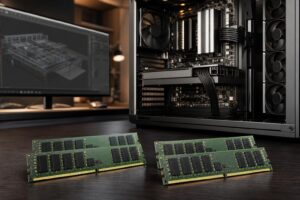
32GB is workable for lighter professional use. 64GB is the recommendation for most new Civil 3D workstations. The additional capacity is valuable when drawings have external references, surfaces grow more complex, and several everyday applications remain open.
Choose 128GB when your projects involve large point clouds, extensive imagery, substantial GIS datasets, or several memory-hungry applications at the same time. More RAM does not make every command faster, but insufficient RAM can force the system to rely on much slower storage as temporary memory. That is when a machine starts feeling bogged down for no obvious reason.
Not always. AutoCAD and Civil 3D users need a reliable dedicated GPU, but the right choice depends on the rest of the workload.
A professional GPU can make sense for organizations that need specific driver support, run several professional applications, require certain display or deployment features, or want a standardized fleet. It can also be a good fit for complex visualization and specialized workflows.
A carefully selected consumer GPU can be excellent value for many CAD users, particularly when it offers more VRAM for the money. It may be especially sensible for firms that combine design work with rendering, visualization, or occasional gaming. The key is not the label on the card; it is choosing a stable, appropriately cooled GPU with enough VRAM, suitable connections, and a power supply that supports it properly.
For ordinary 2D drafting, a top-end GPU is wasted money. Put that budget toward 64GB of RAM, a larger SSD, a faster CPU, or a better monitor setup first.
Use NVMe SSD storage for the operating system, applications, and active work. A 1TB drive fills faster than most buyers expect once local project copies, software, plot files, imagery, and backups accumulate. For a professional workstation, 2TB is usually the more comfortable starting point.
Separate storage can help users with large datasets. Keeping active point clouds, aerial imagery, or cache-heavy files on a second fast SSD can make file management simpler and avoids turning the operating system drive into a junk drawer. It is not a substitute for backups, however. Important project data should follow your organization’s backup and version-control practices.
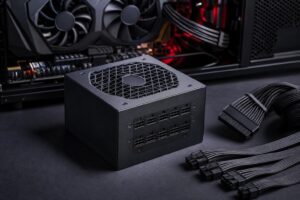
Civil design work can keep a CPU busy for long periods. Quality cooling helps the processor sustain its intended performance without sounding like a leaf blower. A reputable, correctly sized power supply protects system stability and leaves room for a sensible future graphics upgrade. These parts do not sell computers in flashy advertisements, but they matter.
You do not need an extravagant motherboard for AutoCAD. You do need reliable power delivery, enough M.2 slots for storage, sufficient USB ports, and the connectivity your office actually uses. Check for front-panel USB-C if you regularly attach fast external drives. Consider 2.5Gb Ethernet or faster only if your network storage can benefit from it; faster networking hardware cannot fix a slow server or Wi-Fi connection.
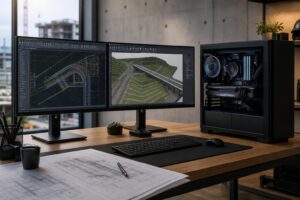
For many designers, dual monitors are the practical minimum. A 27-inch 1440p display offers a comfortable balance of workspace and readable text. Higher-resolution displays can be excellent for plan review and detailed work, but confirm that the GPU has the right outputs and that your preferred interface scaling remains comfortable.
The right AutoCAD and Civil 3D workstation is not defined by one component. It is a coordinated system built around the size of your project files, the applications you keep open, your display arrangement, where data lives, and how long you expect the machine to serve you.
Overclock Computers can help configure a custom workstation around those details, from a practical drafting PC to a high-memory system for large civil models and point-cloud workflows. Bring your budget, software list, typical project size, monitor plans, and future upgrade goals, and we can help design a machine that spends your money where it will actually improve your work.