How to Choose a Motherboard: What Actually Matters for a Gaming PC or Workstation

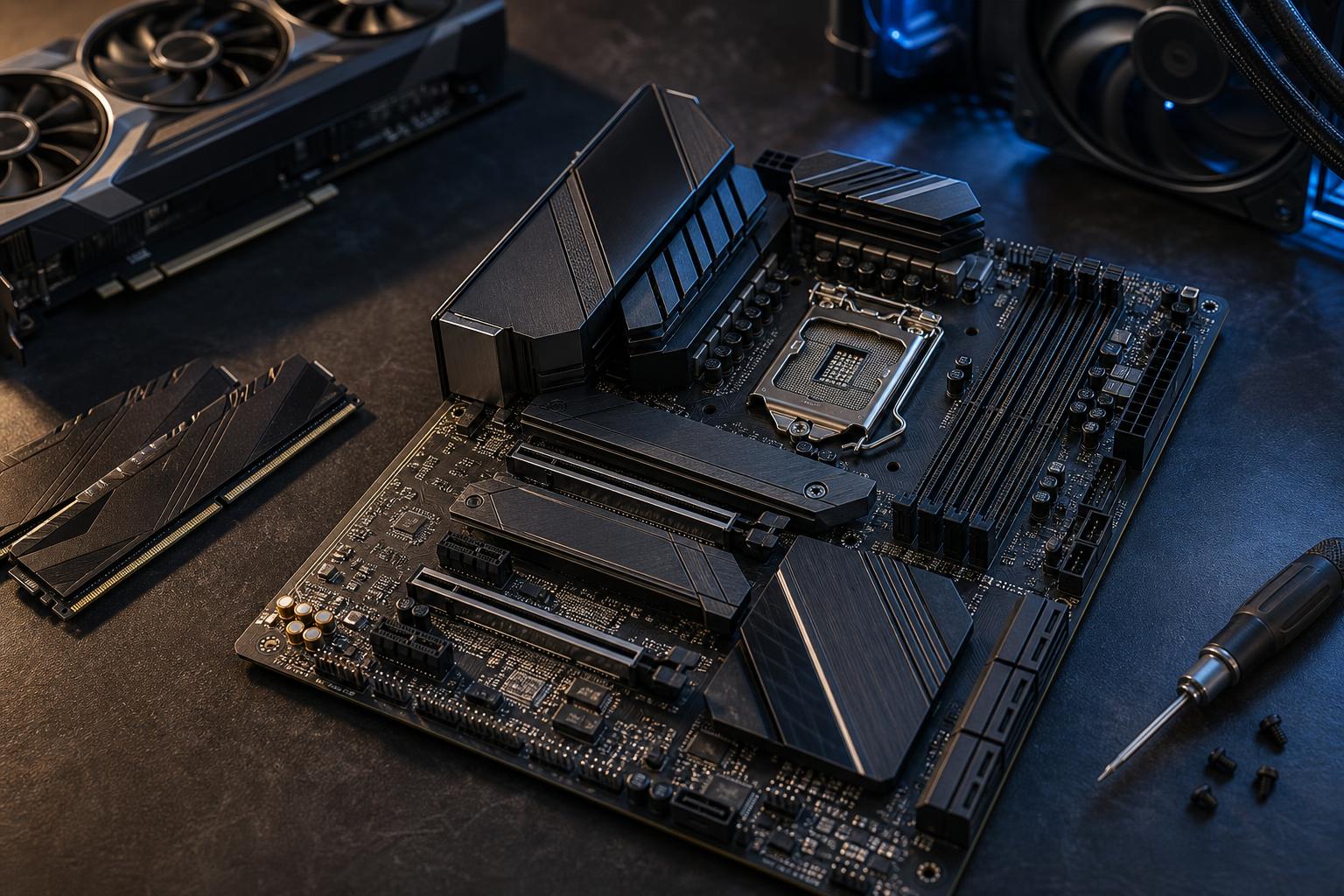
A motherboard rarely increases frame rates or makes a render finish dramatically faster by itself. That doesn’t make it an unimportant part. It determines which processor and memory your PC can use, how much storage and expansion it supports, what ports you have, and how easy the system will be to build, cool, troubleshoot, and upgrade.
The good news is that most people don’t need the most expensive motherboard. The right choice is usually a well-built midrange board with the connections and expansion room your particular PC needs. Paying for features you won’t use is one of the easiest ways to turn a sensible parts list into an unnecessarily expensive one.
Every motherboard supports a specific CPU socket and a limited range of processor generations. This is the first filter, and it is non-negotiable: an AMD processor requires a compatible AMD socket board, while an Intel processor requires the appropriate Intel socket board.
Don’t stop at the socket name. Confirm that the board’s chipset and BIOS version support the exact CPU you plan to install. A board may physically accept a processor but require a BIOS update before it can boot with it. This is especially relevant when pairing a newly released CPU with older motherboard stock.
For a new build, the simplest route is buying a motherboard sold as compatible with your chosen CPU generation. If there is any uncertainty, look for a board with BIOS Flashback or a similar feature. It allows a BIOS update from a USB drive without installing a working CPU, which can turn an annoying compatibility problem into a five-minute task.
The chipset helps determine connectivity, PCIe lane availability, USB options, storage support, and overclocking support. Within a CPU platform, manufacturers generally offer entry-level, midrange, and enthusiast chipsets.
For most gaming PCs, a solid midrange chipset board is the sweet spot. It typically offers enough M.2 slots, USB ports, memory tuning options, and power delivery for mainstream CPUs without the price premium of an enthusiast board.
Higher-end chipsets make sense when you have a clear reason to use them:
Entry-level boards can be perfectly good for a modest gaming system, especially with a midrange processor. Their common limits are fewer M.2 slots, fewer rear USB ports, lighter power delivery, and less room for future expansion. They are a sensible value choice when those limits are acceptable on day one.
The voltage regulator module, usually shortened to VRM, supplies clean, stable power to the CPU. It matters most with higher-wattage processors that can draw substantial power under long gaming, compiling, rendering, or simulation workloads.
You don’t need to memorize phase counts or chase marketing labels. Those specifications are not standardized well enough to compare in isolation anyway. Instead, use a sensible pairing strategy:
This is not a reason to overbuy. A flagship motherboard is not required just because you bought a flagship CPU. But pairing a power-hungry processor with the least expensive board available is false economy, particularly in a workstation that may render or compile for hours.
Motherboards come in several sizes. The board must fit your case, but case size also affects cooling, cable routing, storage capacity, and future upgrades.
ATX is the easiest recommendation for many custom gaming PCs and workstations. It generally provides more PCIe slots, M.2 slots, fan headers, and rear connectivity than smaller options. It also fits a wide selection of airflow-focused mid-tower cases, making the build and cooling process less cramped.
Micro-ATX boards are shorter than ATX boards and often cost less while keeping four memory slots and a capable feature set. They work well in compact towers and budget-conscious systems. The trade-off is usually fewer expansion slots and, on lower-priced models, fewer storage or USB connections.
Mini-ITX is for genuinely small systems. Modern ITX boards can support powerful CPUs and graphics cards, but the compact format usually means two memory slots, one PCIe slot, fewer connectors, tighter cooling constraints, and higher motherboard prices. Choose it because a small PC matters to you, not because it is automatically better.
Motherboard specification pages can look like a wall of acronyms. Focus on the items that affect how you will use the computer.
For most new PCs, plan on at least two M.2 slots: one for the operating system and applications, and one for future games, project files, or additional storage. A workstation may need three or more, especially if it keeps active projects on separate drives.
If you intend to reuse 2.5-inch SATA SSDs or hard drives for bulk storage and backups, verify the SATA port count. Also read the storage notes in the manual. On some boards, using a particular M.2 slot can disable one or more SATA ports or share bandwidth with another expansion slot. That is normal design trade-off, but it should not be a surprise after the parts arrive.
Your graphics card will use the main full-length PCIe slot. Beyond that, consider whether you will add a capture card, 10Gb Ethernet adapter, sound card, extra NVMe storage card, or professional expansion hardware. If the answer is no, extra physical slots have little value.
Be careful with slot placement. A large modern graphics card often covers nearby slots. On a workstation, check that the slots you need remain accessible after the GPU is installed.
Count the devices you plug in, including keyboard, mouse, headset receiver, external drives, webcam, printer, and controller. Rear USB ports matter, but internal headers matter too. Your case may have front USB-A, USB-C, or both; the motherboard needs the matching header for each port to work.
Motherboard video outputs are useful only when the selected CPU provides integrated graphics. If you use a dedicated graphics card, connect your monitor to the graphics card instead. It is a simple detail that causes plenty of avoidable setup confusion.
Gigabit Ethernet is adequate for ordinary internet access and gaming. Faster wired networking can be worthwhile when moving large media files to a NAS, working from shared storage, or maintaining a fast local network. It will not make a slow internet plan faster.
Built-in Wi-Fi is worth having if running Ethernet is impractical. Wi-Fi 6 or newer is a sensible target for a new system, assuming your router supports it. For latency-sensitive competitive gaming, wired Ethernet remains the more consistent option.
Motherboard audio is good enough for most speakers and gaming headsets. Spend extra on specialized audio only if you use high-end headphones, professional audio gear, or have a specific input/output requirement. For many creators, a dedicated USB audio interface is a better solution than selecting a motherboard based on onboard audio claims.
For most gaming PCs, choose a board with four memory slots if you are buying an ATX or Micro-ATX model. Two slots are enough for a normal two-stick memory kit, but four preserve a possible upgrade path. Mini-ITX boards normally have two slots due to space limits.
Check the motherboard’s memory support list and use a matched RAM kit rather than mixing separate kits later. Modern DDR5 systems often run best with two memory modules. Filling every slot can make high-speed memory settings harder to achieve, particularly with large-capacity kits.
Helpful quality-of-life features include:
None of these features make a PC faster, but they can make ownership much less frustrating.
As a rule, do not let the motherboard consume money that should go toward the graphics card, CPU, RAM capacity, storage, or cooling. In a gaming PC, the GPU usually has a far greater effect on the experience. In a workstation, sufficient memory, storage capacity, and the right CPU or GPU for the application typically matter more.
A good motherboard is one that supports your CPU at full sustained performance, fits your case, has the storage and ports you need, and leaves reasonable room to grow. Once those boxes are checked, paying another large premium often buys convenience features, cosmetics, or extreme overclocking capability rather than a meaningful improvement in everyday performance.
When choosing a motherboard, begin with the processor platform, then work through form factor, power delivery, storage, expansion, and connectivity. Be honest about what you will plug into the PC and what you may add in the next few years. That approach produces a balanced system far more reliably than buying the most expensive board with the longest specification sheet.
If you are planning a gaming PC or professional workstation and want the parts selected as a complete, compatible system, contact Overclock Computers. We can help match the motherboard, processor, cooling, graphics, and storage to the work you actually do.