Best PC for AutoCAD in 2026: Workstation Specs That Make Sense

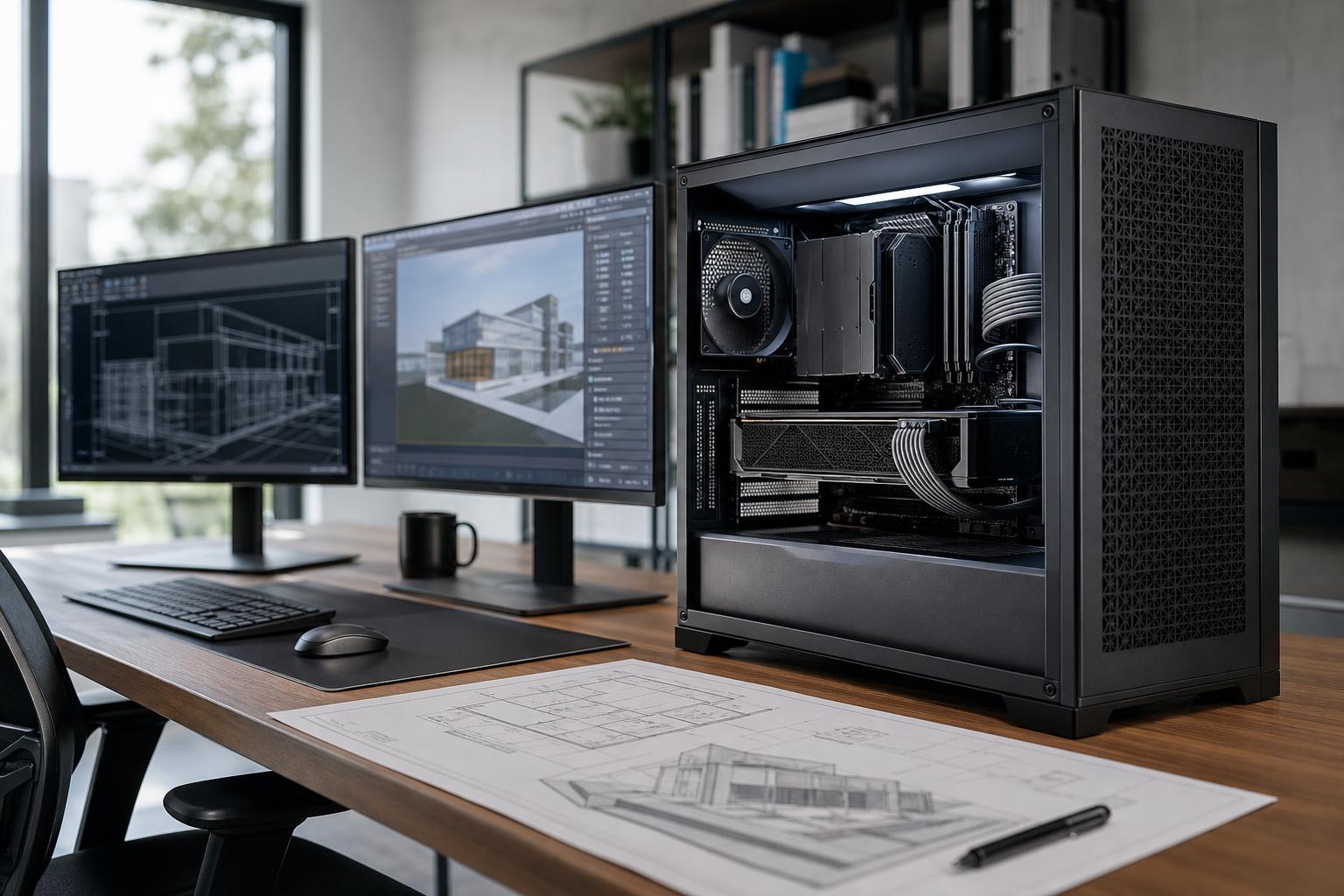
The best PC for AutoCAD is usually a fast, modern CPU with strong single-core performance, 32GB of RAM, a responsive NVMe SSD, and a sensible dedicated graphics card. For straightforward 2D drafting, that is enough to build an excellent machine without overspending. Larger 3D models, multiple monitors, rendering, point clouds, and Autodesk applications running alongside AutoCAD call for more RAM, GPU memory, storage, and CPU cores.
Here is the practical recommendation: buy a balanced workstation, not a spec-sheet trophy. AutoCAD often benefits more from fast individual CPU cores, sufficient memory, and a clean, reliable system than from an extreme multicore processor or the most expensive professional GPU available.
This is the sensible target for most 2D drafting, layouts, plotting, markups, PDFs, and normal-sized drawings. A basic integrated GPU can work for simple one-monitor 2D use, but it is not where we would start for a professional workstation expected to remain useful for several years.
This is the sweet spot for many architects, engineers, designers, and consultants. It provides room for AutoCAD, browser tabs, PDFs, spreadsheets, collaboration software, and other project tools to coexist without the machine feeling cramped.
Move into this tier when AutoCAD is only one part of the workflow. Revit, Civil 3D, rendering tools, reality capture, large linked reference files, and point clouds can change the hardware equation considerably. A workstation should be designed around the heaviest recurring task, not the application that happens to be open most often.
Many common AutoCAD tasks are lightly threaded. That means opening drawings, drafting, editing geometry, regenerating views, and many interface actions may rely heavily on one or a few CPU cores. A processor with excellent single-core performance will often feel faster in day-to-day CAD work than a much larger CPU built mainly for heavily parallel rendering.
More cores are not useless. They are valuable when you render, export, run analysis, work across several demanding programs, or use other software that can divide work across many threads. But there is a point where buying more cores means paying for performance that AutoCAD itself will rarely use.
For a dedicated AutoCAD workstation, prioritize a current CPU platform with high per-core speed first. Add core count when your wider workflow justifies it. This is one of the most common places where an expensive workstation can be poorly balanced.
32GB is the practical baseline for a new professional AutoCAD PC. It leaves reasonable breathing room for the operating system, AutoCAD, reference files, web research, PDF tools, email, and other normal work applications.
64GB is the better choice for users who routinely work with larger 3D drawings, many open applications, large raster files, complicated external references, or applications such as Revit and Civil 3D. It is also a wise choice for a workstation expected to serve for years, provided the extra budget does not take money away from a needed GPU or storage upgrade.
128GB and beyond are for genuinely memory-heavy workloads: large point clouds, substantial photogrammetry projects, major BIM models, simulations, virtual machines, or frequent work in several demanding applications at once. More RAM does not make a small 2D drawing draw faster. It prevents slowdowns when the active workload actually exceeds available memory.
A dedicated GPU improves viewport responsiveness, 3D orbiting, visual styles, and multi-monitor usability. The right choice depends on whether you are doing basic drafting or working with complex 3D data.
For 2D AutoCAD, an entry-level or midrange dedicated GPU is generally plenty. Spend the rest of the budget on CPU speed, 32GB of RAM, and a quality SSD. A powerful gaming-class GPU or a professional graphics card will not magically make ordinary 2D linework faster.
For 3D models, high-resolution displays, and detailed viewports, a midrange GPU with adequate VRAM is a more comfortable fit. VRAM is the graphics card’s working memory. It becomes important when scenes, textures, display resolution, and model complexity grow. If the workstation also handles GPU rendering, visualization, video work, or AI tasks, a stronger GPU can be a justified investment.
Professional GPUs can make sense when a specific application, driver requirement, workflow, or support policy calls for them. They are not automatically the best value for every AutoCAD user. Before paying a premium, identify the actual benefit: certified-driver needs, larger available VRAM, application-specific behavior, or a company deployment standard. If none applies, a well-chosen mainstream GPU may be the better use of the budget.
A 1TB NVMe SSD is the minimum we recommend for a new AutoCAD workstation. It provides fast startup, responsive file handling, and room for Windows, applications, project files, temporary files, and local cloud-sync folders.
For serious professional use, a 2TB drive is often the better starting point. CAD projects rarely arrive alone. They bring PDFs, referenced drawings, site imagery, exports, office files, models, archives, and sometimes enormous scan or point-cloud data. SSDs also need free space to operate comfortably, so filling a small drive to the brim is a bad long-term plan.
For larger teams or data-heavy work, separate the fast active-project drive from longer-term archive storage. Network storage and cloud collaboration can be useful, but they do not replace local fast storage when the application needs to actively load, save, cache, or process large data sets.
Workstations are often judged by CPU and GPU labels, yet the less glamorous parts have a major effect on daily use. A quality power supply, a motherboard with the ports and expansion you need, and a case with real airflow help the system stay stable under sustained workloads.
Good CPU cooling is also worthwhile. It is not only about preventing a crash. Proper cooling helps the processor sustain its intended performance with less fan noise during long exports, rendering, or processing jobs. An oversized liquid cooler is not mandatory for every AutoCAD build, but a bargain-bin cooler on a high-performance CPU is false economy.
Check connectivity before ordering. Common requirements include multiple DisplayPort or HDMI outputs, wired Ethernet, Wi-Fi where appropriate, front USB-C, ample USB ports for peripherals, and room for additional drives. For offices handling large files on shared storage, faster networking may be more valuable than a minor CPU upgrade.
A reputable prebuilt can be a reasonable choice for basic AutoCAD use, particularly if the specifications are transparent and the components are standard. A custom system becomes especially useful when you need to balance several priorities: fast drafting performance, larger memory capacity, multiple drives, a specific GPU class, quiet operation, expansion room, or a workstation that also supports rendering and visualization.
At Overclock Computers, we build systems around the drawings, applications, monitors, files, and future plans that shape your actual work. Tell us whether your day is mostly 2D drafting, detailed 3D modeling, BIM coordination, rendering, point-cloud processing, or a mix of all of it. We can help configure a properly balanced AutoCAD workstation around your budget without loading it up with expensive parts that will not improve your work.