Best PC for Adobe Premiere Pro in 2026: Workstation Specs That Make Sense

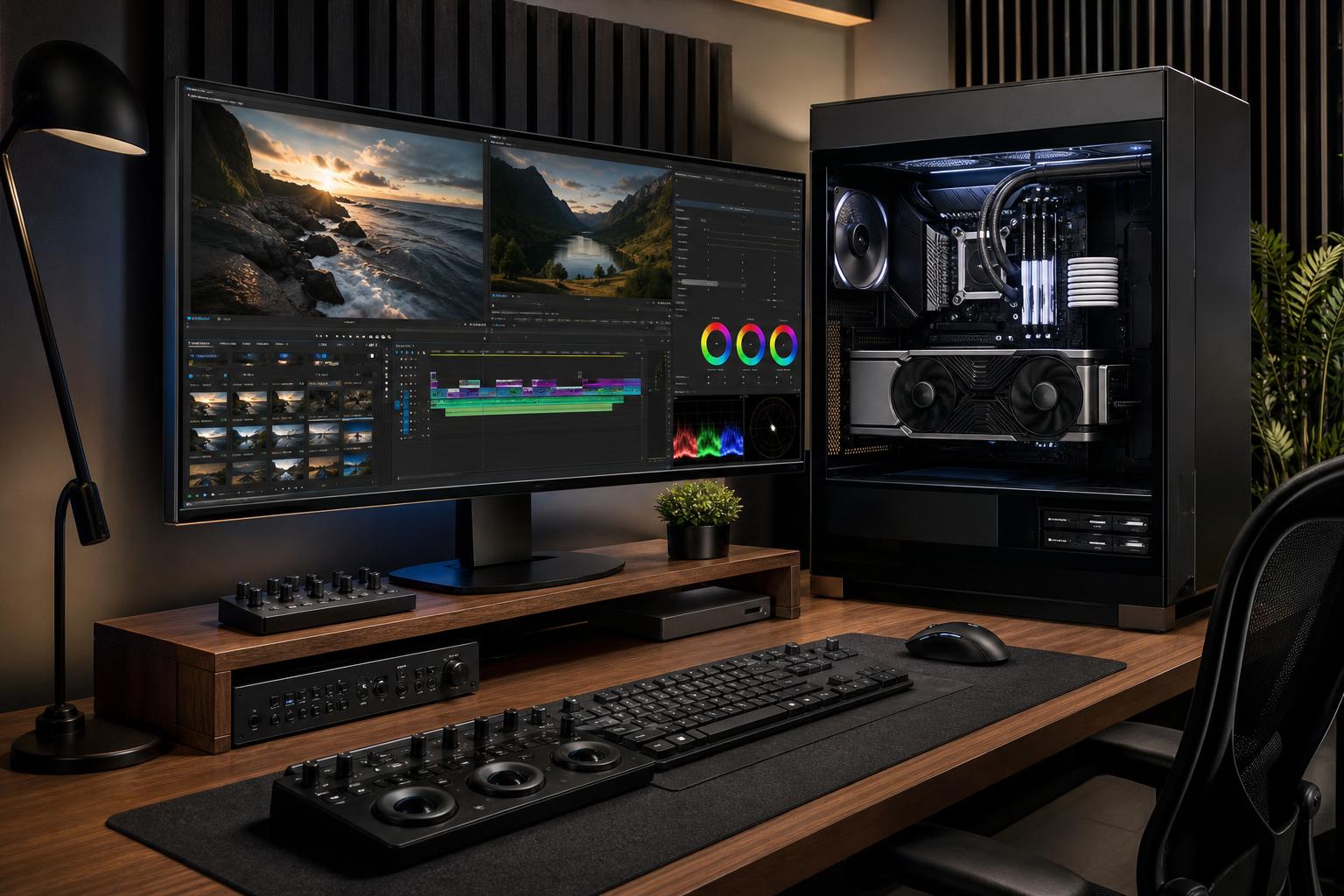
The best PC for Adobe Premiere Pro is not automatically the one with the most expensive CPU or graphics card. A good Premiere workstation is built around the footage you edit, the effects you use, and what happens after the edit: color grading, motion graphics, audio work, exports, or all of the above.
For most serious 4K editors, we recommend a modern high-performance CPU, an NVIDIA GPU with sufficient VRAM, 64GB of RAM, and separate fast SSD storage for Windows, active projects, and media. That combination makes a much larger real-world difference than spending heavily on an exotic motherboard or chasing SSD benchmark numbers.
If you edit long-form 4K projects, multicamera timelines, high-bitrate camera files, or projects that move between Premiere Pro and After Effects, start at 64GB of memory and prioritize storage capacity. If you work with 6K, 8K, RAW formats, demanding effects, or complex productions, step up to 128GB of RAM, more GPU VRAM, and a storage plan designed for large source files.
This is the sensible starting point for paid video work, active YouTube channels, wedding films, marketing teams, and editors working regularly in 4K.
For many editors, this is the value sweet spot. It is powerful enough to edit, color, and export 4K work comfortably while leaving room to add storage later.
Choose this class when lost time in previews and exports has a real business cost, or when your projects are consistently heavy rather than merely occasional.
This is where the rest of the system needs to support the headline parts. A powerful GPU paired with inadequate cooling, one crowded SSD, or 32GB of RAM is a classic case of spending money without getting the experience you expected.
Premiere Pro uses the CPU throughout the editing process. Timeline responsiveness, decoding certain formats, export performance, audio tasks, and background applications all lean on it to different degrees. Fast individual CPU cores matter because some common editing operations do not scale perfectly across every available core.
More cores still help, especially for exports, rendering, transcoding, and working alongside After Effects, Photoshop, Audition, or Media Encoder. But there is a point where buying a workstation-class CPU with an enormous core count makes less sense than putting that money into more memory, storage, or a stronger GPU.
For a dedicated Premiere system, buy a current mainstream high-end CPU first. Move to a higher-core platform when you routinely export long projects, handle large batches of media, run CPU-based effects, or need unusually large RAM capacity and expansion.
Premiere Pro can use the GPU to accelerate playback, rendering, color effects, scaling, transitions, and export workflows. A capable GPU improves the feel of editing, particularly when a timeline uses GPU-accelerated effects.
For many Premiere users, NVIDIA GPUs are a practical choice because their hardware encoder and broad application support can be useful across a typical creative software stack. That does not mean every editor needs the highest-tier card. A well-balanced mid-to-high-range GPU is usually smarter than buying the fastest available card while compromising on RAM and storage.
VRAM is particularly important when working with high-resolution media, GPU-heavy effects, large color grades, and programs such as After Effects or DaVinci Resolve alongside Premiere. For straightforward 1080p and moderate 4K editing, 8GB can be workable. For a new serious editing PC, 12GB provides more breathing room. For 6K, 8K, complex projects, and a longer service life, 16GB or more is the safer target.
Premiere Pro can run on 32GB of RAM, and it may be enough for basic 1080p editing or modest 4K work. It is not where we would start for a workstation expected to earn its keep over several years.
With 64GB, Premiere has room for larger projects while Windows, web browsers, plug-ins, and other Adobe applications remain open. It also reduces the chances of memory pressure turning a perfectly capable computer into a sluggish one halfway through an edit.
Choose 128GB if you work in 6K or 8K, use After Effects heavily, run large multicamera sequences, keep several professional applications open, or regularly process substantial footage. More than 128GB is a specialized need. It is justified by known project sizes and workflows, not simply by a desire for the biggest number on a specification sheet.
Video projects consume space at an alarming rate. More importantly, Premiere needs to read source clips, write cache files, save project data, and export finished media without every task fighting over one nearly full drive.
A practical storage layout looks like this:
The exact setup changes with your footage and retention policy, but the principle holds: active work belongs on fast storage, and valuable work needs a separate backup. A fast SSD is not a backup. Neither is a folder named “Final_Final_UseThisOne.”
Do not pay a large premium for the newest SSD generation if it forces you to buy less capacity. For most Premiere workflows, a roomy, quality NVMe drive with reliable sustained behavior is more useful than a smaller drive that wins a synthetic benchmark. Keep meaningful free space available as well; cache files and exports need somewhere to go.
“4K” describes image dimensions, but not the whole workload. A lightly compressed 4K editing codec and heavily compressed 4K camera footage can place very different demands on a PC. Frame rate, bit depth, codec, effects, multicamera count, and color workflow all matter.
If your footage is difficult to decode, proxy workflows can be the professional answer rather than endlessly escalating hardware. Proxies create lower-demand versions of source clips for smooth editing, then Premiere uses the original files for final export. A strong workstation still helps, but workflow discipline is cheaper than brute force.
Before buying, make a short list of the cameras and codecs you use, typical project length, number of camera angles, delivery resolution, and the Adobe applications that remain open during an edit. Those details lead to a better configuration than a generic “video editing PC” label ever will.
Video exports and renders can keep a workstation under load for long periods. Good cooling allows the CPU and GPU to sustain their intended performance without excessive noise or temperature-related slowdowns. A properly ventilated case, sensible fan layout, and quality CPU cooler are worth paying for.
Likewise, use a quality power supply sized for the complete system, not the bare minimum. Stable power delivery, appropriate connectors, and capacity for reasonable future upgrades matter more than chasing an oversized wattage figure.
Consider the connections your workflow needs: fast USB ports for external drives, a card reader if you ingest camera media regularly, wired networking for NAS storage, and enough rear ports to avoid turning your desk into an adapter collection. Professionals using shared storage may benefit from faster networking, but only if the network and storage hardware can actually support it.
Spend more on: RAM once projects justify it, GPU VRAM for heavy work, active SSD capacity, cooling, a reliable power supply, and expansion room if this PC must evolve with your business.
Save money on: decorative motherboard features, extreme overclocking components, unnecessary RGB, and the absolute fastest SSD when a larger quality drive would better fit the workflow.
A custom workstation is valuable when the parts are selected as a system. It does not need to be exotic; it needs to avoid the common shortcuts found in generic configurations, such as insufficient RAM, a tiny primary drive, limited expansion, or cooling designed for short bursts rather than sustained work.
The best PC for Adobe Premiere Pro is one that keeps your current projects moving without wasting your budget on hardware that sits idle. For most committed 4K editors, that means a strong modern CPU, an NVIDIA GPU with sensible VRAM headroom, 64GB of RAM, and multiple fast storage devices. Bigger productions benefit most from 128GB of memory, more VRAM, and a well-planned storage and backup strategy.
Overclock Computers can help design a custom Premiere Pro workstation around your camera formats, project sizes, budget, software stack, storage needs, noise preferences, and future upgrade plans. Bring us the details of your real workflow, and we will help turn them into a balanced system rather than a pile of expensive parts.