Best PC for Civil 3D in 2026: Workstation Specs That Make Sense

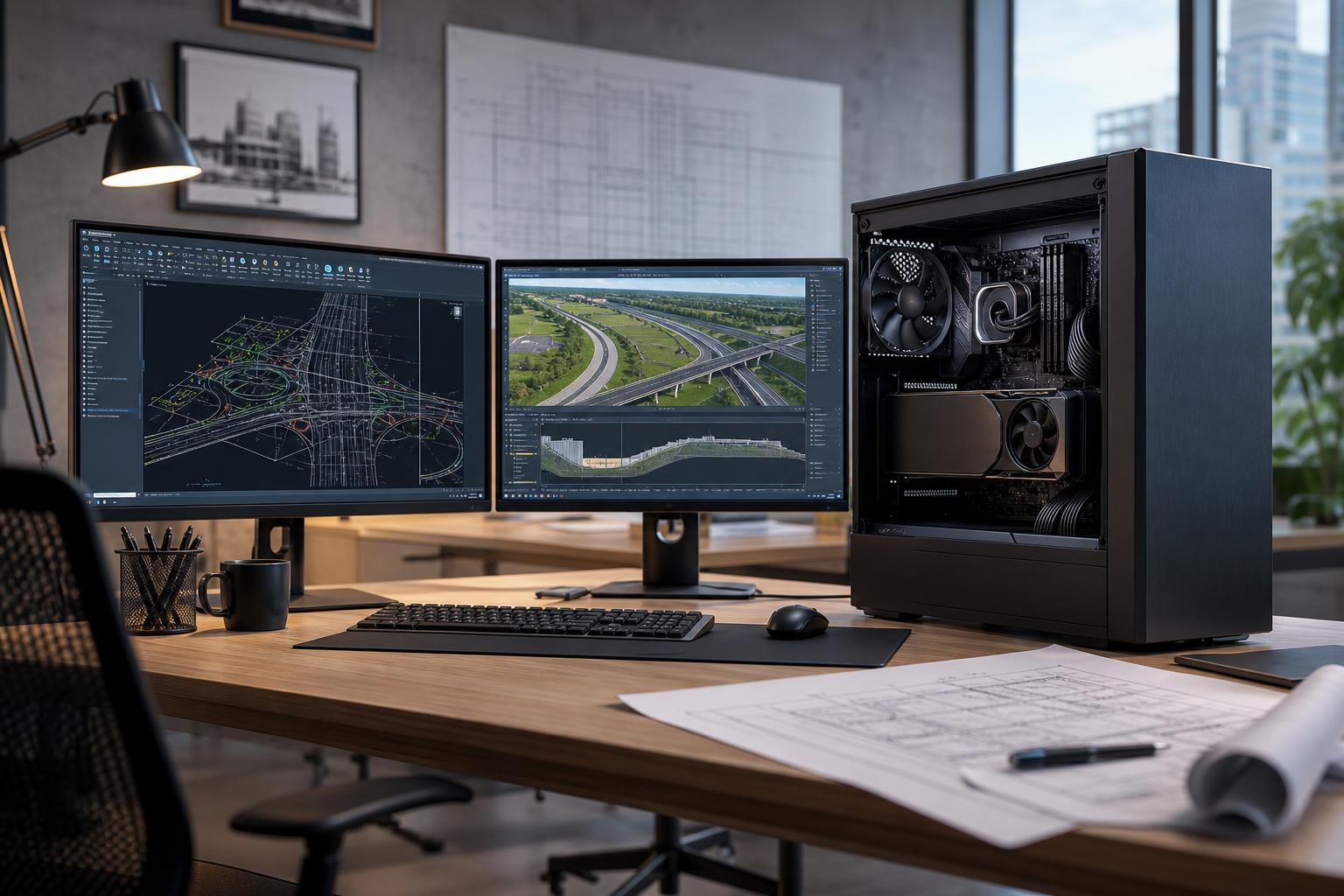
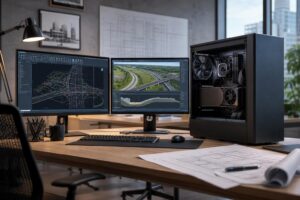
The best PC for Civil 3D is usually a workstation with a fast modern CPU, 64GB of RAM, a capable midrange-to-high-end GPU, and fast NVMe storage. For most civil engineers, survey teams, and design firms, that balanced approach is more useful than spending heavily on a huge core-count processor or an exotic graphics card.
Civil 3D can handle demanding drawings, surfaces, corridors, pipe networks, references, and point-cloud data. But its performance profile is different from a 3D rendering application. Much of day-to-day work still benefits most from strong per-core CPU performance, enough memory to keep project data in RAM, and storage that does not bog down when opening, saving, syncing, or caching large files.
Here is the practical recommendation: choose a current high-performance desktop CPU with strong single-core speed, start at 64GB of RAM for serious production work, use a dedicated GPU with at least 12GB of VRAM for complex models and multiple displays, and install a 1TB or larger NVMe SSD. Move to 128GB of RAM, more storage, and a more powerful GPU when your projects include large point clouds, aerial imagery, frequent 3D visualization, or several demanding applications open at once.
This is the sensible baseline for a professional using Civil 3D on typical land development, grading, utility, and roadway projects.
This configuration suits most Civil 3D users well. It keeps pans, zooms, object selection, drawing regeneration, and general multitasking responsive without wasting budget on parts the software may not fully use.
Step up to this tier for large corridors, substantial surfaces, dense external references, LiDAR data, drone imagery, and projects that are regularly open alongside GIS software, PDF markups, spreadsheets, and collaboration tools.
The extra RAM is often the biggest improvement here. It gives Windows and your applications breathing room when datasets get large, reducing the need to swap data to the SSD. A fast SSD remains important, but it is not a substitute for adequate memory.
Choose this direction if Civil 3D is part of a broader workflow involving Revit, InfraWorks, Navisworks, reality capture, GIS, rendering, or GPU-accelerated point-cloud and visualization work.
This is not the right configuration simply because a project is important. It is appropriate when the workflow genuinely uses the additional GPU capability, memory capacity, and storage bandwidth.
Civil 3D includes operations that do not scale neatly across a very large number of CPU cores. That means a processor with excellent single-core and lightly threaded performance often feels faster in the work you do all day: editing objects, working in drawings, regenerating views, and using many common design commands.
More cores still have value. They help when you run several applications simultaneously, process data in software that scales well, export or render in parallel-capable tools, or need a system to stay responsive while background tasks are running. But a workstation built around a lower-clocked many-core CPU can be a disappointing Civil 3D machine if it sacrifices the responsiveness of the primary design application.
For most buyers, an 8- to 16-core high-performance desktop CPU is the sweet spot. Spend more on extreme core counts only after confirming that your other daily applications can use them effectively.
For light drawings, 32GB can work. We would not make it the default recommendation for a new Civil 3D production workstation, though. Civil projects tend to grow, and so does the number of applications open beside them.
64GB is the right starting point for most professional Civil 3D users. It is enough for substantial drawings, references, general multitasking, and a normal mix of browser tabs, PDFs, email, and office applications.
128GB makes sense for large point clouds, big image datasets, complex shared projects, frequent use of multiple Autodesk applications, and users who routinely notice memory pressure. It also provides useful headroom for a workstation expected to remain productive for several years.
Do not buy 128GB merely for the number on a specification sheet. If your projects are modest and Civil 3D is the only demanding program in use, that money may be better spent on larger SSDs, a better backup plan, or a second display.
A dedicated GPU is important for smooth multi-display work, 3D views, complex visual styles, and related visualization software. However, Civil 3D alone does not automatically justify the most expensive gaming or professional GPU available.
For a standard Civil 3D workstation, a modern dedicated card with 12GB of VRAM is a practical floor. More VRAM becomes valuable with high-resolution displays, larger model views, point clouds, and applications that use GPU acceleration more aggressively than Civil 3D does.
A professional graphics card can be a sensible choice for organizations that require particular driver support or use specialized professional applications. For many independent engineers and firms using mainstream CAD, a well-chosen consumer GPU can also be an excellent fit. The right answer depends on the complete software stack, not the label on the box.
Fast NVMe SSD storage makes a workstation feel sharp when launching applications, opening drawings, loading references, saving revisions, and moving project data. A single 1TB drive fills surprisingly quickly once it holds Windows, applications, local project copies, point clouds, imagery, and backups.
A better layout is usually a 1TB or 2TB primary SSD for Windows and applications, plus a separate 2TB or larger NVMe SSD for active project data. Keeping active data on a dedicated drive can make organization easier and prevents one crowded system drive from becoming a nuisance.
Local SSDs do not replace backups. If files live on a server, NAS, or cloud-synchronized folder, use a workflow that protects project versions and gives the workstation enough fast local capacity for active work. Point-cloud and photogrammetry data can consume storage at an alarming rate; plan for that before the drive is full.
Pay for a quality power supply, effective CPU cooling, and a case with unrestricted airflow. Civil engineering workstations often run long exports, processing tasks, and full workdays. Stable power delivery and reasonable temperatures are not glamorous upgrades, but they protect sustained performance and reduce noise.
Also pay attention to motherboard connectivity. Enough USB ports, multiple M.2 slots, room for RAM expansion, and suitable networking are more useful than a board loaded with features you will never touch.
You can usually skip extreme RGB lighting, an oversized motherboard, and a flagship GPU if your work is primarily 2D drafting and moderate Civil 3D design. Those dollars rarely improve the actual experience as much as additional memory, storage capacity, or better displays.
Mass-market workstations can be perfectly reasonable, but their fixed configurations may pair an impressive CPU with too little RAM, minimal storage, weak cooling, or limited upgrade options. Civil 3D users often need a more specific balance than a generic office or gaming system provides.
A thoughtfully configured custom workstation lets you direct the budget toward the parts that match your project sizes and software: fast CPU performance for design work, enough RAM for the data you handle, useful GPU capacity for visualization, and storage that accommodates active files. It also makes future upgrades more straightforward when built with standard components and sensible expansion room.
The best PC for Civil 3D is not the one with the longest specification list. It is the one that stays responsive through your normal workday, handles your largest realistic projects without constant memory or storage compromises, and leaves a sensible upgrade path for the next few years.
Overclock Computers can help configure a Civil 3D workstation around your software, project sizes, point-cloud needs, display setup, budget, and plans for future expansion. Bring us the applications you use and the kind of files that slow down your current machine, and we can help identify where your hardware budget will make a real difference.