Best PC for DaVinci Resolve in 2026: Workstation Specs That Make Sense

The best PC for DaVinci Resolve is usually a GPU-focused workstation with a fast modern CPU, 64GB of RAM, multiple NVMe SSDs, and enough graphics memory for the footage and effects you actually use. For most serious 4K editors, the sensible target is a strong single GPU with 16GB or more of VRAM. Move to 24GB or more when you work with demanding noise reduction, Fusion compositions, high-resolution RAW footage, large timelines, or 6K and 8K delivery.
Resolve can use both the CPU and GPU very effectively, but its performance priorities are not identical to every other editing application. A system that looks impressive on a spec sheet can still feel frustrating if it has too little VRAM, one crowded SSD, inadequate cooling, or a CPU chosen for maximum core count rather than the work being done.
If the budget is tight, put more of it into the GPU and storage before paying for an extreme CPU or a decorative motherboard. Resolve gives you plenty of ways to use powerful hardware. It also gives you plenty of ways to discover that a small system drive was a poor life decision.
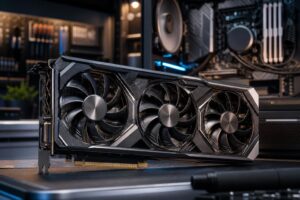
DaVinci Resolve uses the GPU for color processing, many effects, image scaling, Fusion work, and other accelerated tasks. GPU performance affects how smoothly a timeline plays, how responsive grading feels, and how quickly certain renders complete. The right GPU is especially important when working with temporal noise reduction, optical flow, motion effects, AI-assisted tools, or several GPU-accelerated effects stacked on one clip.
VRAM is the GPU’s working memory. It holds image data, effects, textures, and the information needed to process frames. When VRAM runs short, performance can drop sharply, playback may become unreliable, and some workloads may fail outright. More system RAM does not replace missing VRAM.
Do not choose a GPU by VRAM alone. Compute performance, encoder and decoder support, application compatibility, and driver stability matter too. Still, for Resolve, buying a fast GPU with too little VRAM is a common false economy. A slightly slower card with substantially more usable VRAM can be the better workstation choice for demanding footage.
The CPU still matters a great deal. It handles operating system tasks, timeline management, audio work, some codec decoding and encoding, plug-ins, file operations, and portions of Fusion and rendering workloads. It is also essential when your source media uses formats that are CPU-heavy to decode.
For most Resolve buyers, a recent high-performance desktop processor with strong per-core speed and a healthy core count is the right choice. You do not need to buy the highest core-count platform just to edit 4K video. That money often produces a larger improvement when moved to the GPU, RAM, or storage.
A higher-core-count workstation CPU becomes sensible when you regularly render while editing, run multiple creative applications at once, process heavy Fusion work, transcode large batches, compile software, or need very large memory capacity and expansion. It is a productivity purchase, not an automatic requirement for every editor.
Memory requirements rise with timeline resolution, project complexity, the number of applications open, Fusion work, and background tasks. Resolve, a web browser full of client references, audio tools, file transfers, and a few other normal workstation habits can fill memory faster than expected.
Buy memory as a matched kit and leave a sensible upgrade path where possible. A workstation with four memory slots fully occupied by small modules can make future upgrades unnecessarily expensive.
Storage is not just about how many terabytes you have. Resolve workflows often read source clips, write cache files, access project data, and export finished files at the same time. Asking one nearly full drive to do all of that is an excellent way to create avoidable bottlenecks.
Long-term archives belong on appropriately planned large-capacity storage, a NAS, or both. Keep in mind that a backup is separate from the working copy. Fast local storage is valuable for editing, but it does not protect irreplaceable footage by itself.
This tier is for editors working mostly in 1080p and 4K with conventional cuts, color correction, moderate effects, and occasional exports. Prioritize a modern performance-oriented CPU, a GPU with 12GB to 16GB of VRAM, 32GB to 64GB of RAM, and at least two NVMe SSDs. If you must choose, take 64GB of RAM and the better GPU before spending heavily on a premium motherboard.
This is also a good fit for creators who use proxies intelligently. Proxies are not a defeat; they are a normal professional tool when source formats are difficult to decode or when fast editorial work matters more than brute-force playback.
For regular client work, complex grades, multicam projects, and effects-heavy timelines, use a strong desktop CPU, a GPU with at least 16GB of VRAM, 64GB of RAM, and a three-drive NVMe layout. This configuration offers the best balance for many working editors because it improves the areas they notice every day: playback, grading responsiveness, caching, exports, and multitasking.
Spend extra here on cooling and power delivery, not just headline components. Sustained renders produce sustained heat. A well-cooled CPU, a case with real airflow, and a quality power supply help the workstation maintain performance rather than becoming loud, hot, and inconsistent halfway through a long export.
Step up to a high-end GPU with 24GB or more of VRAM, 96GB to 128GB or more of RAM, substantial NVMe scratch capacity, and a CPU platform that supports the memory and expansion your workflow needs. Consider faster networking if projects live on shared storage, and ensure the motherboard has enough high-speed M.2, PCIe, and USB connectivity for capture devices, external arrays, and future expansion.
This tier is justified when time is money: frequent heavy renders, high-resolution footage, complex finishing, and workloads that would otherwise hold up an editor or an entire team. It is not automatically the right purchase for someone cutting short 4K videos with light correction.
A very expensive motherboard rarely makes a Resolve timeline play better. Choose one with the storage slots, PCIe expansion, rear I/O, networking, and reliable power delivery you need, then stop. Likewise, extreme RGB lighting, oversized liquid coolers, and enormous power supplies do not improve video quality.
Choose a power supply based on the actual CPU and GPU configuration, with enough quality headroom for sustained load and future upgrades. Choose cooling based on the CPU’s heat output and the case’s airflow. The goal is a stable, quiet workstation that holds its performance during long sessions, not a collection of expensive parts that happen to fit in the same case.
A fast workstation cannot compensate for a poor display when color work is part of the job. Select a monitor suited to the delivery standard, resolution, workspace needs, and color requirements of your projects. Hardware calibration support and consistent panel behavior matter more than chasing a flashy gaming specification.
Also consider the media you receive most often, the codecs you deliver, external drives, card readers, capture hardware, network storage, and backup routine. The best PC for DaVinci Resolve is a workstation that fits the entire workflow, not only the render window.
A properly configured Resolve workstation should have a clear purpose: smooth editing for the formats you use, enough GPU memory for your effects, storage that does not get in its own way, and room for sensible upgrades. More hardware is not always better. Balanced hardware is better.
Overclock Computers can help design a DaVinci Resolve workstation around your footage formats, project resolution, grading and Fusion workload, storage needs, budget, and plans for future expansion. Bring us the applications and projects that matter to you, and we can help turn them into a configuration that makes practical sense.