How to Choose a GPU for Video Editing: VRAM, Codecs, and Specs That Matter

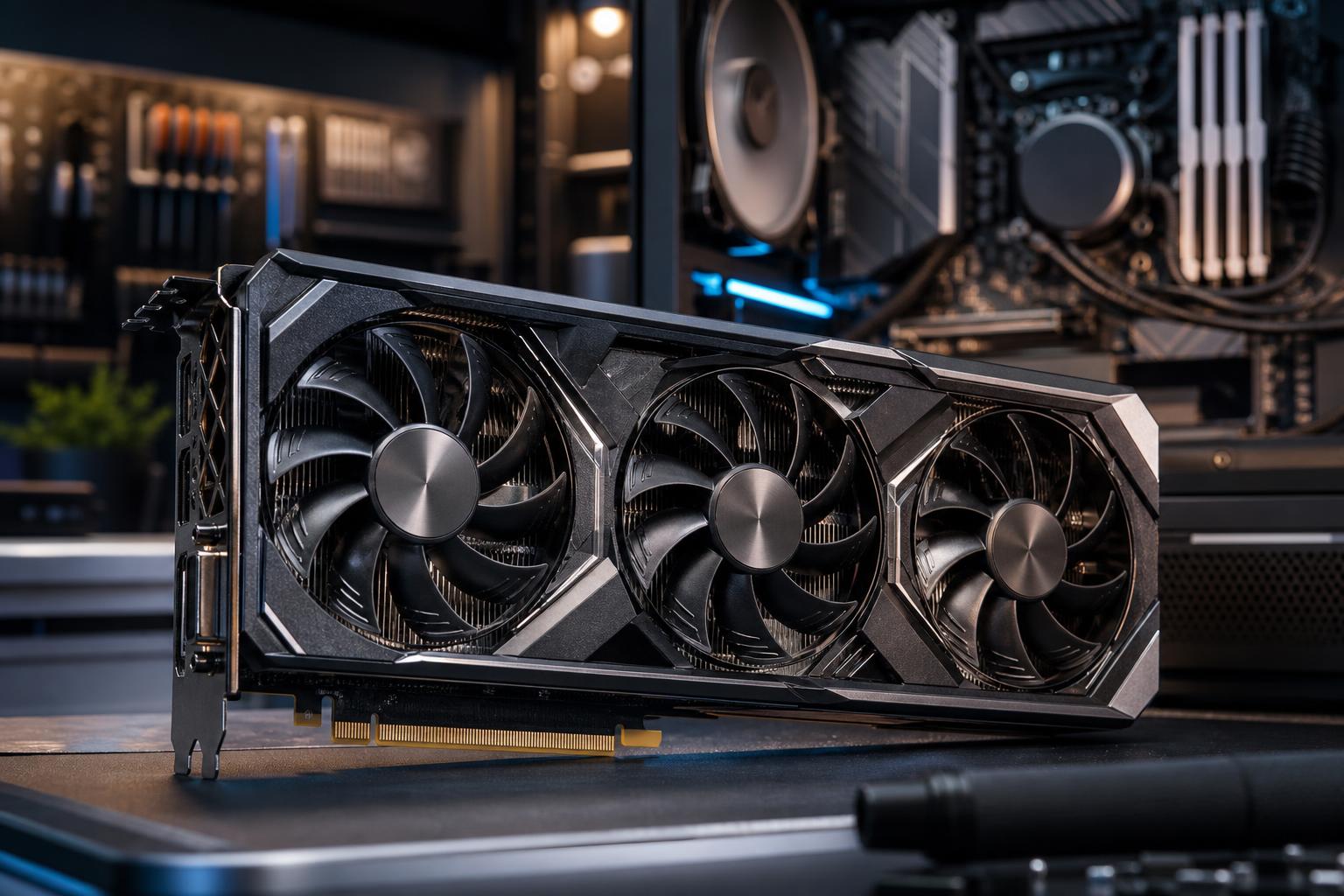
A good GPU can make video editing feel dramatically smoother, but buying the most expensive graphics card isn’t automatically the right answer. The useful question is simpler: what does your editing software actually send to the GPU, and how demanding is your footage?
For most editors, the graphics card affects timeline playback with GPU-accelerated effects, color work, noise reduction, AI tools, rendering, and some export tasks. It does not replace a capable CPU, adequate RAM, or fast storage. A beautifully expensive GPU paired with too little memory and a single crowded SSD is still going to have a bad day.
Here’s how to choose a GPU for video editing without paying for performance your workflow can’t use.
Video applications use hardware differently. A GPU that is excellent in one program may offer a smaller advantage in another.
Before choosing a card, check your software version and the effects you use every week. Hardware decoding for your camera codec, AI masking, temporal noise reduction, multicamera editing, and 3D compositing all change the answer.
VRAM is the graphics card’s dedicated high-speed memory. It holds frame data, textures, effect information, and working assets while the GPU processes an edit. When an editing project needs more VRAM than the card has available, performance can drop sharply. In demanding cases, an effect may fail, playback may become unstable, or the application may fall back to slower processing.
Raw resolution is not the whole story. A compressed 4K talking-head project with light color correction is much easier than 4K RAW footage with temporal noise reduction, motion graphics, and multiple layered clips. Eight-bit H.264 is also much less demanding than 10-bit 4:2:2, RAW, or high-resolution log footage.
If you are choosing between a modestly faster card with less VRAM and a slightly slower card with substantially more VRAM, the higher-VRAM option is often the safer workstation purchase. This is especially true for Resolve users and anyone planning to keep a system for several years.
Modern GPUs include dedicated media engines that decode and encode common video formats. These engines can improve timeline responsiveness and reduce export time when your footage and software support them.
The formats worth checking include H.264, H.265/HEVC, AV1, and, for some professional workflows, higher-end codec support through the application or dedicated hardware. Support varies by GPU generation, software version, operating system, and license tier. For example, a camera’s 10-bit 4:2:2 HEVC footage may be handled differently than standard 8-bit H.264 footage.
For many creators, strong hardware decoding is more valuable than a small increase in gaming-style shader performance. If your current computer struggles just to play camera files smoothly, the right media engine and a well-configured editing application can make the editing experience far less frustrating.
AV1 encoding is also worth having if you deliver web video or stream. It can produce efficient files at a given visual quality when the platforms and workflow support it. It should be viewed as a useful feature, not the sole reason to choose a GPU.
NVIDIA GeForce cards are common in video editing workstations for good reasons. CUDA support is well established in many creative applications, and NVIDIA’s hardware encoders are widely used for editing and streaming. They are often the straightforward recommendation for Adobe users, Resolve users, and creators who also use GPU-accelerated 3D software or AI tools.
The downside is simple: comparable NVIDIA cards can cost more, and some models offer less VRAM than buyers would prefer at their price point. Don’t choose based on the brand alone; compare the actual memory capacity, media engine, cooler size, power requirements, and performance in your software.
AMD Radeon cards can offer excellent raster performance and, on some models, generous VRAM for the money. They can be a smart choice for editors using software and effects that perform well with AMD acceleration, particularly when a larger memory buffer is the priority.
However, CUDA-only plugins and certain mixed creative workflows can make NVIDIA the more predictable option. If a specific plugin, rendering engine, or AI application is central to your business, confirm its GPU support before committing to Radeon hardware.
Professional graphics cards can offer features such as certified drivers for particular CAD and visualization applications, larger VRAM options, enterprise support paths, and specialized display capabilities. Those benefits are real when an organization relies on certified software configurations or needs very large GPU memory.
For ordinary Premiere Pro or Resolve editing, though, a high-end consumer GPU is often the better performance-per-dollar purchase. A professional card is not automatically faster simply because it costs more or carries a workstation badge.
Choose a modern GPU with at least 8GB of VRAM, good H.264 and HEVC media support, and a capable CPU alongside it. This is sufficient for many YouTube channels, corporate videos, podcasts, and straightforward social media production. Spending heavily above this level makes sense only if you use demanding effects or expect your work to grow quickly.
Target 12GB to 16GB of VRAM. Pair it with 32GB to 64GB of system RAM, a strong modern CPU, and separate fast NVMe storage for active media and cache files where practical. This is where a stronger GPU starts delivering a clear day-to-day benefit rather than merely improving a benchmark score.
Start at 16GB of VRAM and seriously consider 24GB or more for complex work. Temporal noise reduction, advanced effects, high-resolution RAW media, AI upscaling, object masking, and large node trees can consume GPU resources quickly. Here, the graphics card is a core workstation component, not an accessory.
A GPU upgrade cannot solve every editing problem. If timeline playback is poor, the bottleneck may be codec decoding, CPU performance, insufficient RAM, a slow external drive, a full cache drive, or a poorly optimized project.
A balanced editing workstation usually includes:
Also check physical fit. Modern high-end GPUs can be long, thick, and heavy. Confirm case clearance, power connector clearance, available PCIe slots, and airflow before ordering. A graphics card pressed against a glass side panel or starved for fresh air will not perform at its best.
For a new 4K-focused editing PC, we generally recommend starting with a modern 12GB GPU and moving to 16GB when DaVinci Resolve, heavier color work, AI features, or longer-term headroom are priorities. For high-resolution RAW and demanding professional post-production, choose the VRAM capacity first, then select the fastest card that fits the remaining budget.
Don’t pay extra for a flagship GPU if your projects are simple 1080p edits and exports are already limited by the CPU or source drive. On the other hand, don’t save a small amount on VRAM if your workflow already includes noise reduction, high-resolution footage, or GPU-based effects. That is the sort of false economy you notice every time you hit play.
The best GPU for video editing is the one that fits the codecs, software, effects, and delivery formats you actually use. If you are planning a new workstation or replacing an underperforming editing PC, contact Overclock Computers. We can help configure a balanced system around your applications and workflow rather than a generic parts list.