PCIe Gen 4 vs. Gen 5 SSDs: Which NVMe Drive Should You Buy?

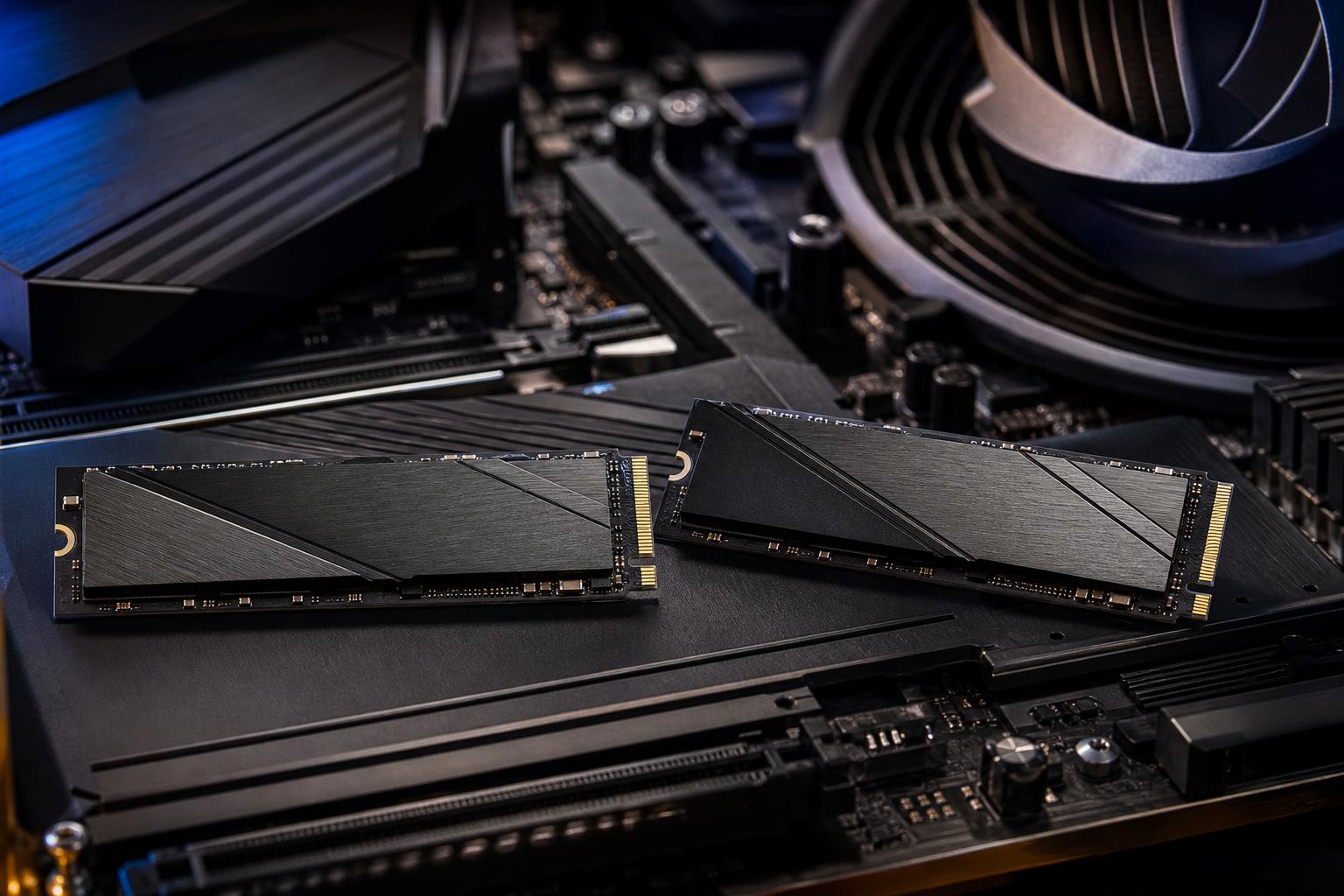
Shopping for an NVMe SSD is more confusing than it ought to be. PCIe Gen 5 drives advertise sequential read speeds that can exceed 10,000 MB/s, while strong PCIe Gen 4 models often land around 7,000 MB/s. On paper, that looks like a major jump. In normal use, it often isn’t.
For most gaming PCs, a quality PCIe Gen 4 SSD is still the sensible choice. It is fast, mature, easier to cool, widely compatible, and usually offers better capacity per dollar. PCIe Gen 5 SSDs make more sense for certain professional workloads that move very large files repeatedly, or for buyers building a high-end platform and willing to pay extra for maximum storage throughput.
The best SSD is not automatically the one with the largest number on its box. It is the one with enough capacity, reliable sustained performance, appropriate cooling, and a price that leaves room in the budget for components that affect your work or games more directly.
An NVMe SSD uses PCIe lanes to communicate with the CPU and chipset. Each newer PCIe generation doubles the available bandwidth per lane. A typical M.2 NVMe drive uses four PCIe lanes, so a Gen 5 x4 drive has roughly twice the interface bandwidth of a Gen 4 x4 drive.
Those figures measure long, orderly transfers of data. Copying a huge video file is a good example. They do not represent every storage task your PC performs.
Launching applications, booting Windows, loading a game level, browsing project folders, and compiling a modest codebase involve smaller, less predictable reads and writes. Latency, random performance, system memory, CPU performance, and the application itself all matter. That is why a Gen 5 SSD will not make a gaming PC feel twice as fast as a good Gen 4 drive.
If you are building or upgrading a gaming PC, PCIe Gen 4 is the default recommendation. Modern games benefit greatly from moving from a hard drive to any decent NVMe SSD, and they can benefit somewhat from replacing an older SATA SSD. The jump from Gen 4 to Gen 5, however, usually produces small and inconsistent differences in game load times.
Game loading is not just a storage-speed problem. The CPU must process data, the system must allocate memory, and the game engine has its own loading behavior. Some games may show a measurable improvement with faster storage, but it is rarely the upgrade that transforms the experience.
Given the same budget, we would generally choose a 2TB high-quality Gen 4 SSD over a 1TB Gen 5 SSD. Modern game installations are large, and leaving an SSD almost full can reduce its available working space and complicate drive management. Capacity is practical performance: it lets you keep frequently played games installed rather than constantly downloading or shuffling files.
A good 1TB or 2TB Gen 4 drive with a proper heatsink is not a compromise. It is a fast, well-balanced choice for a gaming system.
Gen 5 storage earns its place when your day involves moving or generating large volumes of data and the drive is not waiting on some other bottleneck.
Examples include editing high-bitrate video, working with large camera-source files, handling uncompressed or lightly compressed footage, managing substantial datasets, creating disk-heavy scratch files, or transferring multi-hundred-gigabyte project folders between equally fast storage devices. In these situations, higher sequential throughput can save real time.
It can also make sense in a premium workstation where the main drive will be used heavily for active projects, cache, scratch data, or local databases. The key word is heavily. A workstation used mostly for office applications, CAD files of ordinary size, programming, or light photo work is unlikely to justify the premium on interface speed alone.
Before choosing Gen 5, ask a blunt question: Do I regularly wait for large file transfers or disk-based project operations? If the honest answer is no, buy a larger Gen 4 SSD or spend the difference on RAM, GPU performance, backup storage, or a better CPU where appropriate.
High-performance Gen 5 SSDs can run considerably hotter than Gen 4 models. Many require a substantial heatsink, and some early designs used active cooling with a small fan. That fan solves a thermal problem, but a tiny high-RPM fan is not usually anyone’s favorite source of noise or future maintenance.
Newer Gen 5 drives have improved, but cooling still deserves attention. An M.2 drive that gets too hot will reduce its speed to protect itself. This is called thermal throttling, and it defeats the reason you paid for a faster drive.
Use the motherboard’s M.2 heatsink if it is well designed and the SSD does not include a larger heatsink of its own. If the drive includes a substantial heatsink, check clearance before installation, particularly near a graphics card or under a large CPU cooler. Never sandwich two heatsinks onto one M.2 drive; use one cooling solution as instructed by the manufacturer.
Good case airflow matters here, too. A cramped case with a hot graphics card dumping heat around the M.2 slots is a tougher environment than an airflow-focused mid-tower with sensible intake and exhaust fans.
PCIe is backward compatible. You can install a Gen 5 NVMe SSD in a Gen 4 M.2 slot, provided the physical slot supports NVMe drives. The drive will simply operate at Gen 4 speeds. Likewise, a Gen 4 SSD works perfectly in a Gen 5 slot.
This matters because a Gen 5-capable CPU and motherboard do not automatically mean every M.2 slot supports Gen 5. Many boards provide one Gen 5 M.2 slot and additional Gen 4 slots. Some layouts also share PCIe lanes between storage slots and expansion slots, potentially changing how devices operate when every slot is populated.
Read the motherboard manual before buying multiple drives, especially for a workstation with several M.2 SSDs, capture cards, or other PCIe expansion hardware. The specifications page is useful; the lane-sharing diagrams in the manual are usually more useful.
Two drives with similar headline read speeds can behave very differently once you copy large files for several minutes. Many consumer SSDs use a fast cache area to improve short bursts of writing. When that cache fills, sustained write speed can fall sharply, particularly on lower-cost QLC models.
That does not make QLC automatically bad. A QLC SSD can be a perfectly good game library, document, media, or secondary storage drive. But for a primary workstation drive that handles video cache, raw images, virtual machines, large exports, or frequent data ingestion, a well-reviewed TLC drive is usually the safer recommendation.
Also consider endurance, typically expressed as TBW, or terabytes written. It is not a prediction that a drive will fail the day after its rated figure. It is a useful indication of how the manufacturer positions the drive for write-heavy use. For normal gaming and everyday computing, endurance ratings are rarely the limiting factor. For production workstations, they deserve more attention.
PCIe Gen 5 SSDs are genuinely faster, but they are not automatically better purchases. For most people, a quality 2TB PCIe Gen 4 NVMe SSD delivers the storage performance that matters, without Gen 5 pricing and heat concerns. Put the saved budget toward more capacity, a stronger graphics card, more memory, or dependable backup storage.
Choose Gen 5 when storage throughput is a known part of your workday rather than a number you would merely like to own. If you are planning a gaming PC or workstation and want the storage configuration matched to your applications, file sizes, and upgrade plans, contact Overclock Computers. We can help design a balanced system that spends your budget where you will actually feel it.