How to Choose a Motherboard for a Gaming PC or Workstation

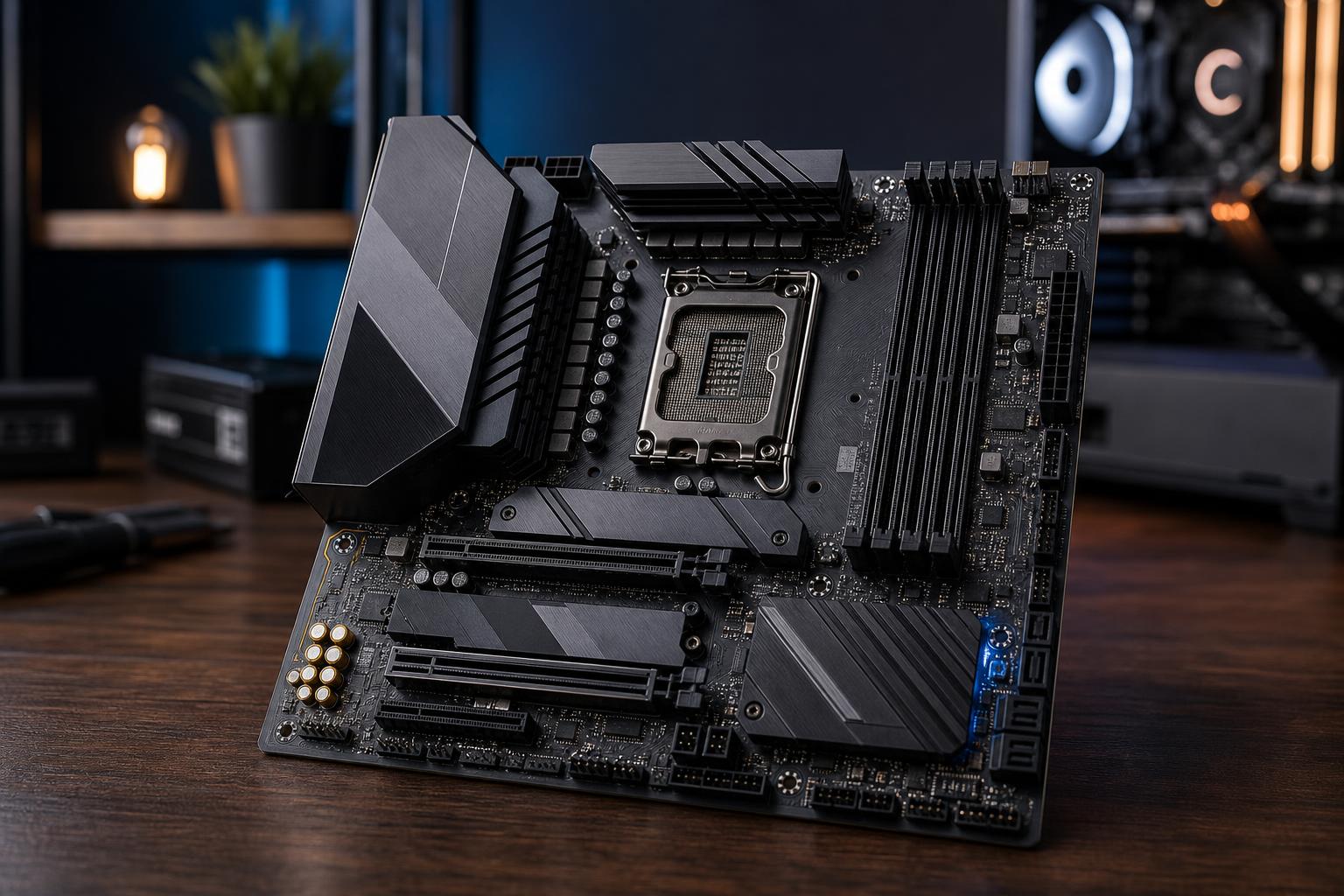
A motherboard rarely makes a gaming PC dramatically faster on its own. That doesn’t mean it is an unimportant purchase. It determines which CPU you can install, how much memory and storage the system can support, what expansion cards fit, and how easily the PC can be upgraded or serviced later.
The best motherboard is not automatically the most expensive one. It is the board that supports your processor properly, fits the case and cooling plan, includes the ports and expansion you will actually use, and leaves sensible room for future changes. Spending an extra few hundred dollars on features that will remain unused is one of the quieter ways to make a PC build worse value.
Your motherboard and processor must use the same socket. This is the first filter, and it is non-negotiable. An AMD processor needs a compatible AMD socket board; an Intel processor needs a compatible Intel socket board. A physical fit is not enough on its own, either. The board’s BIOS must also support the specific CPU model.
When buying a current-generation CPU and motherboard together, compatibility is usually straightforward. It becomes more important when using an older board, choosing a recently released processor, or building from parts that have been sitting on a shelf. In those cases, confirm CPU support on the motherboard manufacturer’s CPU compatibility list and check whether a BIOS update is required.
For a new build, buying the CPU and motherboard as a matched pair avoids this headache. For an upgrade, verify the socket, BIOS support, cooling clearance, and memory compatibility before ordering anything.
Once you have selected a CPU platform, the chipset determines much of the motherboard’s connectivity and expansion. Chipset names vary by generation, but the usual pattern is simple: entry-level boards have fewer ports and expansion options, mainstream boards cover most gaming PCs, and higher-end boards provide more high-speed connectivity and extra tuning features.
For most gaming systems, a good mainstream chipset board is the sweet spot. It should provide:
Higher-end chipset boards are worthwhile when their added connectivity solves a real problem. Examples include several NVMe drives, multiple PCIe expansion cards, fast external storage, 10Gb Ethernet, large memory configurations, or a workstation with specialized capture, networking, or storage hardware.
Do not buy a premium chipset just because it is paired with a high-end CPU in online builds. A powerful gaming CPU can run perfectly well on a quality mainstream motherboard. Put the saved budget toward the GPU, larger SSD, better monitor, or quieter cooling instead.
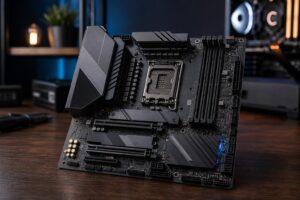
The motherboard’s voltage regulator module, usually called the VRM, supplies stable power to the CPU. Its quality matters most with high-core-count processors, power-hungry flagship CPUs, sustained rendering workloads, and manual overclocking.
A weak board can run hot VRMs under heavy all-core loads, reduce CPU boost behavior, or become noisy if its small cooling fan has to work hard. A well-designed board uses adequate power stages and substantial heatsinks around the CPU socket.
For a midrange gaming CPU, nearly any reputable board with proper VRM heatsinks is usually sufficient. For a top-tier processor that will render, compile code, simulate, or process data for hours, it is worth stepping up to a board with proven power delivery. Product photos alone do not tell the whole story; independent testing is useful here.
There is no prize for buying an extreme overclocking board to run a processor at stock settings. Conversely, pairing a workstation-class CPU with the cheapest compatible board is false economy. Match the board to the sustained load, not just the socket.
Motherboards commonly come in ATX, Micro ATX, and Mini-ITX sizes. Each can produce an excellent PC, but they make different tradeoffs.
ATX boards offer the most room for PCIe slots, M.2 storage, fan headers, USB connectivity, and generally cleaner component spacing. They are a particularly sensible choice for a high-end gaming PC, a workstation, or any build that may grow over time. You also get the broadest selection of models and price points.
Micro ATX boards fit in compact cases while retaining a full-size graphics card slot and often several M.2 slots. They are an excellent option for practical gaming PCs, especially when you do not need several add-in cards. The compromise is fewer PCIe slots, fewer ports on some models, and less room for complex cable routing in smaller cases.
Mini-ITX is ideal when desk space or portability is a real priority. Expect one PCIe slot, usually two memory slots, fewer headers, and tighter building conditions. ITX boards can cost more than larger boards with similar chipset features because fitting everything into a small PCB is difficult. Build small because you want a small PC, not because it sounds automatically premium.
Most new systems should start with an NVMe SSD, installed in an M.2 slot on the motherboard. Two M.2 slots are the practical minimum for many buyers: one for the operating system and applications, and another for a future game or project drive. Content creators and workstation users may want three or four M.2 slots, plus SATA ports for large-capacity hard drives or SATA SSDs.
Read the motherboard manual or specification page carefully when planning several drives. On some boards, using a particular M.2 slot can disable a SATA port or share bandwidth with another slot. This is not necessarily a flaw; motherboards have a finite number of lanes to distribute. It simply needs to be planned.
Also consider the physical placement of M.2 slots. A slot located beneath the graphics card is still usable, but adding or replacing a drive may require removing the GPU. For a workstation expected to receive regular storage upgrades, accessible slots are a welcome practical detail.
For graphics cards, the main full-length PCIe slot is what matters. Current GPUs do not require a PCIe 5.0 graphics slot to perform normally in a well-balanced gaming PC. PCIe 5.0 can be useful for certain high-speed storage and future expansion, but it should not override more useful basics such as sufficient M.2 slots, good networking, and solid VRM cooling.
Four DIMM slots provide the most flexibility for future memory upgrades. They are especially useful for workstations that may move from 32GB to 64GB or 128GB later. Two-slot boards, common on Mini-ITX systems, can still be excellent, but you need to buy the capacity you expect to need from the start.
For DDR5 platforms, memory stability is more valuable than chasing the highest speed printed on a box. Use a matched memory kit from the board’s memory compatibility list when possible, enable the appropriate memory profile in the BIOS, and avoid mixing separate kits. Two identical-looking kits are not guaranteed to work together at their rated settings.
Gamers will commonly be well served by 32GB. Buyers who edit video, work with large design files, run virtual machines, or keep many demanding applications open should plan for 64GB or more. Choose the motherboard around that target capacity.
Count the devices you use, then buy accordingly. Look for enough rear USB ports for your keyboard, mouse, headset, webcam, external drives, controller receiver, and other peripherals. A front-panel USB-C header is valuable if your chosen case has a front USB-C port. Check both parts; a case port does nothing if the motherboard lacks the matching header.
For networking, 2.5Gb Ethernet is a useful baseline on many modern midrange and premium boards, particularly for fast local file transfers and multi-gig internet service. Standard gigabit Ethernet remains perfectly adequate for typical online gaming. Built-in Wi-Fi is worth paying for if running Ethernet is impractical. It is also convenient as a backup connection, but a wired connection remains the more consistent choice for a fixed desktop.
Workstations may justify 10Gb Ethernet, Thunderbolt or USB4 support, additional USB-C ports, or specialized expansion. Buy these features when they connect to equipment you own or a clear workflow need. Otherwise, they are expensive wallpaper.
For a typical gaming PC, choose a reputable ATX or Micro ATX board with a mainstream chipset, capable VRM heatsinks, two or more M.2 slots, 2.5Gb Ethernet if the price difference is reasonable, and the front-panel connections your case needs.
For a high-end gaming system or mixed gaming and creator PC, prioritize three or more M.2 slots, stronger VRM cooling, more rear USB, four RAM slots, and enough PCIe expansion for future capture, storage, or networking cards.
For a professional workstation, start with the applications and peripherals. Large RAM capacity, storage expansion, dependable networking, fast external I/O, and add-in card space can matter more than gaming-oriented extras. A motherboard should support the work rather than make the work fit its limitations.
When choosing a motherboard for a gaming PC or workstation, prioritize compatibility, expansion, power delivery, form factor, and connectivity in that order. A quality midrange board is often the right answer. Spend more only when the additional slots, ports, memory capacity, or sustained-load capability will be used.
If you are planning a new system and want the parts to make sense as a whole, contact Overclock Computers. We can help match the motherboard, CPU, graphics card, cooling, storage, and case to the way you actually use your PC.