Best PC for Blender in 2026: Workstation Specs for Modeling and Rendering

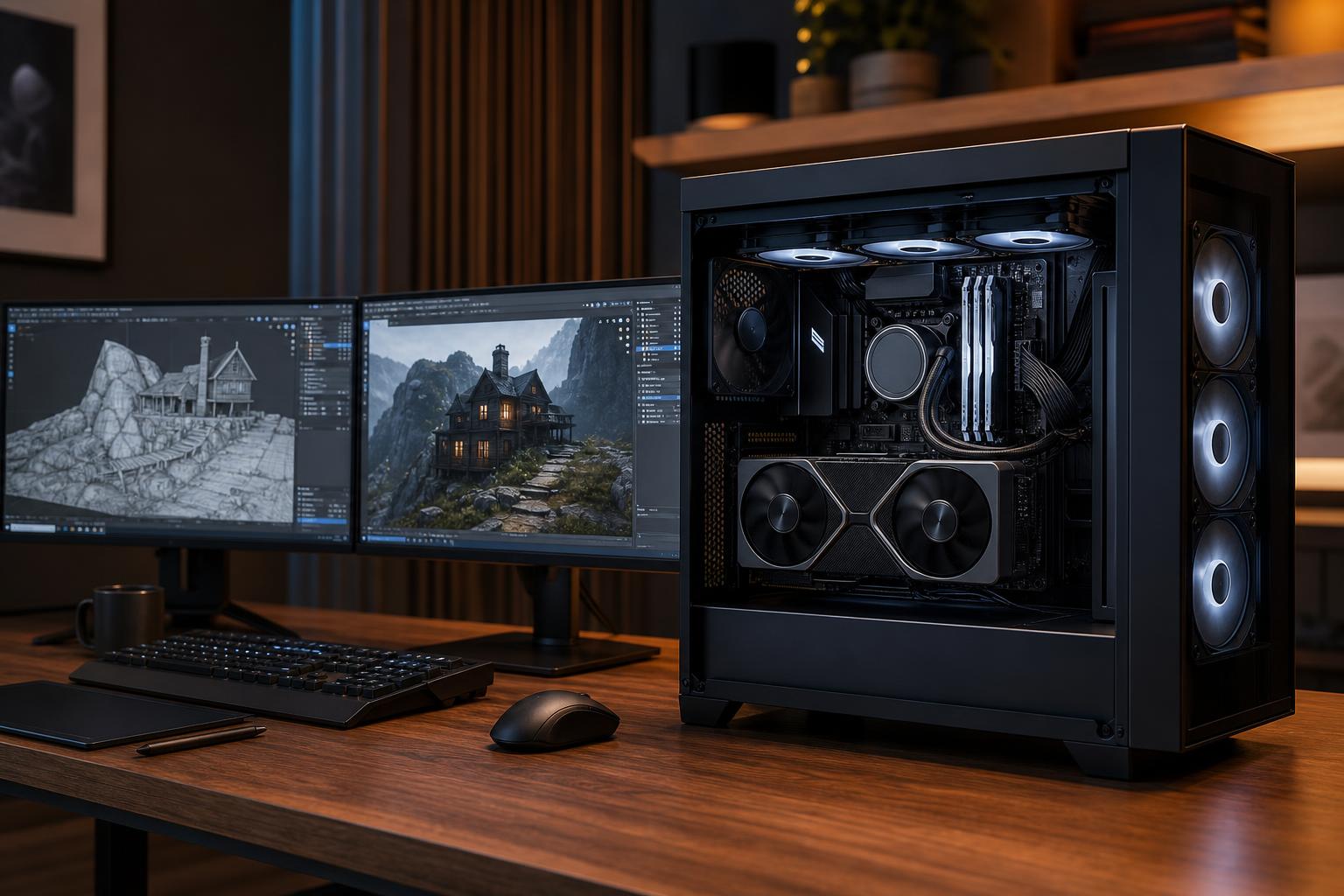
The best PC for Blender is not automatically the one with the most expensive processor. For most Blender users, the graphics card, its available VRAM, and enough system memory make a larger difference than chasing an extreme CPU. The right configuration changes based on whether you mostly model, render in Cycles, animate, simulate fluids, or work with large scenes and high-resolution textures.
For a strong all-around Blender workstation in 2026, we recommend a modern high-performance 8- to 16-core CPU, an NVIDIA GPU with at least 16GB of VRAM where the budget permits, 64GB of DDR5 memory, and 2TB or more of fast NVMe storage. That is the practical performance tier for serious freelance work, small studios, and enthusiasts building detailed scenes. Users handling very large environments, complex simulations, or GPU rendering as a business should step up to more VRAM, 128GB of RAM, and a platform with room for storage and expansion.
Blender uses PC hardware differently depending on the task. A good workstation is balanced around the part of your workflow that consumes the most time, not a generic “creator PC” specification.
If your final renders run overnight and your current GPU runs out of memory on real projects, buy more VRAM before spending heavily on a premium motherboard, decorative cooling, or an oversized CPU.
This tier suits students, hobbyists, and creators working on product visualization, smaller animations, and moderate-complexity scenes. It should feel quick in the viewport and provide a sensible entry point for GPU-accelerated rendering.
32GB is workable at this level, but it is the first component likely to become restrictive as scenes, texture libraries, background applications, and simulations grow. If you are choosing between a faster SSD and moving from 32GB to 64GB, the memory upgrade is usually more useful for Blender.
This is the best PC for Blender for many paid creators. It has the memory capacity to keep larger projects comfortable, enough CPU performance for simulation and multitasking, and a GPU selected for rendering throughput as well as VRAM headroom.
This is where we would usually put the largest share of the budget into the graphics card. A faster GPU can reduce render waiting time every day, while 64GB of memory prevents the system from becoming unpleasant when Blender, a compositing application, reference material, and a browser are all open together.
Step into this tier when your work regularly involves high-resolution textures, massive geometry, extensive geometry-node setups, complex simulations, or long render queues. It also makes sense for professionals whose billable time is affected by render and processing delays.
At this point, the platform matters. A workstation should not merely contain fast parts; it needs enough physical space, power capacity, cooling, storage connections, and memory expansion to stay useful as projects change.
Blender supports more than one graphics vendor, and the best card is not defined by brand alone. Still, NVIDIA GPUs are commonly the straightforward recommendation for Cycles users because of Blender’s established support for NVIDIA’s GPU-rendering ecosystem. For many buyers, that broad compatibility and a wide selection of VRAM capacities make configuration simpler.
The key specification is not only raw GPU speed. It is VRAM, the dedicated memory on the graphics card. Your scene’s geometry, textures, render data, and other resources need to fit within available graphics memory for efficient GPU rendering. When a scene exceeds that capacity, the workflow can become slower or require compromises.
For modest projects, 12GB may be enough. For serious 3D work, 16GB provides more breathing room. For large environments, high-resolution texture work, or a workstation intended to remain productive for years, more than 16GB can be a meaningful investment. Do not assume extra VRAM improves every render equally; it primarily protects you from memory limits and allows more demanding scenes to remain practical.
A fast mainstream CPU is enough for many Blender users. Modeling and much of the interface benefit from strong per-core performance, while simulations, some geometry processing, file operations, and CPU rendering can use many cores.
For a GPU-rendering-focused workstation, an 8- to 16-core CPU is normally the sensible range. Spending beyond that is justified when you run demanding simulations, render on the CPU, compile code, edit video, or need the machine to work on multiple heavy tasks at once. It is not justified simply because a higher core count looks more “professional” on a spec sheet.
Put another way: do not pair the fastest available CPU with a midrange GPU if your paid Blender work is mostly Cycles GPU rendering. Shift that money toward the graphics card and VRAM first.
System RAM holds active scene data, textures, simulation information, applications, and operating-system tasks. When it runs short, Windows relies more heavily on storage as virtual memory. Even fast SSDs are far slower than RAM, and the result can be stuttering, slow saves, and a generally miserable workstation experience.
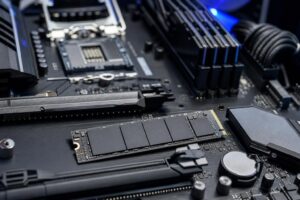
Storage deserves similar planning. A 1TB drive can fill surprisingly quickly once you include source files, texture packs, simulation caches, render output, backups, and other creative applications. We generally prefer at least 2TB in a serious Blender system. A separate project/cache SSD can also keep demanding temporary files from competing with the operating system and installed applications.
Fast NVMe storage improves loading, saving, cache handling, and general responsiveness. It will not replace RAM or turn a midrange GPU into a rendering powerhouse, so it should not consume money better spent on the core performance parts.
Rendering and simulations can hold a CPU and GPU under heavy load for hours. A system that looks impressive but recirculates hot air will run louder, hotter, and potentially reduce performance to manage temperatures.
Choose a case with a direct airflow path, enough quality fans, and room around the graphics card. Use a power supply from a reputable platform with the correct capacity and native connections for the selected hardware. The goal is not to buy the largest wattage number possible; it is to provide stable power with sensible headroom for sustained workloads and future upgrades.
These less glamorous components are a major reason a thoughtfully configured custom workstation can be worthwhile. A good build accounts for the heat and power of the complete system, not just the headline CPU and GPU.
The best Blender PC is built around your heaviest regular project, not the simplest file you open most often. Before buying, list the renderer you use, typical scene size, texture resolution, simulation work, target delivery resolution, other applications that run alongside Blender, and what you expect to upgrade in the next few years.
Overclock Computers can help configure a Blender workstation around those details, from a balanced first serious 3D PC to a production-focused system with the VRAM, memory, cooling, storage, and expansion your projects require. Bring us your budget and workflow, and we will help you spend it where it will actually improve your work.