What Is a PC Bottleneck? A Practical Guide to Building a Balanced Computer

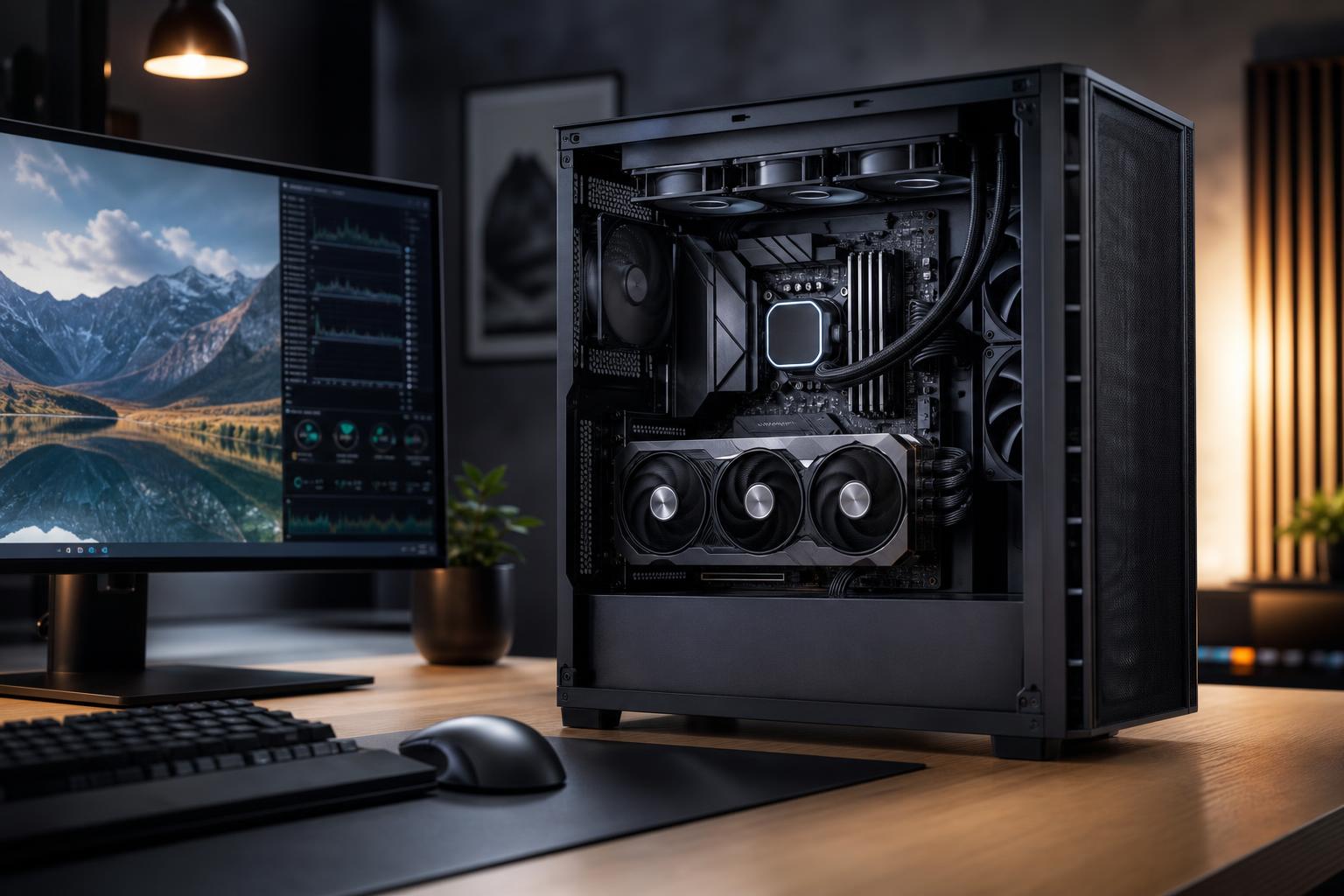
“Bottleneck” is one of the most overused words in PC shopping. It often gets treated as a permanent flaw: pair a certain processor with a certain graphics card, and the computer is supposedly ruined. Real computers do not work that way.
A PC bottleneck is simply the component, setting, or system limit that prevents a task from running faster at a given moment. Every computer has one. If it did not, performance would be unlimited, and your electric bill would be much more interesting.
The useful question is not, “Does this PC have a bottleneck?” It is, “What limits the work I care about, and is that limitation appropriate for my goals?” A balanced gaming PC, workstation, or creator system puts the budget toward the parts that matter most for its intended jobs.
The same PC can be CPU-limited in one game, GPU-limited in another, and limited by system memory in a large creative project. Resolution, graphics settings, background software, and even the scene currently on screen can change the answer.
For example, a powerful graphics card may be waiting on the CPU when playing a competitive game at 1080p with low settings and a 360Hz monitor. Raise the resolution to 4K and enable demanding visual settings, and the graphics card will usually become the limiting part instead. Neither outcome means the system is badly built. The workload changed.
This is also why online bottleneck calculators should be taken lightly. They cannot know the games you play, your monitor, the applications running in the background, your memory configuration, or the actual behavior of a particular software version. At best, they are a rough prompt to research further. They are not a reliable buying recommendation.
In most visually demanding games at 1440p or 4K, the graphics card is the primary performance limit. This is normal and often desirable. It means the GPU is doing the work you bought it to do.
Signs of a GPU limit include GPU utilization near its maximum during gameplay, while individual CPU cores have enough headroom. Lowering graphics settings or resolution noticeably improves frame rate. Ray tracing, high-quality shadows, and high internal render resolution are especially GPU-heavy.
For a gaming-focused build, it usually makes sense to spend more on the graphics card before stepping up to an unnecessarily expensive CPU. The exception is a system aimed at extremely high frame rates in CPU-heavy esports titles, simulation games, strategy games, or large multiplayer environments.
The CPU handles game logic, simulation, draw-call preparation, background tasks, and much more. A game can be CPU-limited even if overall processor usage looks modest, because many games rely heavily on a few fast cores rather than spreading work evenly across every core.
Common signs include a graphics card that is not fully utilized, inconsistent frame times, or a frame rate that barely changes when graphics settings are lowered. Large cities in simulation games, busy multiplayer matches, and heavily modded games often expose CPU limits.
Outside gaming, CPUs matter greatly for code compilation, CPU-based rendering, video encoding, data work, and engineering tasks. Here, the right choice depends on both single-core speed and core count. A fast mainstream CPU is excellent for many people. More cores become worthwhile when your software can use them consistently, not just because a specification sheet has a larger number.
When a system runs out of usable memory, it leans harder on the storage drive for temporary data. Even with a fast NVMe SSD, that is much slower than RAM. The result can be hitching in games, slow application switching, long pauses when handling large files, or crashes in demanding workloads.
For a modern performance PC, 32GB is a sensible baseline for gaming, general creative work, and multitasking. Move to 64GB when you regularly edit large video projects, work with substantial 3D scenes, run virtual machines, use large point-cloud datasets, or keep many memory-hungry applications open. More than 64GB is for workloads with a clear demonstrated need, not a badge of honor.
Memory configuration matters too. Two matched memory modules normally provide better bandwidth than a single module. That can make a real difference in CPU-sensitive games and some professional applications.
A slow or crowded drive typically does not reduce average frame rates the way a weak GPU does. It does affect boot times, game and application loading, file transfers, project caching, and how responsive the computer feels when memory is under pressure.
Keep the operating system, active games, and current projects on a quality NVMe SSD. Creators should also plan enough fast space for source footage, caches, scratch files, and exports. A nearly full drive can lose performance and leaves little room for the operating system to work comfortably. Buying a huge graphics card while trying to manage 4K footage on a cramped entry-level drive is not a balanced workstation.
A processor or graphics card that overheats may reduce clock speeds to protect itself. Poor case airflow, an undersized cooler, aggressive noise limits, dust buildup, or a weak power configuration can therefore lower sustained performance.
This matters most in long renders, compiles, simulations, and extended gaming sessions. A benchmark run lasting a minute may look fine, while a two-hour job reveals the problem. Quality cooling is not just about low temperatures or RGB lighting; it helps the hardware sustain its intended performance with reasonable noise.
Start with the task that bothers you. “My PC feels slow” is too broad. “My game drops below 120 fps during busy online matches” or “my timeline stutters when I add color correction” gives you something testable.
For a 1440p gaming computer, prioritize a graphics card capable of the settings and refresh rate you want, then choose a modern CPU that can keep it fed. A mid-to-upper-tier gaming CPU paired with a much stronger GPU is often a smarter use of money than an elite CPU paired with a compromised GPU.
For competitive 1080p gaming at very high refresh rates, a stronger CPU deserves more budget because the goal is high and stable frame rates rather than maximum pixel detail. For 4K gaming, put more emphasis on GPU performance and video memory.
For a professional workstation, use the software as the guide. GPU renderers, AI tools, and accelerated video effects may justify a more capable GPU and ample VRAM. CPU rendering, compiling, simulation, and heavily threaded processing may justify more CPU cores. Large projects may require 64GB or more of RAM before an ultra-premium CPU makes any practical sense.
Do not forget the supporting parts: a reliable power supply with suitable headroom, cooling matched to the processor, a case with real airflow, and enough fast storage. These components do not make glamorous benchmark headlines, but they determine whether the performance parts can operate properly for years.
A bottleneck is not a verdict on a PC. It is a clue about where performance is currently being limited. The best computer is not one where every component costs the same or reaches the same utilization figure. It is one that reaches your gaming, creative, or professional target without wasting a large part of the budget on performance you will never use.
If you are planning a new system or deciding which part to upgrade, Overclock Computers can help translate your software, monitor, project sizes, and performance goals into a balanced configuration built for the work you actually do.