Best PC for DaVinci Resolve: Workstation Specs for Faster Editing and Color Work

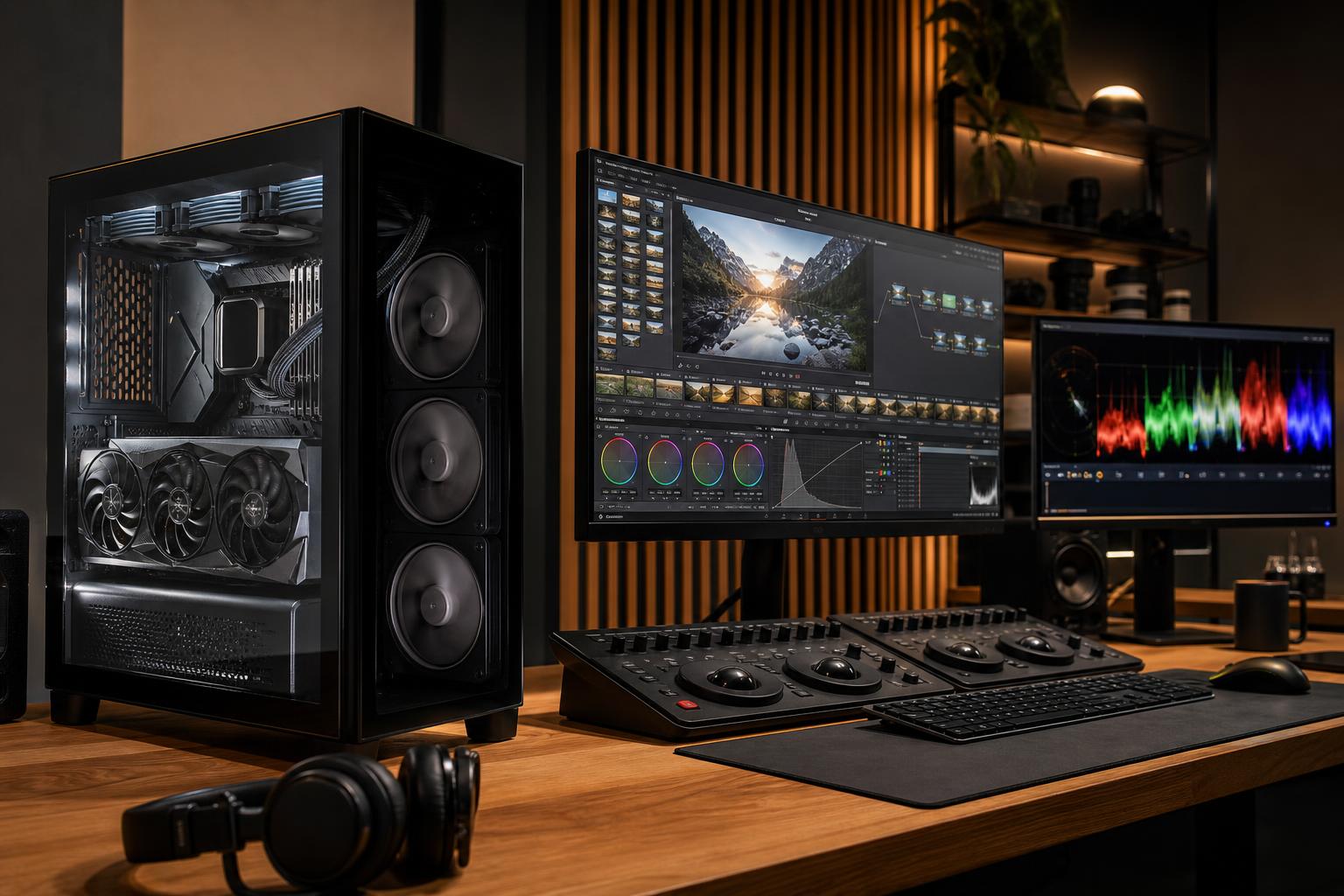
The best PC for DaVinci Resolve is usually a GPU-focused workstation with a fast modern CPU, plenty of memory, and separate high-speed storage for the operating system, active projects, and media. For most serious 4K editors, that means a capable discrete GPU with at least 16GB of VRAM, 64GB of system RAM, and multiple NVMe SSDs. If you regularly work with demanding RAW formats, heavy noise reduction, Fusion compositions, or 6K and 8K footage, step up to more GPU power, 24GB or more of VRAM, and 128GB of RAM.
Resolve can use several parts of a PC at once, but it is not evenly dependent on every component. Spending the whole budget on a flagship CPU while choosing a modest GPU is one of the easiest ways to build an expensive editing computer that still feels slow in color work. A balanced system is faster, quieter, and usually more useful for longer.
A 4K interview edit with basic color correction is a very different job from grading log footage with temporal noise reduction, tracking masks, using Fusion titles, and exporting several client versions. Before selecting parts, be honest about the heaviest project you expect to handle, not just the easy projects you edit today.
Your source codec matters too. Highly compressed long-GOP footage, such as H.264 and H.265, can be harder to decode smoothly than its file size suggests. RAW media, high-frame-rate footage, and high-resolution timelines raise the demand further. Proxies and optimized media are still smart workflow tools; they are not an admission that your workstation is inadequate.
This is the right tier for creators editing 1080p or 4K projects with sensible use of proxies, standard grades, moderate effects, and ordinary export workloads.
The upgrade worth prioritizing here is usually 64GB of RAM or a better GPU, depending on the project. Do not spend heavily on an extravagant motherboard, extreme CPU cooling, or a giant power supply at the expense of these parts.
For most freelancers, production teams, and demanding content creators, this is the sweet spot. It is built for complex 4K timelines, more ambitious grades, regular client delivery, and multitasking without treating every project like a special event.
This is where a thoughtfully configured custom workstation earns its keep. Separate drives reduce the chance that media playback, cache writes, and system activity are all fighting over one SSD. It is not magic, but it keeps a busy workstation from stepping on its own shoelaces.
Choose this tier when time spent waiting costs real money: professional color suites, commercial post-production, complex multicam work, high-resolution RAW projects, intensive noise reduction, or extensive Fusion compositing.
At this level, the exact camera formats, timeline resolution, Resolve version, plug-ins, and delivery requirements matter. The correct workstation is not simply “the most expensive one.” It is the one that removes the bottleneck in your own workflow.
DaVinci Resolve makes extensive use of GPU acceleration for color grading and many effects. A stronger graphics card can improve playback and reduce processing time in GPU-heavy work, but VRAM capacity is equally important. VRAM is the graphics card’s dedicated working memory. When a project exceeds it, performance can become inconsistent, errors may appear, or you may need to lower timeline resolution and effects.
For basic 4K editing, 12GB can be usable. For a new serious editing workstation, 16GB provides a more comfortable margin. A 24GB-class GPU becomes easier to justify for 6K or 8K work, heavy noise reduction, demanding color grades, Fusion, and a longer expected service life.
Do not select a GPU on gaming performance alone. Gaming benchmarks are useful for gaming. For Resolve, VRAM, media-engine support, application behavior, drivers, and the effects you actually use all matter.
A fast current CPU keeps Resolve responsive, helps with decode, encoding, caching, proxy generation, and CPU-based effects, and makes the rest of Windows feel less bogged down during an export. Good single-core performance is valuable for general editing responsiveness, while additional cores help sustained multithreaded tasks.
For most 4K users, a quality modern 8-core or higher CPU is plenty. Moving to a much larger CPU makes sense when you frequently render, generate proxies, transcode, work in Fusion, or run other production tools simultaneously. It does not make sense to sacrifice a major GPU tier merely to own more CPU cores. In Resolve, that is often spending money in the wrong place.
Memory capacity determines how comfortably Resolve, Fusion, browsers, audio tools, and other applications can coexist. A system with too little RAM falls back on the SSD more often, which feels like stutters, slow switching, and general irritation.
Storage should be planned as a workflow, not as one large number. Keep the operating system and applications on one quality NVMe SSD. Put active project media on another fast drive. Where practical, use a separate SSD for cache and scratch files. Then maintain a real backup plan on external storage, a server, cloud storage, or a combination. Fast storage is helpful; it is not a backup.
Pay for a high-quality power supply with appropriate capacity and modern connectors, a case with genuinely good airflow, and CPU cooling designed for sustained workloads. Video exports and cache generation can run for hours. A workstation that stays cool and avoids excessive fan noise is a better tool than one that looks impressive for five minutes and then throttles.
You can usually spend less on cosmetic extras and premium motherboard features you will never use. Choose the motherboard for the USB ports, storage expansion, networking, memory support, and PCIe slots your setup needs. If you use fast external drives, card readers, shared storage, or capture hardware, connectivity is not a footnote; it is part of the workstation.
A good prebuilt can be a reasonable option when its exact configuration matches your needs. The trouble is that many generic systems pair a powerful-looking CPU with too little RAM, a low-VRAM GPU, a single cramped SSD, or weak cooling. Those choices may look fine on a product page and become annoying in a real editing week.
Overclock Computers can design a DaVinci Resolve workstation around your camera formats, project resolution, grading and Fusion workload, storage plan, budget, noise preferences, and upgrade goals. If you are comparing options, bring the details of a typical project and the heaviest project you expect next year. That is enough to build a system that earns its desk space instead of merely lighting it up.