Best Workstation for Revit: PC Specs for Faster BIM Work

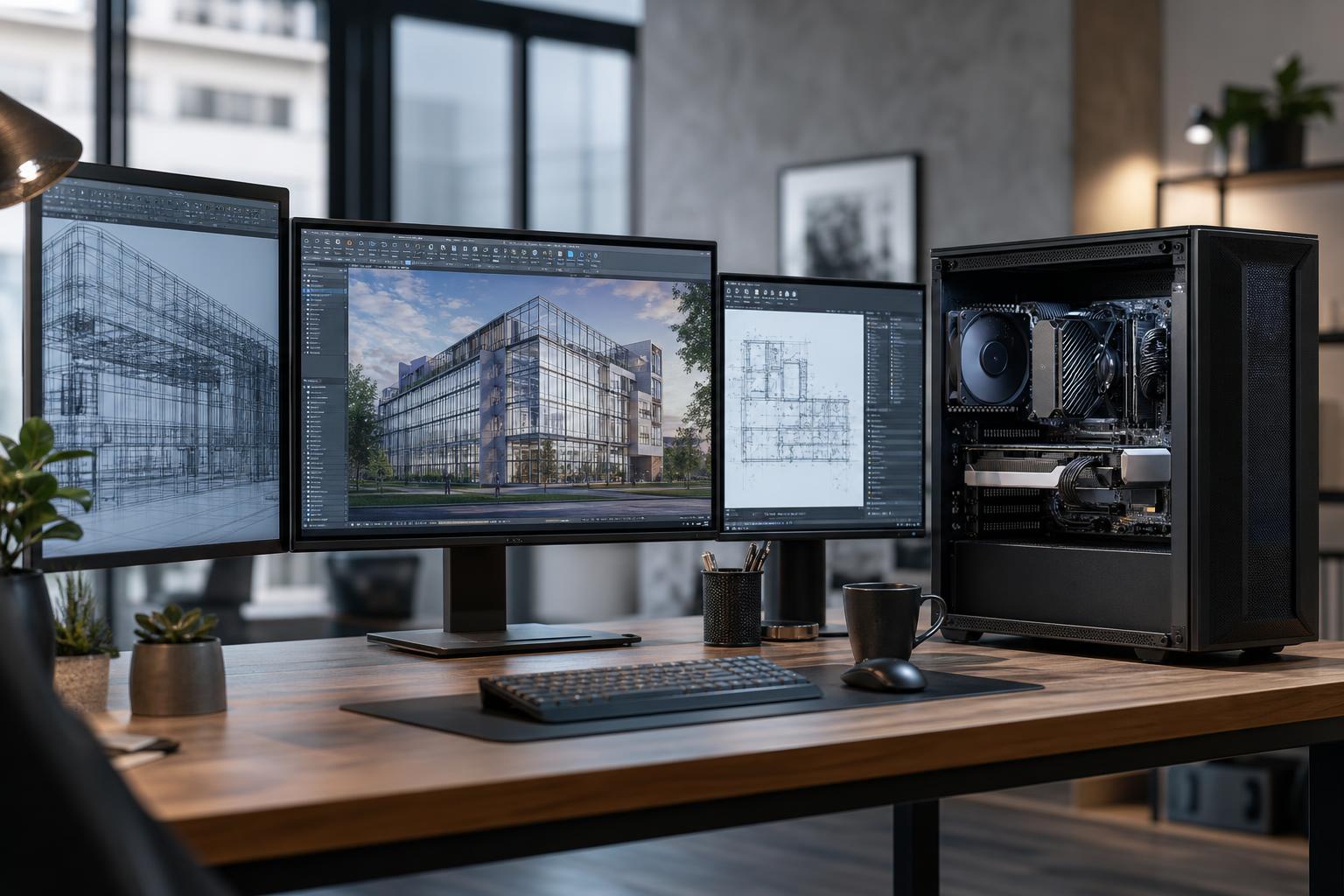
The best workstation for Revit is usually a balanced system with a fast high-performance CPU, 32GB to 64GB of RAM, a capable dedicated graphics card, and fast NVMe storage. For most architects, designers, and BIM professionals, spending heavily on the fastest available GPU is less useful than investing in CPU speed, enough memory, and dependable cooling.
Revit can make a powerful PC feel slow when a model grows, linked files multiply, families become detailed, or several applications are open at once. The right answer is not simply “more cores” or “the biggest graphics card.” It is hardware selected for the part of the workflow that actually consumes your time.
A sensible entry point for smaller to moderate Revit projects is a current mainstream desktop CPU with strong single-core performance, 32GB of RAM, a midrange dedicated GPU with 8GB or more of VRAM, and a 1TB NVMe SSD. This is the right class of system for 2D documentation, smaller building models, light visualization, and users who do not routinely keep several large applications open.
For most full-time Revit users, we recommend a high-performance mainstream CPU, 64GB of RAM, a stronger GPU with 12GB to 16GB of VRAM, and at least 2TB of NVMe storage. This tier is a better fit for larger central models, multiple linked models, detailed views, frequent multitasking, and work that also includes tools such as AutoCAD, Navisworks, Enscape, Twinmotion, or Adobe applications.
Choose a higher-end workstation when Revit is only one part of a demanding pipeline. A fast CPU remains essential, but 64GB to 128GB of RAM, a GPU with substantial VRAM, multiple NVMe drives, and carefully planned expansion become worthwhile for large BIM coordination work, real-time visualization, rendering, point clouds, and heavy parallel workloads.
A many-core workstation processor can make sense for dedicated rendering or simulation, but it is not automatically the best choice for an architect working primarily inside Revit. A slower-per-core CPU can make ordinary modeling tasks feel less responsive. That is a poor trade if the machine spends most of its day placing elements, editing views, and navigating models.
For everyday Revit modeling, view updates, and many common commands, fast single-core CPU performance has a major effect on responsiveness. Revit does use multiple cores for certain tasks, and extra cores help when other programs are running, but core count alone is not a reliable shortcut to a faster Revit experience.
For a Revit-focused build, start with a current desktop CPU known for strong single-threaded performance and enough cores for multitasking. A capable 8- to 16-core mainstream processor is often the sweet spot. It gives Revit a fast primary core while leaving enough resources for web browsers, PDFs, spreadsheets, communication tools, and supporting design software.
Spend more on a workstation-class, high-core-count platform when you have a clear reason: CPU rendering, simulation, frequent batch processing, unusually heavy concurrent applications, or a need for much more RAM and storage expansion than a mainstream platform supports. More cores are useful; buying them for a workload that cannot use them well is not.
Memory capacity is one of the most practical upgrades in a Revit workstation. When RAM runs short, Windows starts moving data to storage. Even a fast SSD is dramatically slower than system memory, and the result is the familiar pause, hitch, and general feeling that the PC has lost its enthusiasm for work.
Do not choose memory by project file size alone. A modest-looking Revit file can rely on multiple links, imported data, families, images, and other applications that increase total memory use. If you are already close to filling 32GB on your current machine, 64GB is not an indulgence; it is the sensible next configuration.
A dedicated GPU improves viewport navigation and helps with visually complex 3D views, but Revit does not generally reward extreme gaming-class GPU spending in the same way that a modern 4K game or GPU renderer does. For a Revit-only workstation, a midrange to upper-midrange graphics card is typically the sensible place to stop.
The picture changes if your workflow includes GPU-accelerated visualization. Enscape, Twinmotion, Lumion, Unreal Engine, GPU rendering, and high-resolution displays can justify a substantially more capable GPU and more VRAM. In that situation, the graphics card is not just helping Revit; it is carrying a major part of the visualization pipeline.
Professional graphics cards may be appropriate where a particular application, driver policy, display output requirement, or IT standard calls for them. They are not automatically faster for Revit simply because they cost more. Before paying for one, identify the actual benefit for your applications and project workflow.
Every Revit workstation should start with a quality NVMe SSD. It helps Windows, Revit, project files, local caches, and application launches feel more responsive. Capacity matters too. A nearly full drive has less room for temporary files, updates, caches, and normal maintenance.
A 1TB drive is a reasonable minimum for lighter work. For a professional system, 2TB is usually more comfortable. Users handling large local project sets, render assets, point clouds, video, or photogrammetry data may benefit from separate drives: one for Windows and applications, another for active projects and caches, and potentially a larger drive or network location for managed archives.
Fast local storage is not a replacement for a sound backup plan or well-managed shared storage. A workstation should not be the only place a project exists. It is also worth confirming how your firm handles central models, cloud synchronization, permissions, and network performance before assuming a local SSD solves every file-related delay.
Revit sessions often last all day, and visualization or exports can keep a CPU and GPU busy for much longer than a quick benchmark run. That makes cooling and power quality part of performance, not decoration.
A well-sized air cooler or liquid cooler, an airflow-focused case, quality case fans, and a properly sized power supply help the system sustain its intended performance with less noise. We would rather see a balanced CPU and GPU with a reliable power supply and sensible cooling than a parts list that spends every dollar on headline components and cuts corners everywhere else.
Also check the practical details: enough USB ports for peripherals, appropriate display outputs, Wi-Fi only if you need it, and room for future storage or memory upgrades. Those are boring until they are not.
A mass-market desktop can be a reasonable choice for basic work, especially if its components are clearly specified and it has adequate cooling and a standard upgrade path. A custom workstation becomes more valuable when your work includes larger models, visualization, specialized storage needs, demanding multitasking, quiet-operation requirements, or a defined plan for future upgrades.
At Overclock Computers, we can configure a Revit workstation around your actual model sizes, linked files, visualization tools, storage needs, budget, and future plans. Tell us which applications run alongside Revit and where your current PC slows down, and we can help build a system that puts the budget into the components that will genuinely improve your workday.