Best PC for Blender Rendering in 2026: Workstation Specs That Make Sense

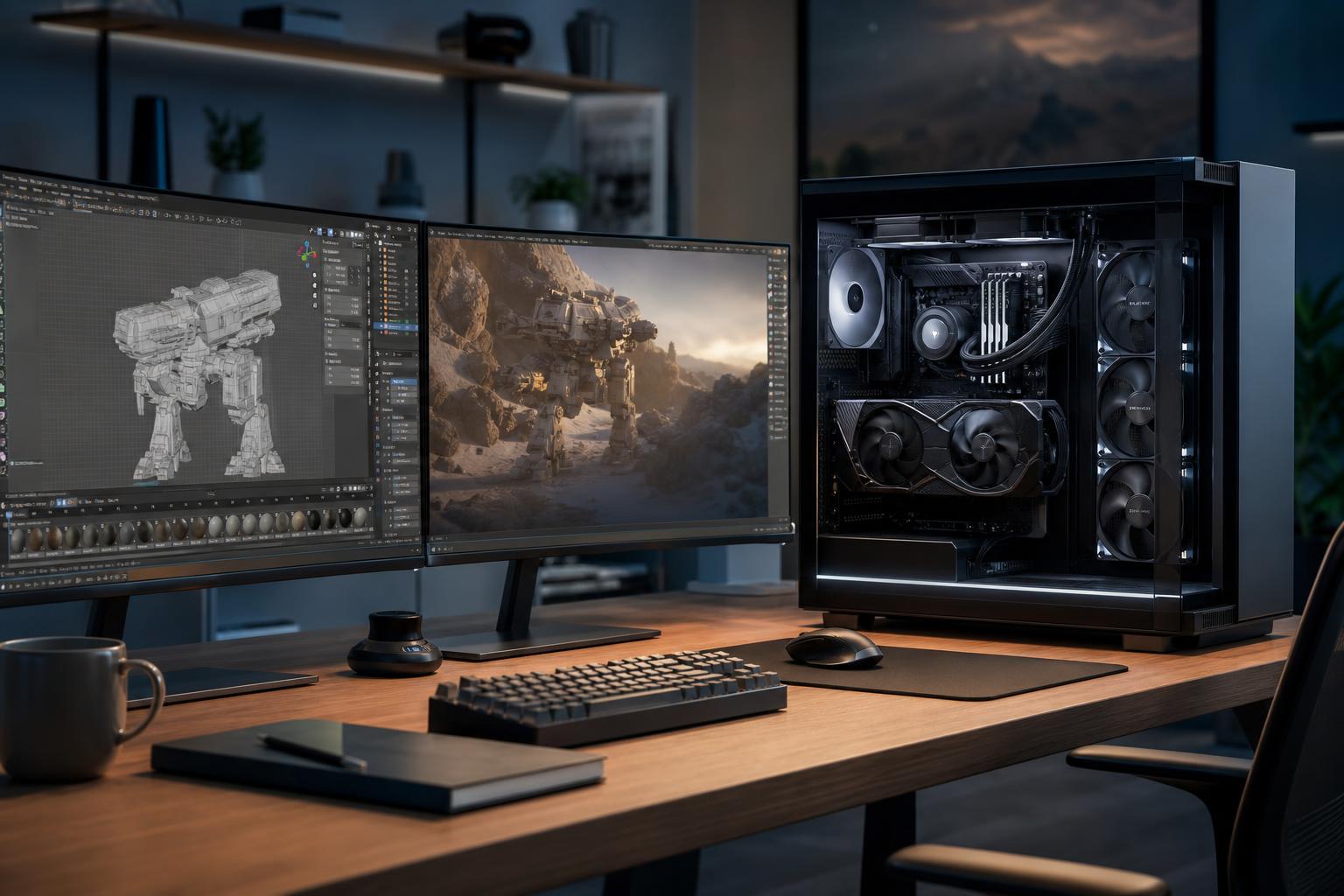
The best PC for Blender rendering puts a capable NVIDIA GPU with enough VRAM at the center of the build, then supports it with a strong multi-core CPU, 64GB or more of RAM, and fast NVMe storage. For most serious Blender users, that is a better investment than buying the most expensive CPU or a flashy motherboard with features they will never use.
If your work is mainly Cycles GPU rendering, spend the largest share of the budget on the graphics card. If you create large simulations, compile complex scenes, animate heavily, or render on the CPU, the processor and system memory deserve more attention. A good Blender workstation is not one specification list for everyone; it is a system built around the part of Blender that consumes your time.
Choose this level for learning Blender, product visualization, smaller scenes, 1080p or moderate-resolution animation, and freelance work that does not routinely involve huge textures or simulations.
This is the sensible starting point when the budget is tight. We would avoid dropping below 32GB of memory for a dedicated Blender machine. It may work initially, but large scenes, texture-heavy assets, browser tabs, reference files, and other creative applications can fill 16GB surprisingly quickly.
This is the sweet spot for artists who render regularly, work with larger environments, use high-resolution textures, or need a machine that remains comfortable as projects grow.
For many working Blender users, this is where the machine stops feeling like a compromise. The additional VRAM and 64GB of system memory provide useful breathing room, while the CPU remains capable of handling multitasking and CPU-based tasks without swallowing an unreasonable share of the budget.
Move to this tier when your livelihood depends on render turnaround, you work with complex scenes every day, need large simulations, or regularly run Blender alongside compositing, editing, CAD, Unreal Engine, or other demanding tools.
This tier is not automatically the right choice for every professional. A single powerful GPU workstation often makes more financial sense than a processor-heavy system for Cycles rendering. Spend on a workstation-class CPU platform when you need its extra memory capacity, PCIe expansion, storage options, or CPU throughput—not simply because it sounds more professional.
Cycles can render on either the CPU or GPU, but GPU rendering is usually the priority for a new Blender workstation. A fast graphics card can dramatically improve interactive viewport work and render turnaround, particularly when using GPU-accelerated rendering features.
For most buyers, NVIDIA is the practical default for a Blender-focused PC because Blender supports NVIDIA CUDA and OptiX acceleration. OptiX can be particularly useful for Cycles workflows on compatible RTX cards. AMD GPUs can be a valid choice in some configurations, but anyone buying specifically around predictable Cycles GPU performance should confirm current Blender version support and the exact renderer features they use before committing.
GPU memory is one of the most important Blender specifications. VRAM holds the data required by the scene during GPU rendering: geometry, textures, materials, acceleration structures, and more. When a scene exceeds available VRAM, GPU rendering may slow down severely, require different memory-management settings, or fail to render as intended.
For straightforward work, 12GB can be workable. For serious paid work, 16GB is a much safer target. Artists creating detailed architecture, large landscapes, dense scatter systems, complex characters, or 4K and 8K texture workflows should strongly consider more. Buying a faster GPU with too little VRAM can be a frustrating false economy if it prevents you from rendering the scenes you actually need to make.
Blender uses the CPU for more than rendering. Modeling responsiveness, scene preparation, modifiers, physics and simulations, some export tasks, background applications, and CPU rendering all benefit from a capable processor. Strong single-core speed helps the application feel responsive, while additional cores help with tasks that can scale across them.
An 8-core or 12-core modern CPU is enough for many GPU-rendering artists. A 12-core to 16-core option is a strong all-around choice when Blender is part of a broader production workflow. Higher core counts are worthwhile when you use CPU rendering, regularly bake or simulate demanding effects, or spend substantial time in other well-threaded applications.
Do not pair the fastest available CPU with a midrange GPU just because Blender is a “workstation” application. For a Cycles GPU renderer, shifting that money toward the GPU and VRAM usually produces the more noticeable result.
System RAM is separate from VRAM, and both matter. RAM holds Blender itself, scene data, geometry, caches, open applications, operating system tasks, and files being moved between storage and memory. When RAM fills up, the system falls back to the SSD as temporary memory. Even a fast SSD is much slower than RAM, and the result is often stuttering or long pauses.
Use 32GB for smaller projects and budget-conscious builds. Choose 64GB for most serious 3D artists. Step up to 128GB when working with large simulations, high-poly scenes, extensive multitasking, or memory-heavy applications alongside Blender. More than 128GB should be tied to a known need, not purchased as a vague form of future-proofing.
A fast NVMe SSD improves boot times, application launches, project loading, autosaves, texture access, and cache behavior. It will not make Cycles render frames at the same rate as a GPU upgrade, but inadequate storage creates plenty of daily irritation.
We recommend 2TB of fast NVMe storage for most performance-tier Blender systems. Keep active projects and cache files on this drive. A second drive is useful for asset libraries, completed work, source footage, or scratch space. Most importantly, maintain a real backup plan. A fast workstation is not much comfort after a drive failure takes the only copy of a project with it.
Blender renders can hold a CPU and GPU under heavy load for hours. That makes cooling and power delivery part of performance, not cosmetic extras. A well-ventilated case, properly sized CPU cooler, sensible fan layout, and quality power supply help the system sustain its performance without excessive noise or thermal throttling.
Avoid choosing a power supply by wattage alone. The unit should have enough capacity for the selected CPU and GPU, appropriate power connectors, and proven build quality. Likewise, an expensive motherboard is unnecessary unless it adds something you will use: more NVMe slots, additional PCIe slots, high-speed networking, a specific USB connection, or greater memory expansion.
The right Blender workstation depends on the scenes you build, not just the word “Blender” on a product page. An animator making stylized short films needs a different balance than an architectural visualization artist rendering large interiors, and both differ from an artist running fluid simulations or combining Blender with video editing.
Overclock Computers can design a custom Blender workstation around your rendering engine, scene complexity, target resolution, simulations, supporting applications, budget, noise preferences, and upgrade plans. Bring us the kind of work you do and the parts of your current system that slow you down, and we can help configure a machine that puts the budget where it will make a real difference.