Best PC for Photogrammetry: Workstation Specs That Make Sense

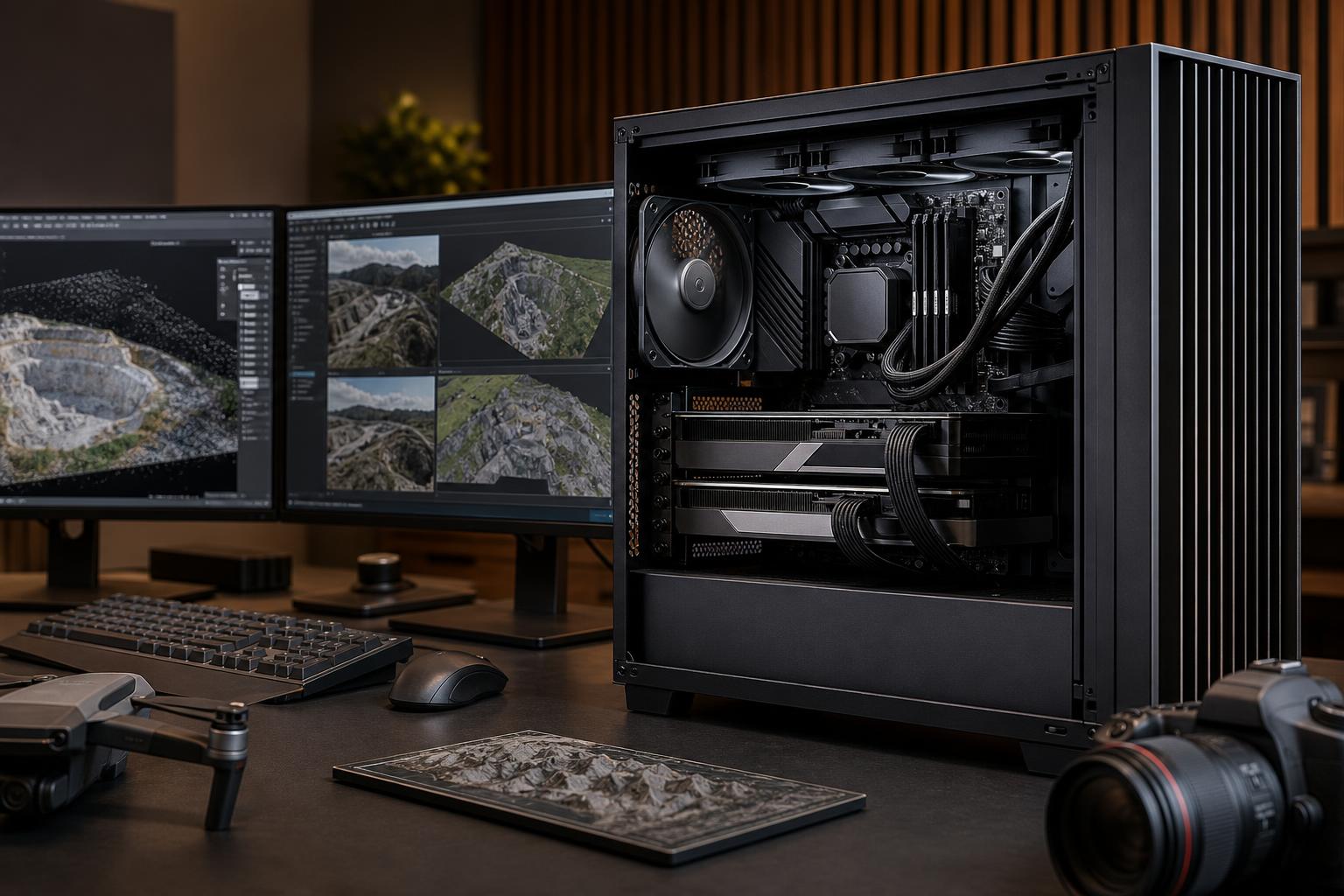
A good photogrammetry PC needs more than a powerful graphics card. Turning hundreds or thousands of overlapping photos into a usable point cloud, mesh, orthomosaic, or textured 3D model stresses several parts of the computer at different times. Image alignment can lean heavily on the CPU and system memory. Dense reconstruction and depth-map generation often benefit greatly from the GPU. Large image sets can overwhelm inadequate storage long before the processor reaches its limit.
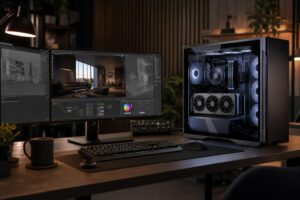
The best PC for photogrammetry is therefore a balanced workstation: a strong multi-core CPU, a GPU with enough VRAM for the dataset, ample RAM, fast NVMe storage, and cooling that can sustain long processing runs. Buying the single most expensive component and cutting corners elsewhere is a reliable way to build a frustrating machine.
Photogrammetry requirements depend mainly on image count, image resolution, desired output quality, and how many projects must be completed each week. The software matters too. Applications can divide work differently between the CPU and GPU, and their supported GPU features can vary by version. Check your software developer’s current compatibility guidance before selecting hardware.
As a practical starting point, think in three workload ranges:
Don’t size a system around the average job if a larger project is the one that delays your team. Use your largest recurring project, plus room for operating system overhead and other software running alongside it, as the real planning target.
Photogrammetry software commonly uses the CPU for tasks such as feature detection, image matching, camera alignment, data preparation, mesh operations, and exporting. Exact behavior varies, but a modern CPU with good single-core speed and a healthy number of cores is usually the right direction.
For small and moderate projects, a current high-performance mainstream processor is often the value sweet spot. It provides excellent responsiveness while processing and enough cores to handle reconstruction stages efficiently. For larger, frequent jobs, moving to a higher-core-count processor can shorten CPU-bound stages and makes more sense when the workstation earns its keep every day.
More cores are not automatically better. If a workload becomes limited by GPU compute, RAM capacity, storage speed, or software scaling, an extreme CPU may spend much of its time waiting. It can also require a more expensive platform, motherboard, cooler, and power supply. Spend on higher core counts when your software and actual project files can use them—not simply because the specification looks impressive.
For many photogrammetry workflows, the graphics card can accelerate depth-map generation, dense point-cloud creation, texturing, and other compute tasks. But the most important GPU question is often not “Which card has the highest gaming frame rate?” It is “Does it have enough VRAM to process this dataset comfortably?”
VRAM is the graphics card’s dedicated high-speed memory. When a project does not fit well within it, software may reduce processing settings, fall back to slower methods, fail a processing stage, or require the project to be broken into smaller chunks. None of those are pleasant surprises halfway through a deadline.
Professional graphics cards may offer larger VRAM configurations, specialized driver support, and features valuable in certified CAD or visualization environments. For photogrammetry alone, a high-performance consumer GPU can often deliver excellent compute value, provided it is supported by the application and has sufficient VRAM. The right choice changes when the same workstation must also run applications that require professional GPU drivers or large-memory visualization work.
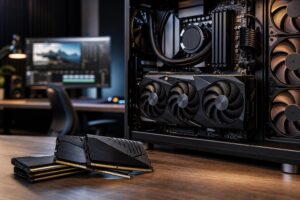
System RAM holds image data, reconstruction information, application caches, and the operating system’s working set. When RAM runs short, Windows uses storage as temporary memory. Even a fast NVMe SSD is dramatically slower than RAM, and performance can collapse once this happens.
For a practical photogrammetry workstation, these are sensible capacity ranges:
Capacity matters more than chasing small differences in memory speed. Use a stable, matched memory kit that has been tested at its intended settings. A workstation that saves a few seconds but crashes after six hours of processing is not an upgrade.
Raw photos, temporary files, depth maps, point clouds, meshes, and exports can consume far more space than the final model. A workstation with a single nearly full drive will become slower to manage and harder to back up.
A sensible layout uses at least two SSDs:
For frequent professional work, 2TB is a practical minimum for the active-project drive, and 4TB or more is often more comfortable. The right capacity depends on how long you keep source images locally and whether multiple projects remain open. Do not treat an archive drive as a backup unless there is another independent copy of the data. Original capture data is usually much harder to recreate than the workstation itself.
Photogrammetry is not a five-minute benchmark. A dense reconstruction can keep the CPU and GPU busy for hours. Poor cooling allows components to reduce clock speed to protect themselves, which means slower completion times and more fan noise. It also makes a system less pleasant to use in an office or studio.
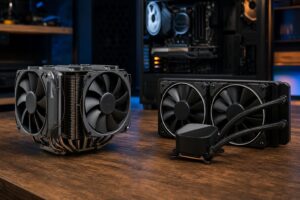
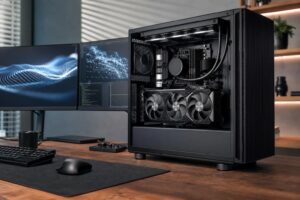
Use a case with a clear intake-and-exhaust airflow path, a CPU cooler sized for sustained load, and enough quality case fans to move air without running at maximum speed. The power supply should be a reputable unit with appropriate capacity and the required connectors for the selected GPU. This is not the place for a bargain-bin power supply; stable power delivery protects expensive components and supports reliable long-term operation.
Choose a modern high-performance mainstream CPU, 32GB to 64GB of RAM, a supported GPU with 12GB to 16GB of VRAM, and a 1TB to 2TB NVMe project drive. This configuration is suitable for smaller jobs, training, occasional site models, and firms that need photogrammetry alongside general office or design work.
Step up to a stronger multi-core CPU, 64GB to 128GB of RAM, a GPU with around 20GB to 24GB of VRAM, and a 2TB to 4TB NVMe active-project drive. Add separate operating-system and archive storage. This is the balanced target for regular drone mapping, larger capture sets, detailed outputs, and professionals whose billable time depends on processing projects reliably.
For very large or frequent datasets, use a high-core-count platform where it is supported by the software, 128GB or more of RAM, a GPU selected primarily for its compute support and VRAM capacity, and a multi-drive storage strategy. Consider whether a second processing workstation would improve throughput more than spending everything on one extreme system. Two jobs running in parallel can be more useful than a modest improvement to one job’s completion time.
The right photogrammetry workstation is not defined by a single badge or a maximum-spec parts list. It is the system that processes your typical and largest recurring projects without avoidable memory limits, storage headaches, thermal throttling, or wasted spending on hardware your software cannot use.
Overclock Computers can help design a workstation around your photogrammetry software, camera or drone image sets, output requirements, related GIS or CAD applications, and budget. Bring details about a representative project—image count, resolution, current processing time, and software version—and we can help turn that workload into a balanced, dependable PC configuration.