Best Video Editing Workstation Specs for 4K and 8K Projects in 2026


A good video editing workstation should make your timeline feel predictable. Clips should scrub cleanly, playback should stay responsive, exports should finish in a reasonable window, and the computer shouldn’t become unusable every time it creates proxies or renders an effect.
The right specification depends less on the resolution printed on the camera box and more on the whole workflow: codec, bit depth, number of streams, effects, color grading, motion graphics, project size, and how much work happens while an export runs in the background. A lightly compressed 4K project can be easy to edit. A multicamera 4K project using 10-bit log footage, noise reduction, titles, and color work can be demanding enough to expose every weak link in the system.
For most professionals, the best video editing workstation is a balanced system with a fast modern CPU, a capable GPU with sufficient VRAM, 64GB or more of RAM, and multiple NVMe SSDs assigned to different jobs. Buying the biggest processor or graphics card without considering the rest of the system is an expensive way to create a bottleneck.
Adobe Premiere Pro, After Effects, DaVinci Resolve, Avid Media Composer, and other editing tools don’t use hardware in exactly the same way. The camera codec matters too. H.264 and H.265 footage can be especially demanding to decode, while formats such as ProRes and DNx are generally easier on the CPU but require more storage bandwidth and capacity.
Ask these questions before choosing a workstation:
Those answers determine where the budget belongs. A wedding editor cutting compressed 4K footage has different needs from a colorist working in Resolve, a production team handling multicamera interviews, or a motion designer spending much of the day in After Effects.
The CPU still matters enormously in a video editing workstation. It handles application responsiveness, codec decoding and encoding in many workflows, timeline tasks, exports, background processing, and general multitasking.
For Premiere Pro and many interactive editing tasks, strong per-core performance is usually more valuable than simply chasing the highest possible core count. A modern high-performance desktop processor is often an excellent choice for a single editor focused on 4K work.
More cores earn their keep when the workload includes long exports, transcoding batches, CPU-based effects, heavy multitasking, or several demanding applications open together. High-core-count workstation processors make particular sense for studios and professionals who routinely process media while continuing with other work, or whose projects combine editing with rendering, simulation, code compilation, or other heavily threaded tasks.
Don’t assume a high-core-count processor automatically makes playback smoother. If a timeline is limited by GPU effects, VRAM, codec support, storage, or a single lightly threaded task, more CPU cores may have little visible benefit.
Modern editing software uses the GPU for a growing list of tasks. Color grading, effects processing, scaling, AI-assisted tools, hardware encoding, and accelerated exports can all benefit. DaVinci Resolve in particular can place substantial demand on the graphics card in color-intensive projects and GPU-accelerated effects.
For a professional video editing workstation, graphics memory is often just as important as the GPU’s speed. More VRAM gives the application more room for high-resolution frames, complex grades, large textures, multiple displays, and GPU effects. Running out of VRAM can lead to poor playback, failed renders, or a need to reduce quality settings.
A professional GPU can make sense where application-specific drivers, very large VRAM capacities, specialized display workflows, or vendor-validated configurations are required. It is not automatically the best value for every editor. Many video professionals get better performance per dollar from a high-end consumer GPU, provided its VRAM capacity, ports, driver behavior, and application support fit the job.
System memory holds active applications, timeline data, cached frames, project assets, and background processes. When RAM runs short, the workstation falls back to storage. Even fast SSDs are dramatically slower than memory, and the result is the familiar feeling of a powerful PC suddenly behaving like it has a flat tire.
Memory capacity matters more than chasing small differences in RAM speed. Start by buying enough capacity, then use a stable, well-matched memory configuration supported by the selected platform.
Video projects create several kinds of storage traffic at once: operating system activity, application loading, source-media reads, cache writes, proxies, previews, exports, and backups. Putting everything on one drive works for small projects, but it becomes less tidy and less efficient as workloads grow.
A sensible video editing workstation uses separate storage roles:
Fast SSDs help, but capacity planning is equally important. High-bitrate 4K and 8K footage consumes space with alarming efficiency. Keep enough free capacity for cache and temporary files; filling an SSD to the brim is bad manners and often bad performance.
If projects live on shared network storage, 10GbE networking is often one of the most practical workstation upgrades. Standard 1GbE networking can become a bottleneck when editors access high-bitrate footage across a network. The workstation, switch, NAS, storage drives, and network configuration all need to support the required throughput, so this should be designed as a complete system rather than added as an afterthought.
Best for individual editors working in Premiere Pro, Resolve, or similar software on typical 4K productions. Use a fast modern desktop CPU, a GPU with 12GB to 16GB of VRAM, 64GB of RAM, and at least two NVMe SSDs. This is the point where a workstation stops feeling like a consumer PC that has been asked to work overtime.
Best for frequent multicamera work, complex grades, GPU-accelerated effects, larger productions, and editors who run After Effects or other tools alongside their NLE. Step up to a stronger GPU with 16GB to 24GB of VRAM, 128GB of RAM, expanded NVMe storage, and 10GbE if shared storage is part of the workflow.
Best for demanding 8K projects, intensive Resolve grading, large compositing workloads, high-volume transcoding, or studios with significant expansion needs. Consider a workstation-class CPU platform when its additional memory capacity, PCIe lanes, storage options, and processing resources solve real workflow problems. Pair it with a high-VRAM GPU, 128GB to 256GB of RAM as justified by the projects, multiple fast drives, robust cooling, and a high-quality power supply.
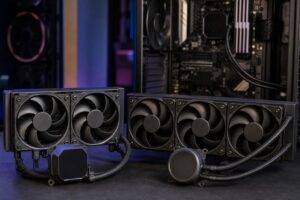
Video exports and rendering can keep a CPU and GPU under load for hours. A workstation needs cooling that can sustain that load without excessive heat, clock-speed drops, or an office soundtrack resembling a leaf blower. Quality air cooling or liquid cooling can both work well when correctly matched to the processor, case airflow, and noise target.
The power supply deserves the same practical attention. A properly sized, high-quality unit supports stable operation during simultaneous CPU and GPU load and leaves appropriate room for future upgrades. This is not the component to reduce first when the budget gets tight.
The best video editing workstation isn’t the most expensive configuration on a parts list. It is the system that handles today’s projects smoothly, has enough storage and memory headroom for the next round of work, and can be upgraded without rebuilding the entire machine.
At Overclock Computers, we configure custom workstation PCs around the software you use, your source footage, typical project sizes, storage workflow, delivery schedule, and budget. If you are planning a new editing suite or replacing an aging production system, contact our team with those details. We can help you choose the hardware that will make a meaningful difference in your actual work.