Best PC for Revit in 2026: Workstation Specs That Make Sense

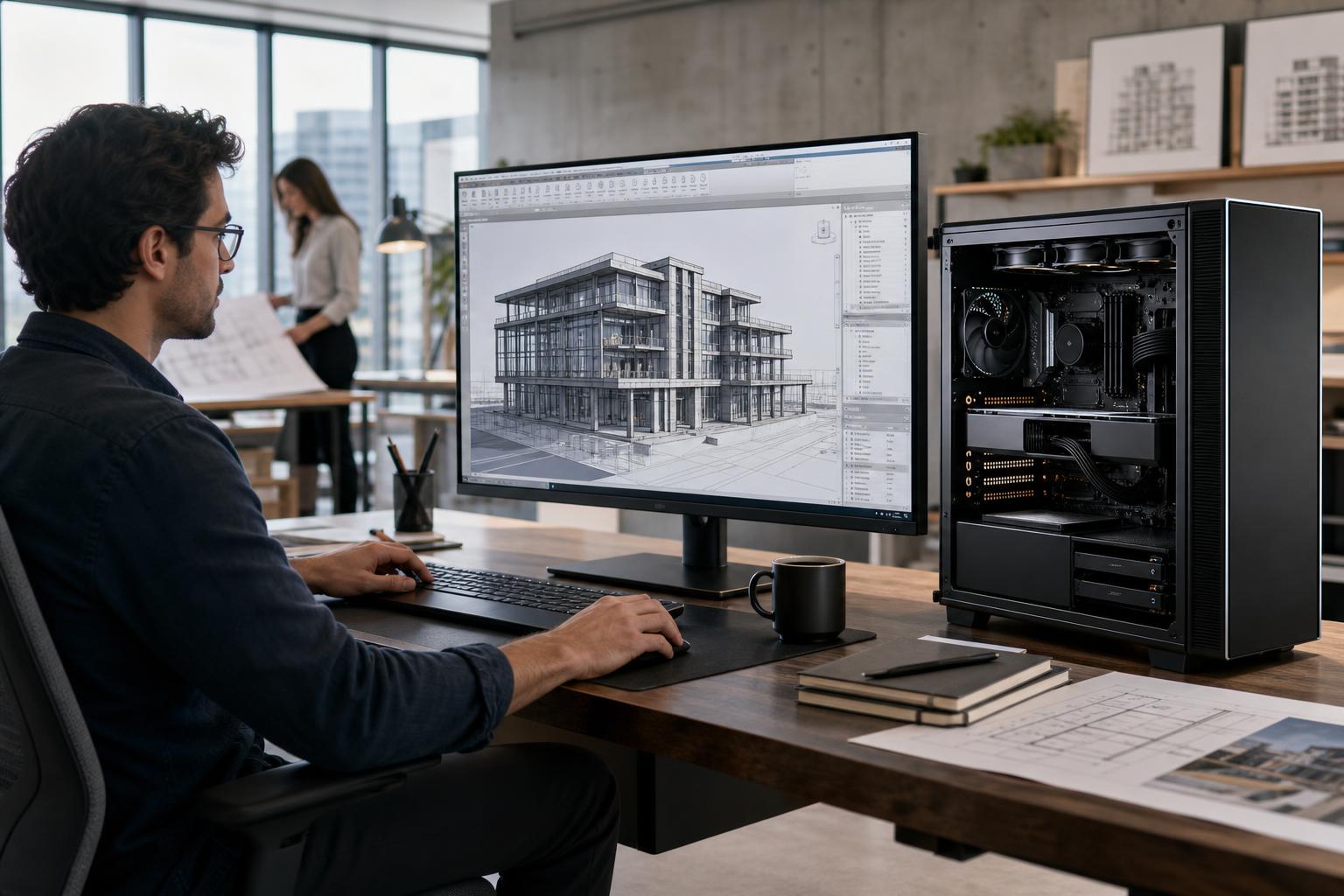
Revit is demanding in a very specific way. A workstation can have an expensive GPU and a mountain of CPU cores yet still feel slow when opening views, editing a model, or synchronizing a central file. That is because much of everyday Revit work favors strong per-core CPU performance, sufficient memory, fast local storage, and a balanced graphics card—not simply the biggest number in every specification column.
The best PC for Revit is one that matches the size and complexity of your models, the number of linked files, your rendering workflow, and the other applications open alongside Revit. An architect working mainly in modest building models needs a very different system from a BIM manager coordinating large, linked projects or a visualization team producing high-resolution renders.
For the majority of Revit users, prioritize hardware in this order:
This is not an argument against higher-core-count CPUs or professional GPUs. They can be the right choice for certain firms. The key is buying them for a reason that matches the work, rather than assuming they automatically make Revit faster.
Many interactive Revit tasks are lightly threaded or do not scale efficiently across a very large number of CPU cores. View changes, model editing, many calculations, and general interface responsiveness tend to benefit more from a modern processor with excellent single-thread and lightly threaded performance than from a workstation CPU chosen solely for its core count.
For a dedicated Revit workstation, a current high-performance mainstream desktop CPU is often the sensible starting point. It offers strong everyday BIM responsiveness while still providing enough cores for multitasking, exports, some rendering work, and related applications.
A higher-core-count workstation platform makes more sense when Revit is only one part of the job. Examples include teams that also run CPU rendering, complex analysis, compilation, simulation, large batch processes, or several heavy applications at once. These platforms can also provide more memory capacity, more PCIe expansion, and additional high-speed storage options. Those are valid reasons to step up; faster Revit modeling by itself often is not.
Memory capacity is one of the most common limits in real BIM workflows. Revit does not work alone: linked architectural, structural, and MEP models, a browser full of reference material, PDF markups, cloud-sync tools, rendering tools, and communication software all compete for RAM.
When physical memory runs short, Windows starts relying more heavily on the storage drive. Even a quick NVMe SSD is vastly slower than RAM, and the result is usually stuttering, long pauses, or poor multitasking rather than a neat error message.
More RAM does not directly accelerate every command. It prevents the workstation from becoming slow when real project complexity pushes beyond a lower memory limit. For a professional who loses time to memory pressure every day, that is a meaningful difference.
Not always. Revit’s 3D views benefit from a competent GPU, particularly with high-resolution displays, complex geometry, visual styles, and larger models. However, the GPU is rarely the sole answer to a slow Revit workflow. A system with insufficient RAM or weak CPU performance will not be rescued by an oversized graphics card.
A modern consumer GPU can provide excellent value for many Revit users, especially if the same workstation is also used for GPU rendering, visualization, or other creative applications. The important specifications are enough VRAM for the scene complexity and displays in use, stable drivers, appropriate physical clearance, and a power supply designed for the card.
Professional GPUs can be worthwhile when an organization has workflow-specific driver, support, validation, VRAM capacity, form-factor, or deployment requirements. They are not automatically faster simply because they carry a workstation label. Before choosing one, verify the requirements of the exact Revit version, plugins, rendering engine, and visualization tools your team uses.
Revit projects, local files, linked models, exports, and application caches create frequent storage activity. A fast NVMe SSD helps the workstation feel responsive, but capacity matters too. Performance and reliability can suffer when a drive is constantly near full.
For many professionals, a two-drive arrangement is practical: one high-quality NVMe SSD for Windows and applications, plus a second NVMe SSD for active projects, local working files, caches, and scratch data. Firms with large project archives may also need high-capacity network storage or a separate local data drive, but active work should not depend on a slow external disk.
Network performance deserves attention when files live on a server or central storage. A workstation with fast local storage can still feel constrained by a congested network link, slow server storage, or an inefficient synchronization process. For offices moving large project data regularly, 10GbE networking may be a sensible workstation option.
Best for individual architects, designers, and CAD technicians working on small to mid-sized projects. Start with a current high-clock-speed desktop CPU, 64GB of RAM, a capable mid-range GPU, and at least two fast NVMe SSDs. This is the configuration range where many users get the best balance of responsiveness, longevity, and cost.
Best for BIM coordinators, project leads, and users working with large linked models, multiple displays, and demanding companion software. Use a top-tier high-performance CPU, 128GB of RAM, a stronger GPU with more VRAM, and separate high-capacity NVMe storage for active data. Add 10GbE if the office infrastructure supports it and large files move across the network often.
Best for complex coordination, large data workloads, visualization, rendering, point clouds, simulation, or teams that need significant expansion. A workstation-class platform with higher memory capacity and more PCIe lanes may be justified. This is where additional storage, high-speed networking, specialized expansion cards, and a high-VRAM GPU can be planned properly instead of squeezed into a consumer-oriented system.
Professional systems are expected to perform for long stretches, not just complete a short benchmark. A properly sized CPU cooler, airflow-focused case, quality fans, and reputable power supply help the workstation maintain clock speeds without becoming distracting in an office.
Also leave room to grow. If a 64GB configuration is appropriate today but upcoming projects will be larger, choose a platform and memory layout that can accept a future upgrade cleanly. The same applies to storage bays, M.2 slots, PCIe expansion, and power capacity. A workstation should not become disposable because adding one more SSD or network card was overlooked at purchase.
A useful Revit specification starts with questions: What is the typical model size? How many links are active? Which plugins are essential? Is rendering local, and is it CPU- or GPU-based? Are point clouds, Navisworks, AutoCAD, Enscape, Twinmotion, analysis tools, or large PDF sets part of the daily workflow? The answers determine where the budget should go.
Overclock Computers can configure a custom workstation around your actual Revit projects, companion applications, storage needs, network environment, upgrade plans, and budget. If you are replacing an aging BIM PC or standardizing systems for a team, contact us with the software and project types you use most, and we can help define a balanced professional workstation rather than a generic high-spec desktop.