CPU Bottleneck vs. GPU Bottleneck: How to Tell What’s Limiting Your PC

“Bottleneck” is one of the most overused words in PC discussions. It’s often treated as if one part permanently holds back the entire computer. Real systems are not that simple.
A bottleneck is simply the component that limits performance in a particular task at a particular moment. Change the game, resolution, graphics settings, or workload, and the limiting part can change too. A PC that is GPU-limited at 4K may become CPU-limited at 1080p. That is normal, not a design failure.
The useful question is not “Does my PC have a bottleneck?” Every PC does. The question is: What is limiting the experience I want, and is an upgrade likely to fix it?
Your graphics card is GPU-bound when it is working as hard as it can to render each frame. This is common in visually demanding games, especially at 1440p and 4K with high-quality textures, ray tracing, heavy anti-aliasing, or demanding lighting effects enabled.
In this situation, the GPU is generally near full utilization during gameplay, while the CPU has some capacity left. Lowering graphics settings or resolution often raises frame rates noticeably. Upgrading the CPU may improve a few minimum frame rates, but it usually will not produce the large average-FPS jump you want.
For a GPU-limited gaming system, the graphics card is the part worth prioritizing. It is also worth checking VRAM use. A card can be fully loaded because it is doing difficult rendering work, but it can also struggle because a game’s texture settings exceed available video memory.
Your system is CPU-bound when the processor cannot prepare frames fast enough for the graphics card. The GPU then spends part of its time waiting for the next frame of work.
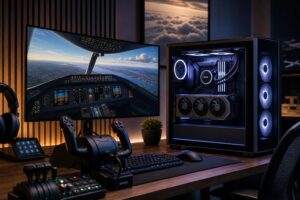
This is most common when chasing high frame rates at 1080p or 1440p, playing simulation-heavy games, or using a powerful modern GPU with an older processor. Strategy titles, large multiplayer matches, city builders, flight simulators, racing games with many AI cars, and games with complex world simulation can all put serious pressure on a CPU.
A CPU limit often shows up as lower-than-expected GPU utilization, inconsistent frame times, or disappointing performance in busy scenes despite lowering visual settings. One key detail: overall CPU utilization can look modest even when the CPU is the problem. Many games are limited by one or several heavily used cores, not every core at once.
Resolution is one of the biggest reasons generic bottleneck calculators are not very helpful. More pixels put more work on the GPU, while CPU workload often changes far less.
This is why a processor upgrade that looks fantastic in a 1080p benchmark may bring a smaller improvement to a 4K player. It does not make the benchmark wrong; it just means the test does not match that buyer’s real workload.
Start with a repeatable scenario. Load into the same area of a game, ideally one where performance feels poor. Use the game’s built-in benchmark if it has one, or repeat the same short gameplay section. Monitoring software and many game overlays can show GPU use, CPU use, temperatures, clock speeds, memory use, VRAM use, frame rate, and frame times.
If GPU usage stays around 95% to 99% during the demanding section, your system is usually GPU-limited. That is generally a healthy result: the graphics card is being used effectively.
If GPU utilization frequently sits well below that level while frame rate is lower than expected, look for a CPU limitation, a frame-rate cap, a power or thermal issue, background software, or a game engine limitation. Do not diagnose from one number alone.
Average frames per second is useful, but frame times tell you how consistently a game delivers those frames. A steady 100 FPS feels better than an average of 120 FPS that repeatedly drops and stutters.
CPU limitations often hurt frame-time consistency in complex scenes. You may see acceptable average FPS but noticeable hitching when entering a new area, large fights begin, or many objects appear on screen. Insufficient RAM, a crowded SSD, shader compilation behavior, and background tasks can create similar symptoms, so this is where a broader check matters.
Try lowering the rendering resolution or use a lower-resolution test setting while keeping the same gameplay scene.
Then try lowering settings that heavily affect graphics workload, such as ray tracing, shadows, resolution scaling, or anti-aliasing. If these changes help little, a CPU limit becomes more likely. Settings such as view distance, crowd density, terrain detail, and simulation quality can affect CPU workload as well, although the exact behavior varies by game.
Before buying a processor or graphics card, rule out the less glamorous issues. They are often cheaper to solve.
If you play at 1440p or 4K and want higher settings, ray tracing, or more FPS in graphically demanding games, the GPU is normally the right place to spend. Choose a card with enough performance and VRAM for the monitor resolution and games you intend to play—not just for a benchmark chart.
For example, a player moving from 60Hz to 144Hz at 1440p can see a major practical benefit from a GPU upgrade. Buying a much faster CPU while leaving a clearly overworked graphics card in place usually will not accomplish that goal.
A CPU upgrade makes sense if you play CPU-heavy games, use a high-refresh monitor, stream while gaming, run substantial background applications, or see low GPU utilization in the scenes where performance disappoints.
Platform upgrades need to be planned as a package. A new CPU may require a compatible motherboard and different memory, depending on the platform. It is rarely wise to buy the most expensive processor available just because it wins a few benchmark charts. Select the processor that suits the work: high-refresh gaming, rendering, compiling, simulation, or a mix of all of them.
If your current PC is generally meeting your needs, small adjustments can be smarter than replacing hardware. Reducing ray tracing, using an appropriate upscaling mode, setting a sensible frame-rate cap, or lowering a CPU-heavy crowd setting can make a game feel much smoother with little visible loss in image quality.
That is not “settling.” It is using the hardware you own intelligently. Nobody receives an award for making a graphics card work harder than necessary.
Do not buy parts based on a generic percentage from an online bottleneck calculator. Those tools cannot know your resolution, games, settings, monitor, memory configuration, or the parts you already own.
Test the games and applications that matter to you. Check GPU use, frame times, temperatures, VRAM, and RAM. Then upgrade the component that limits the experience you actually want. A balanced PC is not one where every part has the same price tag; it is one where each part supports the intended workload without waste.
If you are planning an upgrade or a new custom system and want a second opinion on where your budget will make the biggest difference, contact Overclock Computers. We can help turn your real games, software, monitor, and performance goals into a configuration that makes sense.