Choose Your Monitor Before Your Gaming PC: Resolution, Refresh Rate, and Hardware

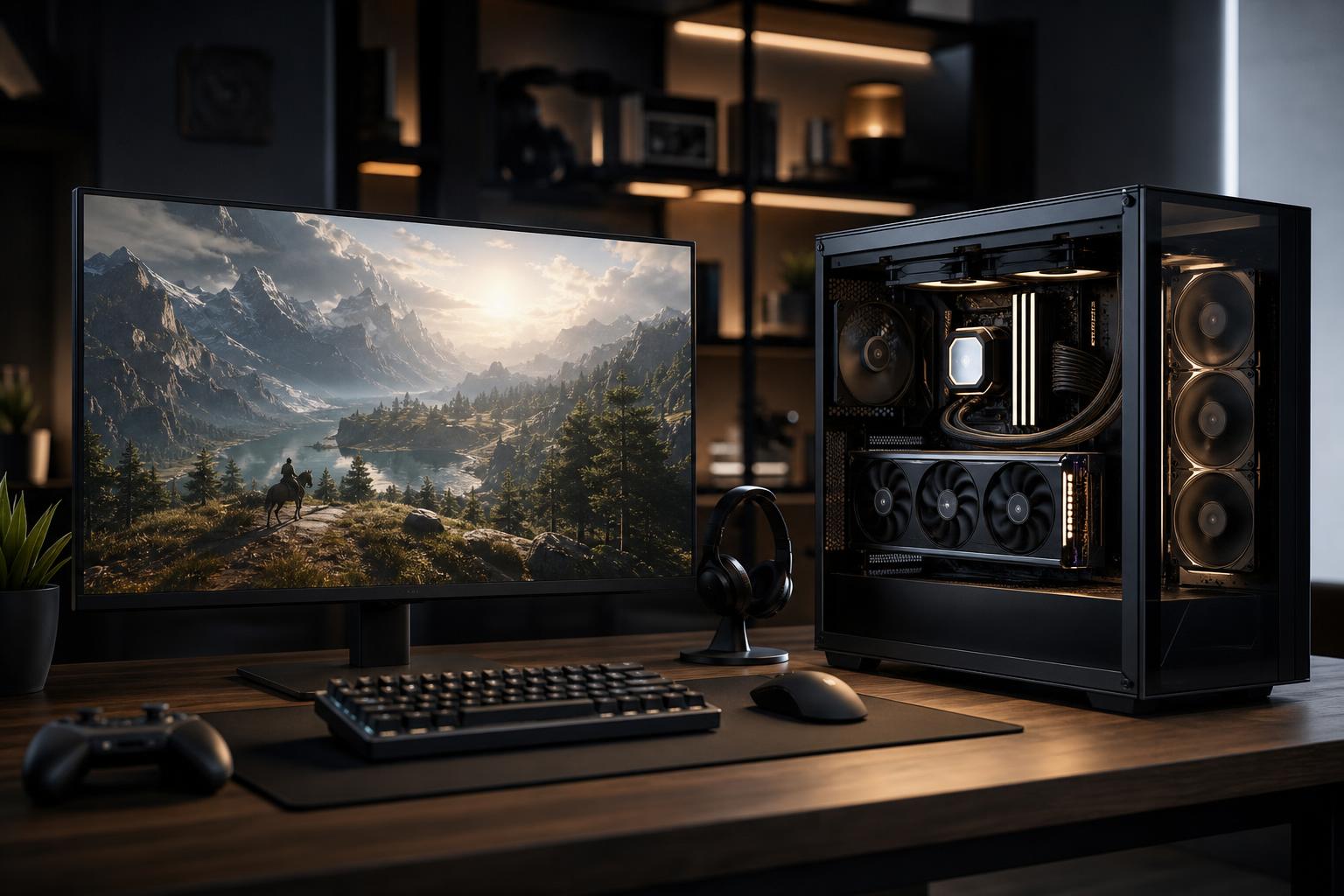
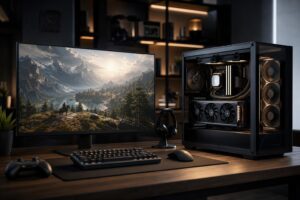
When people plan a gaming PC, they often start by asking which graphics card to buy. That’s understandable, but the better first question is: what monitor will this PC need to drive?
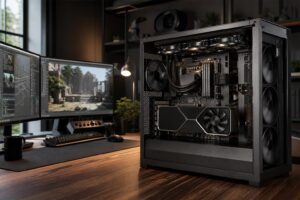
Your display sets the target. A 1080p 144Hz monitor, a 1440p 240Hz monitor, and a 4K 144Hz monitor can all be excellent choices, but they ask very different things of the same computer. Buying the monitor first—or at least deciding on its resolution and refresh rate—keeps the rest of the build grounded in the experience you actually want.
It also prevents two common mistakes: overspending on a GPU whose extra performance you won’t see, or building a powerful-looking PC that can’t deliver the frame rates you expected at your chosen settings.
Resolution is the number of pixels the GPU must render for every frame. More pixels generally mean a sharper image and more desktop workspace, but they place a heavier load on the graphics card.
At 4K, the graphics card is usually the main performance limit. At 1080p, especially when chasing very high frame rates, the CPU can become just as important. This is why a PC that benchmarks wonderfully at 4K may not automatically be the best choice for esports at 360Hz.
Refresh rate is measured in hertz (Hz). A 144Hz monitor can show up to 144 new images per second; a 240Hz monitor can show up to 240. Higher refresh rates make motion look smoother and reduce the time between your input and the image changing on screen.
There is a real difference between 60Hz and 144Hz. The improvement from 144Hz to 240Hz is also visible, particularly in fast competitive games, but it is less dramatic. Above that, spending decisions become increasingly specialized.
Don’t buy a 360Hz or 500Hz monitor merely because the number is large. In many demanding modern games, maintaining frame rates near those levels requires lowered settings, a fast CPU, a very capable GPU, or all three. That trade-off makes sense for a competitive player. It usually does not make sense for someone who prefers cinematic games with high visual settings.
Here are practical starting points for a gaming PC configuration. They are not rigid rules; game engines, visual settings, ray tracing, and upscaling can move the target considerably. But they are useful planning guides.
For 1080p at 144Hz or higher, a midrange graphics card is often enough for excellent results. Put more attention into the CPU if you play esports titles and want consistently high frame rates. A capable modern six- or eight-core gaming CPU, 32GB of memory, and a fast NVMe SSD create a balanced foundation.
This is also the resolution where it is easiest to accidentally overspend. A top-tier GPU can certainly produce very high numbers at 1080p, but the practical improvement may be limited by the game, CPU, or monitor refresh rate. Put that money toward a better display, quieter cooling, additional storage, or simply keep it in your pocket.
For many buyers, this is the most balanced target. A good 27-inch 1440p monitor is sharp enough for everyday desktop use and immersive enough for modern games. The graphics card matters more here than it does at 1080p, though the CPU still affects minimum frame rates and performance in simulation-heavy or competitive games.
A strong upper-midrange GPU, a modern gaming CPU, 32GB of RAM, and 1TB to 2TB of SSD storage is a sensible place to start. If you want ray tracing at high settings or consistently high frame rates in demanding new releases, it is worth moving up the GPU stack. That extra spend is visible at 1440p; it is not merely a specification-sheet trophy.
4K is primarily a GPU decision. If you want high settings, advanced lighting effects, and frame rates well above 60 fps in demanding games, allocate a large share of the budget to the graphics card. A high-end GPU is not overkill in this situation; it is the part doing the hard labor.
You still need a good CPU, but pouring money into the fastest processor while compromising on the GPU is usually the wrong move for a 4K gaming-focused system. A well-balanced CPU, 32GB of RAM, and the strongest graphics card that fits the budget is normally the better plan.
Look for a monitor that supports adaptive sync. Depending on the display and GPU ecosystem, this may be described as AMD FreeSync, NVIDIA G-SYNC Compatible, or a similar variable-refresh-rate feature.
Without variable refresh rate, the monitor refreshes on a fixed schedule even when the GPU’s frame delivery varies. That mismatch can cause visible tearing or force traditional V-Sync, which can add input lag. Adaptive sync allows the display to vary its refresh timing to better match the GPU’s output within its supported range.
In plain English: it makes uneven frame rates look and feel smoother. It is particularly valuable in graphically demanding games where performance might move between 70 and 120 fps rather than staying at one perfectly fixed number.
Resolution and refresh rate get most of the attention, but panel technology influences how the monitor looks and behaves.
There is no universally best panel. For a mixed gaming and work desk, a quality IPS display is often the uncomplicated recommendation. For dark-room single-player gaming and media, strong contrast can be more meaningful than an extreme refresh-rate number. For competitive play, motion performance and refresh rate may take priority.
Before ordering anything, verify the monitor can run its full resolution and refresh rate through the ports you plan to use. DisplayPort is commonly the straightforward choice for a desktop gaming PC, while HDMI capabilities vary by monitor and graphics card. Read the monitor’s specifications rather than assuming every port supports every advertised mode.
Also check the practical details:
A fancy panel on a poor stand becomes annoying surprisingly quickly. So does a huge display placed too close to your face.
This approach produces a more satisfying computer than buying parts in isolation. The goal is not to own the most expensive component. The goal is for the monitor, GPU, CPU, and games to work together without an obvious weak link.
If you are unsure where to begin, a 1440p monitor in the 144Hz to 180Hz range is the sensible default for many new gaming PC buyers. It offers a meaningful visual upgrade from 1080p, supports smooth gameplay, and does not demand the extreme graphics budget that high-refresh 4K can require.
Competitive players may be better served by 1080p or 1440p at 240Hz or above. Players who value image detail in single-player games may prefer 4K at a more modest refresh rate, paired with a stronger GPU. Neither choice is automatically better; they serve different priorities.
If you are planning a gaming PC around a new display, contact Overclock Computers with the monitor model or the resolution and refresh rate you have in mind. We can help configure the rest of the system around a performance target that makes sense for the games you actually play.