How Many Case Fans Do You Need for a Gaming PC or Workstation?

Case fans are easy to underestimate. A powerful CPU cooler and graphics card can only work properly if the case supplies them with fresh air and gives hot air a clear way out. At the same time, filling every open fan mount with expensive fans does not automatically make a PC cooler. Sometimes it just makes it louder.
For most modern gaming PCs, three to five well-placed case fans is the useful target. A demanding workstation with a high-wattage CPU and GPU may benefit from five to seven. The exact number matters less than the case design, fan placement, component heat output, and fan-control settings.
If your case comes with only one or two basic fans, adding a quality intake fan is often a worthwhile first upgrade. If it already has three good fans and temperatures are reasonable, more fans may accomplish very little.
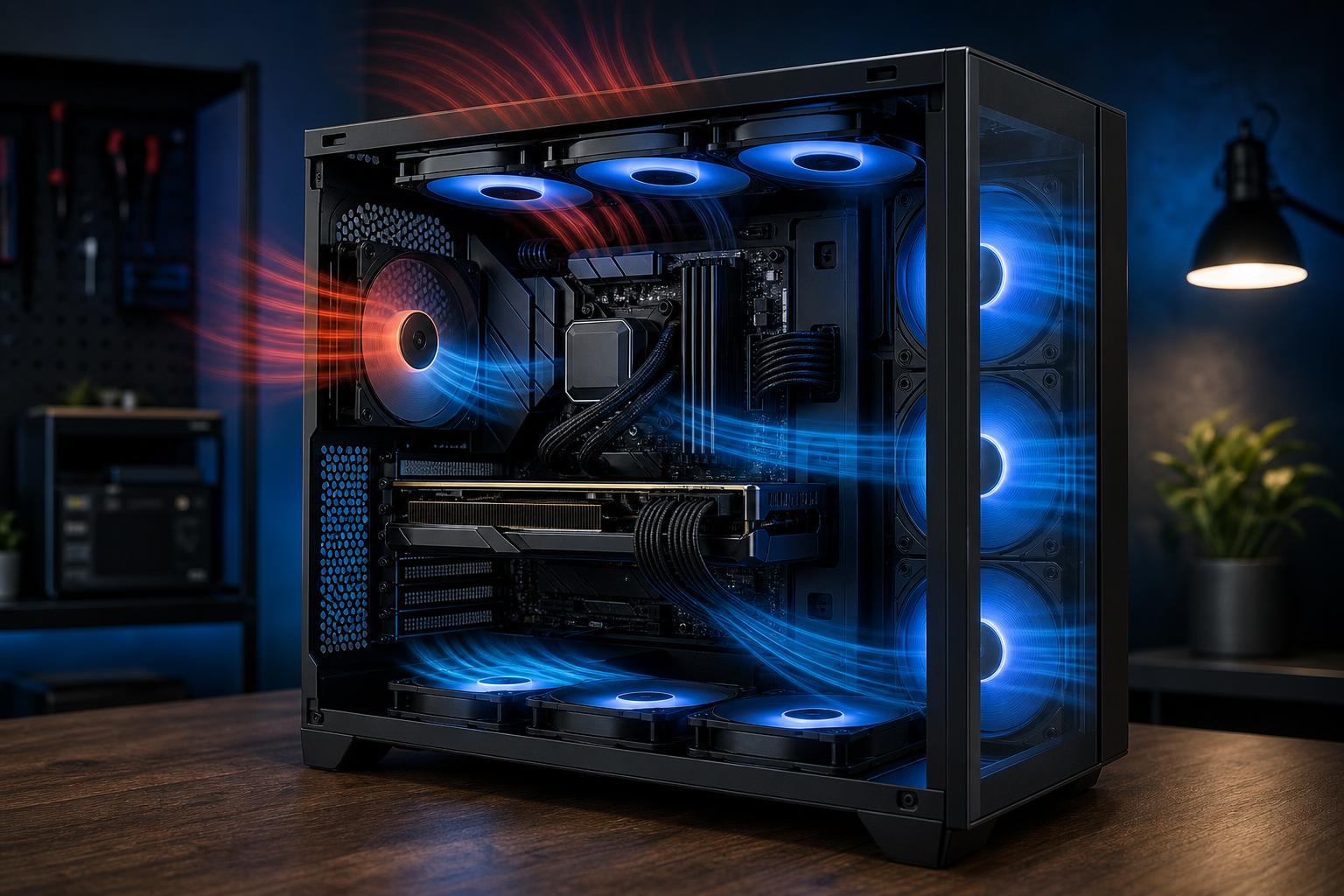
A well-cooled PC follows a simple path: cool air enters near the components that need it, then warm air exits without getting trapped. In a conventional tower case, that usually means:
The familiar front-to-back layout works because it supports the natural path of airflow through the case. Front intake fans feed the graphics card and CPU area. The rear and top exhaust fans remove heat before it recirculates.
It is possible to build a system with a different layout, particularly in dual-chamber or small-form-factor cases. Still, the goal remains the same: give the GPU a supply of cool air, avoid fighting the CPU cooler’s airflow direction, and create an obvious exit route for heat.
Fan setups are often described as positive, negative, or neutral pressure. This refers to whether the system has more intake airflow than exhaust airflow.
For most home and office PCs, we prefer slightly positive pressure. When the intake locations have dust filters, it reduces the amount of dust pulled through unfiltered openings. That means less buildup on graphics card heatsinks, radiator fins, and motherboard components over time.
Do not try to balance pressure by simply counting fans. A 140 mm fan at a moderate speed can move more air than a 120 mm fan at the same speed, while restrictive filters, radiators, and mesh panels all change actual airflow. A practical approach is to use more intake area than exhaust area, then tune fan curves based on temperatures and noise.
For a mid-tower gaming PC, use two front intakes and one rear exhaust. This arrangement supplies the GPU with fresh air and establishes a clean exhaust path behind the CPU cooler. It is hard to beat for value, noise, and simplicity.
Add one top-rear exhaust fan, not a top-front fan. The top-rear location helps remove heat rising from the CPU socket area without immediately pulling fresh intake air out before it reaches the CPU cooler or graphics card.
A top-front exhaust can help in certain cases, especially with a top-mounted radiator. In an air-cooled system, though, it sometimes short-circuits front intake airflow and provides little benefit.
Use three front intakes, one rear exhaust, and one top-rear exhaust. This is a very capable configuration for a gaming PC with a high-performance graphics card. The third front intake is especially useful when it sits low enough to feed the GPU directly.
For a high-end system, three front intakes, one rear exhaust, and two top exhaust fans is a sound starting layout. A bottom intake can also be valuable in cases designed to feed air directly to the graphics card. This is often more helpful than adding another top fan.
An all-in-one liquid cooler radiator is also a group of fans, but it creates airflow resistance. Its location affects both CPU and GPU temperatures.
Front-mounted radiator as intake: The CPU receives cooler outside air, which can improve CPU temperatures. The trade-off is that the graphics card receives air warmed by the radiator. This can be a reasonable choice when CPU performance is the priority, such as a CPU-heavy rendering workstation.
Top-mounted radiator as exhaust: The graphics card gets fresh air from front and bottom intakes, while CPU heat exits through the top. This is often the best-balanced arrangement for a gaming PC, where the GPU is typically the largest heat source.
Neither approach is universally correct. A large, well-ventilated case with enough intake capacity can make either layout work well. What should be avoided is a radiator placement that leaves the GPU with no direct source of fresh air.
When the case supports them, 140 mm fans are usually preferable to 120 mm fans. They can move a similar amount of air at a lower speed, which usually means less noise. However, a good 120 mm fan is better than a cheap or poorly matched 140 mm model.
There are two broad fan types worth understanding:
Do not buy fans based on maximum RPM alone. Very high speeds can be useful for short bursts of cooling, but a fan that must run at full speed to control temperatures is usually covering for a case airflow problem. Good fans should be paired with sensible motherboard or fan-controller curves so they stay quiet at idle and ramp up smoothly under load.
Adding fans has diminishing returns. After a case has a solid intake-and-exhaust path, each additional fan may only reduce temperatures by a few degrees. That may be worthwhile for a workstation that renders for hours, but it is rarely the first solution for a warm PC.
Before adding more fans, check these common issues:
Temperature testing should be done during the workload you actually use: a demanding game, a long render, a compile, or a GPU compute task. Brief desktop readings tell you almost nothing about whether the airflow design is working.
Start with two or three filtered intake fans and a rear exhaust fan in a mesh-front case. For most gaming PCs, that is enough to establish good airflow. Move to five fans when you are using a powerful graphics card, a high-wattage processor, or a top-mounted radiator. Beyond that, add fans only when testing shows a real temperature or noise benefit.
A balanced system should stay cool without sounding like a leaf blower. If you are planning a high-performance gaming PC or a workstation that will run demanding workloads for long stretches, Overclock Computers can help select a case, cooling layout, and fan configuration that suits the hardware rather than just filling every empty mount.