Best GPU for Video Editing: How to Choose the Right Graphics Card

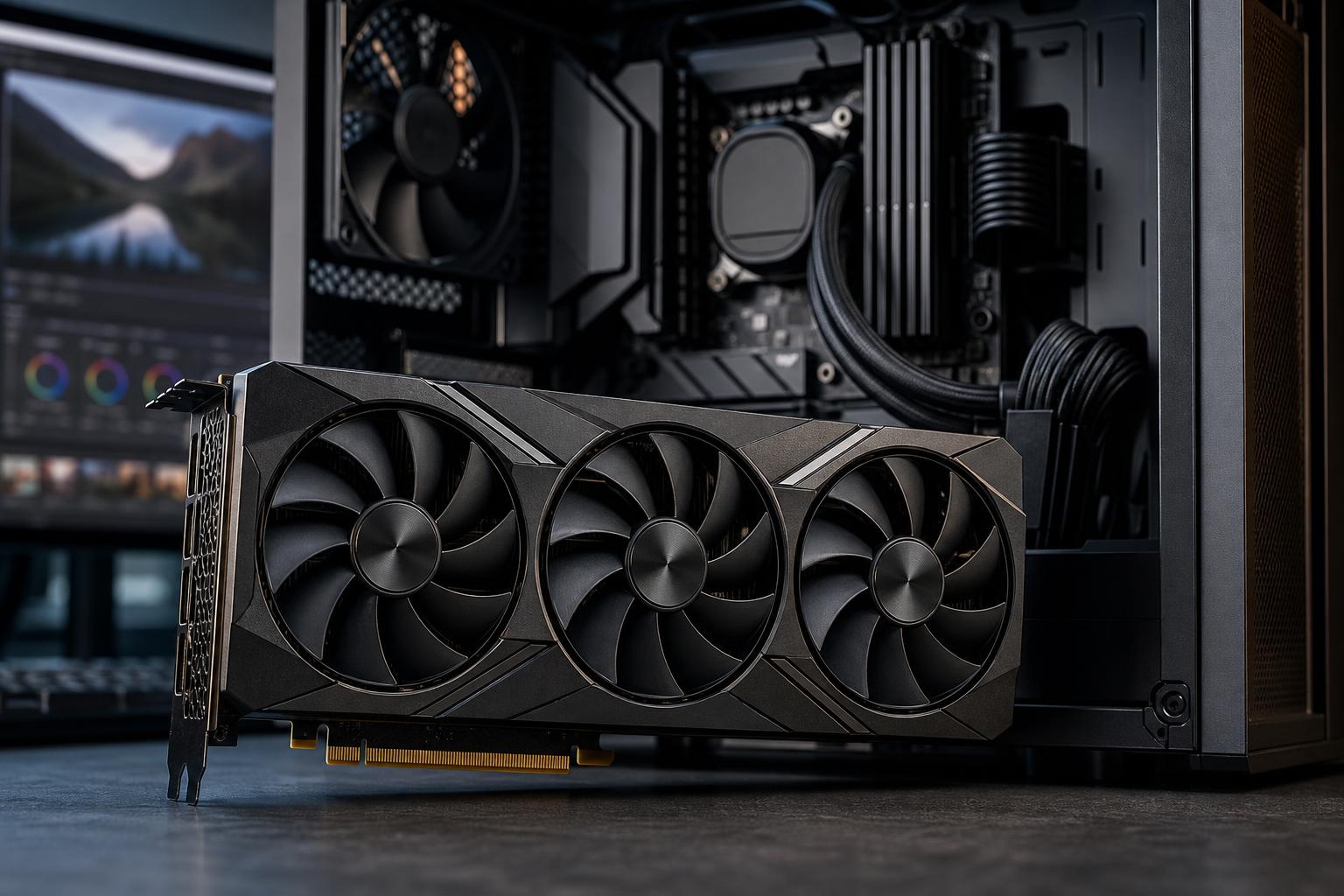
A graphics card can make video editing feel smooth and responsive—or leave an otherwise powerful computer struggling through color grading, effects previews, and exports. The catch is that the best GPU for video editing is not always the most expensive one. Your editing software, source footage, project resolution, and workflow matter far more than a benchmark chart alone.
For most people building a new editing PC, an NVIDIA GeForce RTX graphics card with enough VRAM for the work is the practical default. NVIDIA has broad support in major creative applications, strong GPU-accelerated effects performance, and useful hardware encoders for H.264, HEVC, and, on supported cards and software, AV1.
That does not mean every editor needs a flagship GPU. A sensible midrange card can be excellent for 4K editing, while a high-end card earns its cost mainly for demanding Resolve work, heavy effects, large projects, high-resolution footage, 3D work, or accelerated AI features.
For a typical 4K editor, we would usually spend enough to reach a capable 16GB NVIDIA GeForce RTX card before spending extra on an ultra-high-end model. Put the rest of the budget toward system memory, fast storage, a capable CPU, and dependable cooling. Those parts still have plenty of work to do.
Video applications do not all use graphics hardware in the same way. A GPU that is outstanding in one program may bring a smaller benefit in another.
Premiere Pro uses the GPU to accelerate many effects, scaling, color processing, playback tasks, and exports. NVIDIA cards are commonly the safest recommendation because CUDA acceleration is mature and widely used in Adobe-based workflows. Premiere can also benefit from hardware decoding and encoding for common delivery formats.
However, Premiere Pro is not only a GPU application. CPU performance, available RAM, and the speed of the media drive can heavily affect playback and export times. A fast GPU will not fully solve a timeline loaded with compressed long-GOP footage sitting on a slow external hard drive. That would be like fitting racing tires to a delivery van.
DaVinci Resolve often leans more heavily on the graphics card, especially during color grading, noise reduction, Fusion effects, and GPU-accelerated processing. Resolve users are therefore more likely to see a meaningful improvement from a faster GPU and additional VRAM.
For regular 4K Resolve work, 16GB of VRAM is a particularly sensible target. Editors working with high-resolution RAW files, temporal noise reduction, complex grades, multiple streams, or Fusion compositions can benefit from 24GB or more.
After Effects benefits from GPU acceleration in specific features and effects, but it also relies heavily on CPU performance and system memory. Do not buy an enormous GPU while settling for limited RAM. For a serious After Effects workstation, 64GB of system memory is often more useful than overspending on graphics hardware, especially with larger compositions and multiple Adobe applications open.
AMD Radeon cards can be good editing GPUs, particularly when they offer strong performance and ample VRAM at a favorable price. They support modern media engines and work well in many applications. Still, NVIDIA remains our usual first choice for a purpose-built video editing PC.
The reason is not brand loyalty. It is software support and workflow consistency. CUDA support is common across creative applications and plug-ins, and NVIDIA’s NVENC hardware encoder is broadly supported for efficient exports and streaming. When a customer needs a machine that simply needs to work well across Premiere Pro, Resolve, Blender, AI-assisted tools, and common plug-ins, NVIDIA is generally the lower-risk choice.
An AMD Radeon GPU can be a smart value option when the exact software you use has been tested with it and the savings allow you to improve another important component. We would not choose solely from gaming benchmarks, though. Check the acceleration support for your editor, effects plug-ins, codecs, and any companion applications you use every day.
VRAM is the graphics card’s working memory. It holds frame buffers, textures, effects data, color-processing information, and other material the GPU needs immediately. When a project exceeds available VRAM, performance can drop sharply. In some cases, an effect may fail to render or the application may fall back to slower processing.
Resolution matters, but it is not the whole story. A lightly edited 4K project may run well on a 12GB card. A 4K project with multicam footage, noise reduction, masks, high-quality scaling, layered graphics, and demanding effects can need substantially more.
Do not confuse VRAM with regular system memory. A video editing PC still needs plenty of both. For most 4K work, 64GB of system RAM is a well-balanced target. Larger projects and higher-resolution source media may justify 128GB.
Modern GPUs include dedicated media engines that can decode and encode common video formats. These can speed up exports to H.264 and HEVC, and may support AV1 depending on the GPU and software. They can also make certain compressed camera formats easier to play back.
This is useful, but hardware encoding is not magic. Export speed still depends on what must happen before the final encoding step: decoding source footage, applying effects, rendering graphics, calculating color changes, and reading data from storage. An encoder cannot speed through effects that have not been rendered yet.
If you deliver video frequently for the web, social platforms, or client review, hardware encoding is a real quality-of-life feature. It is one more reason to avoid very old GPUs when building a new system.
Professional graphics cards are not automatically better for video editing. A high-end GeForce card often delivers excellent editing and rendering performance for less money. For many independent creators and production teams, that is the better use of the budget.
A professional GPU can make sense when your work also requires certified drivers for specialist applications, large amounts of VRAM, ECC graphics memory, enterprise deployment features, or vendor-supported configurations. This is more common in studios that combine editing with engineering visualization, CAD, scientific imaging, or demanding 3D pipelines.
For a Premiere Pro or Resolve-focused workstation, choose a professional GPU because its specific features solve a business requirement—not because the word “professional” appears on the product page.
The best GPU for video editing needs a balanced system around it. A strong configuration typically includes:
Before choosing a GPU, make a short list of the applications, footage formats, usual project resolution, and effects you actually use. That information tells us far more than a vague goal of building “the fastest editing PC.” Overclock Computers can help you turn that workflow into a balanced video editing workstation without spending heavily in the wrong places.