Best PC for Blender Rendering: Workstation Specs That Make Sense

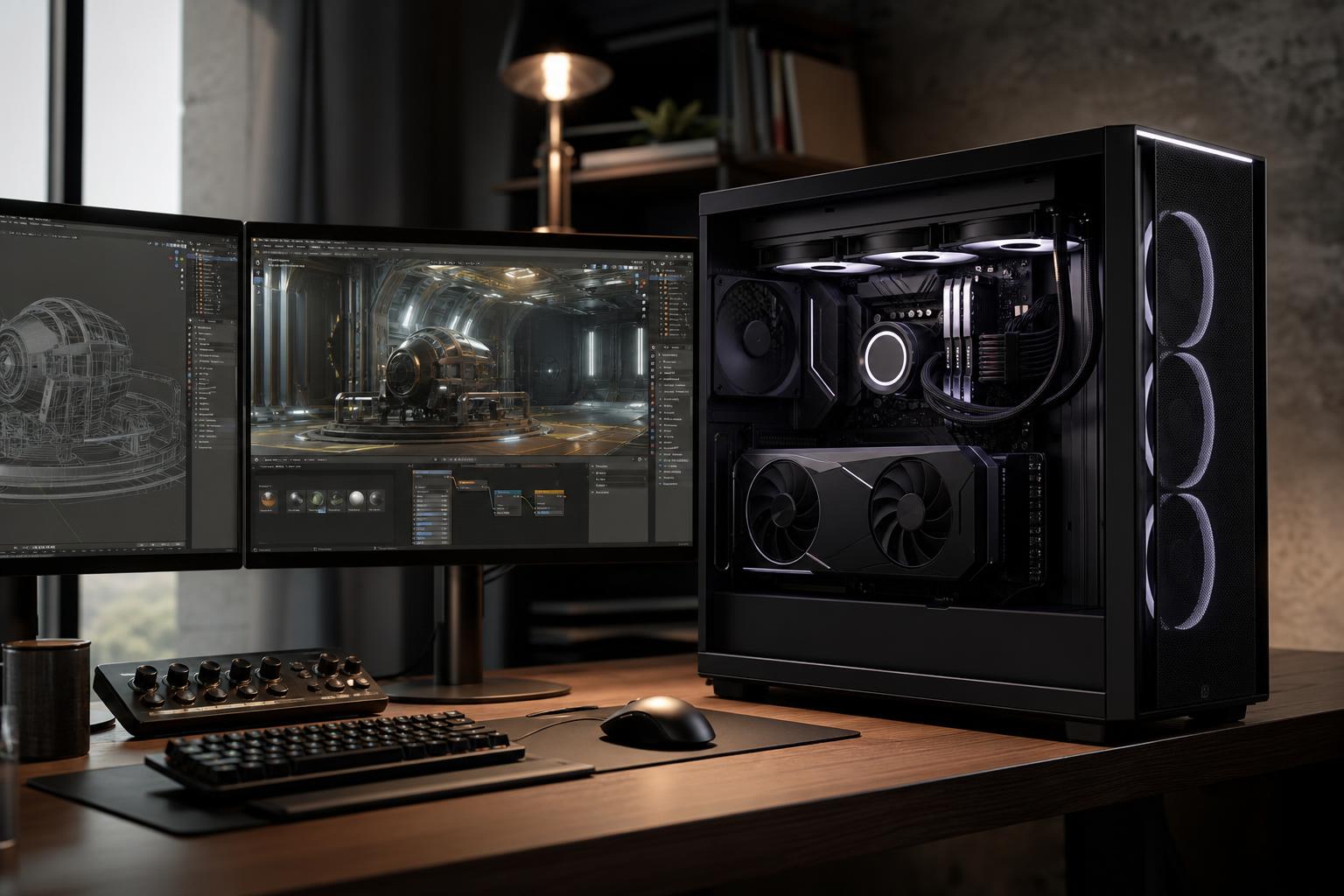
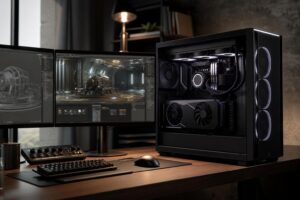
The best PC for Blender rendering is usually a GPU-focused workstation with an NVIDIA graphics card, enough VRAM for your largest scenes, a strong modern CPU, 64GB of RAM, and fast NVMe storage. That is the sensible starting point for serious Blender users.
For lighter modeling and occasional renders, 32GB of memory and a midrange GPU can work well. For demanding Cycles projects, high-resolution textures, simulations, animation, or paid production work, prioritize GPU VRAM first, then system RAM and storage capacity. Buying the fastest CPU while settling for an undersized GPU is one of the most common and frustrating Blender PC mistakes.
This is a capable starting point for Blender modeling, Eevee work, moderate Cycles rendering, and basic video work. It makes sense for students, hobbyists, and artists working with relatively contained scenes. The main limitation will eventually be VRAM, especially when using detailed assets and larger textures.
This is the sweet spot for many Blender professionals. More VRAM provides useful breathing room for complex scenes, while 64GB of system memory helps with multitasking, large textures, geometry-heavy projects, and simulation caches. A fast GPU handles Cycles rendering well, and the stronger CPU improves general responsiveness and tasks that do not scale entirely to the graphics card.
Spend at this level when render time directly affects your income, your scenes regularly approach GPU memory limits, or you need to run Blender beside other demanding tools such as compositing, editing, CAD, Unreal Engine, or simulation software. The extra investment is justified by fewer workflow interruptions, not by having the most expensive parts for their own sake.
Cycles can use the GPU to render scenes, and a capable graphics card will generally have a much larger impact on GPU-rendered projects than moving from a good CPU to an extreme CPU. The GPU also affects viewport smoothness, material previews, and how comfortably you can work with dense scenes.
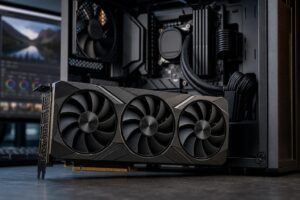
For most buyers building around Cycles, we generally recommend an NVIDIA GPU. Blender’s OptiX rendering path is widely used in Cycles workflows, and NVIDIA cards are a practical choice for artists who also use GPU-accelerated creative applications. That does not mean every Blender computer must use NVIDIA. AMD and Intel hardware can make sense in the right budget or software ecosystem. But if your primary goal is dependable, fast Cycles GPU rendering, NVIDIA is the straightforward recommendation.
Do not choose a graphics card based only on its model tier. Check its VRAM capacity. A faster card with too little VRAM can become the wrong tool when a scene will not fit into GPU memory. At that point, render performance may drop sharply or you may need to simplify the project.
VRAM is the graphics card’s dedicated memory. It holds scene data needed by the GPU, including geometry, textures, materials, and render information. The amount you need is driven by your actual scenes, not simply by the resolution of your monitor.
If you repeatedly optimize scenes just to make them render, more VRAM is likely a better investment than a slightly faster CPU. It is often the difference between working normally and constantly negotiating with your hardware.
The CPU still matters a great deal. It handles operating system tasks, modeling operations, file handling, many modifiers, scene preparation, some simulations, and CPU rendering. It also matters if Blender is only one part of your day.
For a GPU-rendering-focused Blender machine, a modern high-performance desktop CPU with strong single-core speed and roughly 8 to 16 cores is usually the balanced choice. More cores make sense if you frequently render on the CPU, run heavy simulations, compile code, use demanding background applications, or need more expansion than mainstream desktop platforms provide.
Do not assume a many-core workstation CPU is automatically better. If your renders happen on the GPU and your scenes fit into VRAM, shifting too much of the budget from graphics to CPU may increase the cost without noticeably improving the part of the workflow you feel most.
System memory and VRAM are different pools of memory, and Blender needs both. RAM supports the operating system, Blender, background applications, assets, simulation data, and general scene work. Running out of RAM forces the computer to rely on far slower storage, which makes an otherwise powerful workstation feel broken.
We recommend 32GB for learning, modeling, and moderate projects. For a new professional Blender PC, 64GB is the practical target. Choose 128GB when working with large production scenes, high-resolution source files, complex simulations, photogrammetry assets, or several demanding programs open at once.
Use matched memory modules and leave a sensible upgrade path when possible. Four sticks are not inherently bad, but a two-stick configuration is often easier to upgrade later and may be simpler to run at higher memory speeds.
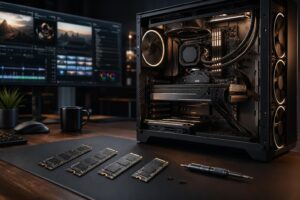
Blender itself does not require an exotic SSD, but active projects can grow quickly once you add texture libraries, HDRIs, caches, simulations, exported image sequences, and source footage. A nearly full 1TB drive becomes tiresome fast.
A 2TB NVMe SSD is a better baseline for serious work. Consider a second SSD for active projects, cache files, and scratch storage if you create simulations or work with video. Keep finished projects on separate large-capacity storage with a real backup plan. Redundant storage is not a substitute for backups; it just solves a different problem.
Blender rendering can keep a CPU and GPU busy for hours. That makes cooling and power delivery functional parts of the workstation, not decorative upgrades. A cramped case, weak airflow, or low-quality power supply can lead to more heat, more noise, and less consistent sustained performance.
Choose an airflow-oriented case, a CPU cooler that matches the processor’s sustained heat output, and a reputable power supply with enough capacity for the graphics card, processor, and reasonable future upgrades. There is no prize for buying absurd wattage, but leaving no headroom is equally unwise. Build quality is especially valuable on a machine that may spend long nights rendering while you are doing something more enjoyable.
A generic prebuilt can be a good purchase when its exact configuration fits your work. The problem is that many are designed around a headline CPU or GPU while cutting corners on memory capacity, storage, cooling, power supply quality, or expansion. Those choices may not show up in a short specification list, but they affect daily use and long-term ownership.
A thoughtfully configured custom system lets you place the budget where Blender needs it: GPU VRAM, memory, storage, quiet cooling, and room to grow. It also avoids paying for premium motherboard features or CPU core counts that your workload will not use.
For most serious Blender artists, buy a balanced GPU-rendering workstation: an NVIDIA GPU with 16GB or more of VRAM, a strong modern 8- to 16-core CPU, 64GB of RAM, and at least a 2TB NVMe SSD. Move to 24GB-plus VRAM and 128GB of RAM when your scene complexity, simulation work, or production deadlines demand it.
Overclock Computers can design a Blender workstation around the scenes you create, the renderer you use, your budget, and the applications that share your day with Blender. Bring us your project types, file sizes, render goals, and future plans, and we can help configure a system that spends your money where it will actually improve your work.