Best PC for Blender in 2026: Workstation Specs That Make Sense

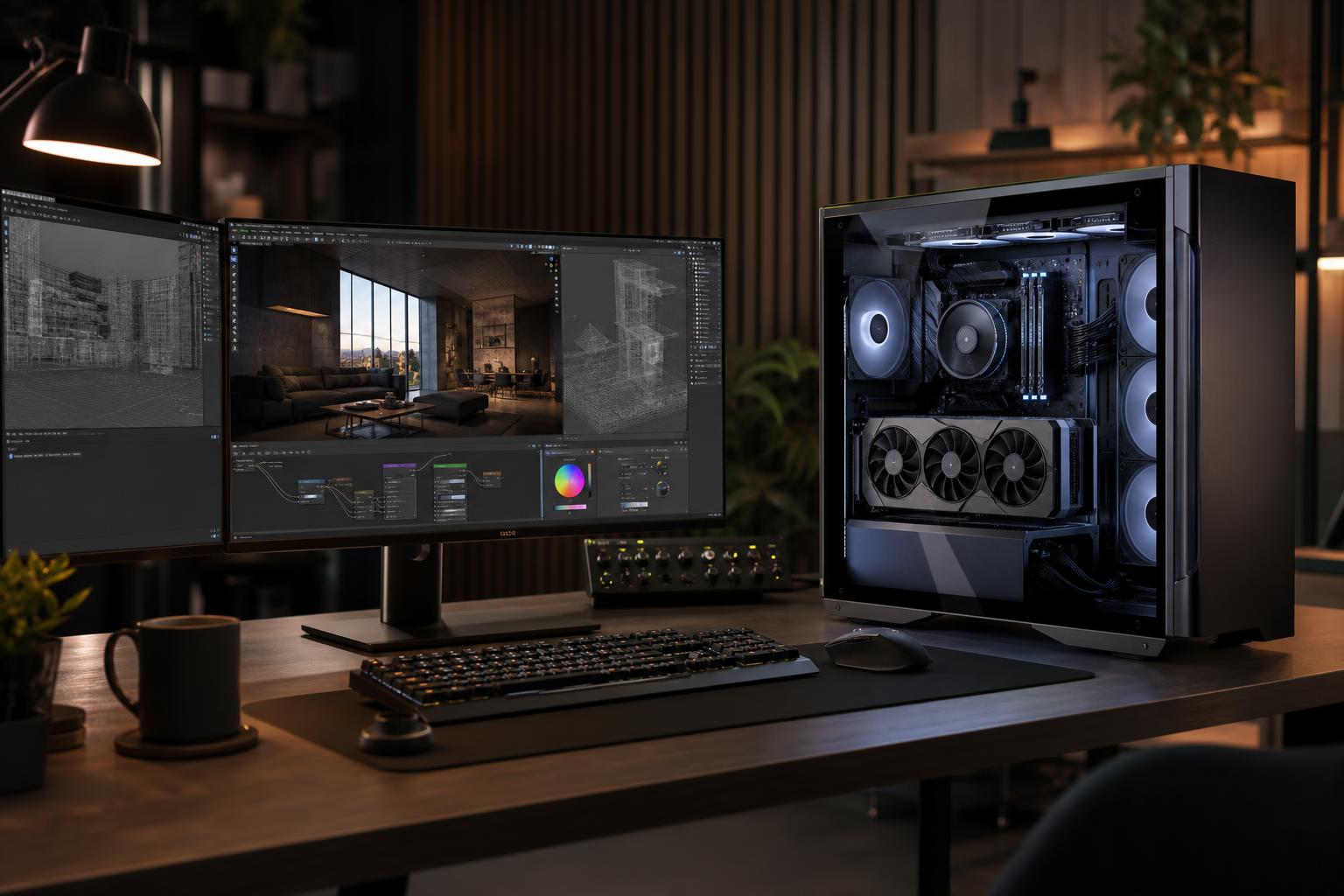
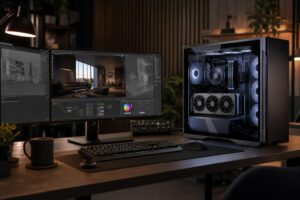
The best PC for Blender is usually a balanced workstation built around a capable GPU with enough VRAM for your scenes, a modern multi-core CPU, 32GB to 64GB of RAM, and fast NVMe storage. For most serious Blender users, the GPU deserves the largest share of the budget because it affects Cycles rendering, viewport responsiveness, and GPU-accelerated tools.
Don’t buy a workstation based on processor core count alone. A huge CPU can be useful for simulation, encoding, or CPU rendering, but it won’t make a GPU-limited Cycles workflow magically fast. Likewise, an expensive graphics card with too little system memory or inadequate storage can still make large projects unpleasant to work with.
These three tiers cover most Blender buyers. The right one depends primarily on scene complexity, render engine, output resolution, and whether Blender is a hobby, a side business, or a production tool.
This is the sensible floor for someone who wants a real Blender workstation rather than a general-purpose PC that happens to run Blender. Prioritize the graphics card over an oversized CPU. A modest CPU paired with adequate VRAM is generally more useful than a top-tier CPU paired with an entry-level GPU.
For many working Blender artists, this is the sweet spot. The move to 64GB of memory is often more noticeable than an extravagant motherboard or cosmetic upgrade. It gives Blender, your operating system, texture applications, compositing tools, browser tabs, and reference material enough breathing room at the same time.
This tier is not automatically the “best” choice. It earns its cost when your project files, simulations, or render queue regularly exceed the limits of a performance-tier system. If your scenes fit comfortably into 16GB of VRAM and 64GB of RAM, spending heavily for 24GB-plus VRAM and 128GB of memory may not improve your finished work enough to justify the expense.
Blender can use both the CPU and GPU, but GPU acceleration is central to a fast Cycles rendering workflow. A stronger GPU can shorten render times and make it practical to iterate more often instead of waiting through every test render. That changes how pleasant Blender feels day to day.
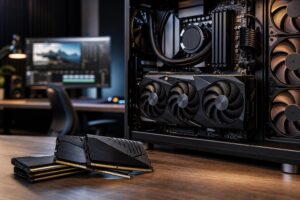
VRAM is the limiting factor to watch. VRAM is the graphics card’s local memory. It holds scene data needed by the GPU: geometry, textures, lighting data, render buffers, and more. When a scene needs more VRAM than the card has available, GPU rendering may slow down sharply, fail to start, or require compromises such as smaller textures and simplified assets.
For basic modeling and smaller renders, 8GB can work. For a new serious Blender purchase, 12GB is a safer starting point. Artists working with detailed environments, multiple high-resolution textures, complex characters, or GPU-heavy rendering should look seriously at 16GB. A 24GB-plus GPU is for users who already know their scenes are large enough to demand it, or who need extra capacity to avoid production headaches.
GPU ecosystem also matters. Blender supports several GPU rendering back ends, and NVIDIA GPUs are commonly favored in Cycles-focused workflows because of CUDA and OptiX support. AMD and Intel GPUs can be viable depending on the Blender version and the features you use, but a buyer whose income depends on predictable GPU rendering should confirm compatibility with their exact Blender version, add-ons, and rendering pipeline before committing. “It runs Blender” is not the same as “it is the best fit for this Blender workflow.”
The CPU still matters. It handles general system responsiveness, many modeling tasks, parts of scene preparation, physics and simulation workloads, baking, video encoding, file compression, and any CPU rendering you choose to do. Strong single-core performance helps Blender feel responsive, while more cores help with heavily parallel jobs.
A modern 8-core processor is a strong baseline for most artists. Move toward 12 or 16 cores if you regularly simulate fluids, smoke, cloth, particles, or physics; render on the CPU; compile software; or run several demanding applications alongside Blender.
Don’t buy a 24-core or higher processor solely because it sounds professional. For a Cycles GPU-rendering machine, that money may produce more value when shifted into a better GPU, more VRAM, 64GB of RAM, or a second SSD. High-core-count CPUs make sense when simulations, CPU rendering, or extensive multitasking are known parts of the job.
32GB is the practical minimum for a new Blender workstation. It is enough for learning, modeling, and many small-to-medium projects. It also prevents the operating system from constantly competing with Blender for memory.
64GB is the better recommendation for serious work. It gives you useful headroom for larger scenes, high-resolution source material, Photoshop or Substance-style texture work, video tools, browser research, and background applications. It is one of the least glamorous upgrades and one of the easiest to appreciate after a large project arrives.
128GB is a workload-driven upgrade. Buy it for large simulations, dense geometry, massive texture sets, complex architectural scenes, heavy compositing, or workflows where you already see memory use approaching 64GB. More RAM does not directly make simple renders faster, so there is no prize for buying more than your projects use.
Blender projects can grow quickly once texture libraries, caches, simulation data, renders, and source footage enter the picture. Start with a 1TB NVMe SSD only if your projects are modest and you have disciplined external or network storage. For most serious users, a 2TB NVMe SSD is more comfortable.
A two-drive arrangement is ideal for regular professional use: one SSD for Windows and applications, and another for active projects, cache files, and scratch data. This can make organization easier and reduces the chance that a full system drive causes trouble in the middle of a project. Keep completed projects backed up separately. Fast storage is helpful; it is not a substitute for a backup plan.
You do not need the most expensive SSD available just to open Blender. Prioritize enough reliable NVMe capacity first. Extremely fast drives become more worthwhile when you frequently work with large image sequences, video footage, caches, or datasets that are read and written continuously.
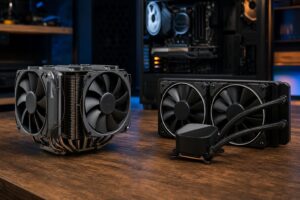
Rendering is a sustained workload. A PC that looks fine in a short benchmark but runs hot and loud after several hours is not well configured for production. The GPU and CPU need adequate cooling, and the case needs a clear path for cool air in and warm air out.
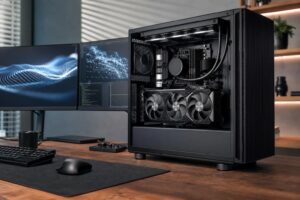
Use a quality power supply with enough capacity and the proper connectors for the selected graphics card. Avoid treating the power supply as a place to save a few dollars. Stable power delivery, sensible cable routing, and a well-ventilated case make a workstation easier to live with and easier to upgrade later.
Premium motherboards can be worthwhile when they add needed connectivity, storage slots, networking, or expansion. Otherwise, skip the luxury board. A dependable midrange board with the ports and expansion you will actually use is usually the smart purchase.
The best PC for Blender is not necessarily the highest-priced one. It is the machine that has enough GPU power and VRAM for your scenes, enough memory for your assets and multitasking, storage arranged around your project files, and cooling built for long renders.
Overclock Computers can help configure a Blender workstation around the way you work, from modeling and animation to GPU rendering, simulations, compositing, and related video or CAD applications. Bring your budget, typical project size, render engine, desired monitor setup, and upgrade plans, and we can help build a system that spends money where you will actually feel the difference.