How to Balance a PC Build: Spend Where It Actually Improves Your Experience

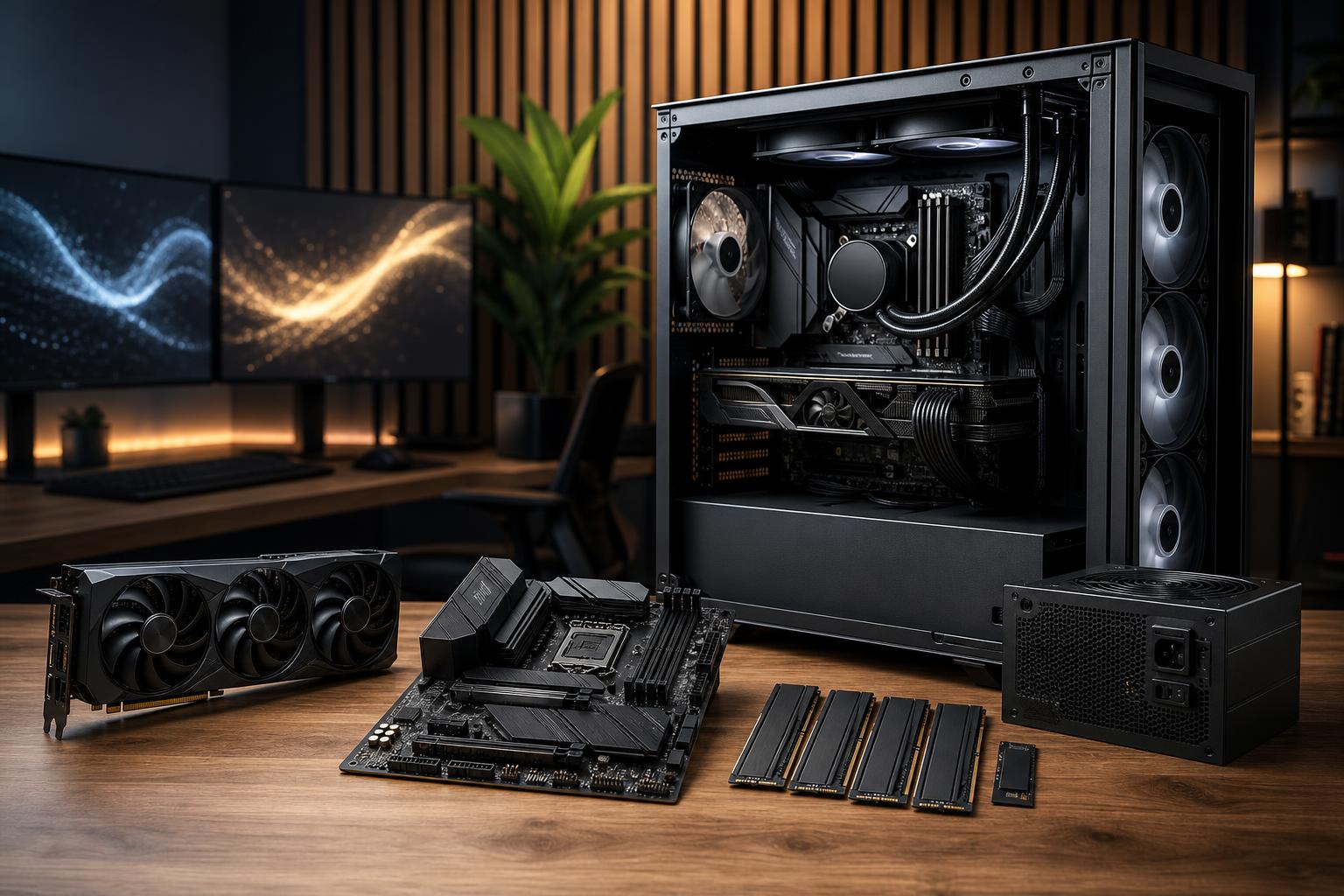
A balanced PC build is one where the parts support each other and suit the jobs you plan to do. That sounds obvious, but it is surprisingly easy to spend heavily on one impressive component while quietly limiting the whole system somewhere else.
For example, pairing a powerful graphics card with too little system memory can cause stutters in modern games and slowdowns in creative applications. Buying a high-core-count CPU for a gaming-only PC can take budget away from the graphics card and monitor, where it would make a much bigger difference. And a workstation with excellent core components can still be frustrating if it has inadequate cooling, cramped storage, or a questionable power supply.
The goal is not to make every component cost the same amount. It is to spend money where it changes your real experience, while avoiding weak links that create instability, noise, delays, or an unnecessarily short upgrade path.
The same budget can produce very different good computers. Before choosing hardware, identify the main job and the display it will drive. A PC built for 1080p competitive gaming should not be configured like one meant for 4K single-player games, local AI work, or 3D rendering.
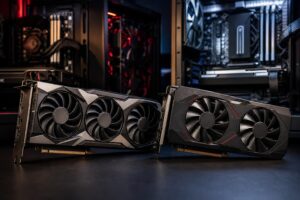
At 1440p and 4K, the GPU does most of the heavy lifting in games. A sensible gaming build generally puts the largest share of its budget into the graphics card, then selects a CPU that can keep it fed with data at the target frame rate.
Resolution and refresh rate matter here. At 4K, a GPU upgrade often has a far larger effect than moving from a strong midrange CPU to a flagship processor. At 1080p with a 240Hz or 360Hz monitor, the CPU becomes more important because the system must prepare many more frames each second.
Don’t forget the monitor. There is little point building a system capable of excellent 1440p high-refresh gaming only to use an older 60Hz 1080p display. The monitor is part of the experience, not an accessory to buy as an afterthought.
Workstation balance begins with the application. Many CAD programs value fast individual CPU cores and certified or professionally oriented graphics options in certain workflows. CPU rendering and code compilation can benefit from more cores. GPU rendering, AI inference, and large 3D scenes may be constrained first by GPU performance and, especially, VRAM.
Video editing is a good example of why a generic “fast PC” recommendation is not enough. Editing compressed 4K footage may benefit from hardware media engines, a capable GPU, plenty of RAM, and fast scratch storage. Long CPU-based exports reward more CPU cores. A colorist working with large source files also needs storage capacity and sustained drive performance, not just a fast boot drive.
List the applications you use, the size of typical projects, and the tasks that feel slow. That information is far more useful than choosing parts based on a benchmark chart alone.
For most gaming PCs, a modern midrange or upper-midrange CPU is the sensible starting point. It provides strong game performance, handles background applications, and leaves more money for the graphics card. Moving to a higher-tier CPU makes sense for very high-refresh gaming, simulation-heavy titles, streaming with CPU-based encoding, or mixed work and play.
For workstations, core count should follow the way software uses it. More cores are worthwhile when you routinely render, compile, simulate, encode, or run several demanding jobs at once. They are less valuable when your primary program relies on one or a few fast cores. Paying for cores that stay idle is not future-proofing; it is just unused hardware.
A CPU also needs a suitable motherboard and cooler. A high-power processor installed on a board with weak power delivery or cooled by a small, overwhelmed cooler may reduce clock speeds under long loads. It will often be louder, too. Sustained performance is what matters in a real workstation, not the first few seconds of a benchmark.
RAM capacity prevents the system from falling back on much slower storage when active programs and data exceed available memory. For a new performance-focused gaming PC, 32GB is a practical baseline. It gives modern games, browsers, voice chat, launchers, and background tasks room to coexist without turning memory management into a nuisance.
64GB is a smart choice for video editing, substantial Photoshop projects, development environments, virtual machines, larger CAD assemblies, and heavier multitasking. Professional 3D, data, engineering, AI, and high-resolution media workflows may need 128GB or more, but only when project files and the software genuinely demand it.
Use matched memory modules in the platform’s recommended slots so the system can run in dual-channel mode. Memory speed and timings matter, but capacity and stability come first. A slightly slower kit that is stable at its rated settings is better than a more aggressive configuration that causes rare crashes or corrupts a long render at the worst possible moment.
A fast NVMe SSD makes a PC feel responsive: quick booting, rapid application launches, short game loading screens, and smoother file work. But storage planning is about more than buying the fastest drive on a spec sheet.
For most gaming systems, a 1TB SSD is the realistic minimum, while 2TB is much more comfortable once several large games are installed. Modern game libraries have become rather enthusiastic about consuming drive space.
Workstations often benefit from separate storage roles:
For editing, rendering, and data-heavy work, a nearly full SSD can slow down and becomes difficult to manage. Leave headroom, especially on drives used for cache, scratch, or active projects. Also remember that no internal drive, regardless of its quality, replaces a backup.
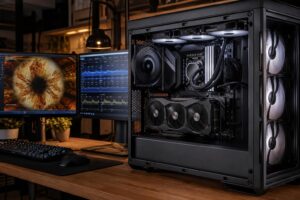
Cooling, airflow, and the power supply are frequently where poorly planned systems cut corners. They do not usually add frames per second directly, but they determine whether the expensive parts can run reliably and quietly over time.
A well-chosen air cooler is often excellent for modest and midrange CPUs. A larger air cooler or a properly selected liquid cooler makes more sense for processors with high sustained power draw, tight cases, or buyers who prioritize lower noise under load. Bigger is not automatically better; the cooler must fit the case, clear the memory, and be appropriate for the CPU’s actual heat output.
Choose a case with a clear intake and exhaust path, not just an attractive front panel. Good airflow lets fans run slower, which reduces noise and helps maintain component temperatures during long gaming sessions or rendering jobs.
The power supply should have enough capacity for the CPU, GPU, and normal transient power spikes, with room for safe operation rather than running at its limit. Quality matters as much as wattage. A reputable unit with the appropriate modern GPU power connections, solid protections, and enough cables is a far better investment than an oversized bargain PSU. This is not the part to make exciting by gambling on it.
Upgradeability does not mean buying every premium feature today. It means avoiding choices that create an obvious dead end. A case that cannot fit a future graphics card, a motherboard with no additional M.2 storage slot, or a power supply already near its practical limit can make a later upgrade more expensive than it needs to be.
At the same time, don’t overpay for theoretical upgrades you are unlikely to make. If you normally replace an entire system after many years, it may be wiser to buy the performance you need now than to sacrifice it for an upgrade plan that never happens.
The best balanced PC build is rarely the one with the most expensive processor, the largest number on a product box, or the flashiest lighting. It is the machine that runs your software smoothly, stays controlled under load, has enough space for your files, and avoids avoidable compromises.
When planning a new gaming PC or workstation, bring a list of your main applications, monitor resolution, target frame rate, project sizes, storage needs, and rough budget. Overclock Computers can help turn that information into a practical configuration that spends where it counts and leaves out what does not.