Best Workstation for Photogrammetry: Practical Specs for Large Image Sets

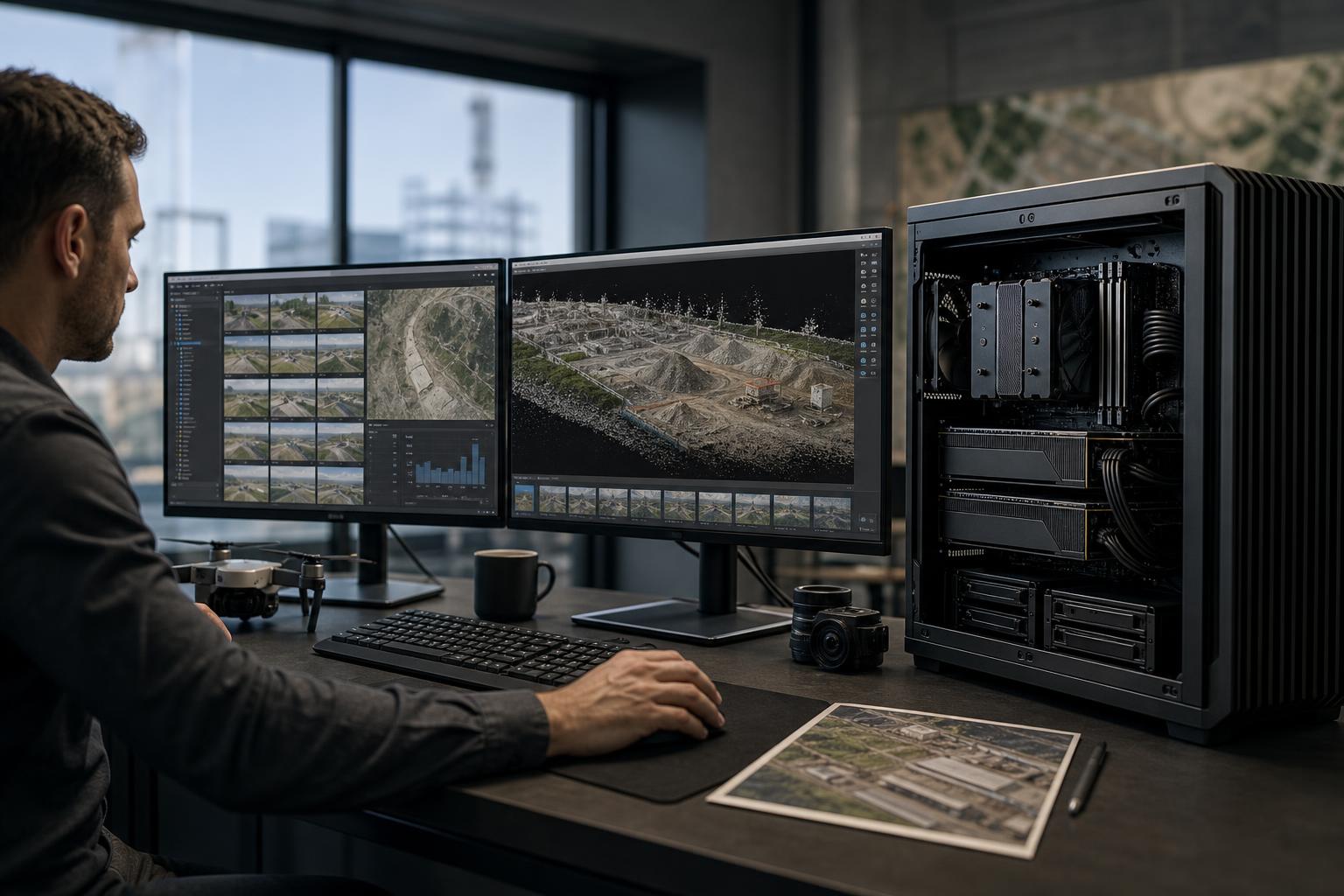
Photogrammetry can turn hundreds or thousands of overlapping photographs into accurate maps, point clouds, textured meshes, and 3D models. It is also one of the quickest ways to expose a poorly balanced computer. A system that feels fast in ordinary office work can become painfully slow once it begins aligning images, building dense point clouds, generating meshes, or exporting large deliverables.
The best workstation for photogrammetry is not simply the one with the most expensive processor or graphics card. It needs a sensible balance of CPU performance, GPU compute capability, VRAM, system memory, and fast storage. The right balance changes with your software, image count, camera resolution, output quality settings, and how many projects need to run at once.
For drone operators, surveyors, GIS teams, civil firms, and reality-capture professionals, the goal is straightforward: reduce processing delays without buying hardware that your actual workflow cannot use.
Photogrammetry applications use different hardware at different stages. Image alignment, depth-map creation, dense reconstruction, meshing, texturing, and export do not necessarily stress the PC in the same way. That is why a balanced workstation matters more than chasing one headline specification.
Before choosing parts, identify the software you use and the size of a typical project. “Photogrammetry” is a workload category, not one fixed workload. A small architectural model from a few hundred images has very different needs from a high-resolution corridor survey or a large site capture with thousands of images.
CPU selection is usually a compromise between high clock speed and high core count. Many professionals use their workstation for more than processing: CAD, GIS, image review, report writing, web-based project systems, and communication still need to feel responsive while a project is open.
For modest projects, a modern high-performance desktop CPU with strong single-core speed and roughly 8 to 16 cores is often the sensible starting point. It keeps day-to-day work quick while providing enough parallel capacity for many processing tasks.
For frequent large reconstructions, a CPU with more cores can reduce processing time when the application scales effectively across them. A workstation-class platform can also provide a major practical advantage beyond raw CPU speed: more PCIe lanes, higher memory capacity, and more room for fast storage or expansion cards.
Consider a higher-core-count platform when you regularly process large jobs, run several CPU-heavy applications at once, need 128GB or more memory, or expect to add multiple high-speed drives, 10GbE networking, or additional GPUs. It is also appropriate for shared systems where downtime and project queues cost real working time.
Do not choose a high-core-count CPU solely because it is called a workstation processor. If your projects are moderate in size and your chosen software leans heavily on GPU acceleration, putting too much of the budget into the CPU can leave you short on VRAM, RAM, or storage capacity.
A capable NVIDIA GPU is commonly the practical choice for a photogrammetry workstation because many professional compute applications are built around CUDA acceleration. However, verify the current GPU support guidance for the exact version of your software before buying. GPU support, supported drivers, and multi-GPU behavior can change between applications and releases.
For this workload, VRAM deserves as much attention as the GPU’s general speed. More VRAM gives the software more room to work with large image sets, detailed depth maps, dense point clouds, and high-resolution textures. When a project exceeds available VRAM, performance may drop sharply, the job may need reduced settings, or the application may be unable to complete that stage as configured.
Professional GPUs can be the right tool when their larger VRAM options, specialized driver ecosystem, form factor, or support requirements fit the organization. They are not automatically faster for every photogrammetry project. In many cases, a high-end consumer GPU offers better compute performance per dollar. The correct choice should follow the software, required VRAM capacity, expansion plan, and business support needs.
Only if your photogrammetry software and project workflow can use them effectively. A second GPU adds cost, heat, power demand, and chassis complexity. It can also require a platform with sufficient PCIe lanes and physical slot spacing. For most individual users, one powerful GPU with adequate VRAM is the better first investment. Add another GPU when verified software support and a steady volume of processing work justify it.
Memory capacity is one of the most common limits in reality-capture workstations. Large projects can consume substantial RAM during reconstruction, and running out of it turns a fast workstation into a machine waiting on storage.
There is no universal formula because memory demand is affected by image count, resolution, alignment quality, reconstruction settings, and the software’s processing method. Still, these are useful planning ranges:
Buy memory as a matched kit and leave a realistic upgrade path where possible. A platform that supports more RAM than you initially install can be valuable when project scope grows. ECC memory may also be worth considering on platforms that support it when long processing jobs, data integrity policies, or business continuity requirements make the added protection meaningful.
Photogrammetry creates a lot of data. Raw photos can occupy hundreds of gigabytes or several terabytes, while caches and intermediate files may add considerably more during processing. One nearly full SSD is a poor long-term plan.
A practical custom photogrammetry workstation usually separates active work from the operating system and archive storage:
Capacity is just as important as sequential speed. Leave generous free space on active SSDs, especially when the application generates caches and temporary files. If projects arrive from or move to shared storage, 10GbE networking can also be a worthwhile upgrade. It will not accelerate GPU reconstruction itself, but it can greatly reduce the time spent moving large image sets across the office.
This tier suits independent drone operators, survey professionals, and design teams processing modest site captures. Start with a modern 8- to 16-core CPU, a CUDA-capable GPU with 12GB to 16GB of VRAM, 64GB of RAM, and separate NVMe drives for the operating system and active projects. It is a meaningful step above a general-purpose desktop without spending heavily on capacity you will not use.
This is the sensible target for regular commercial processing of large image sets and dense outputs. Use a high-performance 16-core-or-greater CPU or workstation-class processor where expansion needs justify it, a GPU with around 24GB of VRAM, 128GB of RAM, and multiple high-capacity NVMe drives. Add 10GbE if projects live on a capable network storage system.
For large survey datasets, demanding reconstruction settings, or busy teams, prioritize a workstation-class CPU platform with abundant PCIe connectivity, 256GB or more RAM where project sizes support it, a GPU with substantial VRAM, and a storage plan measured in multiple terabytes rather than one drive. Multi-GPU configurations belong here only after confirming that the primary application benefits from them.
Photogrammetry jobs can run for hours or days. Unlike a short benchmark, that workload tests the entire system: CPU cooler, case airflow, GPU cooling, motherboard power delivery, and power supply quality. A proper workstation should maintain stable performance without sounding like an industrial vacuum cleaner or operating at the edge of its thermal limits.
It should also be built with serviceability in mind. Sensible cable routing, accessible storage, enough power headroom, and expansion space make future upgrades less disruptive. Those details are easy to dismiss at purchase time and very noticeable when a growing workflow needs another drive, more RAM, or faster networking.
The best photogrammetry workstation is sized around your normal workload, with enough headroom for the projects that stretch it—not configured around an impressive-looking parts list. Keep records of typical image counts, camera resolution, final output settings, current processing pain points, and the software versions your team uses. Those details lead to much better hardware decisions than a generic “best PC” recommendation.
Overclock Computers can help configure a custom photogrammetry workstation around your applications, project sizes, storage workflow, networking, budget, and upgrade plans. Contact our team with the software you use and a description of your typical datasets, and we can help identify a balanced system that makes sense for the work in front of you.